
Objects and Collections
Business objects are often the most direct data source for a merge: the classes your application already uses for invoices, customers and orders go into MailMerge as they are, and their public properties become the field and block names of the template. Read on for how MailMerge reads objects, how attributes and ToString control the merged text, how to offer the same classes in the Reporting tab and how to merge dictionaries when the structure is known only at run time.
The examples extend the invoice of the Getting Started tutorial Add Repeating Merge Blocks, which introduced the classes Invoice and InvoiceItem, and assume a form with a TextControl named textControl1 and a RibbonReportingTab named ribbonReportingTab1.
How MailMerge Reads Objects
MergeObjects merges a collection, any IEnumerable, and MergeObject a single object. Both read the public properties with .NET reflection:
| Property | Becomes |
|---|---|
A simple type, such as string, int, DateTime or an enumeration | A column: a merge field of the same name receives the text of its ToString method |
A type with public properties of its own, such as Customer | A column merged with ToString, or a related table with one row whose properties are addressed with dot notation, such as Customer.City |
A collection, a type that implements IEnumerable, such as List<InvoiceItem> | A related table that fills the merge block of the same name, also in nested blocks |
A read-only calculated property, such as Total => Quantity * Price | A column like any other property |
The type of the first object in a collection defines the structure. When a collection contains objects of different types, the merge still succeeds, but some fields stay empty. The template is merged once for each object of the collection; with append set to true, the default, the results form one document.
Control Field Names and Merged Text
Two attributes of System.ComponentModel change how properties are merged:
DisplayNamegives a property another field name. With[DisplayName("Date")], the propertyInvoiceDatefills a merge field namedDate.Descriptionon the values of an enumeration sets the text that is merged instead of the value's name.
The following classes add a date, a status and a calculated total to the invoice of Getting Started:
using System;
using System.Collections.Generic;
using System.ComponentModel;
public class Invoice
{
public string Company { get; set; }
public string Name { get; set; }
public string InvoiceNumber { get; set; }
// Merged into a field named "Date"
[]
public DateTime InvoiceDate { get; set; }
public InvoiceStatus Status { get; set; }
public List<InvoiceItem> Items { get; set; } = new List<InvoiceItem>();
}
public class InvoiceItem
{
public string Description { get; set; }
public int Quantity { get; set; }
public decimal Price { get; set; }
// Calculated by the object, merged like any other property
public decimal Total => Quantity * Price;
}
public enum InvoiceStatus
{
[]
Open,
Paid
}
A merge field named Status shows "Awaiting payment" for an open invoice, and a field named Total inside the Items block shows the total of each item. Totals and other calculated values belong in the objects, not in the template. The blog article Merging Self-Calculating Business Objects with TX Text Control MailMerge in C# builds a complete invoice this way.
Merge a Collection Into the Editor
The following methods of Form1.cs create a list with one invoice and merge it into the template shown in textControl1 when the user clicks a button named mergeObjectsButton:
using System;
using System.Collections.Generic;
using TXTextControl.DocumentServer;
private List<Invoice> GetInvoices()
{
    Invoice invoice = new Invoice
    {
        Company = "Contoso Ltd.",
        Name = "Jane Miller",
        InvoiceNumber = "INV-1001",
        InvoiceDate = new DateTime(2026, 9, 1),
        Status = InvoiceStatus.Open
    };

    invoice.Items.Add(new InvoiceItem { Description = "Consulting", Quantity = 2, Price = 150.00m });
    invoice.Items.Add(new InvoiceItem { Description = "Training", Quantity = 1, Price = 480.00m });

    return new List<Invoice> { invoice };
}

private void mergeObjectsButton_Click(object sender, EventArgs e)
{
    using (MailMerge mailMerge = new MailMerge { TextComponent = textControl1 })
    {
        // Merge the template in the editor; the result replaces it
        mailMerge.MergeObjects(GetInvoices());
    }
}
The code works as follows:
TextComponent = textControl1makes the document in the editor the template, and the merged invoice replaces it. To keep the template, merge in aServerTextControlinstead, as Merge Data into Fields does.MergeObjectsmerges eachInvoiceof the list. Its fields receiveCompany,Name,InvoiceNumber,DateandStatus, and theItemsblock receives one row perInvoiceItem.
Objects can also carry data from a database: query the data, for example with Entity Framework, into classes that have the structure of the document, and merge those.
Offer the Classes in the Reporting Tab
Users who design a template need the field and block names of the data. LoadObjects of the tab's DataSourceManager reads a collection in the same way as MergeObjects and fills the drop-downs Insert Merge Field and Insert Merge Block with its properties. Call it in the Load event handler of the form, as Create a Template does with JSON data:
private void Form1_Load(object sender, EventArgs e)
{
    // Offer the properties of Invoice in the drop-downs of the Reporting tab
    ribbonReportingTab1.DataSourceManager.LoadObjects(GetInvoices());
}
LoadSingleObject takes a single object. LoadAssembly loads a compiled assembly and deduces tables, columns and relations from the public properties of all its public classes. Users do the same with Load Assembly in the Select Data Source drop-down of the tab, so a template designer doesn't need your application's data to design templates for it.
Format Text in ToString
A property whose type has properties of its own can be merged as a whole: a merge field with the property's name receives the text of its ToString method. Overriding ToString puts formatted text, such as an address block with line breaks, into one field:
using System;

public class Customer
{
    public string Name { get; set; }
    public string City { get; set; }

    // The text a merge field named "Customer" shows
    public override string ToString() => Name + Environment.NewLine + City;
}
With a property Customer of this type, a field named Customer shows the name and the city on two lines. Fields with dot notation, such as Customer.City, address the single values instead.
A Text Control sample merges a class Invoice with a Customer property and a Products list this way. Products is a list of the class Product, and Customer overrides ToString:
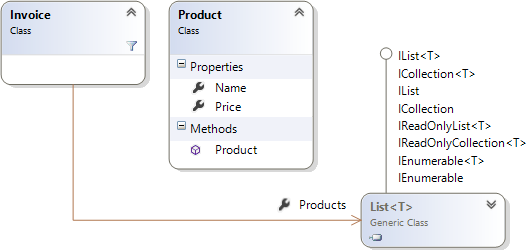
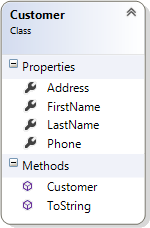
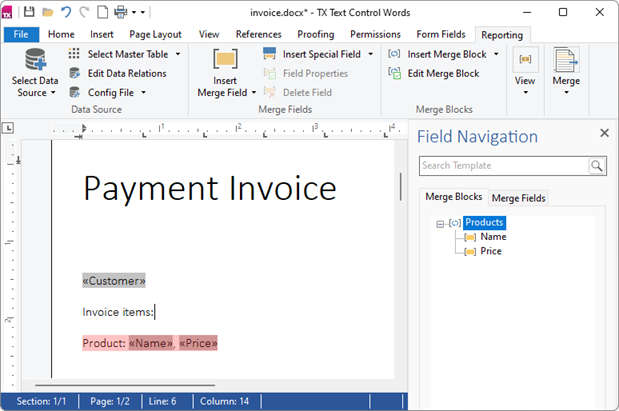
Its template has a single field Customer and a merge block Products with the fields Name and Price, which the Field Navigation sidebar lists:
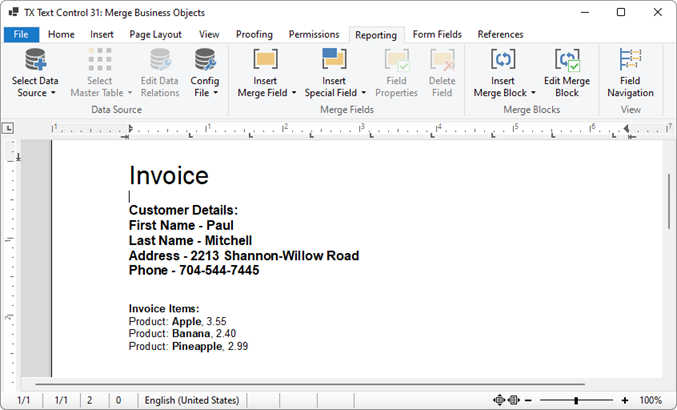
Merged, the Customer field shows the customer details that ToString writes, above the items of the block:
Merge Dictionaries and Anonymous Objects
When the structure of the data is known only at run time, merge instances of Dictionary with string keys: MergeObjects accepts a collection of them, and the keys are the field names. MergeObject accepts an object of any type, an anonymous object included:
Dictionary<string, object> invoice = new Dictionary<string, object>
{
[] = "Contoso Ltd.",
[] = "Jane Miller",
[] = "INV-1001"
};
mailMerge.MergeObjects(new List<Dictionary<string, object>> { invoice });
// or, with an anonymous object
mailMerge.MergeObject(new { Company = "Contoso Ltd.", Name = "Jane Miller", InvoiceNumber = "INV-1001" });
For dictionaries, the key names and value types of the first dictionary define the structure.
Next Steps
- DataSets and DataTables: merge tables with relations.
- JSON and XML: merge the same invoice as JSON.
- Merge Blocks: the blocks that collections fill.
- Nested Blocks and Master-Detail Reports: collections inside collections.