
Handling Untrusted Documents
Documents from email attachments, downloads or other people's shares can be damaged, can be something other than their file name says, and can contain links, images and file paths that point anywhere. When your Windows Forms application opens such a file in a TextControl, a few decisions keep you in control: which formats it accepts, what it imports, what happens when a user clicks a link and how it reacts to a file that doesn't load. Each of these is a setting or an event of TX Text Control that your code uses.
The samples extend Form1.cs with an editor named textControl1, as in Create Your First Windows Forms Application. They need using System.Diagnostics; and using TXTextControl; at the top of the file.
Accept Only the Formats You Need
Called with a StreamType and LoadSettings, TextControl.Load opens the Open dialog box with the formats you combine with | as its file filters. The following handler offers DOCX, RTF and PDF, imports the document without its images and hypertext links, and reports a file that can't be loaded:
private void openButton_Click(object sender, EventArgs e)
{
    LoadSettings loadSettings = new LoadSettings()
    {
        // Don't load images and links of the document
        LoadImages = false,
        LoadHypertextLinks = false
    };

    try
    {
        // The Open dialog box offers only these formats
        if (textControl1.Load(StreamType.WordprocessingML | StreamType.RichTextFormat | StreamType.AdobePDF,
            loadSettings) == DialogResult.OK)
        {
            Text = Path.GetFileName(loadSettings.LoadedFile);
        }
    }
    catch (FilterException exception)
    {
        // For example WrongFileType, NotWellFormed or InvalidPassword
        MessageBox.Show(this, "The document can't be opened: " + exception.Reason);
    }
}
The code works as follows:
- The
StreamTypevalues are the file filters of the dialog box. Offer only the formats your application works with; HTML and XML, for example, aren't needed to fill in a contract. - LoadImages set to
falseshows each image as a rectangle with the image's name, and LoadHypertextLinks set tofalsedoesn't load the links. Both are loaded by default. Use them where the text is what matters, such as a preview. LoadreturnsDialogResult.OKwhen a file was loaded. LoadedFile then holds its path.- A file that can't be loaded throws a FilterException, described in the next section.
Handle Files That Don't Load
The Reason of a FilterException names the cause. For documents from outside, the usual values are WrongFileType, BadToken, NotWellFormed, FileTooBig, Unsupported, CannotOpen, CannotRead, Encrypted and InvalidPassword; Read the Reason of a FilterException explains each of them.
Catch the exception around every Load call with a document from outside, and show the user a message rather than letting the application end. A PDF with a user password is loaded again with the password, as Open a Password-Protected PDF shows; which PDF encryption TX Text Control imports is listed in Encrypted PDF Documents. Document Conversion in Troubleshooting helps when a file you expect to load doesn't.
Decide What a Link Opens
A document's hypertext links can point to web addresses, files or other programs. The TextControl doesn't follow them by itself: a click on a link has no effect until your application handles the HypertextLinkClicked event. The handler below opens web addresses only, and only after the user agrees. Connect it in the Properties window of textControl1, on the Events tab:
private void textControl1_HypertextLinkClicked(object sender, HypertextLinkEventArgs e)
{
    // Open web addresses only, and only when the user agrees
    if (Uri.TryCreate(e.HypertextLink.Target, UriKind.Absolute, out Uri uri)
        && (uri.Scheme == Uri.UriSchemeHttps || uri.Scheme == Uri.UriSchemeHttp))
    {
        if (MessageBox.Show(this, "Open " + uri.AbsoluteUri + "?", "Open Link",
            MessageBoxButtons.YesNo) == DialogResult.Yes)
        {
            Process.Start(new ProcessStartInfo(uri.AbsoluteUri) { UseShellExecute = true });
        }
    }
}
The code works as follows:
- HypertextLinkEventArgs.HypertextLink is the clicked link, and its Target is the address it points to, as the document states it.
- The address is shown to the user before anything is opened, because the visible text of a link can differ from its target.
- Targets that aren't web addresses, such as file paths, are ignored. The TX Words sample Open Hyperlink goes further and opens linked files in a new instance of the application; decide which targets your application trusts before you do the same.
Links to places in the same document raise DocumentLinkClicked instead and don't leave the document. Fields, Hyperlinks, and Bookmarks describes both kinds.
Keep File References in One Folder
Documents can refer to images and link targets by absolute file paths, and a document from another computer brings the paths of that computer with it. ImageSearchPath of the LoadSettings sets a folder that replaces all absolute file paths used in the document, so that images and links are looked for in the folder you choose:
LoadSettings loadSettings = new LoadSettings()
{
    // Resolve the file paths of the document in this folder only
    ImageSearchPath = Path.Combine(Application.StartupPath, "Resources")
};

textControl1.Load("received.rtf", StreamType.RichTextFormat, loadSettings);
Redact Text
A black rectangle drawn over a name hides it on screen, but the name is still in the document and can be copied out of it or found by a search. To redact a passage, remove its text and put a black box of the same size in its place. The following handler does this for the text the user has selected, line by line. It needs using System.Collections.Generic;, using System.Drawing;, using System.IO; and using System.Text; in addition:
private void redactButton_Click(object sender, EventArgs e)
{
    int start = textControl1.Selection.Start;
    int end = start + textControl1.Selection.Length;

    // One black box for each line of the selection
    List<(int Start, int Length, Rectangle Bounds)> boxes = new List<(int, int, Rectangle)>();
    int boxStart = -1, boxEnd = -1, boxLine = -1;
    Rectangle boxBounds = Rectangle.Empty;

    for (int position = start; position <= end; position++)
    {
        // TextChars counts from 1, text positions from 0
        TextChar textChar = position < end ? textControl1.TextChars[position + 1] : null;
        Line line = position < end ? textControl1.Lines.GetItem(position) : null;

        // Close the box at the end of the selection, at a break and at a new line
        if (boxStart >= 0 && (textChar == null || char.IsControl(textChar.Char) || line.Number != boxLine))
        {
            boxes.Add((boxStart, boxEnd - boxStart + 1, boxBounds));
            boxStart = -1;
        }

        // Spaces and breaks don't start a box
        if (textChar == null || char.IsWhiteSpace(textChar.Char) || char.IsControl(textChar.Char))
        {
            continue;
        }

        // From the top of the character to the baseline of its line, in twips
        Rectangle bounds = textChar.Bounds;
        bounds.Height = line.Baseline - bounds.Top;

        if (boxStart < 0)
        {
            boxStart = position;
            boxLine = line.Number;
            boxBounds = bounds;
        }
        else
        {
            boxBounds = Rectangle.Union(boxBounds, bounds);
        }

        boxEnd = position;
    }

    // Replace the text from the last box to the first, so that the positions stay valid
    for (int i = boxes.Count - 1; i >= 0; i--)
    {
        textControl1.Select(boxes[i].Start, boxes[i].Length);
        textControl1.Selection.Text = "";

        byte[] svg = CreateBlackBox(boxes[i].Bounds.Size);

        using (MemoryStream stream = new MemoryStream(svg, 0, svg.Length, false, true))
        {
            // -1 inserts the image at the input position, where the text was
            textControl1.Images.Add(new TXTextControl.Image(stream), -1);
        }
    }
}

private static byte[] CreateBlackBox(Size size)
{
    // 20 twips are one point
    string svg = "<svg xmlns=\"http://www.w3.org/2000/svg\" " +
        $"width=\"{size.Width / 20f}pt\" height=\"{size.Height / 20f}pt\">" +
        "<rect width=\"100%\" height=\"100%\" fill=\"black\" /></svg>";

    return Encoding.UTF8.GetBytes(svg);
}
The code works as follows:
- Selection.Start and Selection.Length give the selected range. TextChars returns each character of the main text; its indexer counts from 1, so text position 0 is
TextChars[1]. - TextChar.Bounds is the rectangle of a character in twips, measured from the upper left corner of the document. LineCollection.GetItem returns the Line of a text position, whose Number tells when the selection wraps to the next line and whose Baseline ends the box. A box never spans two lines.
- Setting Selection.Text to an empty string deletes the text of one box. ImageCollection.Add with
-1then inserts an SVG image of the box's size inline at that position, like a single character. CreateBlackBoxwrites the SVG in points, one twentieth of a twip value. The image stream is read-only with a publicly visible buffer, which the Image constructor needs.
In the editor, black boxes now stand where the selected names and addresses were:
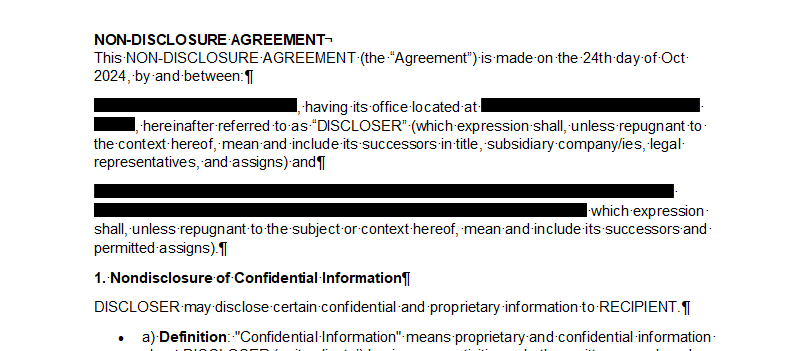
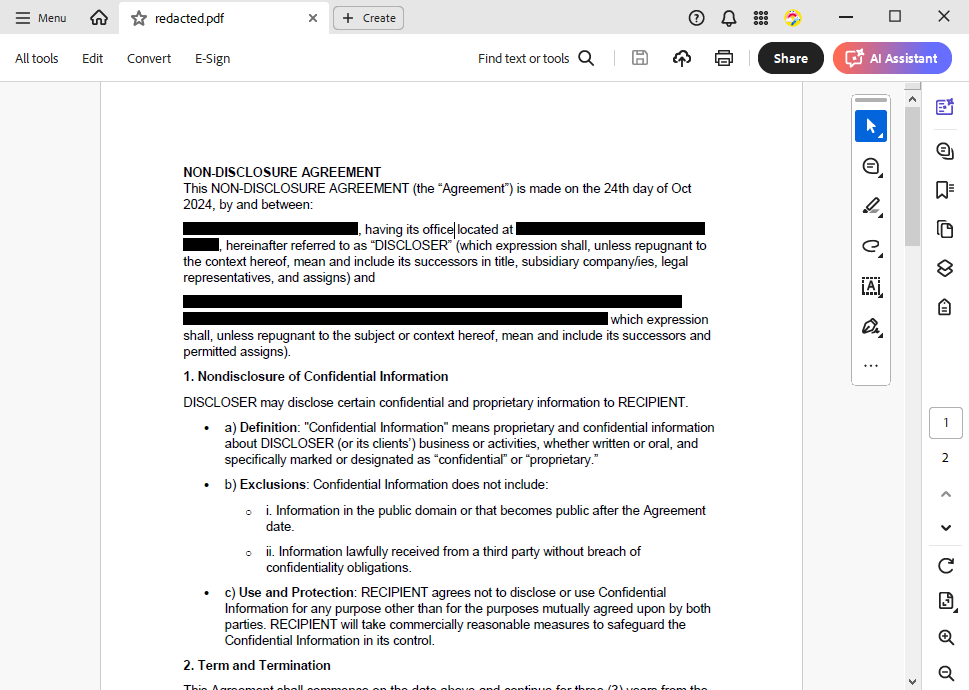
Save the document as PDF, for example with textControl1.Save("contract-redacted.pdf", StreamType.AdobePDF), before you pass it on. In the PDF, the text behind the boxes doesn't exist, so it can't be selected, copied or found:
The blog article True Document and PDF Text Redaction in .NET C# describes the technique this handler follows. There, the user first marks several passages as SubTextPart objects with the name tx_redact, and the code redacts all of them in one pass; the repository TextControl/Redaction holds its Redaction class, written for ServerTextControl. To find the passages to redact, A Rule-Based PHI and PII Risk Scanner for Documents Using C# .NET searches the text of a document with regular expressions defined in JSON rules and reports each match with its location.
Next Steps
- PDF Passwords and Permissions: open encrypted PDF documents and respect their permissions.
- Document Protection and User Permissions: restrict what users change in documents you hand out.
- Loading and Saving Documents: the load and save options of the
TextControl. - Security Overview: where documents are processed and what your application decides.