
Create a PDF
A document in the TextControl becomes a PDF with one call of Save, and SaveSettings adds what a PDF carries beyond its pages: a title and an author, a password, permissions, or PDF/A conformance for archiving. Starting from the editor of your first Windows Forms application, the steps below save the document as PDF in each of these ways and open the result in the default PDF reader.
Prerequisites
- The application from Create Your First Windows Forms Application, with a
TextControlnamedtextControl1onForm1. - The Professional or Enterprise edition. PDF/A is part of the Enterprise edition. See Editions and Feature Availability.
For each of the following sections, add a Button from the toolbox to the form and double-click it in the designer to create its Click handler. The code goes into Form1.cs, which needs these using directives:
using System.Diagnostics;
using TXTextControl;
Save the Document as PDF
The following handler saves the document of textControl1 with a few document properties to report.pdf in the user's Documents folder and opens the file:
private void createPdfButton_Click(object sender, EventArgs e)
{
    SaveSettings saveSettings = new SaveSettings()
    {
        Author = "Tim Typer",
        DocumentTitle = "Quarterly Report",
        DocumentSubject = "Finance",
        DocumentKeywords = new string[] { "report", "Q2", "finance" },
        CreatorApplication = "My Windows Forms Application",
        CreationDate = DateTime.Now,
        LastModificationDate = DateTime.Now
    };

    string path = Path.Combine(
        Environment.GetFolderPath(Environment.SpecialFolder.MyDocuments),
        "report.pdf");

    textControl1.Save(path, StreamType.AdobePDF, saveSettings);

    // Open the PDF in the default PDF reader
    Process.Start(new ProcessStartInfo(path) { UseShellExecute = true });
}
The code works as follows:
- SaveSettings holds the options of a save. Author, DocumentTitle, DocumentSubject, DocumentKeywords, CreatorApplication, CreationDate and LastModificationDate are saved in the document as its properties.
- Save writes the complete document.
StreamType.AdobePDFis the PDF format, and an existing file is overwritten. Process.StartwithUseShellExecuteopens the file with the program Windows associates with PDF files.
Run the application, type some text and click the button. The PDF reader opens report.pdf with the text you typed.
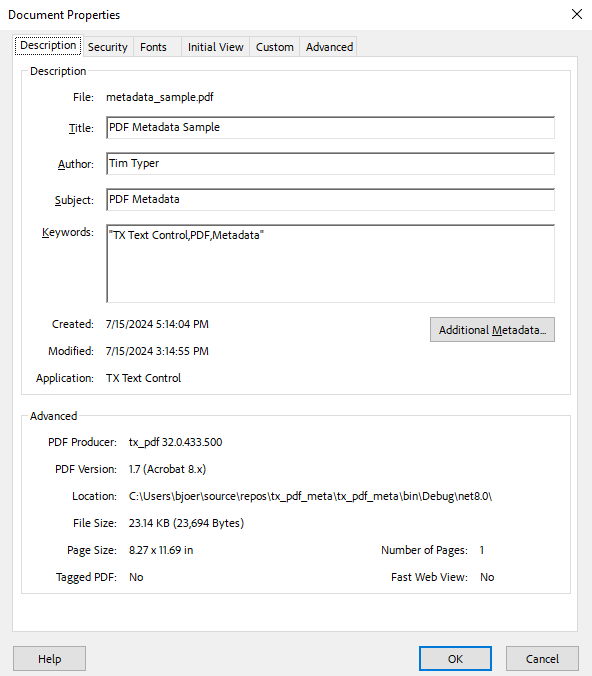
Its document properties, which PDF readers show in their Document Properties dialog box, contain the title, author, subject and keywords of the SaveSettings:
Let the User Choose the File
Called with a StreamType and no file name, Save opens the Save As dialog box with the filter of that format, and SaveSettings.SavedFile then contains the file the user chose. Load and Save Documents builds Save As this way. A further overload adds options to the dialog box, such as a button to enter a PDF password. See Supported File Formats.
Create a PDF/A Document
PDF/A is the standard for long-term archiving, and TX Text Control saves it as PDF/A-3a with StreamType.AdobePDFA. A PDF/A document embeds its fonts, so the document should use only fonts that can be embedded:
private void createPdfAButton_Click(object sender, EventArgs e)
{
    // Use only fonts that can be embedded in the PDF
    textControl1.FontSettings.EmbeddableFontsOnly = true;

    textControl1.Save("archive.pdf", StreamType.AdobePDFA);
}
FontSettings.EmbeddableFontsOnly restricts the document to embeddable fonts. PDF/A does not allow encryption, so a PDF/A document has no password. See PDF/A.
Protect the PDF With Passwords
A PDF can have two passwords: the user password is needed to open the document, and the master password protects its permissions, such as printing or copying text.
private void protectedPdfButton_Click(object sender, EventArgs e)
{
    SaveSettings saveSettings = new SaveSettings()
    {
        UserPassword = "user1234",
        MasterPassword = "owner1234",
        DocumentAccessPermissions = DocumentAccessPermissions.AllowLowLevelPrinting |
                                    DocumentAccessPermissions.AllowExtractContents
    };

    textControl1.Save("protected.pdf", StreamType.AdobePDF, saveSettings);
}
- UserPassword and MasterPassword set the two passwords.
- DocumentAccessPermissions sets what users may do without the master password. The values are combined with
|, and they take effect only when a master password is set.
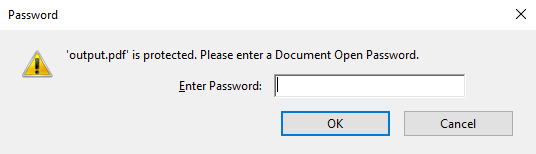
When the file is opened, the PDF reader asks for the user password:
PDF readers enforce the permissions, but they are no protection against every program. See Passwords and Access Permissions.
Create a PDF Without the Editor
To convert a document the user does not see, use a ServerTextControl, which has the same Load and Save methods and takes the same SaveSettings. Convert a File Without the Editor shows the code.
Next Steps
- Create a PDF Form: add fillable form fields to the PDF.
- Digitally Sign a PDF: sign the PDF with a certificate.
- PDF Processing: PDF creation, import, fonts, attachments and metadata in detail.
- The blog article PDF Security Explained: Passwords, Permissions, Encryption, and Digital Signatures in C# .NET: what passwords and permissions protect.