
Overview
Contracts, invoices and approvals are worth something only when the recipient can trust them: that they come from the stated sender and nobody changed them on the way. A digital signature puts that proof into the PDF document itself, where it travels with the file and every recipient can check it. In a Windows Forms application, TX Text Control signs the document of the editor or a document generated in code while it saves it as PDF. Read on for what a signature proves, the parts of the API that take part and the workflows a desktop application builds from them.
Digitally Sign a PDF in Getting Started creates a test certificate and signs a first document from a form.
What a Digital Signature Proves
A signed PDF document gives its recipient two guarantees:
- Integrity. Any change to the document after signing makes the signature invalid, and PDF readers report it.
- Authenticity. The certificate of the signature identifies the signer. Recipients trust it when a certificate authority (CA) they trust issued it; self-signed certificates are for tests and internal use.
On its own, a signature does not prove when the document was signed. The date and time come from the clock of the signing computer unless a time server adds a trusted timestamp, as Timestamp Configuration explains.
A signature does not hide anything either. A password decides who can open a document, and a signature shows whether it was changed and who signed it:
| Password and permissions | Digital signature | |
|---|---|---|
| Hides the content | Yes | No |
| Restricts printing or copying | Yes | No |
| Detects changes to the document | No | Yes |
| Identifies the signer | No | Yes |
A document can have both. Passwords and permissions are described in Passwords and Access Permissions.
Electronic and Digital Signatures
The two terms describe different things:
- An electronic signature is the visible mark of a signature: a scanned handwritten signature, a typed name or a stamp. In a TX Text Control document, it's the image of a signature field. On its own, it isn't secured cryptographically.
- A digital signature binds the document to a certificate that identifies the signer, and is secured cryptographically. TX Text Control creates it when it saves the PDF.
The two are often combined: a signature field shows the image of a handwritten signature, and a certificate signs that field digitally. A visible mark isn't required, though. A digital signature of the whole document has no visible representation on the pages.
What TX Text Control Signs
Signing happens while a document is saved as PDF or PDF/A. For every other format, the signature settings have no meaning. There are two ways to sign:
- The whole document. One invisible signature covers the complete document. Signing PDF Documents describes it.
- Signature fields. Each named signature field gets its own certificate and shows its image on the page. Signature Fields and Signature Appearance and Multiple Signatures describe them.
Signing PDF and PDF/A documents was introduced in version 17.0, signature fields in version 31.0. Signature fields are also saved with the TX Text Control format, DOCX and RTF, so a document can wait for its signers in an editable format; the certificate is applied only when the document is saved as PDF.
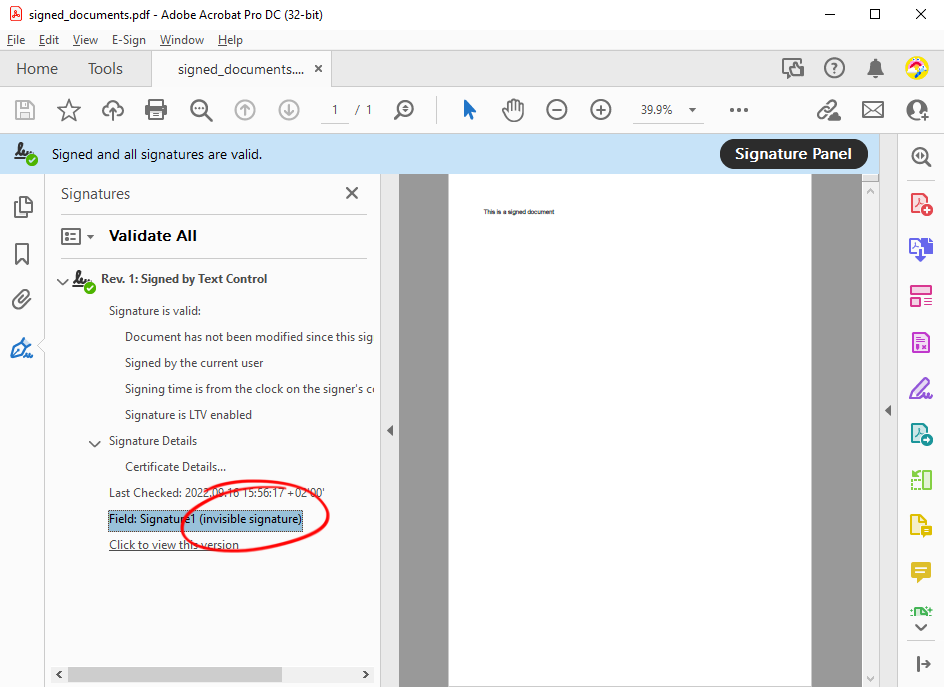
A PDF reader such as Adobe Acrobat Reader lists the signatures of a document in its Signatures panel. For a whole-document signature, the panel names an invisible signature field:
The Building Blocks
| Part | Role | Described in |
|---|---|---|
| DigitalSignature | Holds the certificate, the URL of a time server and, for a signature field, the name of the field | Certificates |
| SaveSettings.DigitalSignature | Signs the whole document when it's saved | Signing PDF Documents |
| SaveSettings.SignatureFields | Signs named signature fields, one DigitalSignature per field | Signature Fields and Signature Appearance |
| SignatureField, SignatureImage, SignerData | A field in the document, the image it shows and the data of the suggested signer | Signature Fields and Signature Appearance |
| TextControl.SignatureFields | The signature fields of the document in the editor | Signature Fields in Document Editor |
| The ribbon's Insert and Frame Formatting tabs | Let users insert signature fields and enter the signer data | Signature Fields in Document Editor |
| ServerTextControl | Creates, merges and signs documents in code, without the editor | Signing PDF Documents |
DigitalSignature takes a .NET X509Certificate2 with its private key. Where that certificate comes from, a .pfx file or the Windows certificate store with smart cards and USB tokens, is the subject of Certificates.
Where Signing Happens in a Desktop Application
A Windows Forms application signs on the computer it runs on, so the certificate with its private key must be available there. Two situations are typical:
- The user signs with their own certificate. The certificate is installed in the user's Windows certificate store, possibly on a smart card, and the user chooses it when signing. The private key never leaves the user's computer.
- The application signs for the organization. A company certificate certifies generated documents. Keep its private key out of the installation package and protect it on the computers that sign, as Certificate and Private Key Handling describes.
A trusted timestamp requires a connection to the time server at the moment of saving. The PDF itself doesn't leave the computer.
Typical Workflows
- Sign what the user wrote. The user edits a document in the editor, and a button or the Save As dialog box saves it as a signed PDF.
- Generate and sign. A
ServerTextControlmerges a DOCX template with data and saves the result as a signed PDF/A document, without showing it in the editor. - Collect signatures, then certify. A document with one named signature field per signer is passed from person to person in the TX Text Control format. Each signer adds the image of their signature, and the last step signs every field with a certificate.
- Archive for the long term. Documents are signed with a certificate from a trusted CA and a trusted timestamp, then archived without any change.
Next Steps
- Signing PDF Documents: sign the document of the editor or a generated document.
- Certificates: load certificates from files or the Windows certificate store.
- Signature Fields and Signature Appearance: sign visible signature fields.
- Timestamp Configuration: add a trusted signing time.