
Signature Fields and Signature Appearance
Where a whole-document signature stays invisible, a signed signature field shows on the page who signed and where. A signature field is a frame in the document with a name, an optional image and data about the person expected to sign; when TX Text Control saves the document as PDF, each named field can be signed with its own certificate. What follows covers signing the fields of the document in the editor, giving them an image, generating a signature appearance with the signer's name and the date, and what the PDF contains afterward.
How users insert signature fields with the ribbon and edit their layout and signer data is described in Signature Fields in Document Editor. A first field is inserted and signed in Sign a Signature Field in Getting Started.
What a Signature Field Holds
A SignatureField is a frame with a Name, an optional Image and the SignerData of the suggested signer. For signing, the name is what counts: a certificate is associated with a field by its name, so a field without one can't be signed. TextControl.SignatureFields returns the fields of the main text. How a field is inserted, where its signer data is entered and which formats keep it is described in What a Signature Field Is in Document Editor.
Signature lines inserted in MS Word are loaded as signature fields with their signer data, as the blog article Importing and Processing Signature Fields from MS Word in C# shows.
The samples on this page need these using directives in Form1.cs:
using System.Security;
using System.Security.Cryptography.X509Certificates;
using System.Text;
using TXTextControl;
Sign the Fields of the Document
Each named field gets a DigitalSignature whose third constructor parameter is the name of the field, and all of them go into SaveSettings.SignatureFields. The following handler signs every named field of the document in the editor:
private void signFieldsButton_Click(object sender, EventArgs e)
{
    X509Certificate2 certificate = X509CertificateLoader.LoadPkcs12FromFile(
        "certificate.pfx", "123", X509KeyStorageFlags.Exportable);

    List<DigitalSignature> signatures = new List<DigitalSignature>();

    foreach (SignatureField field in textControl1.SignatureFields)
    {
        // A certificate can only be associated with a named field
        if (string.IsNullOrEmpty(field.Name))
        {
            continue;
        }

        signatures.Add(new DigitalSignature(certificate, "", field.Name));
    }

    if (signatures.Count == 0)
    {
        MessageBox.Show(this, "The document has no named signature field.");
        return;
    }

    SaveSettings saveSettings = new SaveSettings()
    {
        SignatureFields = signatures.ToArray()
    };

    textControl1.Save("signed-fields.pdf", StreamType.AdobePDF, saveSettings);
}
The code works as follows:
foreachgoes through the fields of the collection. Fields without a name are skipped, because no certificate can be associated with them.- Each
DigitalSignaturenames its field. The second parameter is the URL of a time server, or an empty string for the date and time of the computer, as Timestamp Configuration describes. - All signatures go into one array and are applied in one save. Signing fields for different people or with different certificates is the subject of Multiple Signatures.
X509CertificateLoader is available in .NET 9 and higher; Load the Certificate From a PFX File shows the constructor for .NET 8 and the .NET Framework.
Add a Signature Image
A SignatureImage is created in one of three ways, each with its own constructor:
| Constructor | Creates the image from |
|---|---|
SignatureImage(string fileName, int filterIndex) | An image file. The filter index names its format: 1 BMP, 2 TIF, 3 WMF, 4 PNG, 5 JPG, 6 GIF, 7 EMF or 8 SVG. |
SignatureImage(System.Drawing.Image image) | A System.Drawing.Image, such as a Bitmap your application drew or captured |
SignatureImage(MemoryStream memoryStream) | Image data in a stream, such as an SVG image your application generates |
The following handler lets the user pick an image file for the signature field selected in the editor:
private void addSignatureImageButton_Click(object sender, EventArgs e)
{
    // The signature field that is selected in the editor, or null
    SignatureField field = textControl1.SignatureFields.GetItem();

    if (field == null)
    {
        MessageBox.Show(this, "Select a signature field first.");
        return;
    }

    using (OpenFileDialog dialog = new OpenFileDialog())
    {
        dialog.Filter = "PNG images (*.png)|*.png|SVG images (*.svg)|*.svg";

        if (dialog.ShowDialog(this) == DialogResult.OK)
        {
            // Filter index 4 is PNG, 8 is SVG
            int filterIndex = dialog.FilterIndex == 1 ? 4 : 8;
            field.Image = new SignatureImage(dialog.FileName, filterIndex);
        }
    }
}
GetItem without a parameter returns the selected field, or null. Setting Image to null removes the image again. The events TextControl raises when the user works with a field are described in React to Signature Field Events.
Control How the Signature Image Is Saved
A SignatureImage remembers where it came from: FileName is the file and path it was loaded from, and FilterIndex its format, with the numbers of the constructor table above. Further properties decide how the image is written when the document is saved:
| Property | Sets |
|---|---|
| SaveMode | Whether the image is stored with its data (SaveAsData), as a reference to its file (SaveAsFileReference) or as SaveSettings.ImageSaveMode specifies (Auto). Without a setting, an image loaded from a file is stored as a file reference, and one from a stream or the clipboard with its data. |
| ExportFilterIndex | The format the image is saved in, numbered from 1 as in ImageCollection.ExportFilters: 1 BMP, 2 WMF, 3 PNG, 4 JPG, 5 EMF, 6 TIF or 7 GIF. 0 keeps the original format. |
| ExportFileName | The file name used for the image when the document is saved. An empty string uses the original name or a name built from the document's file name, a number and the extension, such as contract_1.png. |
| ExportCompressionQuality | The quality of a lossy compression, from 1 to 100. 0, the default, uses SaveSettings.ImageCompressionQuality. |
| ExportMaxResolution | The maximum resolution in dots per inch; a larger image is reduced. 0, the default, uses SaveSettings.ImageMaxResolution. |
The export numbers differ from the import numbers: PNG is 4 for FilterIndex and 3 for ExportFilterIndex. The following lines make sure that the image of the selected field travels with the document as PNG data, at no more than 300 dots per inch:
SignatureField field = textControl1.SignatureFields.GetItem();

if (field?.Image != null)
{
    // Store the image data, not a reference to the original file
    field.Image.SaveMode = ImageSaveMode.SaveAsData;
    field.Image.ExportFilterIndex = 3; // PNG
    field.Image.ExportMaxResolution = 300;
}
Users set the same options in the dialog box of the field: SignatureFieldLayoutDialog opens the layout, size and text distances of the selected signature field, and its third tab, SignatureFieldLayoutDialog(2), the saving attributes of the signature image. That tab is available only when the field has an image. Built-in Dialog Boxes lists the other dialog boxes.
Create a Signature Appearance
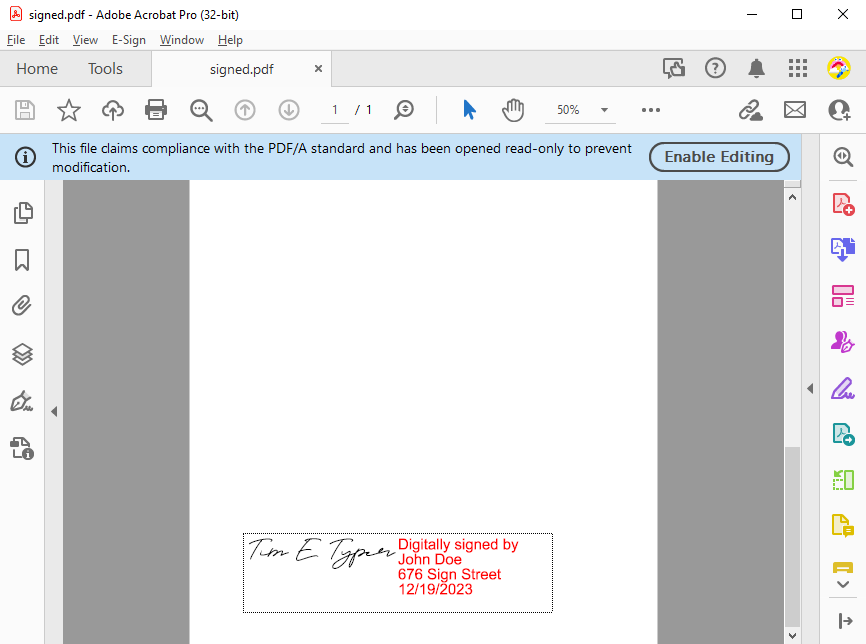
The appearance of a signed field is whatever its image shows. Instead of a handwritten signature alone, many applications show a stamp with the signer's name, the reason and the date. Because SignatureImage accepts an SVG image from a stream, your code can generate such a stamp. The following methods create one from the signer data of a field named txsign and sign the field:
private void SetSignatureStamp(SignatureField field)
{
    SignerData signer = field.SignerData;
    string name = SecurityElement.Escape(signer?.Name ?? "");
    string reason = SecurityElement.Escape(signer?.Reason ?? "");

    // An SVG image with a frame, the signer's name, the reason and the date
    string svg =
        "<svg xmlns=\"http://www.w3.org/2000/svg\" width=\"300\" height=\"100\">" +
        "<rect x=\"1\" y=\"1\" width=\"298\" height=\"98\" fill=\"none\" stroke=\"#1F4E79\" stroke-width=\"2\"/>" +
        "<text x=\"12\" y=\"30\" font-family=\"Arial\" font-size=\"14\" fill=\"#1F4E79\">Digitally signed by</text>" +
        $"<text x=\"12\" y=\"54\" font-family=\"Arial\" font-size=\"18\" font-weight=\"bold\">{name}</text>" +
        $"<text x=\"12\" y=\"76\" font-family=\"Arial\" font-size=\"12\">{reason}</text>" +
        $"<text x=\"12\" y=\"92\" font-family=\"Arial\" font-size=\"12\">{DateTime.Now:yyyy-MM-dd}</text>" +
        "</svg>";

    byte[] data = Encoding.UTF8.GetBytes(svg);

    using (MemoryStream stream = new MemoryStream(data))
    {
        field.Image = new SignatureImage(stream);
    }
}

private void signWithStampButton_Click(object sender, EventArgs e)
{
    X509Certificate2 certificate = X509CertificateLoader.LoadPkcs12FromFile(
        "certificate.pfx", "123", X509KeyStorageFlags.Exportable);

    SignatureField field = textControl1.SignatureFields.GetItem("txsign");

    if (field == null)
    {
        MessageBox.Show(this, "The document has no signature field named txsign.");
        return;
    }

    SetSignatureStamp(field);

    SaveSettings saveSettings = new SaveSettings()
    {
        SignatureFields = new DigitalSignature[]
        {
            new DigitalSignature(certificate, "", field.Name)
        }
    };

    textControl1.Save("signed-stamp.pdf", StreamType.AdobePDF, saveSettings);
}
The code works as follows:
- The signer data comes from the field, where users enter it on the ribbon or your code sets it with a new
SignerDataobject.SecurityElement.Escapemakes characters such as&and<safe inside the SVG. - The date in the stamp is the date of the computer. The trusted signing time is part of the signature itself when a time server is used.
The blog article PDF Digital Signatures: Signature Appearance in C# goes further: it places the field at a corner of the page and combines an existing SVG signature with the signer's details. In a PDF reader, such a field looks like this:
What the PDF Contains
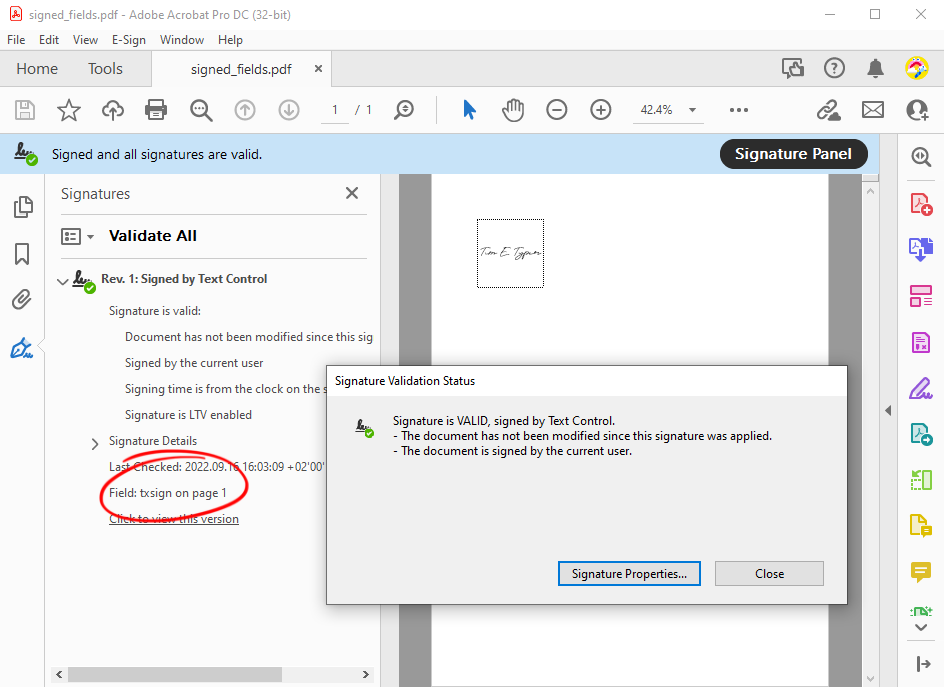
- A signed field shows its image on the page. Clicking it in Adobe Acrobat Reader opens the validation status, and the Signatures panel lists the signature with the name of its field.
- A field without a
DigitalSignatureremains an unsigned signature field in the PDF, which can be signed later in a PDF reader, for example in Acrobat Reader with a digital ID. - A whole-document signature with
SaveSettings.DigitalSignaturecreates an invisible signature field instead, as Signing PDF Documents describes.
The field txsign of the Getting Started tutorial, signed and opened in Adobe Acrobat:
Next Steps
- Signature Fields in Document Editor: insert fields and enter signer data in the editor.
- Multiple Signatures: sign fields for several people and with several certificates.
- Timestamp Configuration: add a trusted timestamp to each field.