
Loading and Saving Documents
Once the Open and Save As buttons of a first editor work, real applications need more: the right file filters, a preselected format, a password or stylesheet option in the Save As dialog box, documents from a database and a clear message when a file can't be read. The Load and Save methods of TextControl and their settings objects cover all of these. The sections below configure the dialog boxes of the editor and point to the pages that describe each of the other options.
If you haven't added the basic commands yet, start with Load and Save Documents in Getting Started: it builds New, Open, Save and Save As with a save-changes prompt. The examples below extend that form and use a TextControl named textControl1 on Form1. They need using TXTextControl;.
How Loading and Saving Works
Load replaces the complete contents of the editor, and Save writes the complete document. Both methods come with the same sources and targets, and each kind has its own format enumeration:
| Source or target | Format enumeration | Example |
|---|---|---|
| A dialog box | StreamType, as file filters | Load(StreamType.WordprocessingML) |
| A file path | StreamType | Load("report.docx", StreamType.WordprocessingML) |
A FileStream | StreamType | Load(stream, StreamType.RichTextFormat) |
| A byte array | BinaryStreamType | Load(data, BinaryStreamType.InternalUnicodeFormat) |
| A string | StringStreamType | Load(html, StringStreamType.HTMLFormat) |
Each of these sources and targets also has an overload that takes a LoadSettings or SaveSettings object. It passes options into the operation and returns information about it, such as the file the user chose.
Supported File Formats lists which formats each enumeration contains and which of them are save only. Loading PDF imports its text; how the structure of the document is rebuilt depends on PDFImportSettings, as PDF Import and Its Limitations explains.
Configure the Open Dialog Box
Without a file name, Load opens the Open dialog box. The StreamType values you combine become its file type filters, StreamType.AllFormats adds an All Formats entry, and DefaultStreamType preselects one of them:
private void openButton_Click(object sender, EventArgs e)
{
    LoadSettings loadSettings = new LoadSettings()
    {
        // Preselect DOCX in the file type list
        DefaultStreamType = StreamType.WordprocessingML
    };

    DialogResult result = textControl1.Load(
        StreamType.WordprocessingML | StreamType.MSWord | StreamType.RichTextFormat |
        StreamType.HTMLFormat | StreamType.InternalUnicodeFormat | StreamType.AllFormats,
        loadSettings);

    if (result == DialogResult.OK)
    {
        Text = loadSettings.LoadedFile;
    }
}
The method returns the DialogResult of the dialog box. After OK, LoadedFile and LoadedStreamType contain the path and format of the opened file, which your Save command needs later.
Offer Options in the Save As Dialog Box
Save without a file name opens the Save As dialog box. The overload with a SaveSettings.DialogSettings value adds options to it:
private void saveAsButton_Click(object sender, EventArgs e)
{
    SaveSettings saveSettings = new SaveSettings();

    DialogResult result = textControl1.Save(
        StreamType.WordprocessingML | StreamType.HTMLFormat | StreamType.AdobePDF,
        saveSettings,
        SaveSettings.DialogSettings.EnterPassword |
        SaveSettings.DialogSettings.StylesheetOptions |
        SaveSettings.DialogSettings.SaveSelection);

    if (result == DialogResult.OK)
    {
        Text = saveSettings.SavedFile;
    }
}
Each option appears only when it applies:
EnterPasswordadds a button that opens a dialog box for an encryption password, when the user chooses Adobe PDF. PDF/A doesn't support encryption passwords.StylesheetOptionslets the user choose how formatting styles are saved, inline or in a separate CSS file, when the user chooses HTML.SaveSelectionadds a check box to save only the selected text, when text is selected.
The following screenshot shows the stylesheet options of the TX Words sample application for an HTML file:
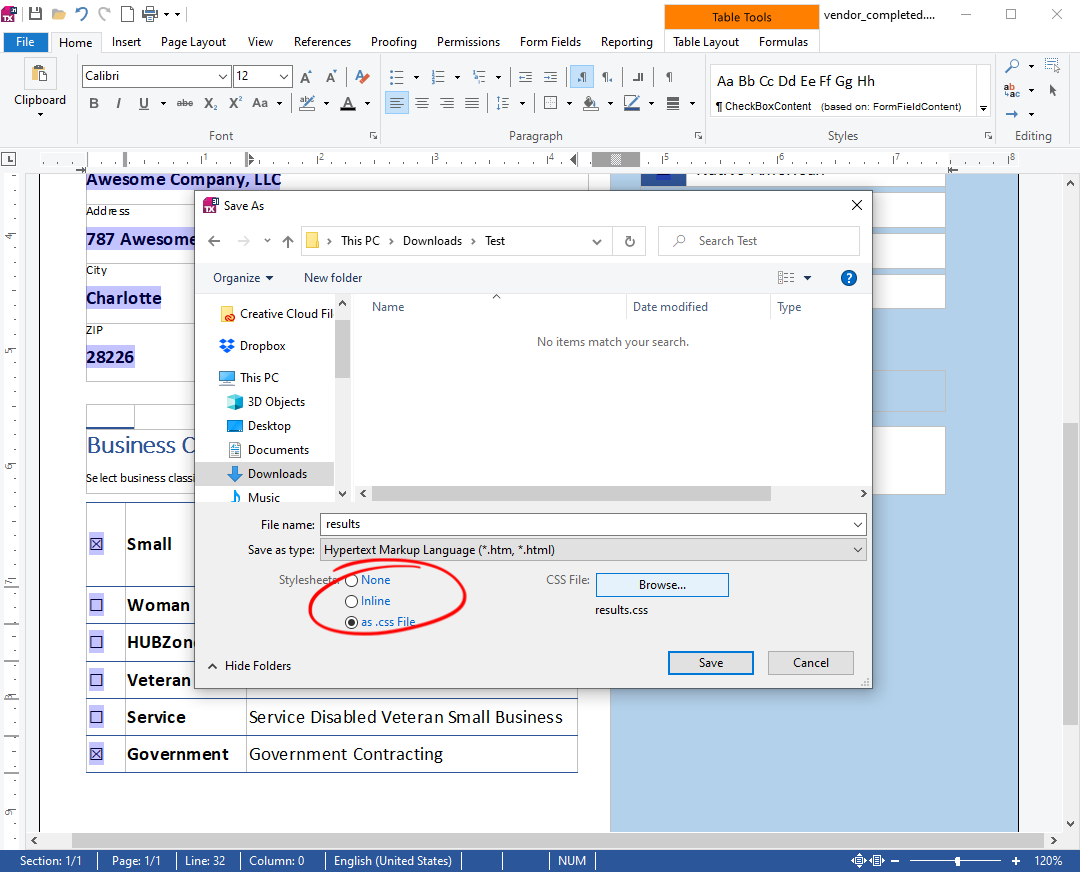
SavedFile and SavedStreamType tell you what the user chose, and BytesWritten the size of the saved file. The DialogSettings values were introduced in version 31.0.
Load and Save Without a Dialog Box
The other overloads load and save without asking the user, and the settings objects change what is imported and written. Load and Save of the TextControl are the same methods as those of ServerTextControl, so the Document Processing pages describe them for both:
| If you want to | Read |
|---|---|
| Import Word merge fields, skip images or hypertext links, or read the title and file of a loaded document | Loading Documents |
Insert a document at the input position with Selection.Load, or add one at the end with Append | Loading Documents |
| Load byte arrays, strings and streams | Loading Documents |
| Save only the selected text or a paragraph | Saving and Converting Documents |
| Save HTML with a separate CSS file | Saving and Converting Documents |
Handle a FilterException, such as a file of the wrong type or a PDF that needs a password | Loading Documents |
The title, author and other properties of a loaded document are covered in Document Properties.
Store Documents in a Database
A document in a database is a byte array: textControl1.Save(out data, BinaryStreamType.InternalUnicodeFormat) writes it, and textControl1.Load(data, BinaryStreamType.InternalUnicodeFormat) reads it back. The TX Text Control format keeps everything the editor supports, in Unicode with InternalUnicodeFormat and in ANSI with InternalFormat, which is why Text Control recommends it for documents that are still edited, as Document Loading and Conversion explains. Data Binding and Database Storage connects the editor to a record and writes the bytes to a database column.
Next Steps
- Document Properties: title, author and user-defined properties that travel with the document.
- Loading Documents: every option of
LoadSettingsand the errors a load can raise. - Saving and Converting Documents: convert documents without an editor.
- Handling Untrusted Documents: what to consider before loading files from unknown sources.
- Printing and Print Preview: print the document instead of saving it.