
Sidebar and Panels
How should a sidebar behave in your application: always docked beside the document, opened by a ribbon button, floating as a dialog, or showing a panel of your own? The Sidebar control of TX Text Control .NET for Windows Forms does all four. Its layout follows the docking, ribbon buttons open it with the right panel, single elements of a predefined panel can be hidden, and your code can react when the panel changes.
What a sidebar is and which panels it offers is described in Sidebar, and Create a Ribbon Application with Sidebar Support adds one to a form step by step.
Set Up a Sidebar in the Designer
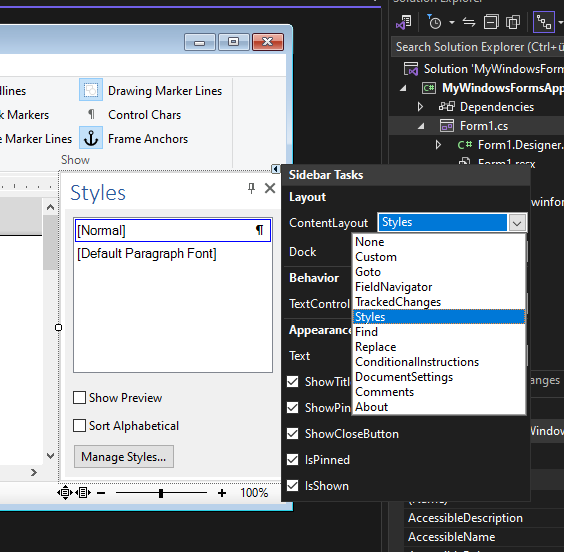
The smart tag of a TextControl adds a bottom, a left or a right sidebar. The smart tag of the sidebar then sets its most used properties: the panel in ContentLayout, the Dock position, the connected TextControl, the title Text, and the check boxes ShowTitle, ShowPinButton, ShowCloseButton, IsPinned and IsShown.
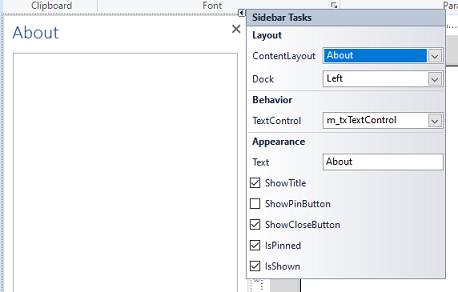
The TX Words sample shows its About panel in the left sidebar at startup and clears ShowPinButton, so that users cannot turn the sidebar into a dialog:
Layout Follows the Docking
The panels Find, Replace, Goto, ConditionalInstructions, DocumentSettings and FieldNavigator have two layouts. The ContentLayout and the Dock property of the sidebar decide which one is shown:
Dock | Layout |
|---|---|
Left or Right | Vertical, for a sidebar beside the document |
Top or Bottom | Horizontal, for a strip above or below the document |
Fill or None | Dialog style |
This is why the ribbon tabs connect two sidebars to some buttons, a vertical one and a horizontal one.
Open Sidebars With Ribbon Buttons
Most sidebar buttons of a ribbon tab have two connection properties, one for a vertical and one for a horizontal sidebar, for example FindSidebar and FindHorizontalSidebar of the Home tab. These are the connection properties of all tabs:
| Tab | Properties | Button |
|---|---|---|
| RibbonFormattingTab | FindSidebar, FindHorizontalSidebar | Find |
| ReplaceSidebar, ReplaceHorizontalSidebar | Replace | |
| GotoSidebar, GotoHorizontalSidebar | Go To | |
| StylesSidebar | The dialog box launcher of the Styles group | |
| RibbonProofingTab | TrackedChangesSidebar, TrackedChangesHorizontalSidebar | Tracked Changes |
| CommentsSidebar, CommentsHorizontalSidebar | Comments | |
| RibbonFormFieldsTab | ConditionalInstructionsSidebar, ConditionalInstructionsHorizontalSidebar | Manage Conditional Instructions |
| RibbonReportingTab | FieldNavigatorSidebar | Field Navigation |
You set these properties in the Properties window of the tab, in the Connected Sidebars section of the tab's smart tag shown below, or in code. When a sidebar is connected, the button gets a drop-down with a toggle for each connected sidebar, and a click on the button works as follows:
- Toggle on. The connected sidebar opens pinned into the form.
- Toggle off. The sidebar opens as a dialog: one that cannot be resized for the Find, Replace and Go To buttons, a resizable one for the Comments, Tracked Changes and Conditional Instructions buttons.
- In both cases the sidebar switches to the panel of the button, and the other connected sidebar of the same button is hidden.
The Styles dialog box launcher and the Field Navigation button are the exceptions: StylesSidebar and FieldNavigatorSidebar connect one sidebar only. The Connected Sidebars section of the smart tag of a predefined tab sets the properties in the designer:
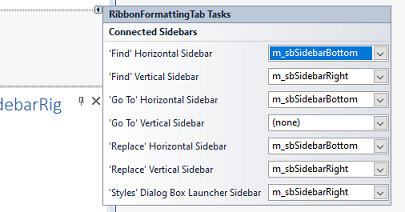
One sidebar can serve several buttons, because each button sets the panel it needs. TX Words connects the vertical properties, except GotoSidebar, to a right sidebar and the horizontal properties to a bottom sidebar.
The following code, in the constructor of the form after InitializeComponent, connects a sidebar docked at the right to three buttons and hides it until one of them is clicked:
// Connect the sidebar to the editor and to three ribbon buttons
sidebarRight.TextControl = textControl1;
ribbonFormattingTab1.StylesSidebar = sidebarRight;
ribbonProofingTab1.TrackedChangesSidebar = sidebarRight;
ribbonProofingTab1.CommentsSidebar = sidebarRight;

// Show the sidebar only when a button opens it
sidebarRight.IsShown = false;
Show a Sidebar as a Dialog
A sidebar is either pinned into the form, when IsPinned is true, the default, or opens as a dialog when it is false. Users switch between the two with the pin button in its title bar. The following code, in the constructor of the form after InitializeComponent, opens the Find panel in a resizable dialog of a fixed size:
using TXTextControl.Windows.Forms;

// Show the Find panel in a sizable dialog
sidebarRight.TextControl = textControl1;
sidebarRight.ContentLayout = Sidebar.SidebarContentLayout.Find;
sidebarRight.IsPinned = false;
sidebarRight.DialogStyle = Sidebar.SidebarDialogStyle.StandardSizable;
sidebarRight.DialogSize = new Size(320, 480);
sidebarRight.IsShown = true;
The code works as follows:
- DialogStyle takes a SidebarDialogStyle:
Standard, the default, is a fixed dialog with a title bar;StandardSizablecan be resized;SidebarandSidebarSizableshow the sidebar without the border and title bar of a dialog. - DialogSize and DialogLocation set size and position. Left at their defaults,
Size.EmptyandPoint.Empty, the dialog is sized to its content and centered on the topmost control. - IsShown shows the sidebar. Use it rather than the inherited
Visibleproperty, which the sidebar uses internally.
A pinned sidebar can be resized with the mouse while IsSizable is true, its default, provided AutoSize is false and Dock is not Fill.
Hide Elements of a Panel
Every element of a predefined panel has an identifier, and FindItem returns it as a Windows Forms control. There is one enumeration per panel, nested in Sidebar:
| Enumeration | Panel | Examples |
|---|---|---|
| FindAndReplaceItem | Find, Replace | TXITEM_MatchCase, TXITEM_SearchUp, TXITEM_SearchInFootnotes, TXITEM_ReplaceAll |
| StylesItem | Styles | TXITEM_ShowPreview, TXITEM_SortAlphabetical, TXITEM_ManageStyles |
| GotoItem | Goto | TXITEM_GotoList, TXITEM_GotoNext |
| TrackedChangesItem | TrackedChanges | TXITEM_TrackedChangesCount, TXITEM_TrackedChangesRefresh |
| ConditionalInstructionsItem | ConditionalInstructions | TXITEM_New, TXITEM_Edit, TXITEM_Delete |
| DocumentSettingsItem | DocumentSettings | TXITEM_CustomPropertiesPanel, TXITEM_EmbeddedFilesPanel |
| FieldNavigatorItem | FieldNavigator | TXITEM_SearchTextBox, TXITEM_MergeFieldDelete |
The following code hides the Search up option of the find panel:
// Hide an element of the predefined Find panel
Control searchUp = sidebarRight.FindItem(Sidebar.FindAndReplaceItem.TXITEM_SearchUp);
if (searchUp != null)
{
    searchUp.Visible = false;
}
React to Changes of the Panel
Sidebar implements System.ComponentModel.INotifyPropertyChanged, so its PropertyChanged event tells you when a ribbon button or the user changed ContentLayout or IsShown. TX Words uses it for its left sidebar, which shows three panels: tracked changes, opened by the Proofing tab, and the document settings and About panels, opened by two toggle buttons of its application menu. The handler allows a dialog only for the tracked changes panel and keeps the two toggle buttons checked while their panel is visible:
using System.ComponentModel;
using TXTextControl.Windows.Forms;

// In the constructor, after InitializeComponent
sidebarLeft.PropertyChanged += SidebarLeft_PropertyChanged;

private void SidebarLeft_PropertyChanged(object sender, PropertyChangedEventArgs e)
{
    switch (e.PropertyName)
    {
        case "ContentLayout":
            switch (sidebarLeft.ContentLayout)
            {
                case Sidebar.SidebarContentLayout.TrackedChanges:
                    // The user may turn this panel into a dialog
                    sidebarLeft.ShowPinButton = true;
                    documentSettingsButton.Checked = false;
                    aboutButton.Checked = false;
                    break;
                case Sidebar.SidebarContentLayout.DocumentSettings:
                    // Always docked, no pin button
                    sidebarLeft.ShowPinButton = false;
                    sidebarLeft.IsPinned = true;
                    documentSettingsButton.Checked = true;
                    aboutButton.Checked = false;
                    break;
                case Sidebar.SidebarContentLayout.About:
                    sidebarLeft.ShowPinButton = false;
                    sidebarLeft.IsPinned = true;
                    documentSettingsButton.Checked = false;
                    aboutButton.Checked = true;
                    break;
            }
            break;

        case "IsShown":
            // A button is checked only while its panel is visible
            documentSettingsButton.Checked = sidebarLeft.IsShown
                && sidebarLeft.ContentLayout == Sidebar.SidebarContentLayout.DocumentSettings;
            aboutButton.Checked = sidebarLeft.IsShown
                && sidebarLeft.ContentLayout == Sidebar.SidebarContentLayout.About;
            break;
    }
}
The code works as follows:
e.PropertyNamenames the property that changed, as a string:"ContentLayout"when another panel is shown,"IsShown"when the sidebar is opened or closed.documentSettingsButtonandaboutButtonare RibbonToggleButton controls whose click handlers setContentLayoutandIsShownof the sidebar. Checked shows them pressed.- Setting
IsPinnedtotruetogether with hiding the pin button docks a panel that was open as a dialog back into the form, and users cannot undock it again.
ShowPinButton, ShowCloseButton and ShowTitle switch the parts of the title bar. TitleFont, by default Calibri Light at 18 points, and TitleForeColor set the look of the title.
Show a Panel of Your Own
With ContentLayout set to Custom, the sidebar shows any Windows Forms control assigned to its Content property, with the same title bar, docking and dialog mode as a predefined panel. Content can be set only with this layout. The following code shows a user control of your application, here named CustomerPanel, in a sidebar:
using TXTextControl.Windows.Forms;

// Show a control of your own in the sidebar
sidebarLeft.ContentLayout = Sidebar.SidebarContentLayout.Custom;
sidebarLeft.Content = new CustomerPanel();
sidebarLeft.Text = "Customer";
sidebarLeft.ShowPinButton = false;
Next Steps
- Track Changes and Comments: the features behind two of the panels.
- Form Fields and Conditional Instructions: the conditional instructions panel.
- Built-in Ribbon Tabs: the tabs whose buttons open the sidebars.
- The blog article Getting Started: Creating a .NET 8 Windows Forms Ribbon Application with Sidebar Support: a ribbon application with sidebars, with screenshots.