
Signature Fields
Contracts, approvals and consent forms need a place where each signer signs. A signature field marks that place in the document: users draw it in the editor or your code inserts it, it stores who is expected to sign and why, and it receives the signature image. When the document is saved as PDF, each signature field can be digitally signed with a certificate.
The examples extend the application of Create Your First Windows Forms Application, and Form1.cs needs using TXTextControl;. Signature fields were introduced in version 31.0. Applying certificates is covered by Digital Signatures; this page prepares the fields.
What a Signature Field Is
A SignatureField is a frame that holds the image of a signature. The image can be added while the document is designed, or later, when the document is signed. A signature field is positioned like an image or a text frame: as a single character in the text, anchored to a paragraph, or at a fixed position on a page.
A signature field has:
- a name, which is required to associate the field with a certificate when the document is saved as PDF;
- signer data, the name, title, address and contact information of the expected signer and the reason for signing;
- an optional image of the signature.
Signature fields are saved in the TX Text Control format, PDF, DOCX and RTF. Other formats keep only the signature image. In a PDF, an unsigned signature field can also be signed later in a PDF reader such as Adobe Acrobat Reader.
Insert Signature Fields With the Ribbon
On the Insert tab, the Signature Field button in the Text group inserts a signature field into the document:
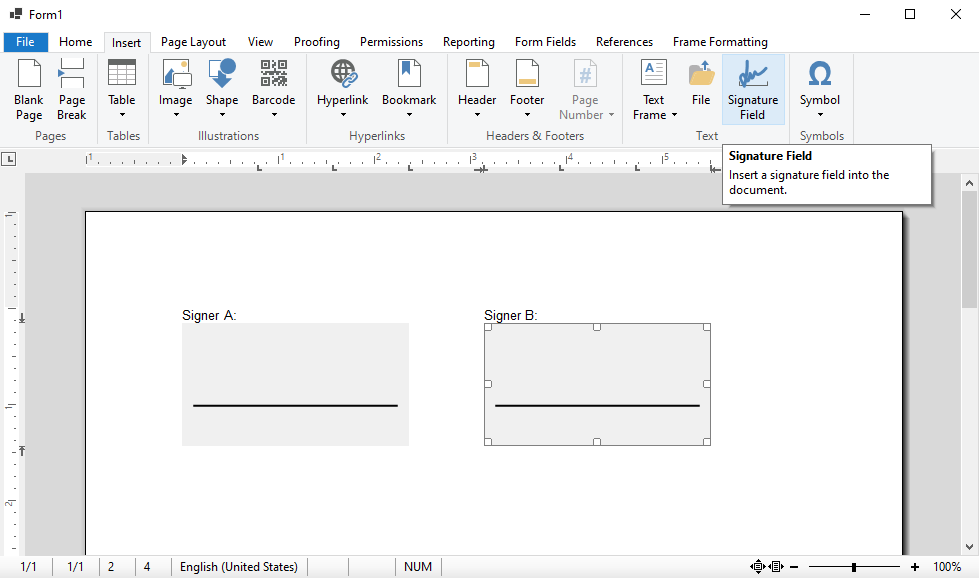
When a signature field is selected, the Frame Formatting tab appears. Its Signer Info group holds the signer, title, address, contact information and reason, and its Properties group the name and ID of the field:
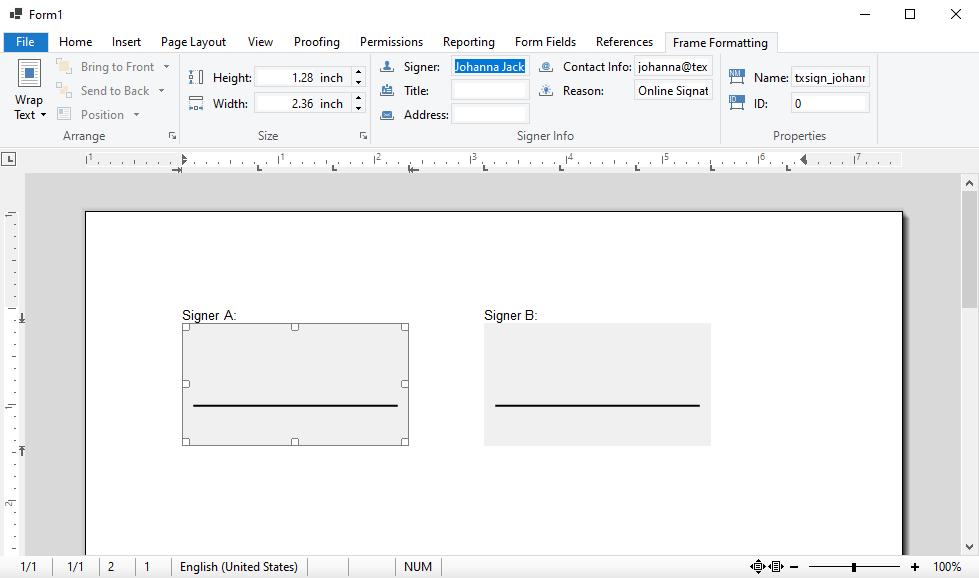
The Frame Formatting tab is a RibbonFrameLayoutTab, and the Insert tab a RibbonInsertTab. Built-in Ribbon Tabs shows how to add them. TextControl.SignatureFieldLayoutDialog opens the dialog box with the layout, size and text distances of the selected signature field.
Insert a Signature Field in Code
TextControl.SignatureFields returns the SignatureFieldCollection of the main text. The following handler inserts a named field with signer data at the input position:
private void insertSignatureFieldButton_Click(object sender, EventArgs e)
{
    // 2.5 x 1 inch in twips (1 inch = 1440 twips); "txsign" is the name
    SignatureField signatureField = new SignatureField(new Size(3600, 1440), "txsign", 0)
    {
        SignerData = new SignerData(
            "Tim Typer", "Sales Manager", "", "tim@example.com", "Contract approval")
    };

    // Anchor the field to the paragraph at the input position (-1)
    bool added = textControl1.SignatureFields.Add(
        signatureField,
        TXTextControl.HorizontalAlignment.Left,
        -1,
        FrameInsertionMode.DisplaceText);

    if (!added)
    {
        MessageBox.Show("The signature field couldn't be added at this position.");
    }
}
The code works as follows:
- The SignatureField constructor takes the size in twips as a
System.Drawing.Size, the name and an ID of your choice, where 0 means none. - SignerData takes the name, title, address and contact information of the expected signer and the reason for signing; parts you don't need can be empty or
null. SignatureField.SignerData stores it with the field. - This overload of SignatureFieldCollection.Add anchors the field to the paragraph at a text position, where -1 stands for the input position, with a horizontal alignment and a FrameInsertionMode.
DisplaceTextlets the text flow around the field.HorizontalAlignmentis qualified withTXTextControl., because Windows Forms has a type of the same name.
Other overloads of Add insert the field as a character (Add(signatureField, -1)), at a location relative to the paragraph, at a fixed position on a page, or let the user draw it:
private void drawSignatureFieldButton_Click(object sender, EventArgs e)
{
    // The user draws the field with the mouse; ESC cancels
    SignatureField signatureField = new SignatureField(new Size(0, 0), "txsign_2", 0);
    textControl1.SignatureFields.Add(signatureField, FrameInsertionMode.DisplaceText);
}
With this overload, a cross cursor shows where the field can be inserted, and the user determines its size. Changing the document or pressing ESC cancels the insertion. Images and Text Frames and Shapes explain these kinds of placement.
Set an Image and Remove a Field
private void setImageButton_Click(object sender, EventArgs e)
{
    SignatureField signatureField = textControl1.SignatureFields.GetItem("txsign");

    if (signatureField != null)
    {
        // Filter index 8 is SVG, 4 is PNG
        signatureField.Image = new SignatureImage("signature.svg", 8);
    }
}

private void removeSignatureFieldButton_Click(object sender, EventArgs e)
{
    // The signature field the user has selected, or null
    SignatureField signatureField = textControl1.SignatureFields.GetItem();

    if (signatureField != null)
    {
        textControl1.SignatureFields.Remove(signatureField);
    }
}
- GetItem returns the selected signature field, or the one with a name or an ID, and
nullif there is none. - SignatureField.Image takes a SignatureImage, loaded from a file with the index of its format, from a
System.Drawing.Imageor from aMemoryStream. SettingImagetonullremoves the image. Add a Signature Image lists the format indexes and how the image is saved with the document. - Remove deletes the signature field.
React to Signature Field Events
TextControl raises SignatureFieldCreated, SignatureFieldDeleted, SignatureFieldSelected, SignatureFieldDeselected and SignatureFieldClicked. The handlers receive a SignatureFieldEventArgs with the field. The following handler shows the expected signer when the user selects a field:
public Form1()
{
    InitializeComponent();
    textControl1.SignatureFieldSelected += textControl1_SignatureFieldSelected;
}

private void textControl1_SignatureFieldSelected(object sender, SignatureFieldEventArgs e)
{
    SignerData signer = e.SignatureField.SignerData;
    Text = e.SignatureField.Name + (signer != null ? ", expected signer: " + signer.Name : "");
}
Sign the Fields
Signature fields are signed when the document is saved as PDF: SaveSettings.SignatureFields takes one DigitalSignature per field, each with a certificate and the name of the field it signs. In a document with several signers, give each signer a field with its own name. Digitally Sign a PDF signs a field step by step, and Signature Fields and Signature Appearance in Digital Signatures goes further.
The blog article Sneak Peek 31.0: Signature Fields introduces the feature with the ribbon and code, and Preparing Documents for E-Signing for Multiple Signers in .NET C# prepares fields for several signers.
Next Steps
- Digitally Sign a PDF: sign a signature field with a certificate.
- Form Fields and Conditional Instructions: fields that users fill out.
- Signing PDF Documents: sign whole documents and fields.