
Spell Checking and Hyphenation
The TextControl underlines misspelled words, offers corrections in a context menu and a dialog box, and hyphenates words at the end of a line, but it doesn't contain dictionaries of its own. The words come from a spell checker you connect: TX Spell .NET for Windows Forms, a separate product of Text Control, or a checker of your own through an event. What follows shows what each side contributes, how the two are connected and where the TX Spell .NET documentation continues.
The examples belong in Form1.cs of an application with a TextControl named textControl1, like the one of Create Your First Windows Forms Application.
What the User Sees
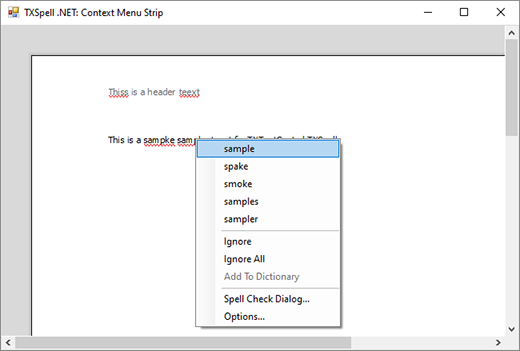
With a spell checker connected and spell checking turned on, misspelled words get a red zigzag underline while the user types. A right-click on such a word opens a context menu with suggestions and the commands Ignore, Ignore All, Add To Dictionary, Spell Check Dialog... and Options...:
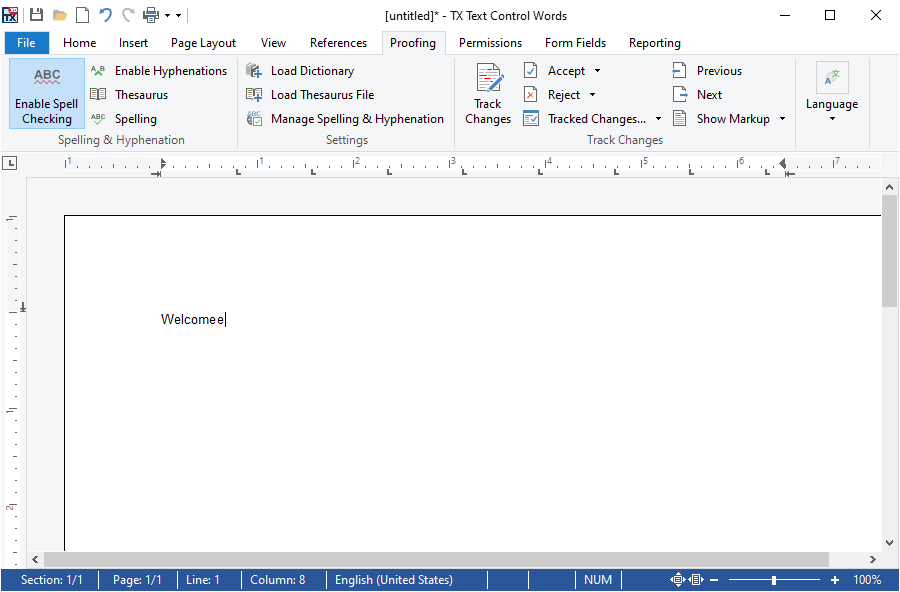
The Proofing tab of the ribbon, the RibbonProofingTab, has a Spelling & Hyphenation group with the buttons Enable Spell Checking, Enable Hyphenations, Thesaurus and Spelling, which opens the spelling dialog. Most buttons of the tab are enabled only while a spell checker is connected.
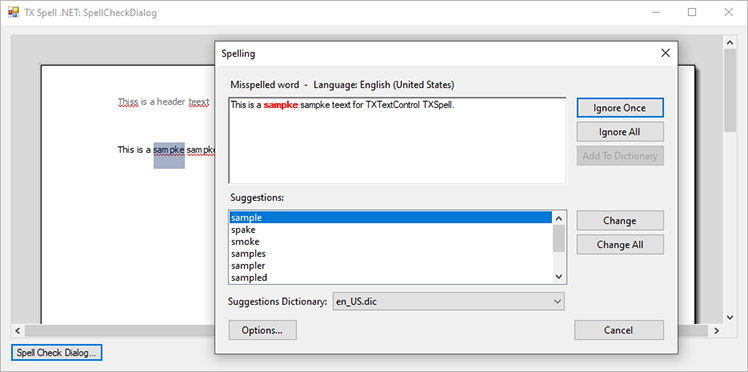
The spelling dialog shows the misspelled word in its sentence, the language, the suggestions of the selected dictionary and the buttons Ignore Once, Ignore All, Add To Dictionary, Change, Change All and Options...:
What TX Text Control Provides
The TextControl has the properties, methods and events that a spell checker works through:
| Member | Purpose |
|---|---|
| SpellChecker | Connects the spell checker, a TXSpellChecker of TX Spell .NET |
| IsSpellCheckingEnabled | Turns checking as the user types on or off |
| SpellCheckDialog | Opens the built-in spelling dialog, which steps through the main text, headers, footers and text frames |
| SpellCheckContextMenuStrip | The context menu of a misspelled word: (Default) for the built-in menu, (none) for no menu, or the name of your own ContextMenuStrip |
| MisspelledWords | The misspelled words of the text part with the input focus, as MisspelledWord objects |
| IsHyphenationEnabled | Divides the last word of a line with a hyphen |
| HyphenateWord | Occurs for every word to hyphenate; the handler can change where it is divided |
| IsLanguageDetectionEnabled | Sets a language for text without one, detected by TX Spell .NET |
| LanguageDialog | Opens the dialog box that sets the language of the selected text, which decides the dictionary |
| SpellCheckText | Passes new text to your own spell checker when no SpellChecker is connected |
Connect TX Spell .NET
TX Spell .NET for Windows Forms is installed, licensed and deployed separately. Its TXSpellChecker component is connected to the editor with the SpellChecker property, in the Properties window or in code:
textControl1.SpellChecker = txSpellChecker1;
textControl1.IsSpellCheckingEnabled = true;
Integrating TX Spell .NET for Windows Forms walks through the package, the licenses, the connection, several editors and deployment, and lists the pages of the TX Spell .NET documentation that continue from there.
Use Another Spell Checker
Without a connected SpellChecker, the TextControl raises SpellCheckText whenever text has changed and IsSpellCheckingEnabled is true. The handler checks the text and reports the misspelled words, which the editor then underlines. The following handler marks every occurrence of the misspelling teh:
private void textControl1_SpellCheckText(object sender, SpellCheckTextEventArgs e)
{
    List<MisspelledWord> misspelledWords = new List<MisspelledWord>();

    // Find the words with your spell checker; here, one known typo
    int index = e.Text.IndexOf("teh");

    while (index >= 0)
    {
        // MisspelledWord positions are one-based
        misspelledWords.Add(new MisspelledWord(index + 1, 3));
        index = e.Text.IndexOf("teh", index + 3);
    }

    e.MisspelledWords = misspelledWords.ToArray();
}
The code works as follows:
- SpellCheckTextEventArgs.Text is the text to check, and Culture its language, for choosing a dictionary.
- A MisspelledWord is created with the one-based start of the word in
Textand its length. - MisspelledWords returns the result to the editor.
Connect the handler on the Events page of the Properties window, set IsSpellCheckingEnabled to true, and List<T> needs using System.Collections.Generic;. The dialog box and the context menu with suggestions of TX Text Control need a connected SpellChecker; with your own checker, you provide them yourself.
List and Ignore Misspelled Words
Whichever checker finds them, the misspelled words of the text part with the input focus are in a MisspelledWordCollection, which TextControl.MisspelledWords returns. Your code can go through them, for example to show a list of errors in a panel, and ignore or correct them without a dialog box:
private void ignoreProductNamesButton_Click(object sender, EventArgs e)
{
    foreach (MisspelledWord word in textControl1.MisspelledWords)
    {
        if (word.Text == "TXTextControl")
        {
            // Keep the text, but don't underline it any longer
            word.IsIgnored = true;
        }
    }

    // Jump to the next misspelled word after the input position and select it
    MisspelledWord next = textControl1.MisspelledWords.GetItem();
    next?.Select();
}
- Each MisspelledWord has its Text, its one-based Start, its Length and its Culture. IsDuplicate marks a correctly spelled word that repeats the word in front of it.
- IsIgnored keeps a word in the collection but removes its red zigzag line. MisspelledWordCollection.Ignore replaces the text of a word and marks it as ignored in one call.
- MisspelledWordCollection.Remove takes a word out of the collection and, with a second parameter, replaces its text with the corrected text.
- MisspelledWordCollection.GetItem without a parameter returns the misspelled word at or after the input position; other overloads take a text position, a point in pixels under the mouse pointer or a MisspelledWordKind. Select selects the word in the text.
While the user edits a header, a footer or a text frame, the collection holds the misspelled words of that part; each of them also has a MisspelledWords collection of its own.
Control Where Words Are Divided
HyphenateWord occurs when IsHyphenationEnabled is true and a word doesn't fit into the line. Its HyphenateWordEventArgs carry the Word, its Culture, the DividePos that TX Spell .NET calculated, or 0 without a spell checker, and the MaxDividePos, the number of characters that still fit into the line. The editor divides the word at DividePos if it isn't greater than MaxDividePos. The following handler keeps short words together:
private void textControl1_HyphenateWord(object sender, HyphenateWordEventArgs e)
{
    // Don't divide words of fewer than seven characters
    if (e.Word.Length < 7)
    {
        e.DividePos = 0;
    }
}
Next Steps
- TX Spell .NET for Windows Forms: the documentation of the spell checker.
- Built-in Ribbon Tabs: the Proofing tab and the other tabs of the ribbon.
- Context Menus: the other context menus of the editor.
- Events: connect handlers such as
SpellCheckText.