
Comments and Tracked Changes
Contracts and reports go back and forth between authors and reviewers. Reviewers leave comments on pieces of text, and with track changes turned on, every insertion and deletion stays marked with its author and time until someone accepts or rejects it. In a Windows Forms application, the TextControl records both while the user types, and your code turns tracking on, adds comments, lists what reviewers did and accepts or rejects changes, for example before a final version is saved.
The examples are handlers in Form1.cs with the TextControl named textControl1. They process the comments and changes of a whole document. How users comment and review with the ribbon, and how single comments and changes are added, listed and removed in code, is described in Track Changes and Comments in the Document Editor section.
How Comments and Tracked Changes Work
A comment is a CommentedText object and a tracked change a TrackedChange object, both with the first name of TextControl.UserNames as their author, as How Comments Work and How Track Changes Works describe. For processing a whole document, one fact matters most: TextControl.Comments and TextControl.TrackedChanges contain only the comments and changes of the text part with the input focus: the main text, a text frame, or a header or footer. The handlers below therefore loop through all text parts.
Track the Changes of the User
IsTrackChangesEnabled turns tracking on and off, and UserNames names the author of new changes. Set the Author and Turn On Tracking shows both, and Handle Changes That Can't Be Tracked the CannotTrackChange event for operations such as deleting a table column.
Add a Comment
CommentCollection.Add adds a CommentedText that your code creates, as Add Comments in Code shows. To comment on text that your code has found, note that TextControl.Find returns a zero-based position, while the CommentedText constructor expects a one-based start: pass position + 1.
Accept or Reject Tracked Changes
TrackedChangeCollection.Remove is the only way to remove a tracked change: with true, the change is accepted and the text stays as it is; with false, it is rejected, inserted text is removed and deleted text is restored. The following handler accepts the changes of one reviewer and rejects all others in every part of the document. It needs using System.Collections.Generic; and using System.Linq; at the top of Form1.cs:
private void acceptReviewerButton_Click(object sender, EventArgs e)
{
    string trustedAuthor = "Alice Johnson";

    foreach (TXTextControl.IFormattedText textPart in textControl1.TextParts)
    {
        // Copy the changes first, because Remove changes the collection
        List<TXTextControl.TrackedChange> changes = textPart.TrackedChanges.Cast<TXTextControl.TrackedChange>().ToList();

        foreach (TXTextControl.TrackedChange change in changes)
        {
            textPart.TrackedChanges.Remove(change, change.UserName == trustedAuthor);
        }
    }
}
TextControl.TextParts returns the main text, the text frames and the headers and footers, each an IFormattedText with its own TrackedChanges and Comments.
Remove Comments Before Sending a Document
A document that leaves the company should often carry neither comments nor markup. The following handler accepts all changes, removes all comments and saves the result as PDF:
private void finalizeButton_Click(object sender, EventArgs e)
{
    textControl1.IsTrackChangesEnabled = false;

    foreach (TXTextControl.IFormattedText textPart in textControl1.TextParts)
    {
        // Number 1 is always the first remaining change or comment
        while (textPart.TrackedChanges.Count > 0 && textPart.TrackedChanges.Remove(textPart.TrackedChanges[1], true)) { }
        while (textPart.Comments.Count > 0 && textPart.Comments.Remove(textPart.Comments[1])) { }
    }

    textControl1.Save("contract-final.pdf", TXTextControl.StreamType.AdobePDF);
}
CommentCollection.Remove removes a comment with its replies and keeps the commented text. Both Remove methods return false if nothing was removed, which ends the loops.
Show the Built-In Dialog Boxes and React to Changes
The modeless CommentsDialog and TrackedChangesDialog list all comments or changes for the user, and events such as CommentCreated and TrackedChangeCreated report what happens to them. React to Comments and React to Tracked Changes list the events.
The blog article Inspect and Process Track Changes in DOCX Documents with TX Text Control with .NET C# filters changes by author, kind and time with LINQ.
Compare Two Documents
Tracked changes also show the differences between two versions of a document. Text Control's comparison sample loads the original and the revised version into two TextControl instances, compares their paragraphs sentence by sentence and word by word, and writes every differing word of the revised version into the original while IsTrackChangesEnabled is true. The original then shows each difference as a deletion and an insertion, which the reviewer accepts or rejects as described above:
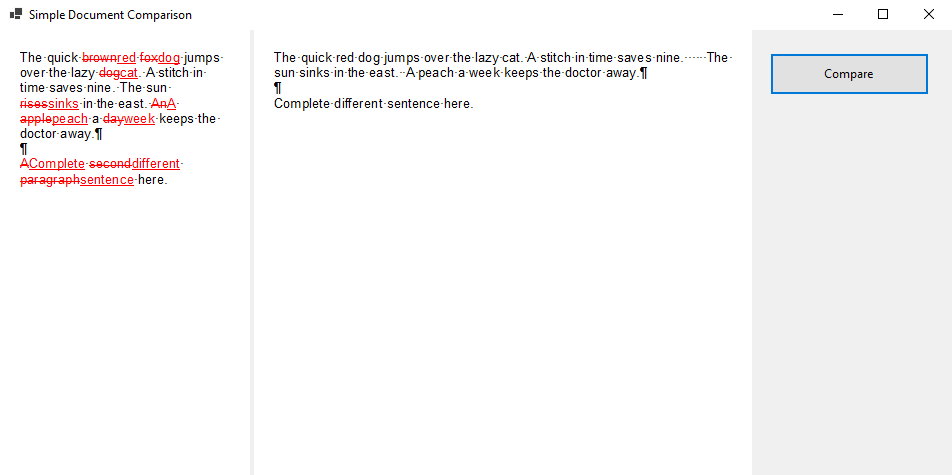
The comparison works on Paragraphs, their Text and Start, and the Selection of the original, and the blog notes that it can be rewritten for ServerTextControl instances. It compares the paragraphs in their order and the words of each sentence by their position. The blog article Word-based Document Comparison and Track Changes Using TX Text Control and C# explains the algorithm, and the complete sample is in the GitHub repository TXTextControl.Windows.Forms.Comparison.
Next Steps
- Track Changes: track changes with the ribbon and the sidebar.
- Comments: comment with the ribbon and the sidebar.
- Document Protection and User Permissions: the users and editable regions of protected documents.
- Saving and Converting Documents: save the final version.