
PDF Processing
PDF is the format most Windows Forms applications hand their documents out in, and TX Text Control writes it directly from the document in the editor. Three short tutorials take the editor of your first application from a plain PDF to a fillable PDF form and a digitally signed PDF, each in a few button handlers.
What You Build
| Tutorial | Result | Main members |
|---|---|---|
| Create a PDF | PDF documents with properties, PDF/A for archiving and password-protected PDFs | TextControl.Save, SaveSettings, StreamType.AdobePDF |
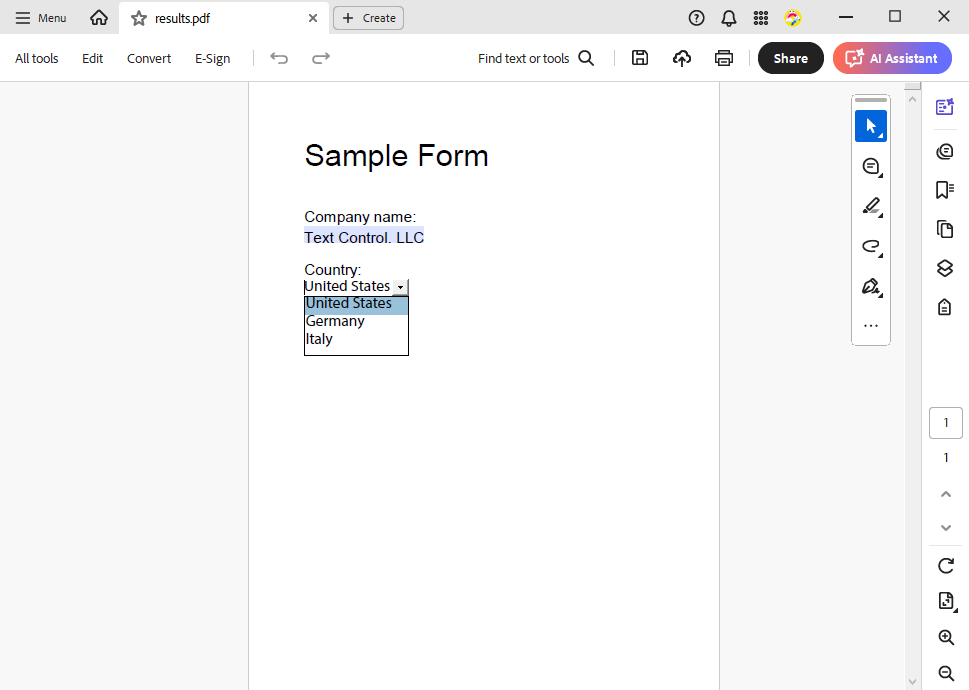
| Create a PDF Form | A PDF with a text box, a drop-down list and a check box that users fill out | FormFields, TextFormField, SelectionFormField, CheckFormField |
| Digitally Sign a PDF | A PDF signed with a certificate, with a timestamp and a visible signature field | DigitalSignature, SaveSettings.DigitalSignature, SignatureField |
TX Text Control creates these PDF documents with its own PDF filter. Adobe Acrobat is not needed.
Before You Start
- Complete Create Your First Windows Forms Application. All three tutorials add buttons to its form with the
TextControlnamedtextControl1. - Check your edition: PDF is part of the Professional and Enterprise editions, and PDF/A and form fields are part of the Enterprise edition. See Editions and Feature Availability.
Work through the tutorials in order. Each one stands on its own, but the later ones build on the saving shown in Create a PDF.