
Data Source Configuration Files
A Report Data Source Configuration file, an XML file with the extension .rdsc, lets a template merge with a database without code that queries it. It stores the database connection, the master table and the data relations that a user set up in the Reporting tab, and MailMerge reads the data itself when it merges. The feature exists in Windows Forms applications only.
What follows shows how users create such a file in the Reporting tab, how your code saves and loads it and how a form merges a template with it in one call. Connecting a database and editing relations in the tab are introduced in DataSets and DataTables.
What a Configuration File Contains
The file holds:
- the data provider and the connection string of the database,
- the selected master table,
- the data relations between its tables.
It holds no template. One configuration file serves any number of templates, and when the database moves, for example to a new SQL Server, you update one file instead of every template. The connection string is stored as it is, together with any user name and password it includes, so protect the file like any other file that holds database credentials.
A configuration file can only be saved for a database connected through the Choose Data Source dialog box, the DatabaseConnectionDialog. Data loaded from JSON, XML, objects or a DataSet has no connection to save.
Create a Configuration File in the Reporting Tab
In an application with the Reporting tab, or in the TX Words Reporting sample:
Open the Select Data Source drop-down and choose Data Source. In the Choose Data Source dialog box, select the kind of database and the data provider, and connect to the database, as Connect a Database in the Designer shows.
Click Edit Data Relations and add every relation the template needs in the Create Data Relation dialog box, as Edit Relations in the Designer shows.
Select the master table with Select Master Table, and design the template with fields and blocks of this table and its related tables.
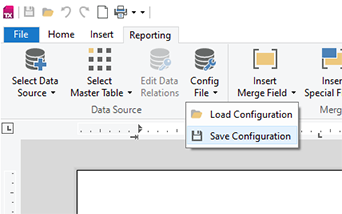
Open the Config File drop-down and choose Save Configuration. Choose a folder and a name for the file.
Save the template, for example as DOCX.
Load Configuration in the same drop-down opens a configuration file again, with its connection, master table and relations, so that users can go on designing templates for the same database.
Save and Load Configurations in Code
The commands of the Config File drop-down call methods of the DataSourceManager that your code can call too:
- SaveDataSourceConfig without parameters, or with the owner window, shows a save file dialog. With an
out stringparameter, it returns the configuration as an XML string, and your code decides where to store it. - LoadDataSourceConfig without parameters, or with the owner window, shows an open file dialog. With a string, it loads configuration data given as XML.
The following handlers of Form1.cs save the configuration of the Reporting tab named ribbonReportingTab1 to invoice.rdsc and load it again:
using System;
using System.IO;
using TXTextControl.DocumentServer.DataSources;
private void saveConfigButton_Click(object sender, EventArgs e)
{
    DataSourceManager dataSourceManager = ribbonReportingTab1.DataSourceManager;

    // Only for a database connected with the DatabaseConnectionDialog
    dataSourceManager.SaveDataSourceConfig(out string configData);
    File.WriteAllText("invoice.rdsc", configData);
}

private void loadConfigButton_Click(object sender, EventArgs e)
{
    ribbonReportingTab1.DataSourceManager.LoadDataSourceConfig(File.ReadAllText("invoice.rdsc"));
}
Merge a Template With a Configuration File
MailMerge reads the configuration from a file in ReportDataSourceConfigFile or from an XML string in ReportDataSourceConfig. The overloads of Merge without a DataTable, Merge() and Merge(bool append), then connect to the database and merge its master table with all relations.
In the designer, the whole setup needs no code except the call of Merge:
- Drop a
TextControland aMailMergecomponent on the form. - Select
mailMerge1and set itsTextComponentproperty to theTextControl. - Click the link TemplateFile... below the property grid and select the template, or type its path into the TemplateFile property.
- Click ReportDataSourceConfigFile... and select the configuration file, or type its path into
ReportDataSourceConfigFile.
Where Templates Are Designed shows the links below the Properties window of the component.
The same settings in code, followed by the merge in the Click handler of a button named mergeButton:
public Form1()
{
    InitializeComponent();

    // The same settings as in the Properties window
    mailMerge1.TextComponent = textControl1;
    mailMerge1.TemplateFile = "invoice.docx";
    mailMerge1.ReportDataSourceConfigFile = "invoice.rdsc";
}

private void mergeButton_Click(object sender, EventArgs e)
{
    // Connects to the database, reads the master table and its related tables and merges
    mailMerge1.Merge(true);
}
The code works as follows:
TemplateFileloads the template instead of a call ofLoadTemplate; the document format is deduced from the file extension.ReportDataSourceConfigFilenames the configuration file. To keep the configuration elsewhere, for example in your application's settings, assign its XML toReportDataSourceConfiginstead.Merge(true)merges one document per record of the master table and combines them into one document, which the editor shows.Merge(false)creates separate documents, as Overview describes.
The template must match the configuration: its merge fields are columns of the master table and its merge blocks are tables related to it, as they were in the Reporting tab when the file was saved.
Save an Excerpt of the Database
Save Excerpt in the Select Data Source drop-down saves an excerpt of the connected database to a file. Users choose a table and the maximum number of rows. In code, DataSourceExtractionDialog opens the dialog, and its properties FileName, MaxRows and SelectedTable report what the user chose. Like the configuration file, it works only with a database connected through the DatabaseConnectionDialog and throws an exception for any other data source.
Next Steps
- DataSets and DataTables: the relations a configuration file stores, set in code instead.
- Nested Blocks and Master-Detail Reports: templates for related tables.
- Reporting Ribbon and Dialog Boxes: the other commands of the Reporting tab.
- The blog article TX Text Control X10 Reporting: Using RDSC Files: the feature as it was introduced, with an older user interface.