
Images and Barcodes
A logo, a product photo or a signature can come from the data just like a name or an amount, and so can the value a QR code or barcode encodes. The template holds a placeholder for each: an image or a barcode with a name. During the merge, MailMerge fills every placeholder whose name matches a field of the data, and the placeholder keeps its position and size. You create placeholders in the Reporting tab and in code, merge images from Base64 data, files and SVG, merge values into barcodes and check them first, and fill charts from the tables of the data.
Here, the invoice of Merge Data into Fields gets a logo and a QR code for the invoice number. Images and barcodes that your code adds to documents without a merge are described in Images, Text Frames, and Shapes and Charts and Barcodes.
How Placeholders Work
A placeholder is an ordinary image or barcode in the template whose name matches a field of the data. MailMerge handles it like a merge field:
- Image data. The value of the field can be a byte array, a
System.Drawing.Image, a Base64 string, a hexadecimal string that starts withX', the name of an image file or, since version 32.0 SP3, SVG markup as plain XML text. - Size and layout. A merged image is scaled to the width of the placeholder and keeps its position and text flow, such as an image anchored at the right of a paragraph.
- Barcodes keep their type, size and position; only the encoded text changes.
- Blocks. Placeholders in a merge block are merged for each record, so a product table can show a photo or a barcode in each row.
- Names. Placeholder names follow the rules of merge field names, including dot notation for related data.
- Missing data. An image placeholder without data stays in the document unless RemoveEmptyImages is
true; its default isfalse.
Save templates with placeholders in the TX Text Control format, invoice.tx, as the samples of Text Control do.
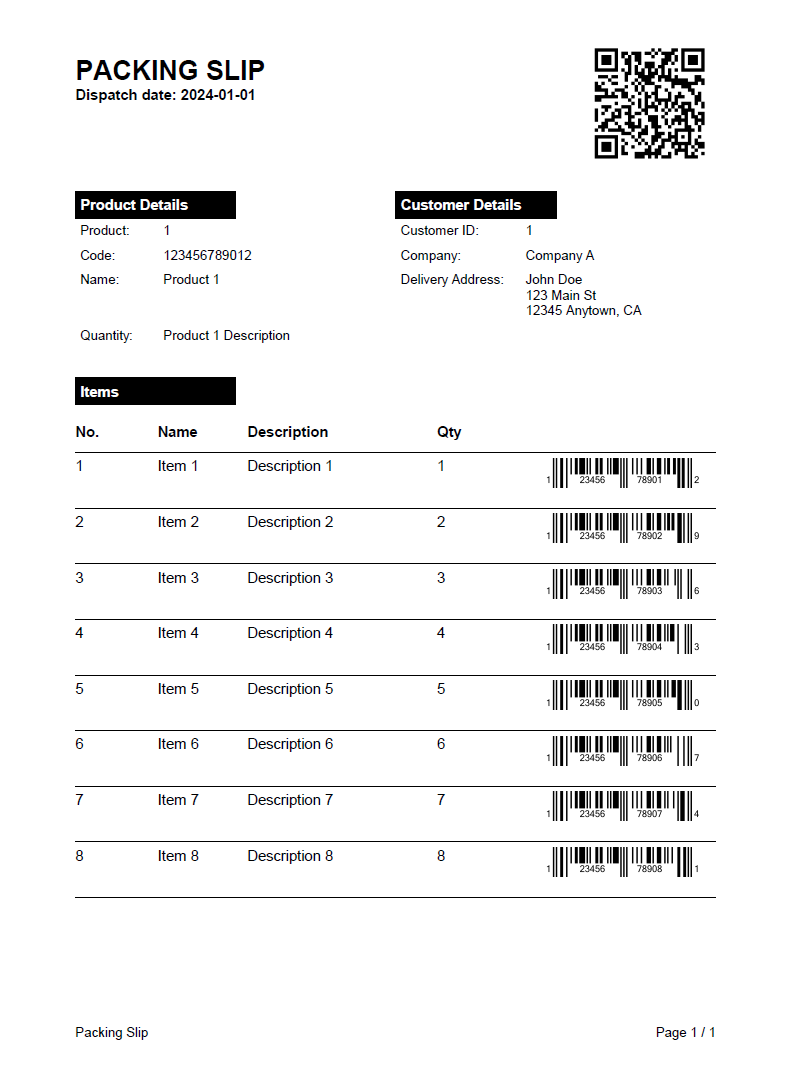
Both kinds of placeholders can fill one document. The following packing slip was merged from JSON data: the QR code at the top and the linear barcode in each row of the item block received their values from the data. The blog article Enhancing Documents with QR Codes and Barcodes in .NET C#: A Comprehensive Guide shows its template and data:
Create Placeholders With the Ribbon
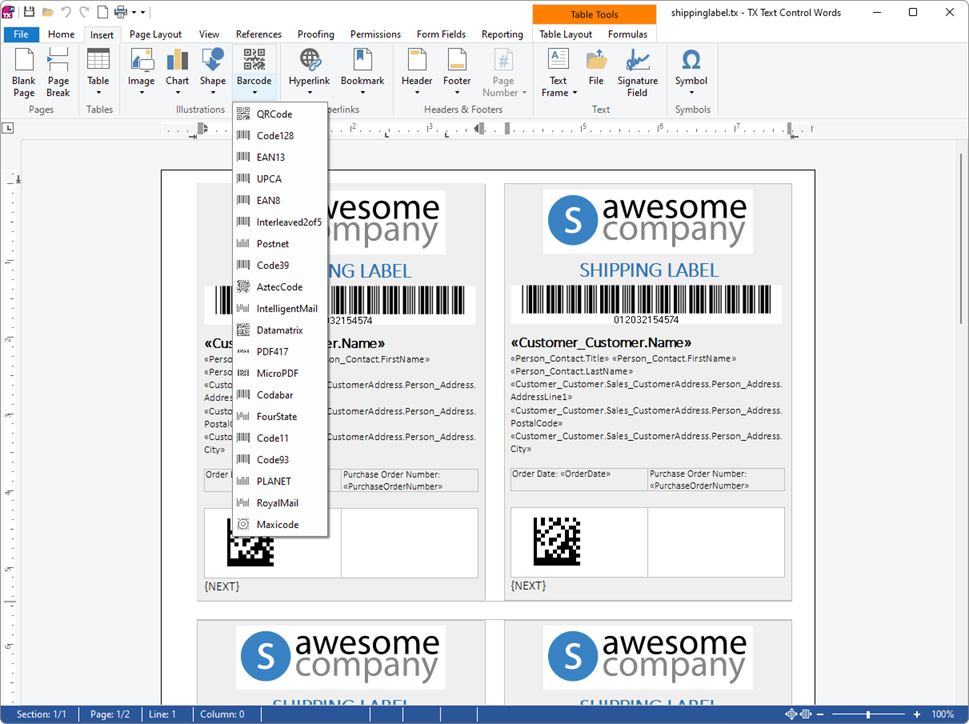
Users insert an image with the Image button or a barcode with the Barcode drop-down of the Insert tab. The drop-down lists the barcode types:
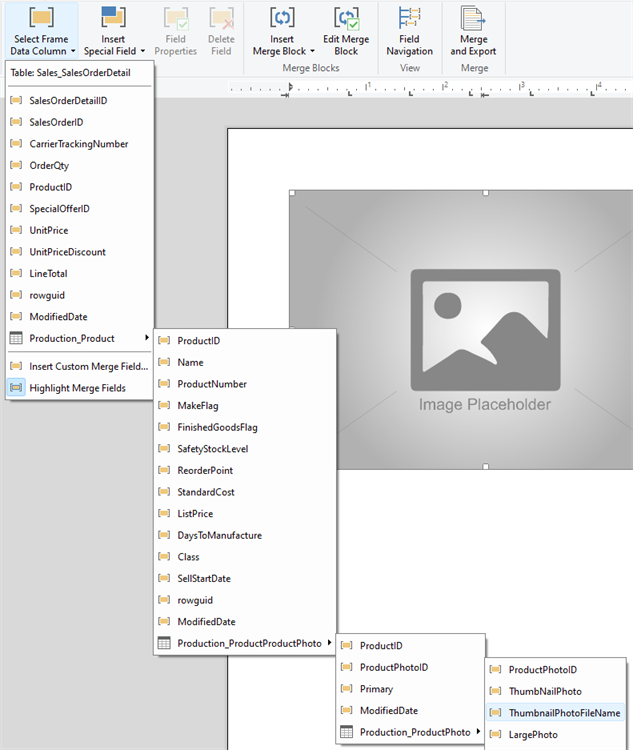
The name connects the placeholder with the data. With the image or barcode selected, the name can be typed into the object name box of the contextual Frame Formatting tab, the RibbonFrameLayoutTab. When a data source is loaded into the Reporting tab, the Insert Merge Field button of the Merge Fields group becomes Select Frame Data Column while an image or barcode is selected, and lists the columns to choose the name from:
Create Placeholders in Code
In code, a placeholder is an image or barcode frame with a Name. The following handlers insert a logo placeholder and a QR code at the input position of textControl1. Add using System.Drawing;, using TXTextControl.Barcode; and using TXTextControl.DataVisualization; to Form1.cs:
private void insertLogoPlaceholderButton_Click(object sender, EventArgs e)
{
    // TXTextControl.Image, not System.Drawing.Image; 4 is the filter index of PNG
    TXTextControl.Image placeholder = new TXTextControl.Image("placeholder.png", 4);

    // Insert the image inline at the input position
    textControl1.Images.Add(placeholder, -1);

    // The name connects the placeholder with the data
    placeholder.Name = "Logo";
}

private void insertQrCodeButton_Click(object sender, EventArgs e)
{
    TXBarcodeControl qrCode = new TXBarcodeControl
    {
        BarcodeType = BarcodeType.QRCode,
        // The size of the code is calculated for 12 characters
        UpperTextLength = 12,
        Text = "INV-0000-000"
    };

    BarcodeFrame barcodeFrame = new BarcodeFrame(qrCode)
    {
        // The name connects the barcode with the data
        Name = "InvoiceNumber",
        Size = new Size(1440, 1440) // 1 inch in twips
    };

    textControl1.Barcodes.Add(barcodeFrame, -1);
}
The code works as follows:
- The Image constructor loads the placeholder picture; with
using System.Drawing;in the file, the class name must be written asTXTextControl.Image. ImageCollection.Add with-1inserts it at the input position. The size you give the placeholder is the width of every merged image. - TXBarcodeControl defines the barcode: its BarcodeType and the Text shown until the merge.
- The BarcodeFrame constructor places the barcode in the document. Its
Nameis matched with the data, and itsSizein twips is the space the barcode takes. - TextControl.Barcodes returns the BarcodeCollection, whose
Addmethod inserts the barcode inline; other overloads anchor it to a paragraph or place it at a fixed position.
UpperTextLength matters for merged barcodes. A barcode must not push the text around it, so its frame keeps its size and the code inside adapts: a text of the maximum length fills the frame, and a shorter text makes the code smaller. Set it to the longest value your data contains, before Text. The blog article Understanding the UpperTextLength of Barcodes in TX Text Control X9 shows the effect.
Add the Image Data
JSON carries images as Base64 strings, so the data stays in one file. Add a Logo property with the Base64 data of a PNG image to the invoice in invoice.json:
[
  {
    "Company": "Contoso Ltd.",
    "Name": "Jane Miller",
    "InvoiceNumber": "INV-1001",
    "Logo": "iVBORw0KGgoAAAANSUhEUgAA...",
    "Items": [
      { "Description": "Consulting", "Quantity": 2, "Price": 150.00 },
      { "Description": "Training", "Quantity": 1, "Price": 480.00 }
    ]
  }
]
The value is shortened here; use the complete Base64 string of your image. InvoiceNumber already holds the value for the QR code. When the data contains a file name such as "Logo": "logo.png" instead, MailMerge looks for the file in the folder of SearchPath, or in the root directory when it is empty. For SVG, the value is the markup itself, not Base64 encoded; the blog article Service Pack 3: MailMerge Supports SVG Images shows an example.
Merge Images and Barcodes
The following handler merges invoice.tx with the data, removes image placeholders without data and shows the result in the editor. It needs using System.IO; and using TXTextControl.DocumentServer;:
private void mergeImagesButton_Click(object sender, EventArgs e)
{
    byte[] result;

    using (ServerTextControl tx = new ServerTextControl())
    {
        tx.Create();
        tx.Load("invoice.tx", StreamType.InternalUnicodeFormat);

        using (MailMerge mailMerge = new MailMerge
        {
            TextComponent = tx,
            // Remove placeholders the data has no image for
            RemoveEmptyImages = true,
            // Image file names in the data are searched here
            SearchPath = Path.Combine(Application.StartupPath, "Images")
        })
        {
            mailMerge.ImageMerged += (s, args) =>
            {
                if (args.Merged && args.Name == "Logo")
                {
                    args.DescriptiveText = "Company logo";
                }
            };

            mailMerge.BarcodeMerged += (s, args) =>
                System.Diagnostics.Debug.WriteLine("Barcode merged: " + args.BarcodeFrame.Name);

            mailMerge.MergeJsonData(File.ReadAllText("invoice.json"));
        }

        tx.Save(out result, BinaryStreamType.InternalUnicodeFormat);
    }

    textControl1.Load(result, BinaryStreamType.InternalUnicodeFormat);
}
The code works as follows:
- ImageMerged occurs for each image placeholder. Its arguments tell the Name of the placeholder, whether it was Merged and, for a placeholder in a block, the MergeBlockName.
- DescriptiveText replaces the descriptive text of the merged image, and Image gives access to the image itself.
- BarcodeMerged occurs after a barcode has been merged. BarcodeMergedEventArgs contains the merged BarcodeFrame.
The merged invoice shows the logo in the size of the placeholder and a QR code that encodes INV-1001.
Check Barcode Values
Each barcode type accepts only certain characters and lengths, so a value from the data may not fit. Static methods of TXBarcodeControl check a value before the merge:
string invoiceNumber = "INV-1001";

if (!TXBarcodeControl.IsTextValid(BarcodeType.QRCode, invoiceNumber, out string errorMessage))
{
    MessageBox.Show(this, "Invalid value: " + errorMessage);
}
IsTextValid returns false and an error message for a value the type can't encode. GetMinimumTextLength and GetMaximumTextLength return the lengths a type accepts. BarcodeType has 20 types, from one-dimensional codes such as Code128, EAN13 and UPCA to two-dimensional codes such as QRCode, Datamatrix and PDF417.
Merge Charts
A chart in a template can be filled from the data as well: each row of a table becomes a data point, with one column for the label on the axis and one for the value. Charts need the chart package and the references described in Integrating Charts and Barcodes. The examples use this sales.json, whose array country-sales holds the sales of each country:
[
  {
    "country-sales": [
      { "country": "United States", "sales": 7890567 },
      { "country": "Germany", "sales": 889078 },
      { "country": "Canada", "sales": 3466363 }
    ]
  }
]
With sales.json loaded into the Reporting tab, for example with Load JSON File, users connect a chart to the data:
- Insert a chart with Chart in the Insert tab.
- Select the chart and click Set Data Relation in the Data group of the chart layout tab, which TX Words shows as Chart Formatting in the Chart Tools group.
- In the Set Chart Data Relation dialog box, keep the Main Table, choose
country-salesas Child Table,countryfor Axis Labels andsalesfor Values, and click OK.
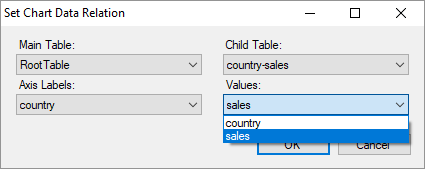
The dialog box prepares the chart for the merge: it keeps one chart area and one series, names the chart frame after the child table, the chart area after the column of the axis labels and the series after the column of the values. The merge then fills the chart with one data point per row, shown here in the preview of an older version of TX Words:
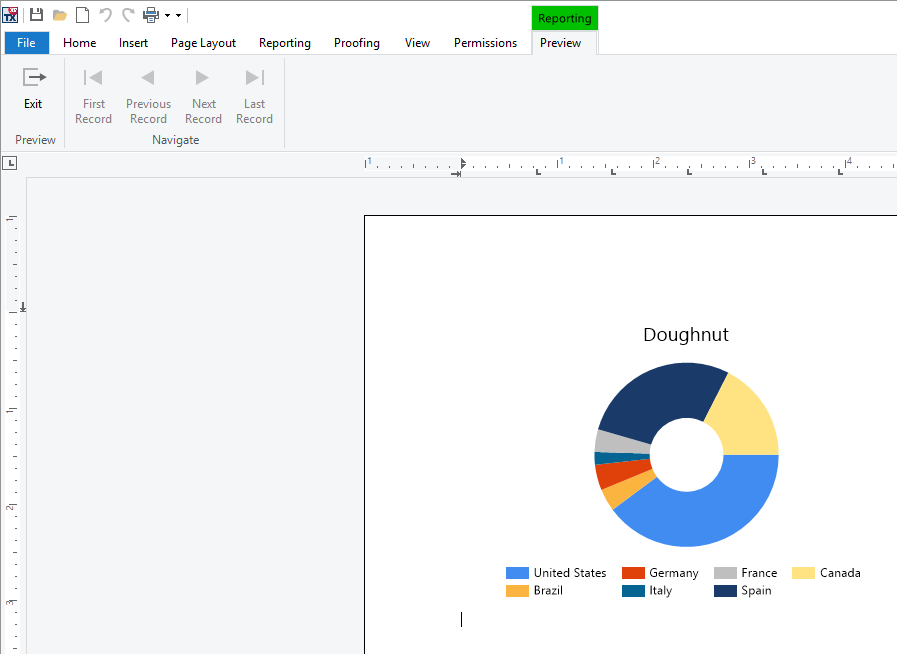
In code, ChartDataRelationDialog opens the same dialog box for a chart, and MailMerge fills the charts of a template in every merge. Add using TXTextControl.DataVisualization; and using TXTextControl.DocumentServer.Windows.Forms; to Form1.cs:
private void chartDataButton_Click(object sender, EventArgs e)
{
    // The chart the user has selected, or null
    ChartFrame chartFrame = textControl1.Charts.GetItem();

    if (chartFrame == null)
    {
        MessageBox.Show(this, "Select a chart first.");
        return;
    }

    using (ChartDataRelationDialog dialog = new ChartDataRelationDialog(
        chartFrame, ribbonReportingTab1.DataSourceManager))
    {
        dialog.ShowDialog(this);
    }
}

private void mergeChartsButton_Click(object sender, EventArgs e)
{
    using (MailMerge mailMerge = new MailMerge { TextComponent = textControl1 })
    {
        mailMerge.ChartMerged += (s, args) =>
            System.Diagnostics.Debug.WriteLine("Chart merged: " + args.ChartFrame.Name);

        mailMerge.MergeJsonData(File.ReadAllText("sales.json"));
    }
}
The code works as follows:
- Charts.GetItem returns the selected chart as a ChartFrame, or
null. - The ChartDataRelationDialog constructor takes the chart and the
DataSourceManagerwhose tables the dialog box lists. - ChartMerged occurs after each chart has been merged, and ChartFrame of its arguments is the merged chart.
The blog article Using MailMerge with Chart Objects and JSON Data builds this template step by step and offers it for download.
Image Merge Fields
Before named placeholders, images were merged into merge fields whose name starts with image:, such as image:Logo. Such templates are still merged, but the ImageFieldMerged event that belongs to them is marked obsolete in the assembly, and the compiler warns when your code uses it. Use named placeholders and ImageMerged in new templates.
Next Steps
- Merge Blocks: repeat images and barcodes for each record.
- Data Sources: the data that carries images and values.
- Charts and Barcodes: charts and barcodes in the editor.
- The blog article Merging Barcodes with JSON Data in C#: a QR code filled from JSON data.