
Formatting and Styling
A merged invoice looks the way its template was designed: the fonts, colors, table borders and paragraph settings that a user gives the template in the editor stay while the data is merged. What depends on the data, such as a gray background on every second row or a highlighted price, comes either from fields in the template or from a few lines in the events of MailMerge.
Number and date formats of single merge fields are set in the Merge Field Options dialog box and described in Merge Fields. The examples below extend the invoice of the Getting Started tutorials: the template invoice.docx with a table row block Items and the data invoice.json, whose two items are Consulting (quantity 2, price 150.00) and Training (quantity 1, price 480.00). They are introduced in Add Repeating Merge Blocks.
What the Merge Keeps
The template is designed with the formatting features of the editor, and the merge doesn't change them:
- Merge fields keep their formatting. A field formatted bold and red in the template inserts its value bold and red.
- Merge blocks are copied with their formatting. Each record gets a copy of the block, including its table formatting, paragraph settings and styles.
- Letter case is a setting of the field. The Format list of the Merge Field Options dialog box offers UPPERCASE, lowercase, First capital and Title Case.
In the TX Words sample, the Home tab formats a template like any other document, here the font color of a merge field:
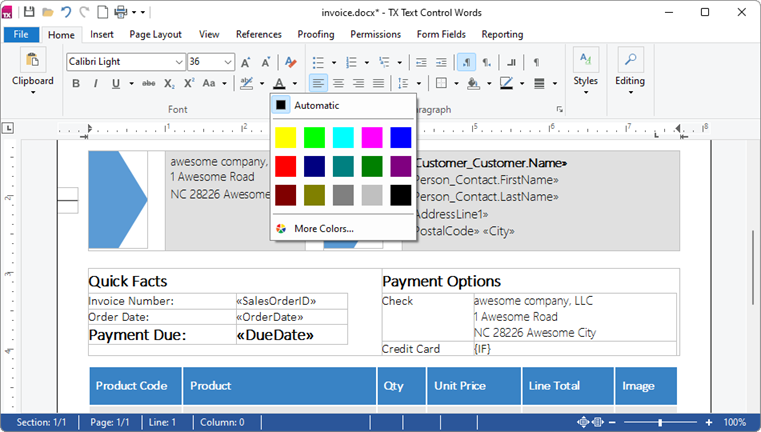
Format the template and keep the data free of formatting. Template Design collects the layout rules that hold up when the data grows.
Alternate Row Colors in the Template
Alternating row colors need no code. Make the merge block two table rows with the same merge fields and different background colors, and put a NEXT field at the end of the first row. The NEXT field moves on to the next record, so the second row shows the following record in its own color. Users insert the field with Insert Special Field in the Merge Fields group of the Reporting tab.
When the number of records is odd, the second row of the last copy stays empty. The blog article Reporting: Removing Empty Table Rows shows such a template and removes the empty row in the BlockRowMerged event.
Alternate Row Colors in Code
With a block of one row, your code colors the rows instead. BlockRowMerged occurs after each row of a merge block has been merged and hands your handler the merged row as a document. The following code in Form1.cs merges the invoice in a ServerTextControl, colors every second row of the Items block and shows the result in textControl1. Add a button named colorRowsButton next to the mergeButton of the Getting Started tutorials, and create its Click handler by double-clicking it in the designer:
using System;
using System.Drawing;
using System.IO;
using System.Windows.Forms;
using TXTextControl;
using TXTextControl.DocumentServer;
using TXTextControl.DocumentServer.Fields;
private int itemRowCount;

private void colorRowsButton_Click(object sender, EventArgs e)
{
    byte[] result;

    using (ServerTextControl tx = new ServerTextControl())
    {
        tx.Create();

        LoadSettings loadSettings = new LoadSettings
        {
            ApplicationFieldFormat = ApplicationFieldFormat.MSWord,
            LoadSubTextParts = true
        };

        tx.Load("invoice.docx", StreamType.WordprocessingML, loadSettings);

        using (MailMerge mailMerge = new MailMerge { TextComponent = tx })
        {
            mailMerge.BlockMerging += MailMerge_BlockMerging;
            mailMerge.BlockRowMerged += MailMerge_BlockRowMerged;

            mailMerge.MergeJsonData(File.ReadAllText("invoice.json"));
        }

        tx.Save(out result, BinaryStreamType.InternalUnicodeFormat);
    }

    // Show the merged invoice in the editor
    textControl1.Load(result, BinaryStreamType.InternalUnicodeFormat);
}

private void MailMerge_BlockMerging(object sender, MailMerge.BlockMergingEventArgs e)
{
    // Start counting again for each Items block
    if (e.BlockName == "Items")
    {
        itemRowCount = 0;
    }
}

private void MailMerge_BlockRowMerged(object sender, MailMerge.BlockRowMergedEventArgs e)
{
    if (e.MergeBlockName != "Items")
    {
        return;
    }

    // Color every second row of the block
    itemRowCount++;

    if (itemRowCount % 2 != 0)
    {
        return;
    }

    using (ServerTextControl rowText = new ServerTextControl())
    {
        rowText.Create();
        rowText.Load(e.MergedBlockRow, BinaryStreamType.InternalUnicodeFormat);

        foreach (Table table in rowText.Tables)
        {
            foreach (TableRow row in table.Rows)
            {
                TableCellFormat cellFormat = row.CellFormat;
                cellFormat.BackColor = Color.LightGray;
                row.CellFormat = cellFormat;
            }
        }

        byte[] data;
        rowText.Save(out data, BinaryStreamType.InternalUnicodeFormat);
        e.MergedBlockRow = data;
    }
}
The code works as follows:
- BlockMerging occurs before a block is merged. Its BlockName resets the counter, so that each invoice of a larger JSON array starts with a white row.
- MergeBlockName tells which block the row belongs to, so other blocks stay as they are.
- MergedBlockRow holds the merged row in the internal TX Text Control format. A second
ServerTextControlloads it, TableRow.CellFormat sets the background of all cells of the row, and the saved bytes replace the row in the document.
Click colorRowsButton. The Training row, the second item, has a gray background.
Highlight Cells Depending on Their Values
The FieldMerged event tells your handler whether a merged field is in a table cell. With the cell and the data of the record, a rule formats the cell by its value. Add this handler to the form and attach it next to the others with mailMerge.FieldMerged += MailMerge_FieldMerged;:
private void MailMerge_FieldMerged(object sender, MailMerge.FieldMergedEventArgs e)
{
    // Highlight quantities above 1
    if (e.TableCell != null &&
        e.MailMergeFieldAdapter is MergeField mergeField &&
        mergeField.Name == "Quantity" &&
        Convert.ToInt32(e.DataRow["Quantity"]) > 1)
    {
        TableCellFormat cellFormat = e.TableCell.CellFormat;
        cellFormat.BackColor = Color.LightYellow;
        e.TableCell.CellFormat = cellFormat;
    }
}
- TableCell is the cell that contains the field, or
nullfor a field outside a table. - MailMergeFieldAdapter is the merged field; for a merge field it is a MergeField with its name.
- DataRow returns the values of the current record by column name.
After the merge, the quantity cell of Consulting is yellow. The blog article Manipulating Table Cells During the MailMerge Process in .NET C# builds more rules of this kind, and MailMerge: Conditional Table Cell Colors using Filter Instructions lets users store such a rule in a table cell of the template.
Color the Text of a Merged Field
To format the merged text rather than its cell, replace the content of the field in FieldMerged. MergedField contains the merged field with its formatting. The following handler shows prices above 400 in red; attach it with mailMerge.FieldMerged += ColorPrice_FieldMerged;:
private void ColorPrice_FieldMerged(object sender, MailMerge.FieldMergedEventArgs e)
{
    if (e.Merged &&
        e.MailMergeFieldAdapter is MergeField mergeField &&
        mergeField.Name == "Price" &&
        Convert.ToDecimal(e.DataRow["Price"], System.Globalization.CultureInfo.InvariantCulture) > 400)
    {
        using (ServerTextControl fieldText = new ServerTextControl())
        {
            fieldText.Create();
            fieldText.Load(e.MergedField, BinaryStreamType.InternalUnicodeFormat);

            // Keep the text, remove the field, and color the text
            fieldText.ApplicationFields.Clear(true);
            fieldText.SelectAll();
            fieldText.Selection.ForeColor = Color.Red;

            byte[] data;
            fieldText.Save(out data, BinaryStreamType.InternalUnicodeFormat);
            e.MergedField = data;
        }
    }
}
Merged is true when the field received data. ApplicationFields.Clear with true removes the field but keeps its text, which then gets the color. The font and size of the field stay, because the merged field is loaded with its formatting.
Number Formats and Formulas in Merged Tables
Table cells have number formats of their own. When a cell's text type is a number, TableCellFormat.NumberFormat formats the numbers in it, and this also applies to the value of a merge field in the cell, as the blog article Formatting Numbers in Table Cells shows.
Cells can calculate with formulas as well. In an invoice template, the items come from the data while formula cells calculate the line totals and the total from the merged values. Calculate With Formulas in Document Processing describes formulas and number formats.
Next Steps
- Merge Fields: number and date formats, text before and after a field and formatted text.
- Template Design: design templates that look right with any data.
- Merge Events: every event of the merge and its arguments.
- Tables and Calculations: format tables and cells in code.