
Subtemplates
Company letterheads, terms and conditions or a standard address block appear in many templates. Instead of copying them into each one, keep them in a document of their own, a subtemplate, and let each template include it with an INCLUDETEXT field. MailMerge inserts the subtemplate while it merges, so a change to the subtemplate reaches every template that includes it. Below, you insert INCLUDETEXT fields with the Reporting tab and in code, tell MailMerge where the subtemplates are, and supply or leave out their content from your code.
The examples extend the invoice template invoice.docx of Merge Data into Fields, which is merged with invoice.json. Template Design covers the layout of templates in general.
How Subtemplates Work
An INCLUDETEXT field is an MS Word field that names another document. When MailMerge reaches the field, it loads that document and inserts its content in place of the field:
- The file name is looked up in the search path. MailMerge.SearchPath is the folder in which subtemplates, and the image files of image placeholders, are searched. When it is empty, the root directory is used.
- Subtemplates are templates too. A subtemplate can contain merge fields, merge blocks and further
INCLUDETEXTfields, which are merged with the same data. - Formats. Subtemplates are loaded from files in formats such as DOCX, DOC and RTF.
- Headers and footers. An
INCLUDETEXTfield in the header of a template fills the header with the subtemplate. Design the content of such a subtemplate in its main text, not in its own header.
Your code can also answer each INCLUDETEXT field itself, with a document from a database or created on the fly, as Supply Subtemplates From Code shows.
Insert an INCLUDETEXT Field With the Ribbon
In the Reporting tab, the field is one of the special fields:
- Place the input position where the subtemplate goes, for example below the table of items.
- Open the Insert Special Field drop-down in the Merge Fields group and click IncludeText.
- In the IncludeText Field Options dialog box, type the file name of the subtemplate, such as terms.docx, and confirm with OK.
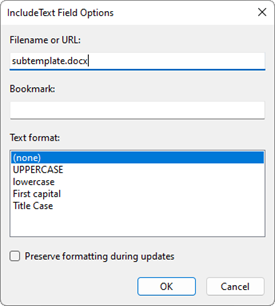
Text format changes the case of the included text: uppercase, lowercase, first capital or title case. Bookmark is written into the field for MS Word but isn't used by MailMerge, which always includes the whole document.
Insert an INCLUDETEXT Field in Code
The IncludeText class creates the field. Add using TXTextControl.DocumentServer.Fields; to Form1.cs and this handler for a button named insertTermsButton:
private void insertTermsButton_Click(object sender, EventArgs e)
{
    IncludeText includeText = new IncludeText
    {
        // Searched in MailMerge.SearchPath during the merge
        Filename = "terms.docx"
    };

    textControl1.ApplicationFields.Add(includeText.ApplicationField);
}
- The IncludeText constructor without parameters creates a new field; with an
ApplicationField, it reads a field that is already in the document. - Filename is the name of the subtemplate. TextFormat sets the case of the included text, and Bookmark is not used by
MailMerge. ApplicationFields.Addinserts the field at the input position, like a merge field in Create a Template.
Save the template as DOCX. When it is loaded for the merge, ApplicationFieldFormat.MSWord in the LoadSettings imports the INCLUDETEXT field together with the merge fields.
Merge a Template With Subtemplates
Put terms.docx into a folder named Subtemplates in the output folder of the application, and set SearchPath before the merge. The following handler merges the invoice in a ServerTextControl and shows the result in the editor:
private void mergeWithSubtemplatesButton_Click(object sender, EventArgs e)
{
    byte[] result;

    using (ServerTextControl tx = new ServerTextControl())
    {
        tx.Create();

        LoadSettings loadSettings = new LoadSettings
        {
            ApplicationFieldFormat = ApplicationFieldFormat.MSWord,
            LoadSubTextParts = true
        };

        tx.Load("invoice.docx", StreamType.WordprocessingML, loadSettings);

        using (MailMerge mailMerge = new MailMerge
        {
            TextComponent = tx,
            // The folder that contains the subtemplates
            SearchPath = Path.Combine(Application.StartupPath, "Subtemplates")
        })
        {
            mailMerge.IncludeTextMerging += MailMerge_IncludeTextMerging;
            mailMerge.MergeJsonData(File.ReadAllText("invoice.json"));
        }

        tx.Save(out result, BinaryStreamType.InternalUnicodeFormat);
    }

    textControl1.Load(result, BinaryStreamType.InternalUnicodeFormat);
}
The code needs using System.IO; and using TXTextControl.DocumentServer;. Application.StartupPath is the folder of the executable, so the subtemplates are found wherever the application is installed. The handler of the IncludeTextMerging event follows in the next section; without it, every field includes its file from the search path.
Supply Subtemplates From Code
IncludeTextMerging occurs for each INCLUDETEXT field. Your handler can replace the document the field includes, so the file name can also serve as a key for content that comes from a database or is built by your code. The following handler supplies a formatted legal notice for the field with the file name legal-notice.docx:
private void MailMerge_IncludeTextMerging(object sender, MailMerge.IncludeTextMergingEventArgs e)
{
    // Other files are included from the search path
    if (!e.Filename.EndsWith("legal-notice.docx"))
    {
        return;
    }

    using (ServerTextControl notice = new ServerTextControl())
    {
        notice.Create();
        notice.Text = "Prices include statutory VAT.";
        notice.Select(0, notice.Text.Length);
        notice.Selection.Italic = true;

        byte[] data;
        notice.Save(out data, BinaryStreamType.InternalUnicodeFormat);
        e.IncludeTextDocument = data;
    }
}
The code works as follows:
- Filename is the file name of the field being merged, and IncludeTextField the field itself as an
IncludeTextobject. - A second
ServerTextControlbuilds the content, here one italic sentence. - IncludeTextDocument takes the document to include as a byte array in the internal TX Text Control format. The reference page declares its type as
int; the compiled property isbyte[], as the code uses it.
Assigning an empty document leaves the subtemplate out. A field of the form and a few lines at the start of the handler leave out terms.docx when a flag of your application says so:
private bool includeTerms = false; // decided by your application
if (!includeTerms && e.Filename.EndsWith("terms.docx"))
{
    // An empty document leaves the subtemplate out
    using (ServerTextControl empty = new ServerTextControl())
    {
        empty.Create();

        byte[] emptyDocument;
        empty.Save(out emptyDocument, BinaryStreamType.InternalUnicodeFormat);
        e.IncludeTextDocument = emptyDocument;
    }

    return;
}
To decide per record, the blog article MailMerge: Conditional INCLUDETEXT Fields counts the merged records in the DataRowMerged event and reads a flag from the data. The blog article MailMerge: Using IncludeText Fields to Inject Formatted Text builds several fields this way.
Next Steps
- Conditional Content: the other ways to include or leave out content depending on the data.
- Template Design: plan templates, headers and footers.
- Merge Events: the other events of a merge.
- The blog article Using Sub-templates in Text Control Reporting: a shared page header as a subtemplate, designed in TX Words.