
Template Preview
While users design a template, they want to see what it produces: whether the table grows as expected, whether optional lines disappear and whether the numbers are formatted right. A template preview merges the template in the editor with the data loaded into the Reporting tab, shows the result in the same TextControl, lets users page through a few records and brings the template back afterward. The code below adds such a preview to a Windows Forms application with a few event handlers.
The preview needs a data source in the tab, as Create a Template loads it. The merge of real data is a separate step with MailMerge, described in Merge Data into Fields.
How a Preview Works
The Reporting tab has no preview button of its own, but its DataSourceManager can merge a template with the data it holds. Its Merge method takes the template as a byte array in the internal TX Text Control format and returns one document per record, up to a maximum number of records. A preview uses it in three steps:
- Save the template from the editor into a byte array and keep it.
- Merge the byte array with the data of the tab and load a merged record into the editor.
- Load the kept byte array into the editor again when the user returns to the template.
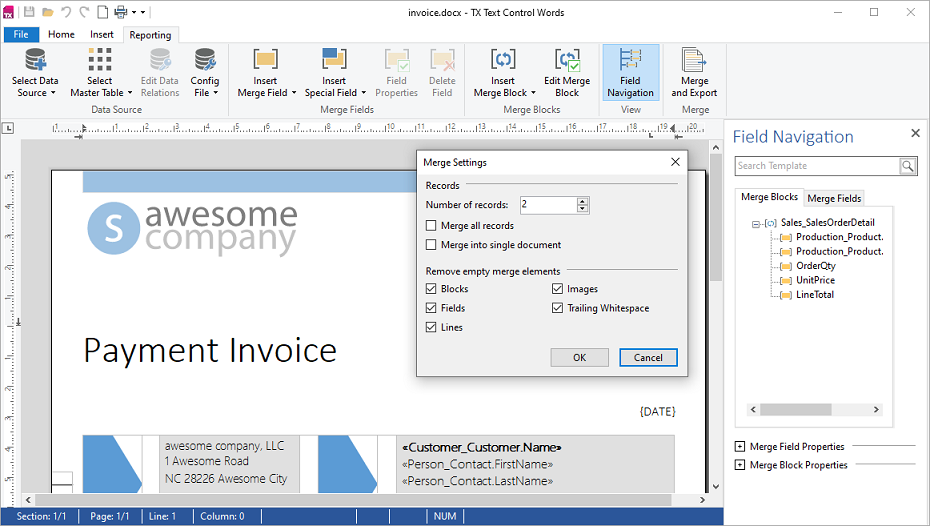
The TX Words Reporting sample works the same way. Its Merge and Export button asks for the number of records and the empty elements to remove in a Merge Settings dialog box of the sample:
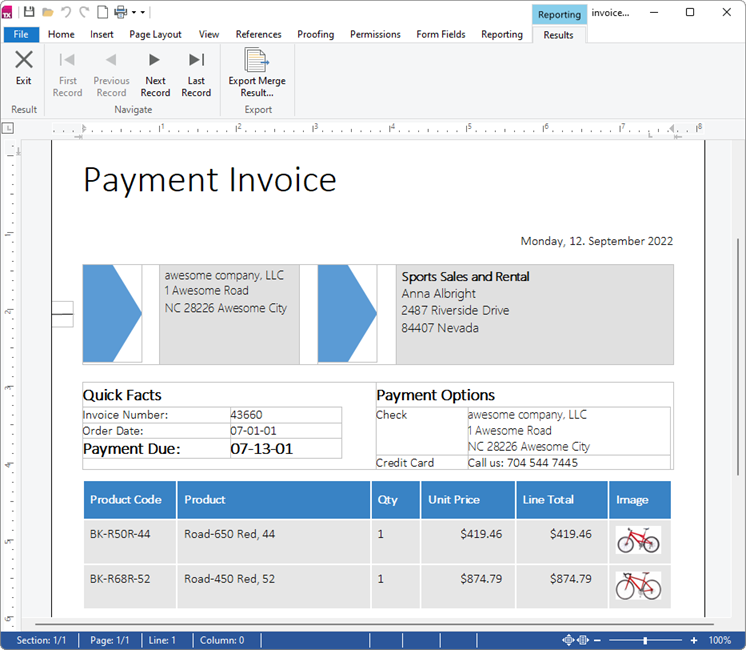
After the merge, the sample shows a Results tab that pages through the merged records:
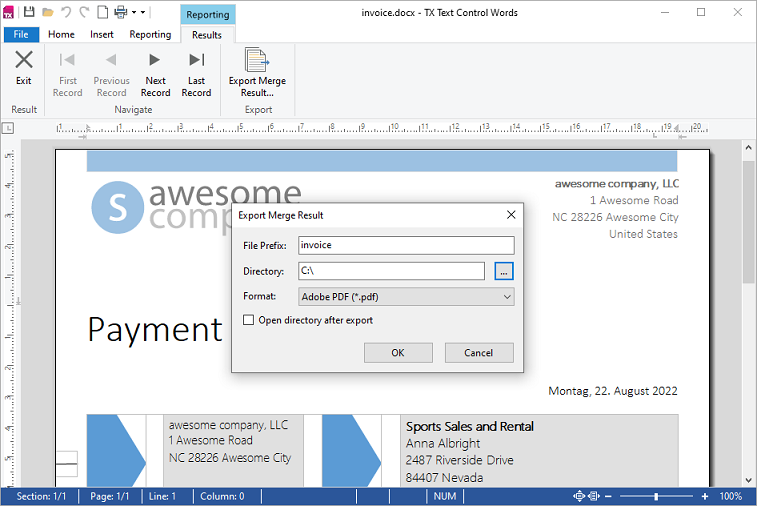
Its Export Merge Result button saves the merged records as files, with a file prefix, a directory and a format chosen in a dialog box:
Its source code is in %USERPROFILE%\Documents\TX Text Control 34.0.NET for Windows Forms\CSharp\TX Words\Reporting.
Add a Preview
The following code adds a preview to the ribbon application of Create a Template. Add a CheckBox named previewCheckBox with the text Preview and two buttons, previousRecordButton and nextRecordButton, to the form, and create their event handlers in the designer: CheckedChanged for the check box and Click for the buttons. Then add the following members to Form1.cs:
using System;
using System.Collections.Generic;
using System.Windows.Forms;
using TXTextControl;
using TXTextControl.DocumentServer.DataSources;
private byte[] template;
private IList<byte[]> previews;
private int previewIndex;

private void previewCheckBox_CheckedChanged(object sender, EventArgs e)
{
    if (previewCheckBox.Checked)
    {
        ShowPreview();
    }
    else
    {
        ShowTemplate();
    }
}

private void ShowPreview()
{
    DataSourceManager dataSourceManager = ribbonReportingTab1.DataSourceManager;

    if (!dataSourceManager.IsMergingPossible)
    {
        MessageBox.Show(this, "Load a data source into the Reporting tab first.");
        previewCheckBox.Checked = false;
        return;
    }

    // Keep the template to restore it later
    textControl1.Save(out template, BinaryStreamType.InternalUnicodeFormat);

    MergeSettings mergeSettings = new MergeSettings
    {
        RemoveEmptyFields = true,
        RemoveEmptyLines = false,
        RemoveEmptyImages = false
    };

    // Merge the first five records, one document each
    previews = dataSourceManager.Merge(template, 5, textControl1, mergeSettings);
    previewIndex = 0;

    ShowRecord();
    textControl1.EditMode = EditMode.ReadAndSelect;
}

private void ShowRecord()
{
    textControl1.Load(previews[previewIndex], BinaryStreamType.InternalUnicodeFormat);
    Text = $"Preview: record {previewIndex + 1} of {previews.Count}";
}

private void nextRecordButton_Click(object sender, EventArgs e)
{
    if (previews != null && previewIndex < previews.Count - 1)
    {
        previewIndex++;
        ShowRecord();
    }
}

private void previousRecordButton_Click(object sender, EventArgs e)
{
    if (previews != null && previewIndex > 0)
    {
        previewIndex--;
        ShowRecord();
    }
}

private void ShowTemplate()
{
    if (template == null)
    {
        return;
    }

    // Bring back the template and make it editable again
    textControl1.Load(template, BinaryStreamType.InternalUnicodeFormat);
    textControl1.EditMode = EditMode.Edit;
    template = null;
    previews = null;
    Text = "Template";
}
The code works as follows:
- IsMergingPossible is
truewhen all requirements forMergeare met, so the preview starts only with data in the tab. textControl1.SavewithBinaryStreamType.InternalUnicodeFormatwrites the template, with its fields and merge blocks, into the byte arraytemplate.Mergewith the maximum of 5 merges at most five records and returns a list with one document per record. TheTextControlis passed for licensing.- MergeSettings decide what the merge removes. RemoveEmptyFields is
trueby default. RemoveEmptyLines and RemoveEmptyImages aretrueby default here andfalseby default inMailMerge, so the code sets both tofalse. Use the same values as theMailMergeof your real merge, so the preview matches the result. - EditMode set to
ReadAndSelectprotects the preview from changes, because edits would be lost when the template is loaded again. - The Previous and Next buttons load another document of the list, and the title of the form shows which record is visible.
Press F5, load the data into the Reporting tab and check Preview. The editor shows the first merged record, and unchecking Preview brings the template back.
Merge Settings
The properties of MergeSettings correspond to the check boxes of the TX Words Merge Settings dialog box:
| Property | Default | What it does |
|---|---|---|
| AsSingleDocument | false | Combines the records into one document, each starting on a new page after a section break |
| RemoveEmptyBlocks | true | Removes the content of merge blocks without data |
| RemoveEmptyFields | true | Removes fields without data |
| RemoveEmptyImages | true | Removes images without merge data |
| RemoveEmptyLines | true | Removes lines that are empty after the merge |
| RemoveTrailingWhitespace | true | Removes trailing whitespace |
With AsSingleDocument set to true, the list returned by Merge holds one document with all records, which users can scroll through instead of paging. Numbers and dates are formatted with the culture in MergeCulture of the DataSourceManager, the culture of the current thread by default.
Find Fields Without Data in the Preview
The DataSourceManager raises its own FieldMerged and DataRowMerged events during Merge, with the same arguments as the events of MailMerge. A FieldMerged handler can collect the fields whose Merged property is false, and the preview can list them next to the result, as the template test in Template Design does with MailMerge.
Preview With MailMerge
DataSourceManager.Merge merges the data the designer loaded. When the preview has to use the same data and settings as your application's real merge, merge with MailMerge in a ServerTextControl instead and load the result into the editor, as Merge Data into Fields does. The description of the TX Words sample recommends MailMerge for the merge of real documents and uses Merge of the DataSourceManager for its preview. The blog article Using the Reporting RibbonTab shows the shortest form of the DataSourceManager preview.
Next Steps
- Reporting Ribbon and Dialog Boxes: the tab whose data the preview uses.
- Template Design: test templates before they go live.
- Merge Events: follow a merge with events.