
Passwords and Access Permissions
A PDF that leaves your application can be locked in two ways: a password that is needed to open it at all, and permissions that tell PDF readers what users may do with it, such as printing or copying text. TX Text Control .NET for Windows Forms sets both when it saves a PDF, and it opens protected PDF documents when your application supplies the password. What follows shows the code for saving, asking the user for a password, opening protected files and applying their permissions in the editor.
The first password-protected PDF is created in Create a PDF. What passwords and permissions protect against, and what they don't, is discussed in PDF Passwords and Permissions in the Security section.
How PDF Passwords Work
Two passwords and a set of permissions protect a PDF document:
- UserPassword encrypts the document: it's required to open it. An empty string means everyone can open the document.
- MasterPassword, also called the owner password, protects the permissions. It's required to change the security settings of the document. An empty string means access isn't restricted.
- DocumentAccessPermissions sets what users may do after opening the document. It takes effect only when a master password is set, and its values can be combined with
|.
Both passwords are properties of SaveSettings and LoadSettings, apply to PDF only and use an encryption key length of 128 bits. PDF/A doesn't allow encryption, so a document saved with StreamType.AdobePDFA has no password. The permissions are:
| Value | Allows |
|---|---|
AllowAll | All of the permissions |
None | None of the permissions |
AllowLowLevelPrinting | Printing |
AllowHighLevelPrinting | Printing without restrictions |
AllowExtractContents | Copying or otherwise extracting text and graphics |
AllowContentAccessibility | Extracting content for the visually impaired only |
AllowGeneralEditing | Changing the content of the document |
AllowAuthoring | Adding comments and filling in form fields, including signature fields |
AllowAuthoringFields | Filling in existing form fields, including signature fields |
AllowDocumentAssembly | Inserting, rotating and deleting pages and creating bookmarks and thumbnails |
Protect the Document When Saving
Protect the PDF With Passwords saves a PDF with a user password, a master password and permissions, and shows the password prompt of the PDF reader. Give the two passwords different values, so that users who can open the document can't change its permissions or remove its protection.
A document can also be protected with a master password alone: everyone can open it, but the permissions apply. The following handler in Form1.cs saves the document in textControl1 as a PDF that may only be printed. Form1.cs needs using TXTextControl;:
private void savePrintOnlyPdfButton_Click(object sender, EventArgs e)
{
    SaveSettings saveSettings = new SaveSettings()
    {
        // No user password: everyone can open the document
        MasterPassword = "owner1234",
        DocumentAccessPermissions = DocumentAccessPermissions.AllowLowLevelPrinting |
                                    DocumentAccessPermissions.AllowContentAccessibility
    };

    textControl1.Save("invoice-print-only.pdf", StreamType.AdobePDF, saveSettings);
}
Save a Fillable Form uses a master password alone for a form that users fill in and print, but don't change.
The permissions aren't an encryption of the content: once a document is open, a program that ignores them can copy or print it, as Where Permissions Stop explains. Confidential content needs a user password.
Let the User Set the Password in the Save As Dialog Box
In an editor, the user often decides whether a PDF gets a password. SaveSettings.DialogSettings EnterPassword adds a button to the Save As dialog box that opens a dialog box for an encryption password:
private void saveAsPdfButton_Click(object sender, EventArgs e)
{
    SaveSettings saveSettings = new SaveSettings();

    // Adds a button for an encryption password to the Save As dialog box
    if (textControl1.Save(StreamType.AdobePDF, saveSettings, SaveSettings.DialogSettings.EnterPassword) == DialogResult.OK)
    {
        MessageBox.Show($"Saved: {saveSettings.SavedFile}");
    }
}
The button is shown only while Adobe PDF is selected as the file type, because PDF/A doesn't support encryption passwords. Other options of the dialog box are listed in Supported File Formats.
Open a Password-Protected PDF
TX Text Control decrypts a PDF when it's loaded, but your application has to get the password from the user and restrict what the permissions don't allow. When a PDF requires a user password and none or a wrong one is given, Load throws a FilterException whose Reason is InvalidPassword. The following handler asks for the password until the file opens or the user cancels:
private void openProtectedPdfButton_Click(object sender, EventArgs e)
{
    string path = "protected.pdf";
    LoadSettings loadSettings = new LoadSettings();

    while (true)
    {
        try
        {
            textControl1.Load(path, StreamType.AdobePDF, loadSettings);
            break;
        }
        catch (FilterException exception) when (exception.Reason == FilterException.FilterError.InvalidPassword)
        {
            // No password or a wrong one: ask the user
            string password = AskForPassword(Path.GetFileName(path));

            if (password == null)
            {
                return;
            }

            loadSettings = new LoadSettings() { UserPassword = password };
        }
    }

    ApplyPermissions(loadSettings.DocumentAccessPermissions);
}
AskForPassword shows a small dialog box with a masked text box and returns null when the user cancels. TXTextControl also has a class named Button, so the Windows Forms buttons are named in full. The dialog box needs using System.Drawing; for Size, and the handler above using System.IO; for Path:
private string AskForPassword(string fileName)
{
    using (Form dialog = new Form()
    {
        Text = "Password",
        FormBorderStyle = FormBorderStyle.FixedDialog,
        StartPosition = FormStartPosition.CenterParent,
        MinimizeBox = false,
        MaximizeBox = false,
        ClientSize = new Size(330, 95)
    })
    {
        Label label = new Label() { Text = $"{fileName} is protected. Enter its password:", Left = 10, Top = 10, Width = 310 };
        TextBox passwordBox = new TextBox() { UseSystemPasswordChar = true, Left = 10, Top = 32, Width = 310 };
        System.Windows.Forms.Button okButton = new System.Windows.Forms.Button() { Text = "OK", DialogResult = DialogResult.OK, Left = 164, Top = 62 };
        System.Windows.Forms.Button cancelButton = new System.Windows.Forms.Button() { Text = "Cancel", DialogResult = DialogResult.Cancel, Left = 245, Top = 62 };

        dialog.Controls.AddRange(new Control[] { label, passwordBox, okButton, cancelButton });
        dialog.AcceptButton = okButton;
        dialog.CancelButton = cancelButton;

        return dialog.ShowDialog(this) == DialogResult.OK ? passwordBox.Text : null;
    }
}
Apply the Permissions in the Editor
After loading, LoadSettings.DocumentAccessPermissions tells which operations the PDF allows. The editor doesn't enforce them by itself: your application carries them over to the DocumentPermissions of the editor, so that the ribbon and the editor offer only what the PDF allows. The following method does this for editing, copying, printing and form fields:
private void ApplyPermissions(DocumentAccessPermissions permissions)
{
    if (permissions == DocumentAccessPermissions.AllowAll)
    {
        // No restrictions, for example after loading with the master password
        textControl1.EditMode = EditMode.Edit;
        printButton.Enabled = true;
        return;
    }

    DocumentPermissions editorPermissions = textControl1.DocumentPermissions;
    editorPermissions.ReadOnly = !permissions.HasFlag(DocumentAccessPermissions.AllowGeneralEditing);
    editorPermissions.AllowFormatting = permissions.HasFlag(DocumentAccessPermissions.AllowGeneralEditing);
    editorPermissions.AllowCopy = permissions.HasFlag(DocumentAccessPermissions.AllowExtractContents);
    editorPermissions.AllowPrinting = permissions.HasFlag(DocumentAccessPermissions.AllowLowLevelPrinting) ||
                                      permissions.HasFlag(DocumentAccessPermissions.AllowHighLevelPrinting);
    editorPermissions.AllowEditingFormFields = permissions.HasFlag(DocumentAccessPermissions.AllowAuthoringFields);

    // Turns the restrictions on
    textControl1.EditMode = EditMode.ReadAndSelect;

    // Your own print command follows the permissions of the document
    printButton.Enabled = textControl1.CanPrint;
}
The code works as follows:
DocumentAccessPermissionsis a combination of flags.AllowAllcontains all of them, so a document without restrictions is loaded as it is. When the user enters the master password instead, loaded through MasterPassword ofLoadSettings,DocumentAccessPermissionsisAllowAllas well.- Each flag is mapped to a property of DocumentPermissions, and EditMode
ReadAndSelectturns the restrictions on. SetEditModeback toEditMode.Editbefore the editor loads another document. printButtonis the button of your form that prints the document. For buttons and menu items of your own, check CanPrint and CanCopy before you offer them.
Encryption TX Text Control Can Open
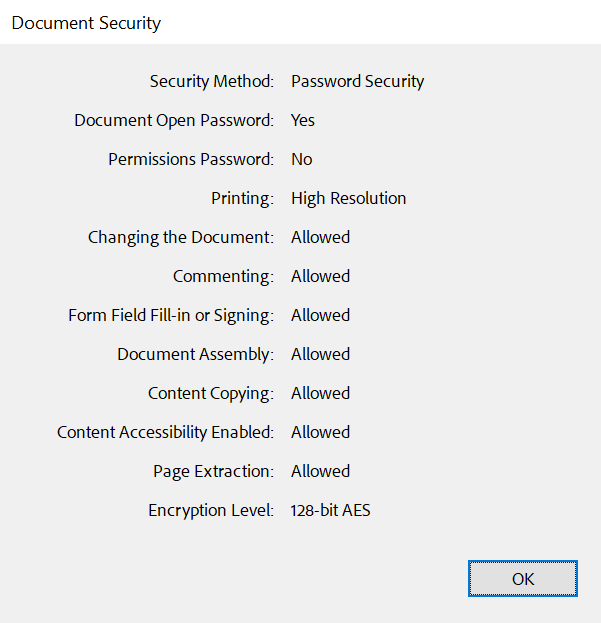
Not every PDF can be decrypted: Encrypted PDF Documents lists the encryption algorithms the import supports and the FilterException reason Encrypted for the others. The PDF documents TX Text Control saves use a 128-bit key; Adobe Acrobat reports them as encrypted with 128-bit AES:
Save a Loaded PDF With Its Password
A loaded PDF becomes a document in the editor, and SaveSettings decides the protection of the file that Save writes. The ribbon version of the TX Words sample keeps the user password of a loaded PDF and passes it again when the document is saved as PDF. Do the same with the LoadSettings object of the load:
private void saveAgainButton_Click(object sender, EventArgs e)
{
    LoadSettings loadSettings = new LoadSettings() { UserPassword = "user1234" };
    textControl1.Load("protected.pdf", StreamType.AdobePDF, loadSettings);

    // ... the user edits the document ...

    SaveSettings saveSettings = new SaveSettings()
    {
        UserPassword = loadSettings.UserPassword,
        MasterPassword = "owner1234",
        DocumentAccessPermissions = DocumentAccessPermissions.AllowLowLevelPrinting
    };

    textControl1.Save("protected.pdf", StreamType.AdobePDF, saveSettings);
}
Check That a PDF Is Encrypted
When your application creates protected PDF documents automatically, a missing password in the save settings leaves a document unprotected without any error. Check the result: loading it without a password must fail. A ServerTextControl, the TX Text Control without a user interface, does this without touching the document in the editor:
private void verifyButton_Click(object sender, EventArgs e)
{
    string path = "protected.pdf";

    using (ServerTextControl tx = new ServerTextControl())
    {
        // Initialize the new instance before using it
        tx.Create();

        try
        {
            tx.Load(path, StreamType.AdobePDF);
            MessageBox.Show("The PDF isn't encrypted.");
        }
        catch (FilterException exception) when (exception.Reason == FilterException.FilterError.InvalidPassword)
        {
            LoadSettings loadSettings = new LoadSettings() { UserPassword = "user1234" };
            tx.Load(path, StreamType.AdobePDF, loadSettings);

            MessageBox.Show($"Encrypted, permissions: {loadSettings.DocumentAccessPermissions}");
        }
    }
}
The blog article PDF Security Explained: Passwords, Permissions, Encryption and Digital Signatures in C# .NET describes this check and how passwords, permissions and signatures work together.
PDF Passwords and Document Protection
PDF passwords are not the same as the protection of a document in the editor. EditMode.UsePassword lets users protect a document with a password so that only its editable regions can be changed; that password is stored in the document, including in DOCX, RTF and PDF files, and opens the document read-only in TX Text Control. A PDF user password, in contrast, encrypts the file for every PDF reader. Document Protection and Editable Regions describes the protection in the editor.
Next Steps
- PDF Passwords and Permissions: what passwords and permissions protect in a security concept.
- Digital Signatures: make changes to a PDF detectable.
- Loading Documents: the other reasons of a
FilterException. - PDF/A: archive documents, which can't be encrypted.