
Document Protection and User Permissions
A protected document keeps users of your editor from changing what they shouldn't, and editable regions leave open exactly the parts a named user may fill in. That makes protection a good fit for forms, contracts and templates. It isn't access control, though: it doesn't hide the content, it depends on a password that someone has to keep, and the user names it relies on come from your application. Knowing these limits helps you decide where protection is enough and where a document needs more.
How to protect a document with the Permissions tab and in code is shown in Document Protection and Editable Regions. The samples here use Form1.cs with an editor named textControl1.
What Protection Consists of
Protection combines three settings of the TextControl: EditMode ReadAndSelect, optionally with UsePassword, turns the restrictions on, DocumentPermissions says what stays allowed, and editable regions stay open for everyone or for one user name. How Document Protection Works describes each setting and the formats that save them. Text Control describes this protection as compatible with Microsoft Word.
What Protection Guards Against
- Changes in the editor. Users of a
TextControlcan't edit or format a protected document beyond its permissions, and they can change only the editable regions that belong to them or to everyone. - Removing the protection without the password. A document protected with a password opens read-only, and lifting the protection asks for the same password.
- Actions your interface offers. The built-in ribbon shows the permissions: after a document whose permissions don't allow formatting is loaded, its formatting buttons are disabled. Buttons and menu items of your own check the properties listed in Check What the User May Do.
What Protection Doesn't Do
- It doesn't hide the content. A protected document opens read-only, so everybody who opens it can read it and select its text. For a confidential document, save it as a PDF with a user password, as PDF Passwords and Permissions describes.
- It isn't saved without a password. Text Control's article on document permissions states that
EditModemust beReadAndSelectcombined withUsePasswordfor the permissions to be saved in the document. Without a password, the restrictions apply in the current editor only, and settingEditModeback toEditlifts them. - Whoever knows the password has full access. The password of the protection is the master password of the document. Code that loads the document with this password in MasterPassword of the
LoadSettingsgets it without restrictions. - It doesn't show whether a document was changed. A document that was edited by someone who knew the password looks the same as the original. A digital signature makes changes to a PDF detectable, as Certificate and Private Key Handling describes.
User Names Aren't Sign-Ins
An editable region belongs to a user name, and UserNames lists the users who work with the editor. When a document is read-only, the regions of these users can be edited. TX Text Control compares the names; it doesn't check who the user is. Whoever can set UserNames, or type a name into a box that your application passes on, can edit the regions of that name.
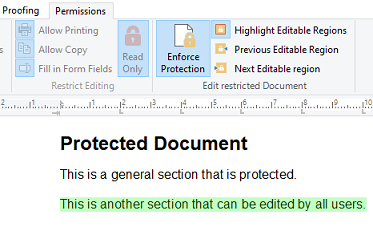
The TX Words sample User Access, installed with the setup, shows the difference. Before anyone signs in, only the region for all users is highlighted and editable:
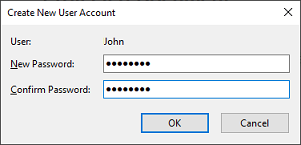
The sample's Sign In command creates the account in a password dialog box of its own:
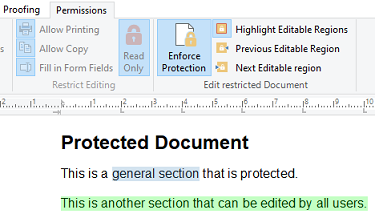
After the user signs in with the application's own Sign In command and password dialog box, the sample sets UserNames to the name of the signed-in user, and that user's region is highlighted and editable as well:
Set the names the same way, from the user your application has authenticated and never from a text box, and only then load the document, as Open a Protected Document shows. The first name of the list is also the author of the comments and tracked changes the user creates. When users add names in the Add Users dialog box of the Permissions tab, RegisteredUserNames and AllowAddingUserNames limit them to the users of your application, as Protect a Document With the Ribbon shows.
Process Protected Documents in Code
The protection password is what unlocks a document, for users and for code alike. Text Control's articles load a protected document with the password in MasterPassword, for example to convert it to PDF with a ServerTextControl:
private void exportContractButton_Click(object sender, EventArgs e)
{
    using (ServerTextControl tx = new ServerTextControl())
    {
        tx.Create();

        // The password of the protection lifts all restrictions
        LoadSettings loadSettings = new LoadSettings()
        {
            MasterPassword = protectionPassword
        };

        tx.Load("contract.tx", StreamType.InternalUnicodeFormat, loadSettings);
        tx.Save("contract.pdf", StreamType.AdobePDF);
    }
}
The code works as follows:
- Create initializes the
ServerTextControlbefore any other member is used. protectionPasswordis a field that holds the password. Get it from the user or from a protected store when it's needed, and don't write it into the source code: every copy of your application would contain it.- Without the password, the document stays protected, and according to the article it can't be exported to PDF as it is.
The reference lists MasterPassword as a setting of PDF documents; the loading of other protected formats with it rests on Text Control's articles Document Permissions and Password Encryption and Exporting Password Protected Documents to PDF in .NET C#.
Choose the Right Protection
| Goal | Use |
|---|---|
| Users of your editor may change only certain parts | Document protection with editable regions |
| Nobody without a password may read the document | A PDF with a user password |
| Recipients can see whether the document was changed | A digitally signed PDF |
| Readers of a PDF shouldn't print or copy it | PDF permissions with a master password, and a user password when the content is confidential |
Next Steps
- Document Protection and Editable Regions: protect documents with the ribbon and in code.
- PDF Passwords and Permissions: protection that works outside your application.
- Form Fields and Conditional Instructions: forms whose fields stay editable in a protected document.
- Security Overview: how document protection fits with the other mechanisms.