
Search and Replace
Finding a word, a customer name or a placeholder in a long document, and replacing it, is a standard task of a word processor. TextControl brings built-in Find and Replace dialog boxes and sidebars for users, and a Find method with which your code locates text and replaces it without any user interface.
The examples extend the form of Create Your First Windows Forms Application, whose editor is named textControl1. Selecting found text relies on the text positions explained on Selections and Caret Position.
Find and Replace for Users
The Home tab of the ribbon has an Editing group with Find..., Replace... and Go to.... The buttons open dialog boxes, or sidebars if your form connects them.
Find without parameters opens the built-in Find dialog box, and Replace opens the Replace dialog box. Call them from any button or menu item of your form:
private void FindButton_Click(object sender, EventArgs e)
{
    textControl1.Find();
}

private void ReplaceButton_Click(object sender, EventArgs e)
{
    textControl1.Replace();
}
The Replace dialog box offers options to match case, to match whole words only and to search upward. Besides the main text, it can search text frames and headers and footers.
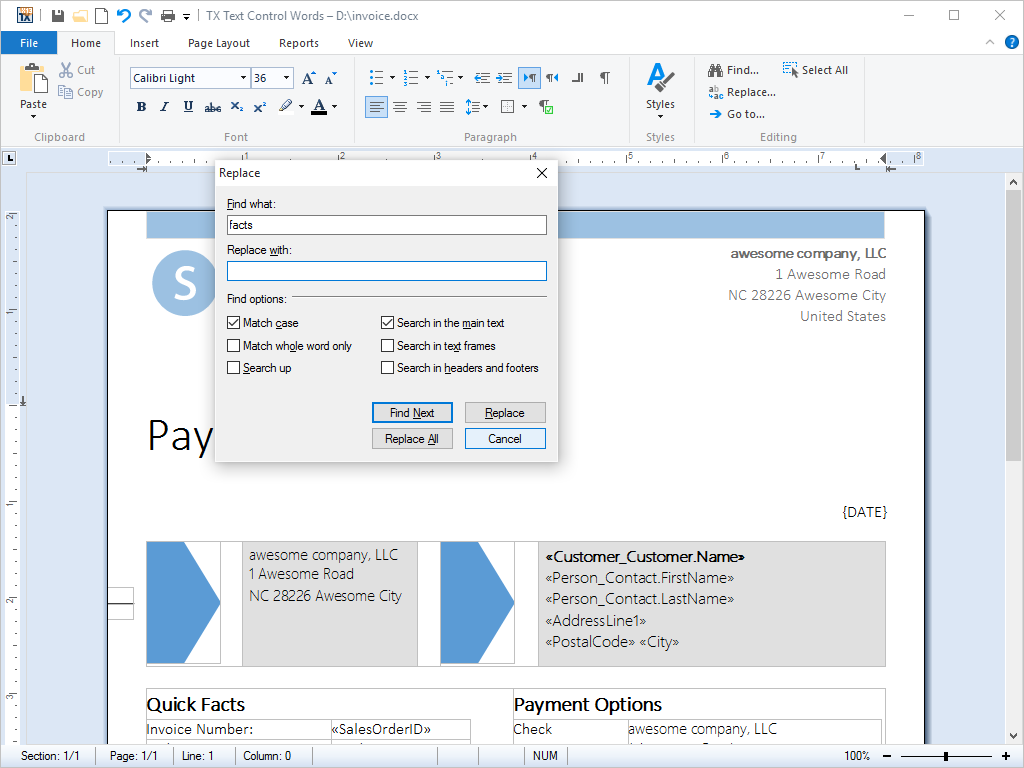
The built-in keyboard assignment of the editor doesn't include Ctrl+F or Ctrl+H. Keyboard Shortcuts shows how to add them.
Find and Replace in a Sidebar
A Sidebar shows the same functions as a panel beside the document when its ContentLayout is Find or Replace. Connected to the FindSidebar and ReplaceSidebar properties of the RibbonFormattingTab, it opens when the user clicks Find or Replace; Sidebar and Panels describes the setup.
Find Text in Code
Find has two overloads that search without a dialog box and return a zero-based text position:
| Overload | Searches |
|---|---|
Find(string text) | From the beginning of the text |
Find(string text, int start, FindOptions options) | From start, or from the input position if start is -1, with the given options |
Both return the position of the first character of the match, or -1 if the text doesn't occur. They search the text part that has the input focus, which is the main text unless the user is editing a header, a footer or a text frame.
Combine the values of FindOptions with |:
| Value | Effect |
|---|---|
MatchCase | Finds only matches with the same uppercase and lowercase letters |
MatchWholeWord | Finds only whole words |
Reverse | Searches from the end of the document toward the beginning |
NoHighlight | Doesn't highlight the match |
NoMessageBox | Doesn't show message boxes about the search result |
Without NoMessageBox, the search can show message boxes to the user. Code that searches in a loop always sets it.
Replace All Occurrences
The following code in Form1.cs writes a sentence into the editor when the form opens, replaces every "order" with "purchase" and reports the number of replacements:
using System;
using System.Windows.Forms;
using TXTextControl;

public partial class Form1 : Form
{
    public Form1()
    {
        InitializeComponent();
        Load += Form1_Load;
    }

    private void Form1_Load(object sender, EventArgs e)
    {
        textControl1.Text = "Invoice for order 1234. Thank you for your order.";

        int count = ReplaceAll("order", "purchase");
        MessageBox.Show(count + " replacements");
    }

    private int ReplaceAll(string searchText, string replacementText)
    {
        FindOptions options = FindOptions.MatchWholeWord | FindOptions.NoMessageBox;
        int count = 0;

        // All replacements are undone in one step
        textControl1.BeginUndoAction("Replace All");

        try
        {
            int position = textControl1.Find(searchText, 0, options);

            while (position != -1)
            {
                textControl1.Select(position, searchText.Length);
                textControl1.Selection.Text = replacementText;
                count++;

                // Continue behind the inserted text
                position = textControl1.Find(searchText, position + replacementText.Length, options);
            }
        }
        finally
        {
            textControl1.EndUndoAction();
        }

        return count;
    }
}
Keep the namespace that Visual Studio created around the class. When the form opens, a message box reports 2 replacements, and the editor shows "Invoice for purchase 1234. Thank you for your purchase."
The code works as follows:
MatchWholeWordkeeps "order" from matching inside longer words such as "orders".NoMessageBoxkeeps the search silent.- Select selects each match, and Selection.Text replaces it.
- The next search starts behind the inserted text. A replacement that contains the search text, such as "order" replaced with "reorder", is not found again.
- BeginUndoAction and EndUndoAction make the replacements one step, so a single Ctrl+Z restores the original text. See Undo and Redo.
Search With Regular Expressions
Find searches for literal text. For patterns such as dates, email addresses or invoice numbers, run a .NET regular expression over the text and select the matches by their positions. The blog article Advanced Smart Search with Regular Expressions in .NET C# shows an extension method that does this.
Next Steps
- Undo and Redo: group changes into one undo step.
- Keyboard Shortcuts: assign Ctrl+F and Ctrl+H.
- Built-in Dialog Boxes: the other dialog boxes of the editor.
- Fields, Hyperlinks, and Bookmarks: mark text that your code replaces later, instead of searching for it.