
Editing Text
Inserting text blocks, replacing placeholders and navigating through a document all come down to reading and changing the text in the Document Editor. Through the JavaScript API, your code selects text, sets the input position, inserts and replaces text, reads paragraphs and lines and finds text, and it works with undo and redo, the clipboard and the overwrite mode.
The examples extend the view of the ASP.NET Core tutorial, whose document contains the text "Welcome to Text Control". Formatting is explained on Text and Paragraph Formatting.
Text Positions
Text positions are counted in characters. Two counting methods occur in the API, and the reference states which one a member uses:
- Zero-based positions start with 0 for the first character. The selection, find and
setInputPositionByTextPositionuse them. - One-based numbers start with 1. The
getStartmethods of paragraphs, lines and pages return them.
A paragraph end or a line break counts as one character.
Select Text
Your code selects text in three ways:
- Assign the start position and the length to TXTextControl.selection:
TXTextControl.selection = { start: 0, length: 7 };. - Call select with the start, the length and a callback. Use it when the next step depends on the selection, because the callback tells you when it has been made.
- Call selectAll to select the whole text, or selectWord to select the word at the input position.
The Selection object passes the selected text with getText, and its position with getStart and getLength.
Insert and Replace Text
Selection.setText replaces the selected text. Without a selection, it inserts the text at the input position; with an empty string, it deletes the selection. Selection.load inserts formatted text instead, for example HTML encoded with btoaUTF8.
To place the input position first, setInputPositionByTextPosition takes a zero-based text position and a value of TextFieldPosition, which decides whether the position lies inside or outside a field at that place. setInputPositionByPage takes a page, a line and a column instead.
The following code inserts text at the beginning of the document, inserts formatted text at the input position, inserts a page break and logs the paragraph at the input position. Add it below the editor in Views/Home/Index.cshtml:
<input type="button" onclick="insertAtStart()" value="Insert at Start" />
<input type="button" onclick="insertFormattedText()" value="Insert Formatted Text" />
<input type="button" onclick="insertPageBreak()" value="Insert Page Break" />
<input type="button" onclick="logCurrentParagraph()" value="Log Paragraph" />

<script>
    function insertAtStart() {
        // The first text position is 0
        TXTextControl.setInputPositionByTextPosition(0,
            TXTextControl.TextFieldPosition.OutsideTextField, function () {
                TXTextControl.selection.setText("DRAFT ", function () {
                    TXTextControl.focus();
                });
            });
    }

    function insertFormattedText() {
        var html = "<p>Signed by <strong>Tim Typer</strong></p>";
        TXTextControl.selection.load(TXTextControl.StreamType.HTMLFormat, TXTextControl.btoaUTF8(html));
    }

    function insertPageBreak() {
        TXTextControl.inputPosition.getTextPosition(function (textPosition) {
            TXTextControl.textChars.addControlChar(TXTextControl.ControlChars.PageBreak, textPosition,
                function (added) {
                    console.log("Page break inserted: " + added);
                });
        });
    }

    function logCurrentParagraph() {
        TXTextControl.inputPosition.getTextPosition(function (textPosition) {
            TXTextControl.paragraphs.getItem(textPosition, function (paragraph) {
                paragraph.getText(function (text) {
                    console.log("Paragraph at " + textPosition + ": " + text);
                });
            });
        });
    }
</script>
The code works as follows:
insertAtStartmoves the input position to the beginning, inserts the text and gives the input focus back to the editor with focus, so that the user can continue typing.- TXTextControl.inputPosition returns the InputPosition. getTextPosition passes its text position;
getPage,getLineandgetColumnpass the other parts. - TextCharCollection.addControlChar inserts a control character, a value of ControlChars such as
PageBreak,LineBreak,TaborNonBreakingSpace. - ParagraphCollection.getItem passes the paragraph at a text position, and Paragraph.getText its text.
Read the Text of a Document
The main text and every other text part provide collections of their building blocks:
| Collection | Contains | Useful methods |
|---|---|---|
| paragraphs | The paragraphs | Paragraph.getText, getStart, getLength, select |
| lines | The lines | Line.getText, getPage |
| textChars | The characters | TextChar.getChar; the collection also adds and removes characters |
| TXTextControl.pages | The pages, in the page view | Page.getStart, getLength, select |
TXTextControl.getText passes the complete text of the document, and getPageCount the number of pages. Note the parameter orders in the reference: LineCollection.getItem, for example, takes the callback before the text position.
Remove Empty Pages
A template that contains a page break followed by a paragraph that starts on a new page, or two page breaks in a row, produces an empty page. Such a page contains only the break character, so its length is 1. The following function goes through the pages from the last to the first and deletes that character on every empty page:
function removeEmptyPages() {
  TXTextControl.pages.getCount(function (count) {

    function processPage(index) {
      if (index < 0) {
        return; // all pages processed
      }

      TXTextControl.pages.elementAt(index, function (page) {
        page.getLength(function (length) {
          if (length !== 1) {
            processPage(index - 1);
            return;
          }

          // getStart is one-based, select is zero-based
          page.getStart(function (start) {
            TXTextControl.select(start - 1, length, function () {
              TXTextControl.selection.setText("", function () {
                processPage(index - 1);
              });
            });
          });
        });
      });
    }

    // Start with the last page, so that deleting doesn't renumber the pages still to check
    processPage(count - 1);
  });
}
The code works as follows:
- TXTextControl.pages returns the PageCollection, which exists only in the page view. getCount passes the number of pages and elementAt a page by its zero-based index.
- Page.getLength passes the number of characters on the page. A length of 1 means that the page holds nothing but a page or section break.
- Page.getStart passes the one-based position of the first character, so the code subtracts 1 for
select.setTextwith an empty string deletes the selected break. processPagecalls itself from the callbacks, so each page is checked only after the previous change has been made.
In a letter with two page breaks in a row, the function reduces three pages to two. The blog article Removing Empty Pages in TX Text Control with JavaScript shows the scenario. On the server, "Remove Empty Pages" in Pages does the same with ServerTextControl.
Find and Replace Text
find searches for a text from a zero-based start position (-1 for the input position) and passes the position of the first match to its callback, or -1. Its optional third parameter is a value of FindOptions: MatchCase, MatchWholeWord, Reverse, NoHighlight or NoMessageBox.
The following code replaces every "Welcome" with "Hello" as one undo step and undoes the last action. A helper function turns a method with a callback into a promise, as described on JavaScript API:
<input type="button" onclick="replaceAll('Welcome', 'Hello')" value="Replace All" />
<input type="button" onclick="undoLastAction()" value="Undo" />

<script>
    // Calls a method of the JavaScript API and waits for its callback
    function request(target, method) {
        var args = Array.prototype.slice.call(arguments, 2);
        return new Promise(function (resolve, reject) {
            target[method].apply(target, args.concat([resolve, reject]));
        });
    }

    async function replaceAll(searchText, replacementText) {
        var count = 0;
        var options = TXTextControl.FindOptions.NoMessageBox;

        // Undo all replacements in one step
        await request(TXTextControl, "beginUndoAction", "Replace all");

        var position = await request(TXTextControl, "find", searchText, 0, options);

        while (position !== -1) {
            await request(TXTextControl, "select", position, searchText.length);
            await request(TXTextControl.selection, "setText", replacementText);
            count++;

            // Continue behind the inserted text
            position = await request(TXTextControl, "find", searchText,
                position + replacementText.length, options);
        }

        await request(TXTextControl, "endUndoAction");
        console.log(count + " replacements");
    }

    async function undoLastAction() {
        var canUndo = await request(TXTextControl, "getCanUndo");

        if (!canUndo) {
            console.log("Nothing to undo");
            return;
        }

        var actionName = await request(TXTextControl, "getUndoActionName");
        await request(TXTextControl, "undo");
        console.log("Undone: " + actionName);
    }
</script>
NoMessageBoxkeepsfindfrom showing message boxes about the search result.selectselects each match, andsetTextreplaces it. The next search starts behind the inserted text, so that a replacement that contains the search text isn't found again.- beginUndoAction and endUndoAction make all replacements one step, named "Replace all".
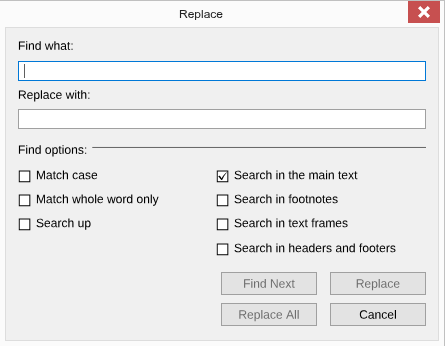
Click Replace All: "Welcome" becomes "Hello". Click Undo to restore it in one step. For users, showDialog opens the built-in dialog boxes with FindDialog or ReplaceDialog, which the Find... and Replace... buttons of the Home tab open as well:
TXTextControl.showDialog(TXTextControl.DialogBoxKind.ReplaceDialog);
Undo and Redo
| Method | Does |
|---|---|
| undo, redo | Undoes or redoes the last action |
| getCanUndo, getCanRedo | Passes whether there is something to undo or redo |
| getUndoActionName, getRedoActionName | Passes the name of that action; getUndoActionName passes null if nothing can be undone |
| clearUndo | Clears the undo buffer |
| setAllowUndo | Turns the undo buffer on or off |
Without grouping, each change is a step of its own: inserting a table and filling its 25 cells, for example, makes 26 steps. Grouped changes are also displayed at once, which avoids flickering, as the blog article JavaScript: Avoid Flickering and Visual Updates by Grouping Undo Steps shows.
Clipboard, Overwrite Mode and Drag and Drop
- Clipboard. Users copy, cut and paste with Ctrl+C, Ctrl+X and Ctrl+V. clipboardMode decides which clipboard these keys use:
Clientfrom ClipboardMode uses the clipboard of the user's computer, which accepts RTF, HTML, plain text and images from other applications;Serveruses an internal clipboard that keeps all TX Text Control features. The JavaScript API has no copy or paste methods. getCanCopy and getCanPaste pass whether copying and pasting are possible, and thetextPastedevent lets your code cancel pasted text. - Overwrite mode. setInsertionMode switches between
InsertandOverwritefrom InsertionMode, and getInsertionMode passes the current mode. Added in version 34.0. - Deleting. clear deletes the selected text or the character to the right of the input position. resetContents deletes the whole content.
- Drag and drop. setAllowDrag and setAllowDrop set whether the editor can be the source of a drag operation and whether it accepts dropped data. The
textDroppedandfileDroppedevents let your code cancel a drop.
The following lines use the client clipboard and log pasted text:
TXTextControl.addEventListener("textControlLoaded", function () {
  // Ctrl+C, Ctrl+X and Ctrl+V use the clipboard of the local computer
  TXTextControl.clipboardMode = TXTextControl.ClipboardMode.Client;

  TXTextControl.addEventListener("textPasted", function (e) {
    console.log("Pasted " + e.textType + ": " + e.text);
  });
});
Whether text can be changed at all depends on the edit mode and the document permissions; see Document Protection. The events for the input position, the clipboard, pasting and dropping are listed on Events.
Keyboard and Mouse
Users edit in the Document Editor with the keys and mouse actions of a word processor. The following tables list the assignments of TX Text Control that apply to the Document Editor of TXTextControl.Web 34.5.0.
| Key | Action |
|---|---|
| Left Arrow, Right Arrow | Moves the input position one character to the left or to the right |
| Up Arrow, Down Arrow | Moves the input position one line up or down |
| Home, End | Moves the input position to the beginning or the end of the line |
| Ctrl+Left Arrow, Ctrl+Right Arrow | Moves the input position to the beginning of the current or the next word |
| Ctrl+Home, Ctrl+End | Moves the input position to the beginning or the end of the text |
| Page Up, Page Down | Scrolls the text up or down by the height of the visible area minus one line, if the editor has a vertical scroll bar |
| Shift+Page Up, Shift+Page Down | Scrolls the document horizontally |
| Shift together with an arrow key, Home, End or Ctrl+arrow key | Extends the selection to the new input position |
| Shift+Enter | Inserts a line break without starting a new paragraph |
| Ctrl+Enter | Inserts a page break |
| Ctrl+Shift+Space | Inserts a non-breaking space |
| Del | Deletes the selected text |
| Ctrl+Z, Ctrl+Y | Undoes the last action, or restores the last undone action |
Hyphens and dashes have keys of their own. The second column says whether a line can be divided after the character:
| Key | Inserts | Line can break after it |
|---|---|---|
| Hyphen | A hyphen or minus sign | Yes |
| Ctrl+Shift+Hyphen | A non-breaking hyphen for compound words | No |
| Ctrl+Minus on the numeric keypad | An en dash | Yes |
| Ctrl+Alt+Minus on the numeric keypad | An em dash | Yes |
| Mouse action | Action |
|---|---|
| Click | Moves the input position to the point of the click, or selects the image or text frame that is clicked |
| Click and drag | Selects the text from the point where the button is pressed to the point where it is released, or moves an image or a text frame |
| Shift+click | Extends the selection to the position of the click |
| Double-click | Selects the word |
| Double-click and drag | Extends the selection word by word |
| Triple-click | Selects the paragraph |
| Triple-click and drag | Extends the selection paragraph by paragraph |
| Drag selected text and drop it | Moves the text to the drop position |
| Ctrl while dragging selected text and dropping it | Copies the text to the drop position |
| Click in the left page margin | Selects the line next to the click |
In tables, these keys and mouse actions apply as well:
| Key or mouse action | Action |
|---|---|
| Tab, Shift+Tab | Selects the next or the previous cell |
| Click left of a table row | Selects the table row |
| Click the top of a table column in the first row | Selects the table column |
Dragging and dropping text works only while setAllowDrag and setAllowDrop allow it, as described in Clipboard, Overwrite Mode and Drag and Drop.
The desktop controls of TX Text Control assign further keys: Ctrl+Backspace and Shift+Backspace to delete the previous word, Ctrl+Hyphen to insert an invisible hyphen at which a word can be divided at the end of a line, Ctrl+Shift+Enter to insert a column break, Ctrl+Page Up and Ctrl+Page Down to zoom, Ctrl+Tab to insert a tab character in a table cell, and a double-click in a table cell to select the cell. These assignments aren't confirmed for the Document Editor in a browser and are left out of the tables. How your code and the ribbon set the zoom is described in Viewing and Printing.
The keys for the clipboard are described in Clipboard, Overwrite Mode and Drag and Drop.
Next Steps
- Text and Paragraph Formatting: format the text you insert.
- Fields: mark text to replace it later.
- Viewing and Printing: control characters, zoom and the status bar.