
Fields, Hyperlinks, and Bookmarks
Fields mark pieces of text that an application fills, evaluates or links: a customer name taken from a database, a merge field of a Word template, a link to a website or a jump to another place in the same document. A Windows Forms application works with all of them through collections of the TextControl, and users insert hyperlinks and bookmarks with the ribbon.
The examples extend the application of Create Your First Windows Forms Application. Form1.cs needs using TXTextControl;, and each handler belongs to a button that you add in the designer.
Kinds of Fields
A field is a marked piece of text with a name, an ID and events. The base class is TextField, and each kind of field has its own collection:
| Class | Represents | Collection |
|---|---|---|
| TextField | A general field, for example for a database value | TextControl.TextFields |
| ApplicationField | A field of MS Word, such as MERGEFIELD or DATE | TextControl.ApplicationFields |
| HypertextLink | A link to a target outside the document, such as a URL | TextControl.HypertextLinks |
| DocumentTarget | A position in the document, called a bookmark in word processors and an anchor in HTML | TextControl.DocumentTargets |
| DocumentLink | A link to a document target in the same document | TextControl.DocumentLinks |
Two more kinds have pages of their own: form fields, which users fill out, on Form Fields and Conditional Instructions, and PageNumberField, which exists only in headers and footers, on Headers and Footers. The properties of the TextControl return the fields of the text part with the input focus: the main text, a header or footer, or a text frame. To reach the fields of all text parts, loop through TextParts, as Fields and Subtext Parts shows.
Insert and Fill Text Fields
A new field is inserted at the input position. The following handlers insert a field for a customer name and later replace its text:
private void insertFieldButton_Click(object sender, EventArgs e)
{
    TextField customerField = new TextField("Customer name")
    {
        Name = "CustomerName",
        ID = 100,
        HighlightMode = HighlightMode.Activated,
        // Let users type in front of and behind the field
        DoubledInputPosition = true
    };

    if (textControl1.TextFields.CanAdd)
    {
        textControl1.TextFields.Add(customerField);
    }
}

private void fillFieldsButton_Click(object sender, EventArgs e)
{
    foreach (TextField field in textControl1.TextFields)
    {
        if (field.Name == "CustomerName")
        {
            field.Text = "Paul Paulsen";
        }
    }
}
The code works as follows:
- The TextField constructor takes the visible text. Name and ID identify the field in your code; they are saved with the document in the TX Text Control format (
StreamType.InternalUnicodeFormat) and copied with it through the clipboard.Nametakes any string, and its length isn't limited, so a field can carry a larger piece of text, such as data of your application. - HighlightMode shows the field with a gray background:
Activatedwhile the input position is in it,Always, orNever, the default. - DoubledInputPosition adds a second input position at the beginning and the end of the field. With the arrow keys, users decide whether the text they type belongs to the field or not.
- CanAdd is
falsewhere no field can be inserted, for example inside another field. TextFieldCollection.Add inserts the field and returnstrueif it was inserted. The input position moves behind the inserted field. - Text reads and replaces the text of the field.
Users can edit the text of a field like any other text. Editable set to false protects the text, and Deleteable set to false prevents that the field is deleted. When the mouse pointer is over a field, it changes to the cursor set with FieldCursor.
Find, List and Remove Fields
private void removeFieldButton_Click(object sender, EventArgs e)
{
    TextField field = textControl1.TextFields.GetItem(100);

    if (field != null)
    {
        // true: keep the text of the field in the document
        textControl1.TextFields.Remove(field, true);
    }
}

private void listAllFieldsButton_Click(object sender, EventArgs e)
{
    StringBuilder list = new StringBuilder();

    foreach (TextField field in textControl1.GetTextFields(TextFieldType.All))
    {
        list.AppendLine(field.GetType().Name + " " + field.Name + ": " + field.Text);
    }

    MessageBox.Show(list.ToString());
}
StringBuilder needs using System.Text;.
- GetItem returns the field at the input position, or the field with an ID. Remove deletes a field; with
trueas the second parameter, its text stays in the document as normal text. - GetTextFields returns the fields of one or more kinds, selected with TextFieldType values such as
TextField,ApplicationField,HypertextLink,FormFieldsorAll.
TextControl raises events while users work with fields. All of them pass a TextFieldEventArgs with the field in its TextField property:
| Event | Occurs when |
|---|---|
| TextFieldCreated, TextFieldDeleted | A field is inserted or deleted, also by pasting, undo and redo |
| TextFieldChanged | The text of a field has changed; formatting changes don't count |
| TextFieldClicked, TextFieldDoubleClicked | The user clicks or double-clicks a field |
| TextFieldEntered, TextFieldLeft | The input position moves into or out of a field |
Two details of these events:
- In a
TextFieldDeletedhandler, the field is already gone from the document. Only TextFieldEventArgs.TextField.IDand.Namestill return valid values, so identify the deleted field by one of them. TextFieldDoubleClickedis raised only for fields whose DoubleClickEvent property istrue, the default. While it istrue, a double-click in the field doesn't select a word as it does in normal text. Set it tofalseto get the normal word selection and no event.
When a field is copied through the clipboard, the copy has the same name and ID. A TextFieldCreated handler can give the copy a new name.
Work With MS Word Fields
Fields of MS Word documents, such as MERGEFIELD, DATE or IF, are loaded as ApplicationField objects when LoadSettings.ApplicationFieldFormat is set; otherwise the collection stays empty. The following handler loads the merge and date fields of a DOCX template and lists them:
private void loadWordFieldsButton_Click(object sender, EventArgs e)
{
    LoadSettings loadSettings = new LoadSettings()
    {
        // Load MS Word fields as ApplicationField objects
        ApplicationFieldFormat = ApplicationFieldFormat.MSWord,
        ApplicationFieldTypeNames = new string[] { "MERGEFIELD", "DATE" }
    };

    textControl1.Load("template.docx", StreamType.WordprocessingML, loadSettings);

    StringBuilder list = new StringBuilder();

    foreach (ApplicationField field in textControl1.ApplicationFields)
    {
        // For a MERGEFIELD, the first parameter is the field name
        string[] parameters = field.Parameters ?? new string[0];
        list.AppendLine(field.TypeName + " " + string.Join(" ", parameters));
    }

    MessageBox.Show(list.ToString());
}
- ApplicationFieldTypeNames limits the import to some field types; without it, all MS Word fields are loaded.
- TypeName is the field type, and Parameters holds the field name and the switches. For
MERGEFIELD Address \* Upper, the array containsAddress, followed by the switches.
An ApplicationField gives your code access to the type and the parameters of the field, and changing them changes the field in the document. When you change TypeName, change the parameters as well. Text sets the text the field shows. Parameters is a .NET array, which has a fixed size: to add or remove a switch, build a new array and assign it. The following handler shows a text in every Address merge field and removes its \v switch:
private void editWordFieldsButton_Click(object sender, EventArgs e)
{
    foreach (ApplicationField field in textControl1.ApplicationFields)
    {
        string[] parameters = field.Parameters;

        if (field.TypeName != "MERGEFIELD" || parameters == null || parameters[0] != "Address")
        {
            continue;
        }

        // The visible text of the field
        field.Text = "Baker Street, London";

        // Arrays have a fixed size, so copy the other parameters into a new one
        List<string> newParameters = new List<string>(parameters);

        if (newParameters.Remove("\\v"))
        {
            field.Parameters = newParameters.ToArray();
        }
    }
}
List<string> needs using System.Collections.Generic;.
The classes of the TXTextControl.DocumentServer.Fields namespace, such as MergeField and IfField, wrap application fields and give typed access to their settings. To turn all fields into plain text, for example before a document is sent, call ApplicationFieldCollection.Clear with true: it removes the fields and keeps their text.
Merge fields are filled with data by the MailMerge class, and the Reporting tab of the ribbon inserts them without code. Merge Fields covers both.
Word Form Fields and Content Controls
With ApplicationFieldFormat.MSWord, the legacy form fields and content controls of a Word document are loaded as application fields as well, rather than as the form fields of Form Fields and Conditional Instructions. Legacy form fields have the type names FORMTEXT, FORMCHECKBOX and FORMDROPDOWN, and content controls the type name SDTBLOCK. ApplicationFieldFormat.MSWordTXFormFields loads the other Word fields the same way but turns form fields into TX Text Control form fields. Content Controls and Word Form Fields compares the load settings and reads and creates these controls with the field adapter classes. The values of ApplicationFieldFormat, including HighEdit for the fields of the Heiler HighEdit component, are listed in Loading Documents.
Insert Hyperlinks and Bookmarks
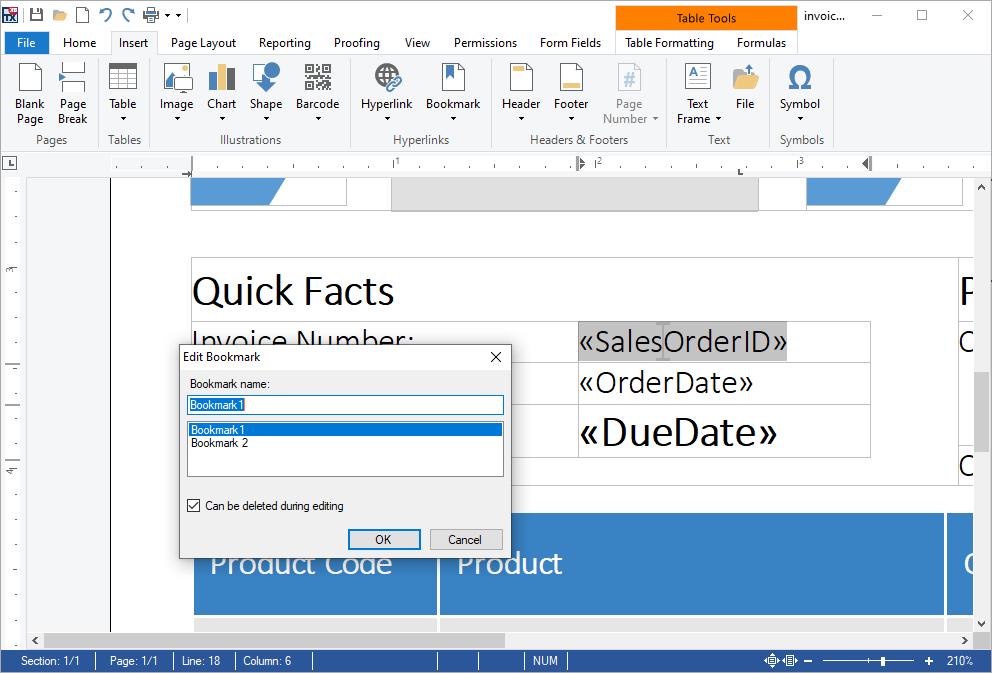
On the Insert tab of the ribbon, the Hyperlinks group has a Hyperlink and a Bookmark button. Their drop-down menus insert, edit and delete hyperlinks and bookmarks in dialog boxes, such as Edit Bookmark with the name of the bookmark and whether it can be deleted during editing:
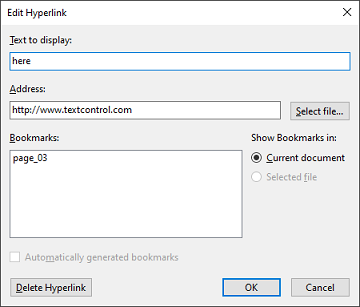
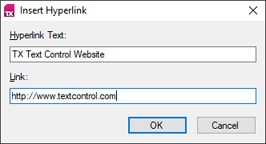
The hyperlink dialog box sets the displayed text and either an address or a bookmark of the document:
In code, a hyperlink, a bookmark and a link to the bookmark are inserted at the input position:
private void insertHyperlinkButton_Click(object sender, EventArgs e)
{
    HypertextLink link = new HypertextLink("Text Control website", "https://www.textcontrol.com/")
    {
        // The text screen readers use for the link
        DescriptiveText = "Visit the Text Control website"
    };

    textControl1.HypertextLinks.Add(link);
}

private void insertBookmarkButton_Click(object sender, EventArgs e)
{
    // A bookmark named "summary" at the input position
    textControl1.DocumentTargets.Add(new DocumentTarget("summary"));
}

private void insertLinkToBookmarkButton_Click(object sender, EventArgs e)
{
    DocumentTarget target = textControl1.DocumentTargets.GetItem("summary");

    if (target != null)
    {
        textControl1.DocumentLinks.Add(new DocumentLink("See the summary", target));
    }
}
- The HypertextLink constructor takes the visible text and the Target, such as a URL or a file name. DescriptiveText, new in version 34.0, is the text that screen readers use for the link.
- A DocumentTarget has a target name and no visible text. DocumentTargetCollection.Add inserts it at the input position, and GetItem finds it by its target name or ID.
- A DocumentLink takes its visible text and the target it points to. DocumentLinkCollection.Add inserts it.
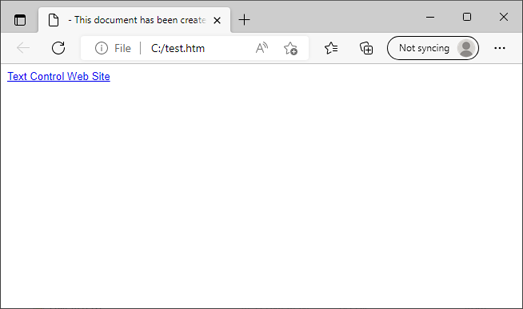
DocumentTargetMarkers set to true shows markers at the positions of the bookmarks. Hyperlinks are saved in HTML files, in RTF and Word documents and in the TX Text Control format. Saved as HTML with StreamType.HTMLFormat, the link opens the website in a browser:
Format Links Inserted in Code
A link that your code inserts has the formatting of the text around it; it isn't blue or underlined unless you format it:
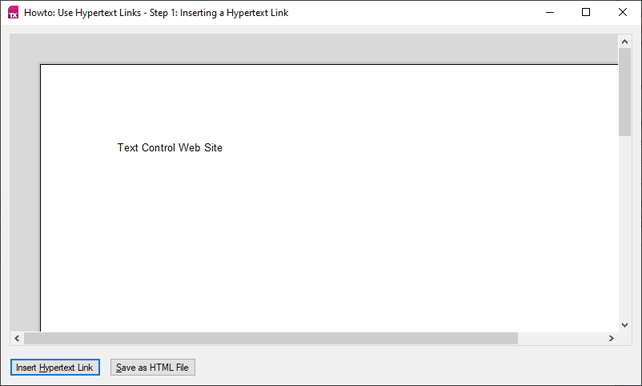
The following method formats a link with a Selection object:
private void FormatLink(HypertextLink link)
{
    // TextField.Start is one-based, Selection positions are zero-based
    Selection linkText = new Selection(link.Start - 1, link.Length)
    {
        ForeColor = Color.Blue,
        Underline = FontUnderlineStyle.Single
    };

    textControl1.Selection = linkText;

    // Put the input position at the end, inside the link, so that text typed
    // after the link doesn't take on its formatting
    textControl1.InputPosition = new InputPosition(linkText.Start + linkText.Length,
        TextFieldPosition.InsideTextField);
}
Color needs using System.Drawing;. Call the method after HypertextLinks.Add, or for each link of textControl1.HypertextLinks.
- Start and Length give the position of the link's text. The Selection constructor takes a start and a length, and ForeColor and Underline set the formatting.
- Assigning the object to TextControl.Selection applies the formatting to the text.
- The InputPosition constructor with TextFieldPosition
.InsideTextFieldplaces the input position inside the link. Assigned to TextControl.InputPosition, it keeps the blue, underlined formatting away from the text the user types next.
Edit an Existing Link
HypertextLinkCollection.GetItem without a parameter returns the link at the input position, or null. A dialog box of your own can use it to decide whether it edits a link or inserts a new one:
private void ApplyLink(string text, string target)
{
    HypertextLink link = textControl1.HypertextLinks.GetItem();

    if (link != null)
    {
        // The input position is in a link: change it
        link.Text = text;
        link.Target = target;
    }
    else
    {
        textControl1.HypertextLinks.Add(new HypertextLink(text, target)
        {
            DoubledInputPosition = true
        });
    }
}
Before the dialog box opens, fill its text boxes with the link's Text and Target, or, without a link, with the selected text from Selection.Text. The built-in dialog boxes of Dialog Boxes do the same without code of your own.
List, Jump to and Remove Bookmarks
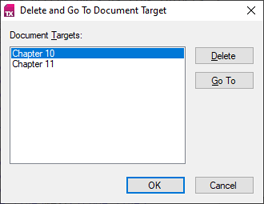
Bookmarks have no visible text, so users find them through a list. The following methods fill a ListBox named targetListBox with the names of all bookmarks, move to the selected one and delete it:
private void FillTargetList()
{
    targetListBox.Items.Clear();

    foreach (DocumentTarget target in textControl1.DocumentTargets)
    {
        targetListBox.Items.Add(target.TargetName);
    }
}

private DocumentTarget GetSelectedTarget()
{
    // The bookmark whose name is selected in the list, or null
    return targetListBox.SelectedItem is string name
        ? textControl1.DocumentTargets.GetItem(name) : null;
}

private void goToTargetButton_Click(object sender, EventArgs e)
{
    GetSelectedTarget()?.ScrollTo();
}

private void deleteTargetButton_Click(object sender, EventArgs e)
{
    DocumentTarget target = GetSelectedTarget();

    if (target != null && textControl1.DocumentTargets.Remove(target))
    {
        FillTargetList();
    }
}
- TextControl.DocumentTargets is enumerable, and TargetName is the name a document link refers to.
- ScrollTo moves the input position to the bookmark and scrolls it into view.
- DocumentTargetCollection.Remove deletes the bookmark and returns
falseif it couldn't be removed.
Handle Clicks on Links
Apart from the entries of a table of contents, which scroll to their heading on Ctrl+click, TX Text Control doesn't follow links by itself, because applications treat clicks differently. It raises an event, and your handler decides what happens:
public Form1()
{
    InitializeComponent();
    textControl1.HypertextLinkClicked += textControl1_HypertextLinkClicked;
    textControl1.DocumentLinkClicked += textControl1_DocumentLinkClicked;
}

private void textControl1_HypertextLinkClicked(object sender, HypertextLinkEventArgs e)
{
    // Open the target of the link in the default browser
    Process.Start(new ProcessStartInfo(e.HypertextLink.Target) { UseShellExecute = true });
}

private void textControl1_DocumentLinkClicked(object sender, DocumentLinkEventArgs e)
{
    e.DocumentLink.DocumentTarget?.ScrollTo();
}
Process needs using System.Diagnostics;.
- HypertextLinkClicked passes a HypertextLinkEventArgs with the clicked link. Check the target before you open it, for example that it starts with
https://, when documents come from other people: a link in a document from an unknown source can point to any file. Handling Untrusted Documents covers such documents. - DocumentLinkClicked passes a DocumentLinkEventArgs. DocumentLink.DocumentTarget is the target, or
nullif it no longer exists, andScrollTomoves the input position there.
A click in a link also places the input position, so users can't edit the link text with the mouse when every click follows the link. To follow links only on Ctrl+click, as word processors do, check the modifier keys in a DocumentLinkClicked handler that replaces the one above:
private void textControl1_DocumentLinkClicked(object sender, DocumentLinkEventArgs e)
{
    // Follow the link only while the Ctrl key is pressed
    if (Control.ModifierKeys == Keys.Control)
    {
        e.DocumentLink.DocumentTarget?.ScrollTo();
    }
}
The links of a table of contents are document links as well; Tables of Contents shows how to tell them apart.
Open Links to Files
The target of a hyperlink can be a file instead of a URL, as the third link of this document shows:
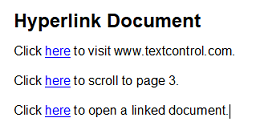
A file target can be an absolute path, a file:// URI or a path relative to the current folder, and it can end with a # and the name of a place in the file. The following HypertextLinkClicked handler, which replaces the one above, tells the kinds of targets apart. It opens URLs and files that TX Text Control can't load with their default application, and opens documents in a new instance of your application:
// The document types this application opens itself
private static readonly Dictionary<string, StreamType> documentFormats =
new Dictionary<string, StreamType>(StringComparer.OrdinalIgnoreCase)
{
[] = StreamType.WordprocessingML,
[] = StreamType.MSWord,
[] = StreamType.RichTextFormat,
[] = StreamType.AdobePDF,
[] = StreamType.InternalUnicodeFormat
};
private void textControl1_HypertextLinkClicked(object sender, HypertextLinkEventArgs e)
{
string target = e.HypertextLink.Target;
try
{
// Anything that isn't an absolute URI is a path relative to the current folder
if (!Uri.TryCreate(target, UriKind.Absolute, out Uri uri))
{
uri = new Uri(Path.GetFullPath(target));
}
if (!uri.IsFile)
{
// A URL: the system opens it in the default browser
Process.Start(new ProcessStartInfo(uri.AbsoluteUri) { UseShellExecute = true });
return;
}
// Remove a place in the file, such as "#chapter2"
string path = uri.LocalPath;
int hashPosition = path.IndexOf('#');
if (hashPosition != -1)
{
path = path.Substring(0, hashPosition);
}
if (!File.Exists(path))
{
MessageBox.Show("The linked file doesn't exist: " + path);
}
else if (documentFormats.ContainsKey(Path.GetExtension(path)))
{
// A document: open it in a new instance of this application
Process.Start(new ProcessStartInfo(Application.ExecutablePath, "\"" + path + "\""));
}
else
{
// Another file: open it with the application the system associates with it
Process.Start(new ProcessStartInfo(path) { UseShellExecute = true });
}
}
catch (Exception ex)
{
MessageBox.Show("The link can't be opened: " + ex.Message);
}
}
private void Form1_Load(object sender, EventArgs e)
{
// A new instance receives the document as its first command-line argument
string[] args = Environment.GetCommandLineArgs();
if (args.Length > 1 && File.Exists(args[1])
&& documentFormats.TryGetValue(Path.GetExtension(args[1]), out StreamType streamType))
{
textControl1.Load(args[1], streamType);
}
}
Connect Form1_Load to the Load event of the form in the constructor, with Load += Form1_Load;, the same way as the link events. The code needs using System.Collections.Generic;, using System.Diagnostics; and using System.IO;.
Uri.TryCreatewithUriKind.Absoluterecognizes URLs and absolute paths.Path.GetFullPathturns a relative path into an absolute one, andUri.IsFiletells files from URLs.File.Existschecks the file before anything is started.Application.ExecutablePathis the program file of the running application. The new instance gets the quoted path as its command-line argument, and itsLoadhandler reads it withEnvironment.GetCommandLineArgs, whose first element is the program itself.UseShellExecute = truehands URLs and other files to Windows, which opens them with their default application.
The setup installs the TX Text Control Words sample Open Hyperlink in %USERPROFILE%\Documents\TX Text Control 34.0.NET for Windows Forms\CSharp\TX Words\Open Hyperlink. It opens URLs in the browser, scrolls to bookmarks and opens linked documents in a new instance of the sample, with the same steps.
Next Steps
- Form Fields and Conditional Instructions: fields that users fill out.
- Subtext Parts: mark longer parts of the text that can contain fields.
- Merge Fields: fill merge fields with data.
- Fields and Subtext Parts in Document Processing: fields in
ServerTextControldocuments.