
Built-In Ribbon Tabs
Thirteen ready-made ribbon tabs give a Windows Forms word processor the commands of TX Text Control without a line of command code: each tab is a class that already knows how to format text, insert tables, set up pages or check spelling in the connected TextControl. Read on for what each tab contains, how its items are identified, and how you rename, hide or remove items, groups and whole tabs.
The first steps with the ribbon, from the smart tag to a contextual Table Tools tab, are in Create a Ribbon Application with Sidebar Support.
How the Ribbon Is Built
The Ribbon is a control derived from System.Windows.Forms.TabControl, in the namespace TXTextControl.Windows.Forms.Ribbon. Its tabs are controls in its Controls collection, and each tab holds groups, which hold the buttons, combo boxes and galleries users click:
Ribbon                      (Controls: the tabs)
└── RibbonFormattingTab     a RibbonTab
    └── RibbonGroup         "Font"   (RibbonGroups)
        ├── RibbonComboBox  font name   (RibbonItems)
        └── RibbonToggleButton  bold
Every predefined tab derives from RibbonTab. The ribbon is connected to the editor through TextControl.Ribbon, which Arrange Controls Automatically in the smart tag of the TextControl sets for you. The predefined tabs work with the TextControl of the ribbon that hosts them, so a tab outside a connected ribbon does nothing.
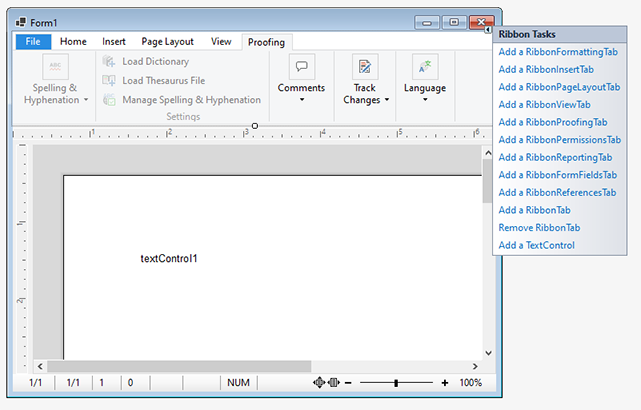
In the designer, click the File tab title to select the ribbon and open its smart tag. It adds the nine main predefined tabs with Add a Ribbon...Tab links, adds an empty RibbonTab, removes the selected tab and converts the form to a RibbonForm. The Table Layout, Formulas, Frame Formatting and Chart Layout tabs are added to contextual tab groups instead, as described below.
The ribbon is part of the Enterprise and Professional editions; see Editions and Feature Availability.
The Predefined Tabs
The texts in the first column are the tab titles the TX Words sample uses. Each tab's groups are values of its RibbonItem enumeration that end in Group:
| Tab | Class | Commands for | Groups |
|---|---|---|---|
| Home | RibbonFormattingTab | Font and paragraph attributes, styles and the clipboard | TXITEM_ClipboardGroup, TXITEM_FontGroup, TXITEM_ParagraphGroup, TXITEM_StylesGroup, TXITEM_EditingGroup |
| Insert | RibbonInsertTab | Pages, tables, images, charts, shapes, links, headers and footers, text frames and symbols | TXITEM_PageGroup, TXITEM_TableGroup, TXITEM_IllustrationsGroup, TXITEM_LinksGroup, TXITEM_HeaderFooterGroup, TXITEM_TextGroup, TXITEM_SymbolsGroup |
| Page Layout | RibbonPageLayoutTab | Page setup and layout | TXITEM_PageSetupGroup, TXITEM_ColumnsAndBreaksGroup, TXITEM_PageBackgroundAndBordersGroup |
| View | RibbonViewTab | View settings, zoom and the bars around the editor | TXITEM_DocumentViewsGroup, TXITEM_ZoomGroup, TXITEM_ToolbarsGroup, TXITEM_ShowGroup |
| References | RibbonReferencesTab | Footnotes and tables of contents | TXITEM_FootnotesGroup, TXITEM_TableOfContentsGroup, TXITEM_TableOfContentsPropertiesGroup, TXITEM_ParagraphStructureLevelsGroup |
| Proofing | RibbonProofingTab | Spelling, hyphenation, language, comments and tracked changes | TXITEM_SpellingAndHyphenationGroup, TXITEM_ProofingSettingsGroup, TXITEM_CommentsGroup, TXITEM_TrackChangesGroup, TXITEM_LanguageGroup |
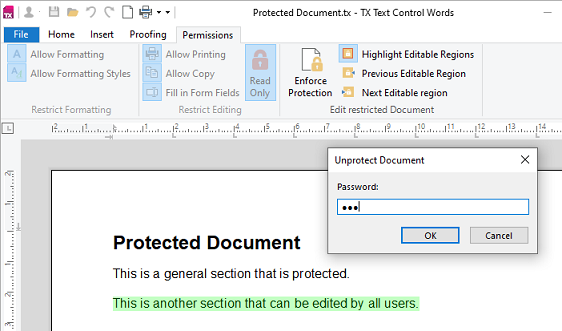
| Permissions | RibbonPermissionsTab | How a protected document can be edited | TXITEM_RestrictFormattingGroup, TXITEM_RestrictEditingGroup, TXITEM_ReadOnlyExceptionsGroup, TXITEM_EditRestrictedDocumentGroup |
| Form Fields | RibbonFormFieldsTab | Form fields | TXITEM_InsertFormFieldsGroup, TXITEM_EditFormFieldsGroup, TXITEM_FormValidationGroup, TXITEM_FormFieldPropertiesGroup and a properties group per field type |
| Reporting | RibbonReportingTab | Mail merge and reporting | TXITEM_DataSourceGroup, TXITEM_MergeFieldsGroup, TXITEM_MergeBlocksGroup, TXITEM_ViewGroup |
| Table Layout | RibbonTableLayoutTab | Tables | TXITEM_TableLayoutGroup, TXITEM_RowsAndColumnsGroup, TXITEM_MergeGroup, TXITEM_BordersAndBackgroundGroup, TXITEM_TableAlignmentGroup, TXITEM_TablePropertiesGroup |
| Formulas | RibbonFormulaTab | Formulas in table cells | TXITEM_FormulaGroup, TXITEM_NumberFormatGroup, TXITEM_FormulaSettingsGroup |
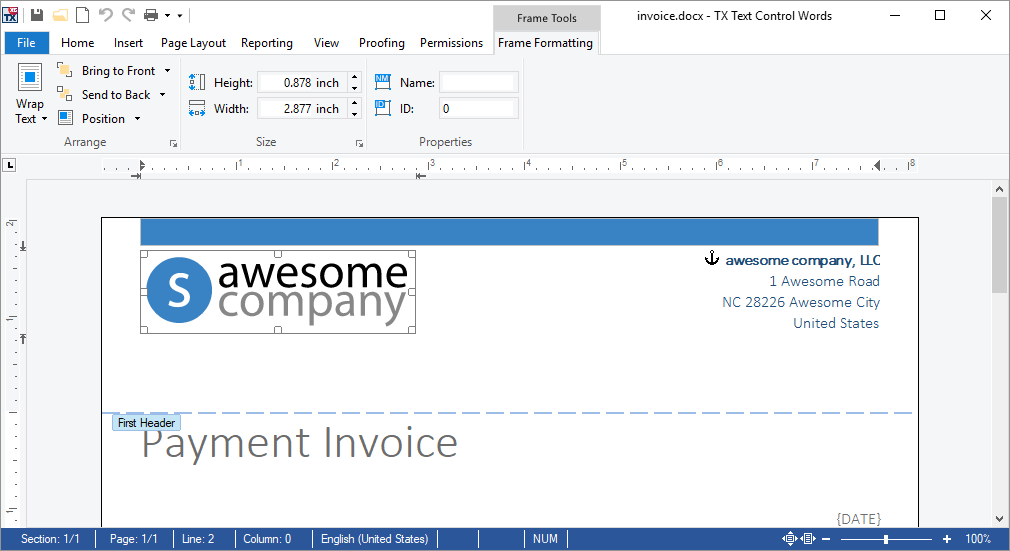
| Frame Formatting | RibbonFrameLayoutTab | Images, text frames, drawings, barcodes and charts | TXITEM_ObjectArrangeGroup, TXITEM_ObjectSizeGroup, a borders or colors group per object type, TXITEM_ObjectPropertiesGroup, TXITEM_Signature_SignerInfoGroup |
| Chart Layout | RibbonChartLayoutTab | Charts | TXITEM_DataGroup, TXITEM_LabelsGroup, TXITEM_TitlesGroup, TXITEM_XAxisGroup, TXITEM_YAxisGroup |
Some tabs need more than the connected TextControl:
- Proofing. The language button works with the
TextControlalone. The other buttons of the tab also need aTXSpellCheckerof TX Spell .NET connected through theSpellCheckerproperty of theTextControl; see Spell Checking and Hyphenation. - Chart Layout. Its
TXITEM_SetDataRelationbutton works only if the same ribbon contains aRibbonReportingTab. - Reporting. Its data source commands go through a
DataSourceManager, available from RibbonReportingTab.DataSourceManager. Reporting Ribbon and Dialog Boxes describes the tab for template design. - Permissions. RegisteredUserNames fills the list of users who may edit read-only exceptions, and AllowAddingUserNames decides whether users can add names to it. Document Protection and Editable Regions explains the feature.
The Table Layout, Formulas, Frame Formatting and Chart Layout tabs are made for contextual tab groups, which are shown only while the user works in a table or on a frame. Show Tabs Only in Context explains them.
Find an Item by Its Identifier
Every item of a predefined tab has a name, and the name is a value of the tab's RibbonItem enumeration, for example RibbonFormattingTab.RibbonItem. The FindItem method of the tab, such as RibbonFormattingTab.FindItem, takes such a value and returns the control, or null if the tab does not contain it.
- Groups and items. Values that end in
Groupidentify a RibbonGroup, values that end in_DialogBoxLauncherthe small button in a group's footer, and all others a button, combo box or gallery. - Drop-down items. The entries of drop-down menus, such as Paste Text under Paste, are values of a second enumeration,
RibbonDropDownItem, for example RibbonFormattingTab.RibbonDropDownItem.FindItemdoes not take them; they identify the resources of these entries for the ResourceProvider. - The type of the result.
FindItemreturns aSystem.Windows.Forms.Control. Cast it to the ribbon class the item is, such as RibbonSplitButton for Paste, to reach its members.
Change and Remove Items
The following code, in the constructor of the form after InitializeComponent, renames the Paste button, runs your own code when it is clicked and removes the Shape button from the Insert tab. It uses the names that the designer gives the controls, ribbonFormattingTab1 and ribbonInsertTab1:
using TXTextControl.Windows.Forms.Ribbon;

// Rename the Paste button and handle clicks on it
RibbonSplitButton pasteButton = (RibbonSplitButton)ribbonFormattingTab1.FindItem(
    RibbonFormattingTab.RibbonItem.TXITEM_Paste);
pasteButton.Text = "Insert";
pasteButton.ButtonClick += PasteButton_ButtonClick;

// Remove the Shape button from its group
if (ribbonInsertTab1.FindItem(RibbonInsertTab.RibbonItem.TXITEM_InsertShape)
    is RibbonButton shapeButton && shapeButton.ParentCollection != null)
{
    shapeButton.ParentCollection.Remove(shapeButton);
}
The code works as follows:
- The primary part of a split button raises ButtonClick, the drop-down part opens its menu. Your handler runs in addition to the built-in paste command.
- ParentCollection is the RibbonItemCollection that holds the button, and Remove takes it out of the group.
To keep an item but hide it for now, set its Visible property, which every ribbon item inherits from System.Windows.Forms.Control, to false.
Remove Groups and Tabs
A group is removed from the RibbonGroups collection of its tab, and a tab from the Controls collection of the ribbon:
// Remove the Font group from the Home tab
RibbonGroup fontGroup = (RibbonGroup)ribbonFormattingTab1.FindItem(
    RibbonFormattingTab.RibbonItem.TXITEM_FontGroup);
ribbonFormattingTab1.RibbonGroups.Remove(fontGroup);

// Remove the whole Insert tab
ribbon1.Controls.Remove(ribbonInsertTab1);
A tab you do not need at all is better left out in the designer: remove it with Remove RibbonTab in the ribbon's smart tag. Removing in code suits tabs and groups that depend on the user, for example on a role the user signed in with.
Show Tabs Only in Context
A ContextualTabGroup collects tabs that are shown only in a certain context, under a colored Header in the title bar of a RibbonForm. You create the groups in the collection editor of the ribbon's ContextualTabGroups property and add tabs to a group's ContextualTabs:
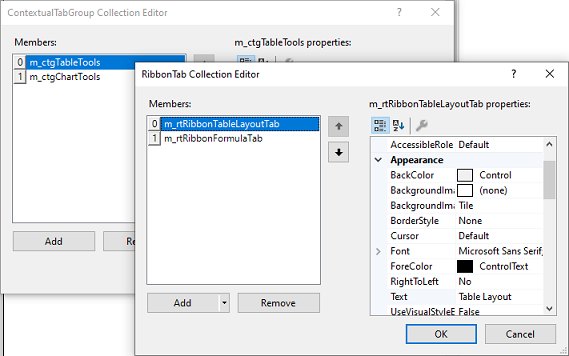
Your code decides when a group is shown, with ContextualTabGroup.Visible. TX Words shows Table Tools while the input position is in a table and Frame Tools while a frame is selected; the Getting Started tutorial shows the table case in code.
Show Frame Tools and Chart Tools
TX Words uses one group for all frames. Its Frame Tools group holds a Frame Formatting tab, a RibbonFrameLayoutTab, and a Chart Layout tab, a RibbonChartLayoutTab, both added in the collection editor shown above. An image, a text frame, a barcode or a drawing shows the group with the Frame Formatting tab alone; a chart shows both tabs under the header Chart Tools. The following code does this for a group named frameToolsGroup and the chart tab ribbonChartLayoutTab1:
using System.Windows.Forms;
using TXTextControl;
using TXTextControl.DataVisualization;
using TXTextControl.Windows.Forms.Ribbon;

public partial class Form1 : RibbonForm
{
    public Form1()
    {
        InitializeComponent();
        textControl1.FrameSelected += TextControl1_FrameSelected;
        textControl1.FrameDeselected += TextControl1_FrameDeselected;
    }

    private void TextControl1_FrameSelected(object sender, FrameEventArgs e)
    {
        if (e.Frame is ChartFrame)
        {
            // A chart: add the Chart Layout tab once
            frameToolsGroup.Header = "Chart Tools";
            if (!frameToolsGroup.ContextualTabs.Contains(ribbonChartLayoutTab1))
            {
                frameToolsGroup.ContextualTabs.Add(ribbonChartLayoutTab1);
            }
        }
        else
        {
            // Any other frame: Frame Formatting only
            frameToolsGroup.Header = "Frame Tools";
            frameToolsGroup.ContextualTabs.Remove(ribbonChartLayoutTab1);
        }

        frameToolsGroup.Visible = true;
    }

    private void TextControl1_FrameDeselected(object sender, FrameEventArgs e)
    {
        frameToolsGroup.Visible = false;
    }
}
The code works as follows:
- FrameSelected and FrameDeselected occur when the user selects or leaves an image, a text frame, a chart, a barcode or a drawing. FrameEventArgs.Frame is the frame.
- The type test
e.Frame is ChartFrametells a chart from the other frames. ChartFrame is in the namespaceTXTextControl.DataVisualization. - ContextualTabs is a
List<RibbonTab>, soContains,AddandRemovechange the tabs of the group at run time. Header is the text shown in the title bar while the group is visible.
TX Words takes the header texts from its resources, so that they follow the language of the application.
Set Up the Ribbon Itself
A few properties of the Ribbon apply to all tabs:
| Property | Effect |
|---|---|
| HasApplicationMenu | Makes the first tab, File, an application menu. Its items are in ApplicationMenuItems. |
| Minimized | Shows only the tab titles until the user clicks one. |
| ReadOnly | Keeps showing the formatting of the document, but users cannot change it with the ribbon. |
| DisplayColors | Sets the colors of the tabs and menus. See Themes, Colors, and Icons. |
Localization and Resource Kit describes how to show the texts of the predefined tabs in other languages.
Next Steps
- Custom Tabs and Commands: add your own tabs, groups and buttons, and the application menu and Quick Access Toolbar items.
- Sidebar and Panels: connect the buttons of the Home, Proofing, Form Fields and Reporting tabs to sidebars.
- Rulers and Status Bar: the bars that the View tab shows and hides.
- Ribbon, Toolbars, Rulers, and Status Bar: the overview of all command controls.