
Ribbon
Hiding functions that users don't need is easier once you know how the ribbon of the Document Editor is built. Your code then selects a tab, minimizes and expands the ribbon, removes tabs, groups and buttons and chooses the sidebars of the sidebar toggle button. Adding tabs and buttons of your own is described in Custom Tabs.
The examples change the view of the ASP.NET Core tutorial.
How the Ribbon Is Built
The ribbon bar groups the functions of the editor in tabs, such as Home, Insert, Reporting, Proofing, Form Fields and Permissions. Each tab contains groups of buttons, for example the Clipboard and Font groups of the Home tab. Some tabs are contextual: the editor shows them only for a selected object, such as the Frame Formatting and Chart Formatting tabs for a selected chart, or the Table Layout and Formulas tabs, colored green and orange, while the input position is in a table:

The ribbon consists of HTML elements and CSS in the page. Your code works with it in two ways:
- The JavaScript API selects a tab, minimizes and expands the ribbon and configures the sidebar toggle button and the Permissions tab.
- The HTML elements of the ribbon can be removed, restyled or extended with the methods of the browser's DOM, using the IDs of the elements.
The IDs of the ribbon's elements aren't part of the API reference. They come from blog articles and samples, and the ribbon changes between versions: in version 34.0, the ribbons of the editor on the Core engine were changed to offer the same functions as on Windows. Test DOM changes after every upgrade, and find the IDs of your version with the developer tools of the browser.
The content of the ribbon is loaded from the server. Since version 32.0, it is loaded at the same time as the other resources of the editor, and users can type and use the first tab as soon as the document has been loaded. The editor raises two events while the ribbon is loaded:
| Event | Is raised | Use it to |
|---|---|---|
ribbonTabLoaded | Each time a tab has been loaded; RibbonTabLoadedEventArgs contains the name (tabName) and the HTML element (elemTab) of the tab | Change a single tab as soon as it exists |
ribbonTabsLoaded | After the complete ribbon has been loaded and the string resources from the server have been applied | Change groups and buttons of any tab |
Don't rely on their order relative to textControlLoaded: attach their handlers directly, not inside a textControlLoaded handler; see Events.
In version 32.0, ribbonTabLoaded passes these tab names: ribbonTabHome, ribbonTabInsert, ribbonTabPageLayout, ribbonTabReports, ribbonTabView, ribbonTabReferences, ribbonTabProofing, ribbonTabPermissions, ribbonTabFormFields, ribbonTabTableLayout, ribbonTabFormula, ribbonTabFrameFormatting and ribbonTabChartFormatting. Log e.tabName to see the names of your version, as the example on the Events page does.
Select, Minimize and Expand the Ribbon
TXTextControl.ribbon returns the Ribbon object. The following view adds buttons that minimize and expand the ribbon and select two of its tabs. It also logs the tab the user selects. Replace the content of Views/Home/Index.cshtml:
@using TXTextControl.Web.MVC

@{
    var sDocument = "<html><body><p>Welcome to <strong>Text Control</strong></p></body></html>";
}

@Html.TXTextControl().TextControl(settings => {
    settings.UserNames = new string[] { "Tim Typer" };
}).LoadText(sDocument, TXTextControl.Web.StringStreamType.HTMLFormat).Render()

<input type="button" onclick="TXTextControl.ribbon.minimize()" value="Minimize Ribbon" />
<input type="button" onclick="TXTextControl.ribbon.expand()" value="Expand Ribbon" />
<input type="button" onclick="selectTab('tabInsert')" value="Insert Tab" />
<input type="button" onclick="selectTab('tabPermissions')" value="Permissions Tab" />

<script>
    TXTextControl.addEventListener("ribbonTabIndexChanged", function (e) {
        console.log("Selected ribbon tab: " + e.name);
    });

    function selectTab(tabName) {
        TXTextControl.ribbon.selectedTab = tabName;
    }
</script>
The code works as follows:
- minimize minimizes the ribbon, so that only the names of the tabs stay visible. expand expands a minimized ribbon again.
- selectedTab gets or sets the name of the selected tab.
- The
ribbonTabIndexChangedhandler receives RibbonTabIndexChangedEventArgs, whose name is the name of the tab that is now active.
Click Insert Tab: the ribbon shows the Insert tab. Click Minimize Ribbon and Expand Ribbon to collapse and restore the ribbon.
The reference lists these values for selectedTab: "tabDefault" (the Home tab), "tabInsert", "tabPageLayout", "tabMailings", "tabView", "tabTableLayout", "tabObjectFormat", "tabShapeFormat", "tabPermissions", "tabFormula" and "tabChartFormatting". They are the IDs of the tab headers, the a elements in #ribbonbar ul.tabs, which differ from the names ribbonTabLoaded passes. In the Document Editor of TXTextControl.Web 34.5.0, the headers have the IDs tabDefault (Home), tabInsert, tabPageLayout, tabReports (Reporting), tabView, tabReferences, tabProofing, tabPermissions and tabFormFields, and the contextual tabs tabTableLayout, tabFormula (Formulas) and tabFrameFormatting; setting selectedTab to one of them selects the tab. As with the other element IDs, check the IDs of your version in the developer tools of the browser. To show or hide the complete ribbon bar, use showRibbonBar, described in Viewing and Printing.
Remove Tabs, Groups and Buttons
To remove built-in functions, remove their HTML elements when they have been loaded. A tab consists of two elements: its content, a div element whose ID is the tab name, and its header, a link in a list item whose rel attribute contains the same name. Groups and buttons have IDs such as ribbonGroupClipboard or ribbonTabHome_btnItalic.
The following code removes the Reporting tab, the Clipboard group of the Home tab and its Italic button. Add it to the script element of the view above:
// Remove the Reporting tab as soon as it has been loaded
TXTextControl.addEventListener("ribbonTabLoaded", function (e) {
  if (e.tabName === "ribbonTabReports") {
    // The content of the tab
    e.elemTab.remove();

    // The header: the list item whose link points to the content
    var header = document.querySelector("[rel='" + e.tabName + "']");
    if (header) {
      header.parentNode.remove();
    }
  }
});

// Remove groups and buttons after the complete ribbon has been loaded
TXTextControl.addEventListener("ribbonTabsLoaded", function () {
  var clipboardGroup = document.getElementById("ribbonGroupClipboard");
  if (clipboardGroup) {
    clipboardGroup.remove();
  }

  var italicButton = document.getElementById("ribbonTabHome_btnItalic");
  if (italicButton) {
    italicButton.remove();
  }
});
- The
ribbonTabLoadedhandler compares tabName with the tab to remove, removes the content element elemTab and finds the header by itsrelattribute. - The
ribbonTabsLoadedhandler removes elements by their IDs. Each removal checks first whether the element exists, because IDs can differ between versions.
The elements can be restyled with CSS in the same way, for example #ribbonTabHome { background-color: lightskyblue; }. The blog article Customizing the Ribbon in TX Text Control for Angular removes and restyles ribbon elements in an Angular application, where the handlers are attached when the txDocumentEditorLoaded event of the component has been raised.
The ribbon raises no event when a toggle button, such as Bold, changes its state. The blog article Detect Toggle Button Changes Using a MutationObserver observes the CSS class ribbon-button-selected of these buttons instead.
Detect the Mail Merge Preview
The Preview button of the Reporting tab merges the template with the data loaded by loadJsonData and shows the result. While the preview is shown, the ribbon offers only Exit and the record navigation:
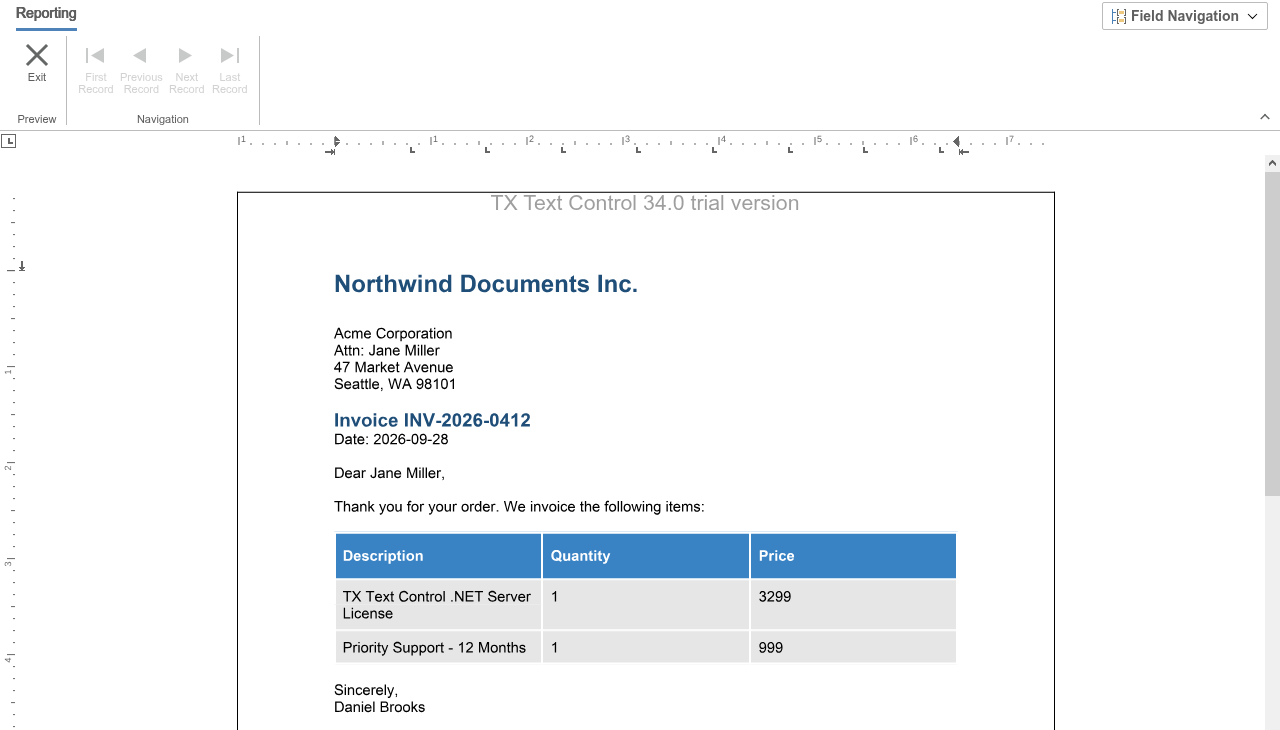
An application whose own buttons save the document should disable them while users look at merged data. The JavaScript API raises no event for the preview, but the ribbon group of the preview, ribbonGroupMailMergePreview, is hidden while the template is edited and visible while the preview is shown. A MutationObserver watches it:
function isVisible(element) {
  var style = window.getComputedStyle(element);
  return style.display !== "none" && style.visibility !== "hidden";
}

TXTextControl.addEventListener("ribbonTabsLoaded", function () {
  var previewGroup = document.getElementById("ribbonGroupMailMergePreview");
  if (!previewGroup) {
    console.error("Preview group not found");
    return;
  }

  function update() {
    // Disable the page's own Save button while the preview is shown
    document.getElementById("saveButton").disabled = isVisible(previewGroup);
  }

  new MutationObserver(update).observe(previewGroup,
    { attributes: true, childList: true, subtree: true });
  update();
});
- The handler of
ribbonTabsLoadedlooks up the group, because it exists only after the ribbon has been loaded. isVisiblereads the computed style: the group hasdisplay: nonewhile the template is edited.- The
MutationObservercallsupdatewhenever the attributes of the group or its content change, for example when the preview starts or ends.saveButtonis the ID of a button on your page.
In the Document Editor of TXTextControl.Web 34.5.0, the group became visible when the preview started and was hidden again after Exit. The blog article Observe When the Reporting Preview Tab is Active Using MutationObserver shows a complete page.
Configure the Sidebar Toggle Button
The sidebar toggle button in the top right corner of the ribbon opens the sidebars of the editor: the Track Changes sidebar, the Field Navigator and the Comments sidebar. Its label shows the current sidebar, and its arrow opens a menu with the others:
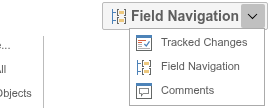
TXTextControl.sideBarToggleButton returns the SideBarToggleButton, which decides which sidebars the button offers:
TXTextControl.addEventListener("textControlLoaded", function () {
  // Offer only the Track Changes and Comments sidebars
  TXTextControl.sideBarToggleButton.setAllowedSideBars(
    TXTextControl.SideBarType.TrackChanges | TXTextControl.SideBarType.Comments);
});
- setAllowedSideBars takes a bitwise combination of SideBarType values:
TrackChanges,FieldNavigator,CommentsorAll. WithNone, the button is removed from the ribbon. - getAllowedSideBars passes the current combination. setCurrentSideBar and getCurrentSideBar set and get the current sidebar of the button.
The sidebars themselves are described in Track Changes, Comments and Fields.
Other Settings of the Ribbon
- View settings.
TextControlSettingsand the settings ofTXTextControl.inithave no ribbon properties. Changes to the ribbon are made with JavaScript. - Permissions tab. TXTextControl.ribbonPermissionsTab sets the user names the tab offers, as described in Document Protection.
- Reporting tab. The lists of field and table names on this tab come from data that your code loads with loadJsonData; see Fields.
- File menu. The ribbon of the ASP.NET Core Document Editor has no File menu. Custom Tabs shows how to add a tab of your own for such functions.
- Accessibility. Since version 32.0, the HTML elements of the ribbon have ARIA attributes and roles, and in some cases
altandtitleattributes, so that screen readers can read the ribbon.
Next Steps
- Custom Tabs: add tabs, groups and buttons of your own.
- Context Menus: change the menus that open on a right-click.
- Localization: set the language of the ribbon.