
Nested Blocks and Master-Detail Reports
Orders with their articles, employees with their absences, article groups with their articles: master-detail data has levels, and its template has merge blocks inside merge blocks. The outer block is repeated for each master record and the inner block for the detail records of the current master. Read on to shape nested data as JSON, business objects or a DataSet with relations, design nested blocks in the Reporting tab or in code, check the hierarchy of a template and handle levels without data.
Single-level blocks are covered in Merge Blocks, and the first block of the invoice in Add Repeating Merge Blocks. The code below belongs to Form1.cs of the same Windows Forms application, with the TextControl textControl1.
How Nested Blocks Work
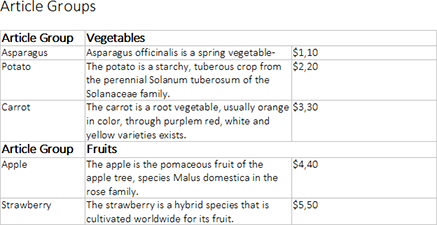
A master-detail relationship is a one-to-many relationship. In the following template, the whole table is the outer block for the article groups, and its last row, highlighted darker, is the inner block for the articles of a group:

After the merge, each article group has its own table with the articles of that group:
The rules that connect the template and the data:
- Block names match the data. Each block is named like the array, the collection or the table that provides its records.
- Fields refer to the record of their block. Inside the inner block, a field such as
article_nametakes the value of the current article; fields of the group stay outside the inner block. - Blocks don't overlap. An inner block lies completely inside its outer block, although the start or the end of two blocks may be at the same position.
- Any depth.
MailMergedescends recursively, so blocks can be nested in as many levels as the data has.
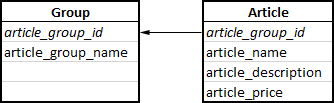
With a DataSet, a relation between the two tables connects each article with its group, here through the column article_group_id:
Shape the Nested Data
Nested arrays of JSON become nested blocks. The examples use the following orders.json, a company with two orders and the articles of each order. Add it to the project with Copy to Output Directory set to Copy if newer:
[
  {
    "company_name": "Text Control, LLC",
    "orders": [
      {
        "id": 123,
        "articles": [
          { "id": 1, "product": { "name": "Product A", "price": 200 }, "qty": 5 }
        ]
      },
      {
        "id": 321,
        "articles": [
          { "id": 2, "product": { "name": "Product B", "price": 50 }, "qty": 12 }
        ]
      }
    ]
  }
]
| Level | Template element | Fields |
|---|---|---|
| Root | Merge fields outside all blocks | company_name |
| 1 | Merge block orders | id |
| 2 | Merge block articles, inside orders | product.name, qty |
product.name uses dot notation for the nested product object of an article, as Merge Fields explains.
Design Nested Blocks in the Reporting Tab
With the data loaded into the Reporting tab, users build the levels from the outside in:
- Insert the outer block, for example
ordersas a table row with a header row, from the Insert Merge Block drop-down. - Place the input position inside the outer block, for example in a row you add to its table, and insert the inner block,
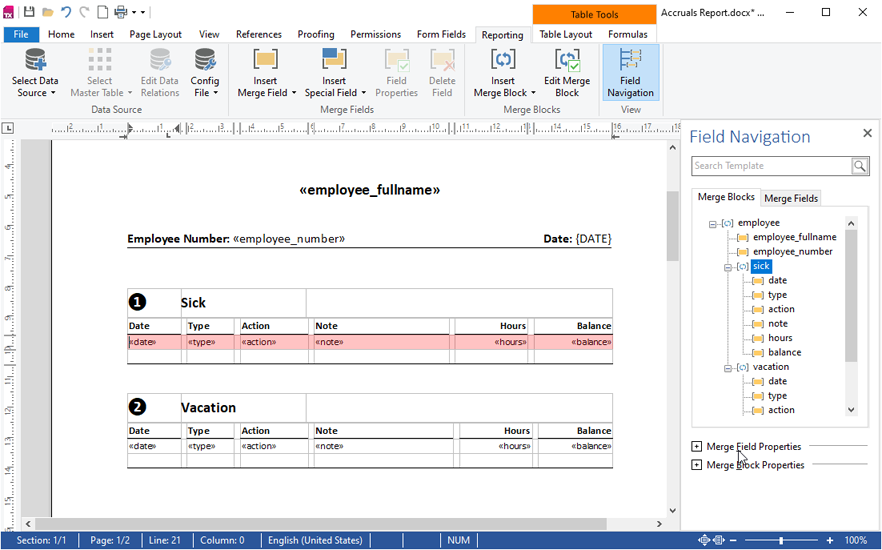
articles, the same way. - Click Field Navigation in the View group. The sidebar lists the blocks as a tree, with each inner block and its fields below its outer block.
The following template of an accruals report has an outer employee block with two inner blocks, sick and vacation. The Merge Blocks tab of the field navigator shows this hierarchy:
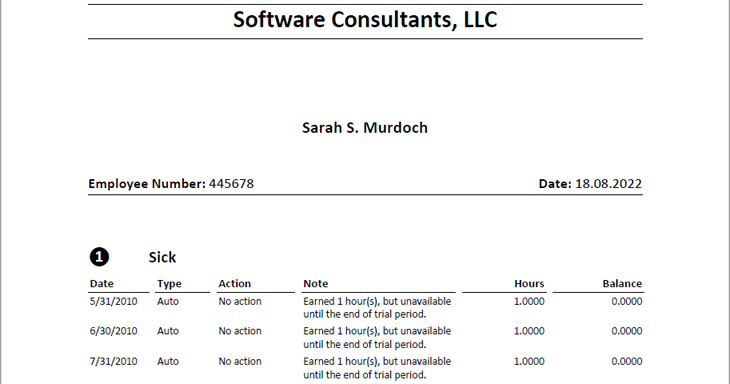
After the merge, each employee has a section of its own with the rows of its sick and vacation records:
Insert nested blocks in this order, from the outside in. The blog article Creating Nested Repeating Blocks with Version X13 (23.0) builds such a template step by step.
Create Nested Blocks in Code
MergeBlockInfo.ChildBlocks lists the blocks inside a block. Pass a MergeBlockInfo with child blocks to InsertMergeBlock, and all levels are inserted at the input position in one call. The following handler needs using System.Collections.Generic;, using System.IO; and using TXTextControl.DocumentServer.DataSources;:
private void createOrdersTemplateButton_Click(object sender, EventArgs e)
{
    string jsonData = File.ReadAllText("orders.json");

    // Describe the data to the DataSourceManager
    DataSourceManager dataSourceManager = new DataSourceManager();
    dataSourceManager.LoadJson(jsonData);

    // Outer block: repeated for each order
    MergeBlockInfo ordersBlock = new MergeBlockInfo("orders")
    {
        ColumnNames = new List<string> { "id" },

        // Inner block: repeated for each article of the current order
        ChildBlocks = new List<MergeBlockInfo>
        {
            new MergeBlockInfo("articles")
            {
                ColumnNames = new List<string> { "product.name", "qty" }
            }
        }
    };

    dataSourceManager.InsertMergeBlock(textControl1, ordersBlock,
        new MergeBlockSettings(BlockTemplateType.TableRow, true));

    textControl1.Save("orders-template.tx", StreamType.InternalUnicodeFormat);
}
The code works as follows:
- LoadJson analyzes the data, its nested arrays included. A new
DataSourceManageris used here, so the invoice data of the Reporting tab stays loaded. - Each MergeBlockInfo describes one level: its name and, in
ColumnNames, its merge fields. - InsertMergeBlock creates the tables, fields and blocks of both levels, the inner block inside the outer one.
- The template is saved as orders-template.tx for the following examples.
Check the Block Hierarchy
A MergeBlockInfo created from an existing block holds its child blocks, so a recursive method shows the hierarchy of the template in the editor. Add using System.Text;:
private void showHierarchyButton_Click(object sender, EventArgs e)
{
    StringBuilder report = new StringBuilder();

    foreach (SubTextPart subTextPart in textControl1.SubTextParts)
    {
        // Start with the merge blocks at the top level
        if (DataSourceManager.IsMergeBlock(subTextPart) && subTextPart.NestedLevel == 1)
        {
            AppendBlock(report, new MergeBlockInfo(subTextPart), 0);
        }
    }

    MessageBox.Show(this, report.ToString(), "Block hierarchy");
}

// Adds a block and, indented, its child blocks
private static void AppendBlock(StringBuilder report, MergeBlockInfo block, int depth)
{
    report.AppendLine(new string(' ', depth * 4) + block.TableName);

    if (block.ChildBlocks == null)
    {
        return;
    }

    foreach (MergeBlockInfo child in block.ChildBlocks)
    {
        AppendBlock(report, child, depth + 1);
    }
}
SubTextPart.NestedLevel is 1 for a block at the top level, and TableName is the data a block is bound to. For the orders template, the message shows orders and, indented, articles.
Merge Nested Business Objects
Business objects nest the same way: a property that holds a collection fills the block of the same name, at every level. Add these classes to the project:
using System.Collections.Generic;

public class Company
{
    public string company_name { get; set; }
    public List<Order> orders { get; set; } = new List<Order>();
}

public class Order
{
    public int id { get; set; }
    public List<Article> articles { get; set; } = new List<Article>();
}

public class Article
{
    public int id { get; set; }
    public Product product { get; set; }
    public int qty { get; set; }
}

public class Product
{
    public string name { get; set; }
    public decimal price { get; set; }
}
The following handler merges an object into the template in the editor, with using TXTextControl.DocumentServer; in Form1.cs:
private void mergeOrdersButton_Click(object sender, EventArgs e)
{
    Company company = new Company { company_name = "Text Control, LLC" };

    Order order = new Order { id = 123 };
    order.articles.Add(new Article { id = 1, qty = 5, product = new Product { name = "Product A", price = 200 } });
    company.orders.Add(order);

    using (MailMerge mailMerge = new MailMerge { TextComponent = textControl1 })
    {
        // The template in the editor is replaced with the merged document
        mailMerge.MergeObject(company);
    }
}
MergeObject merges one company; MergeObjects merges a collection of them. Objects and Collections lists the rules for business objects.
Merge a DataSet With Relations
In a DataSet, relations define the levels. Each block is named like a DataTable, and a DataRelation connects each table with the table of its outer block. Merge with the master table follows the relations into the nested blocks. This handler merges orders-template.tx in a ServerTextControl and saves a PDF; it needs using System.Data;:
private void mergeDataSetButton_Click(object sender, EventArgs e)
{
    DataSet dataSet = new DataSet();

    DataTable company = dataSet.Tables.Add("company");
    company.Columns.Add("company_id", typeof(int));
    company.Columns.Add("company_name");
    company.Rows.Add(1, "Text Control, LLC");

    DataTable orders = dataSet.Tables.Add("orders");
    orders.Columns.Add("company_id", typeof(int));
    orders.Columns.Add("id", typeof(int));
    orders.Rows.Add(1, 123);
    orders.Rows.Add(1, 321);

    DataTable articles = dataSet.Tables.Add("articles");
    articles.Columns.Add("order_id", typeof(int));
    articles.Columns.Add("qty", typeof(int));
    articles.Rows.Add(123, 5);
    articles.Rows.Add(321, 12);

    // The relations connect each block with the rows of its parent
    dataSet.Relations.Add(new DataRelation("company_orders",
        company.Columns["company_id"], orders.Columns["company_id"]));
    dataSet.Relations.Add(new DataRelation("order_articles",
        orders.Columns["id"], articles.Columns["order_id"]));

    using (ServerTextControl tx = new ServerTextControl())
    {
        tx.Create();
        tx.Load("orders-template.tx", StreamType.InternalUnicodeFormat);

        using (MailMerge mailMerge = new MailMerge { TextComponent = tx })
        {
            // Merge the master table; the related tables fill the nested blocks
            mailMerge.Merge(company, true);
        }

        tx.Save("orders.pdf", StreamType.AdobePDF);
    }
}
The articles table has no product data, so the field product.name stays empty and is removed. In the Reporting tab, Edit Data Relations of the Data Source group adds relations to the loaded data source or removes them; DataSets and DataTables covers relations in detail.
Repeat Table Headers per Block
A table header row is repeated at the top of each page with the content it had first. When a nested block is a table row and the header row shows data of the outer block, such as the order number, every page would show the first order. Put the whole table with its header row into the outer block instead, so that each order gets a table and a header of its own. The blog article MailMerge: Table Headers and Repeating Blocks compares both layouts.
Handle Levels Without Data
RemoveEmptyBlocks, true by default, applies to every level. An order without articles keeps its orders block, but its articles block is removed; when the data of an outer block is missing, the block is removed with all blocks inside it.
To merge an inner block only for parent records that meet a condition, such as orders above an amount, give the inner block a BlockMergingCondition, as Sorting and Filtering shows.
Next Steps
- Sorting and Filtering: sort and filter the rows of each level.
- Data Sources: the rules for JSON, objects and DataSets.
- Template Preview: check the merged levels while designing.