
Resources and Localization
TX Text Control has built-in resources such as information strings, error messages and dialog boxes, and these resources are available in different languages. You choose one of the built-in languages, or you build a resource library that holds the resources in another language and ship it with your application.
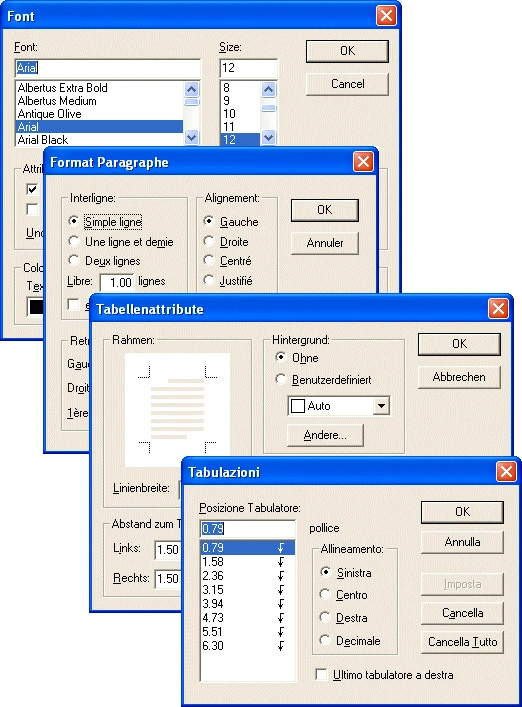
How TX Text Control Chooses the Language
When a new control is created, TX Text Control selects the current system language as the default language. The Language property of TXTextControl changes this setting independently of the system language, and its description lists all built-in languages that are currently available.
The button bar and the status bar have a language of their own. To change it, set the Language property of TXButtonBar and of TXStatusBar.
Build a Resource Library
To display resources in additional languages, you build an external resource library and set it with the ResourceFile property. A resource library is a dynamic link library (DLL) that contains only resources.
The ResourceKit subdirectory contains the basic files to create such a DLL file:
| File | Contents |
|---|---|
| TXRES.C | The entry point of the DLL |
| TXRES.RC | The resources of TX Text Control, in English |
| TXRES.H | The definitions of all resource identifiers |
The subdirectory also contains Microsoft Visual C++ project files that you can use to build the resource library.
TXRES.RC contains the following:
- The dialog box templates for the built-in dialog boxes.
- String tables with the information strings, the error messages and the status strings of the status bar. A string must not be longer than 255 characters.
- The bitmaps of the bold, italic and underline buttons of the button bar. The bitmap files are in the \BMP subdirectory.
Avoid Conflicts With Other Resource Libraries
Other programs use resources of their own, and future versions of TX Text Control may too. To avoid conflicts with them:
- Give the resource library a unique file name. The resource kit project builds a DLL file named TXRES.DLL. Change this name.
- Place the resource library in the same directory as the final application. At run time, get the full path name of the application's executable file, and set the ResourceFile property to the file name of the resource library including this path.
How Resources Are Loaded at Run Time
At run time, TX Text Control determines its resources in the following way:
- By default, the Language property is initialized with the system default language. If the system language isn't a built-in language, TX Text Control displays English resources.
- When the Language property has been changed to the identifier of a built-in language, TX Text Control displays its resources in this language, independently of the system language.
- When the ResourceFile property has been set, TX Text Control tries to load the resources from this library, and the Language property is ignored. When the resource library doesn't contain a resource that is needed, or when the file can't be found, TX Text Control displays English resources without reporting an error.
- The bars are set separately. Setting the ResourceFile and Language properties of a
TXTextControldoesn't set the corresponding properties of a connected button bar or status bar to the same values. Change the ResourceFile and Language properties ofTXButtonBar, and the ResourceFile and Language properties ofTXStatusBar, independently.