
Using Microsoft Word Fields
Templates created in Microsoft Word bring their fields along, and TX Text Control imports and exports all fields that can be inserted into a Word document. Two Visual Basic 6 samples wrap the two most commonly used Word fields, MERGEFIELD and FORMTEXT, in classes that read and write the field's settings.
The source code of both samples is in the Samples\VB6\ApplicationFields directory.
How Word Fields Are Stored
A Word field is a marked text field. To create a valid field, set its type with the FieldType property and its settings with the associated FieldTypeData property, as Special Types of Marked Text Fields describes.
Both samples follow the same pattern: a class holds a reference to a field through its identifier, the FieldCurrent value, and maps the parameters stored in FieldTypeData to properties of its own. A dialog box shows these properties, and the class writes changes back to the field.
Implement a MERGEFIELD Class
The MergeField is the most commonly used field in Microsoft Word and RTF documents. Besides the field text, it lets template designers add information to a field, such as text that is displayed before or after the field text, or the format of the text.
The sample implements a MergeField class that gets and sets the parameters in FieldTypeData. It holds a reference to FieldCurrent to work on the right field in TX Text Control, and it implements the parameters of a merge field as the following properties:
- TextFormat
- TextBefore
- TextAfter
- Mapped
- MergeFieldName
- PreserveFormatting
- VerticalFormatting
When the TextBefore property of a MergeField is set, the Text property of the class changes the referenced field and its text. The class also saves the new setting in FieldTypeData in the appropriate format.
Edit a Merge Field
Start the sample and click File / Load to load a sample document that contains several merge fields.
Place the input position inside an existing field, for example <<COMPANY>>.
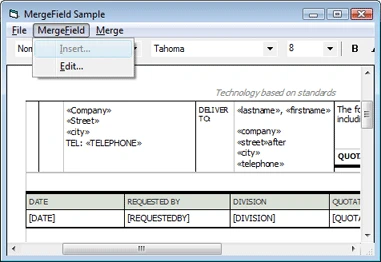
Choose Edit... from the MergeField main menu to open the merge field dialog box of the sample.
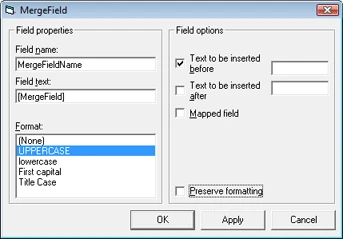
The dialog box changes all properties of the MergeField instance. Check Text to be inserted after, type some text in the box next to it and click OK.
Merge the Fields With Data
Choose Merge fields... from the Merge menu to merge all merge fields with database content. The FieldNext method loops through all inserted fields to replace their text:
oID = TXTextControl1.FieldNext(oID, &H8000)
Do While oID > 0
  Dim newMergeField As New MergeField
  Set newMergeField.TextControl = TXTextControl1
  newMergeField.FieldID = oID
  newMergeField.GetParameters
  For i = 0 To rs.Fields.Count - 1
    If StrConv(rs.Fields(i).Name, vbLowerCase) = StrConv(newMergeField.MergeFieldName, vbLowerCase) Then
      If rs(i).value <> "" Then
        newMergeField.Text = rs(i).value
      End If
    End If
  Next
  newMergeField.UnLoad
  oID = TXTextControl1.FieldNext(oID, &H8000)
Loop
The code works as follows:
FieldNextwith the field group&H8000returns only the identifiers of fields of the typetxFieldMSWord, the Microsoft Word fields.- For each field, a new MergeField object gets the
TXTextControland the field identifier, andGetParametersreads the field's settings. - If a column of the recordset
rshas the name of the merge field, compared without regard to case, and holds a value, that value becomes the text of the field.
Implement a FORMTEXT Class
Microsoft Word uses the FormText field to create fillable documents. Many applications fill such documents automatically, so these fields must be readable. A TX Text Control field acts as a container for all settings (switches) of a form text field.
The sample implements a FormText class for these fields. Every time a field of the type FORMTEXT is edited, the sample creates a new FormText object for the field at the input position:
Dim curField As New FormText
Set curField.TextControl = TXTextControl1
curField.FieldID = TXTextControl1.FieldAtInputPos
curField.GetParameters
FieldAtInputPos returns the identifier of the field at the input position. The FormText instance stores this identifier in its FieldID property, and GetParameters makes the field the current field with FieldCurrent. As in the MergeField sample, the identifier is used to get and set the parameters that are mapped to the properties of the FormText object.
A dialog box of the sample shows the properties of the form text field and changes them:
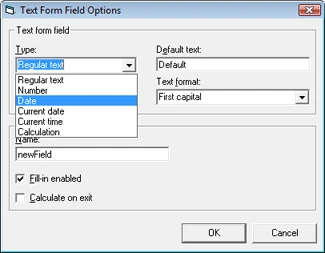
When the user clicks OK, the values of the dialog box are set in the FormText object, which writes the parameters of the referenced TX Text Control field.
Next Steps
- Special Types of Marked Text Fields: the field types, including Microsoft Word fields, and their type data.
- Using Marked Text Fields in Visual Basic: insert fields, respond to clicks and find fields with
FieldNext. - Mail Merge: merge database data into documents.
- Form Fields: the members for form fields such as form text fields.