
Online Store: An Advanced ASP Example
An online store turns the shopping cart of a customer into an order confirmation without anyone working on the server. The Online Store sample takes the input of a web page, creates a document with TX Text Control and returns it as a print-ready PDF document.
You find the sample in the Samples\Asp\OnlineStore directory of your TX Text Control installation. The sections below follow its ASP script from the posted form data to the PDF file.
How the Sample Works
The sample is the shopping cart of an online store, in which the user sets the quantity of each article. After the user enters a postal address and clicks Order, the data is used to create an order confirmation on the server.
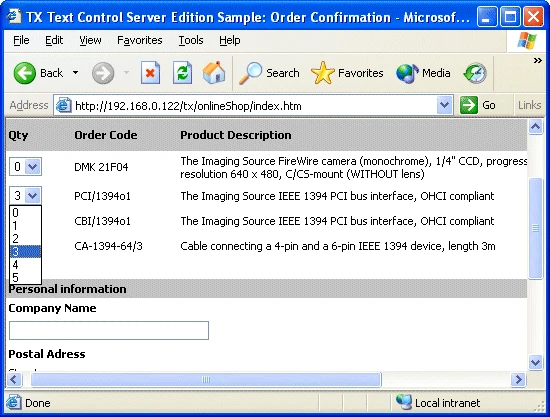
The form sends the data to the server as HTTP POST variables, and the ASP script create_confirmation.asp creates a TXTextControl object:
<form action="create_confirmation.asp" method="post" ID="Form1">
Load the Template and Fill Its Fields
The script first loads a template document that already holds the design of the invoice. The sample leaves out how the template is generated, for clarity. To learn more about template generation, see the Mail Merge sample of the Visual Basic User's Guide.
' Load a template file
tx.Load Server.MapPath("template.tx")
' Merge the marked text fields with the posted data
tx.FieldCurrent = 1
tx.FieldText = request.form("company")
tx.FieldCurrent = 2
tx.FieldText = request.form("street")
The code works as follows:
- Load loads the template file, with
Server.MapPathfor its path. - FieldCurrent selects a marked text field of the template, and FieldText fills it with a value of the form, such as the name or the address. This is the mail merge: the template generator inserted the fields as placeholders for the data of the form.
Marked Text Fields gives a detailed overview of what text fields can do.
Add the Ordered Items to the Table
The ordered items go into a table, which is also part of the template document. For each item with a quantity greater than zero, the script inserts a new row into the table and copies the product description of the item into it:
For i = 1 To request.form("article_amount")
   If(request.form("article" + CStr(i) + "_qty") <> 0) Then
      tx.SelStart = tx.TableCellStart(TableID, _
               tx.TableRows(TableID), 1)
      tx.TableInsertLines 2, 1
      tx.TableCellText(TableID, CurrentRow, 1) = _
               request.form("article" + CStr(i) + "_qty")
      tx.TableCellText(TableID, CurrentRow, 2) = _
         request.form("article" + CStr(i) + "_ordernumber")
      tx.TableCellText(TableID, CurrentRow, 3) = _
         request.form("article" + CStr(i) + "_description")
      article_sum = request.form("article" _
                     + CStr(i)+"_qty") _
               * request.form("article" + CStr(i) + "_price")
      TotalSum = TotalSum + article_sum
      tx.TableCellText(TableID, CurrentRow, 4) = _
                  FormatNumber (article_sum, 2) & " US $"
      CurrentRow = CurrentRow + 1
   End If
Next
The code works as follows:
- TableCellStart and TableRows give the start of the first cell in the last row of the table, which becomes the input position through SelStart.
- TableInsertLines inserts the new row.
- TableCellText fills the cells of the row with the quantity, the order number, the description and the sum of the article.
Return the Order Confirmation as PDF
At the end, the script calculates the grand total and copies it to the last row of the table. Then SaveToMemoryBuffer saves the document in the format you want, PDF in this case, to a local buffer, and Response.BinaryWrite sends the buffer to the user:
' Write the contents as a PDF document to a variable and
' return it to the client
OutputBuffer = tx.SaveToMemoryBuffer(OutputBuffer, 12, 0)
Response.Clear
Response.ContentType = "application/pdf"
Response.AddHeader "Content-Disposition", "attachment; filename=order.pdf"
Response.BinaryWrite(OutputBuffer)
Next Steps
- Simple Sample Programs: the basic ASP scripts behind this sample, step by step.
- Server Programming: the properties and methods that can't be used on a server.