
XML Basics
Three files work together when TXTextControl opens an XML document: the XML file holds the data, a CSS file says how it looks and a DTD says which elements it may contain. The XML Basics sample program for Visual Basic opens such a file, and walking through its three files shows what each one contributes.
The source code of the sample is in the Samples\vb6\XMLBasics sample source directory.
Open an XML File in the Sample Program
The sample program has one menu item, Open File. Its source code looks like the Open File routine of the other TX Text Control sample programs. The main difference is the Format parameter of the Load method, which has the value 10 to load an XML file:
With CommonDialog1
   .Filter = "XML (*.xml)|*.xml"
   .Flags = cdlOFNFileMustExist Or cdlOFNHideReadOnly
   .CancelError = True
   .ShowOpen
   If .FileName <> "" Then
      TXTextControl1.Load .FileName, , 10
   End If
End With
A lot happens behind the scenes, however. When you load the sample file address.xml, TXTextControl loads the XML file and also:
- validates it automatically with the DTD it references;
- formats it according to the CSS style sheet provided.
The following sections look at the three files involved.
The XML File
The XML file contains a list of addresses:
<address>
<address_record>
<name>Paul</name>
<street>Baker Street</street>
<city>London</city>
<email>paul@hotmail.com</email>
</address_record>
<address_record>
<name>George</name>
<email>george@hotmail.com</email>
</address_record>
</address>
Unlike an HTML or RTF file, an XML file contains no information about how the text is displayed or formatted.
The CSS File
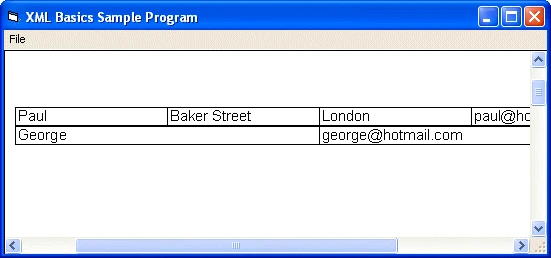
Line 2 of the XML file references a style sheet file called address.css. This CSS file tells TXTextControl to display an address entry as a table, with the individual elements as table cells that have a border 1 pixel wide and a font size of 11 points:
address { display: table }
address_record { display: table-row}
name, street, city, email {	display: table-cell; border: 1px solid; font-size: 11pt }
When you load address.xml with the sample program, TXTextControl displays it according to this style sheet:
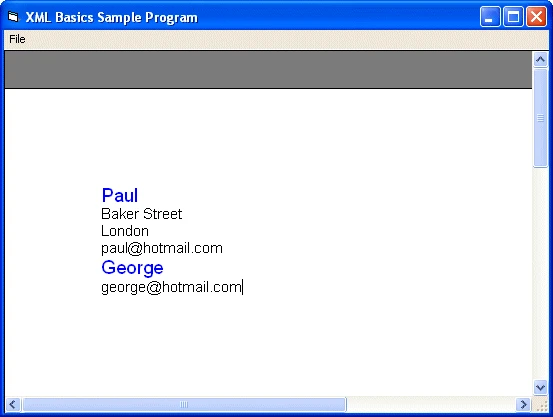
A change to the CSS file can make the text appear in a completely different way. For example, the following style sheet shows a list instead of a table:
name {	display: block; font-size: 14pt; color: blue }
street, city, email { display: list-item; font-size: 11pt}
With this style sheet, TXTextControl displays the XML data as follows:
The DTD File
The DTD specifies which elements may occur in an XML file and how the elements are ordered or nested. The sample DTD specifies that an address contains one or more address_record elements, which in turn contain a name, a street, a city and an email. The street and city elements are optional:
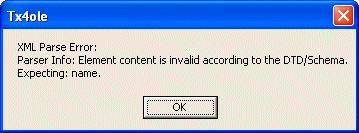
When it loads an XML file, TXTextControl checks whether the XML code is valid, which means that it follows the rules specified in the DTD. If it doesn't, an error occurs. In the following example, the required <name> element has been removed:
<address>
<address_record>
<street>Baker Street</street>
<city>London</city>
<email>paul@hotmail.com</email>
</address_record>
</address>
Loading this XML code raises an error:
This strict error checking is considered one of the major strengths of XML: it ensures that a document always has a certain structure, so that other applications can process it.
Next Steps
- Loading and Saving XML Files: the events for invalid and not well-formed documents and saving the CSS file.
- Editing XML Files: the XML editor mode and the combo boxes that insert and delete elements.
- Programming XML Documents: reading and changing elements with
XMLElementsin code.