
Built-In Dialog Boxes
Fonts, paragraphs, tabs, lists, styles, page setup, tables, images, form fields, tables of contents, search and replace: for each of these, TXTextControl brings its own dialog box, and one method call opens it. You don't design a form, read the user's input or apply it to the text. The dialog box shows the attributes of the selection and applies what the user changes.
Read on for an overview of every dialog method, the parameters that choose a tab, the values they return and the menu item of the TXWords sample that opens each dialog box. The screenshots show version 34.0.
Overview of the Dialog Methods
| Method | What the user edits | Parameter | TXWords menu item |
|---|---|---|---|
| FontDialog | Font, size, colors and character attributes of the selection | Optional tab, 0 or 1 | Format > Character... |
| ParagraphDialog | Alignment, spacing, indents, frame and pagination of the selected paragraphs | Optional tab, 0 or 1 | Format > Paragraph... |
| TabDialog | Tab stops | -- | Format > Tabs... |
| LocaleDialog | Language of the selected text | -- | Format > Language... |
| InsertSymbolDialog | Inserts symbol characters (modeless) | -- | Insert > Symbol... |
| ListAttrDialog | Bulleted and numbered lists | -- | Format > Bullets and Numbering > Properties... |
| StyleDialog | Creates, deletes and modifies formatting styles | -- | Format > Styles... |
| SectionFormatDialog | Page size and margins, headers and footers, columns and page borders | Tab, 0 to 3 | File > Page Setup..., Format > Headers and Footers..., Columns..., Page Borders... |
| PageNumberDialog | Format of a page number field | Field identifier | -- |
| TableInsertDialog | Defines and inserts a new table | Optional table identifier | Table > Insert > Table... |
| TableAttrDialog | Frames, colors, size, alignment, formulas and number formats of table cells | Optional tab, 0 to 2 | Table > Properties..., Table > Formulas > Edit Formula... |
| ObjectAttrDialog | Images, text frames and OLE objects | Optional tab, 0 to 2 | Format > Image..., Text Frame..., OLE Object... |
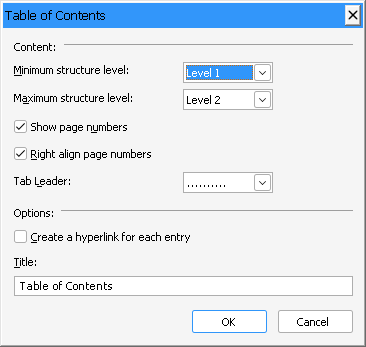
| TableOfContentsDialog | Inserts or changes a table of contents | -- | Insert > Table of Contents..., Edit > Table of Contents > Edit... |
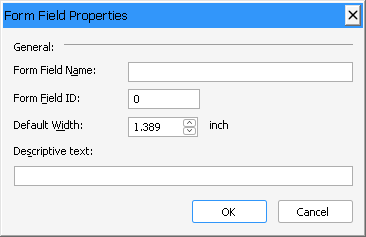
| FormFieldDialog | Attributes of a form field | Field identifier | Format > Form Field > Properties... |
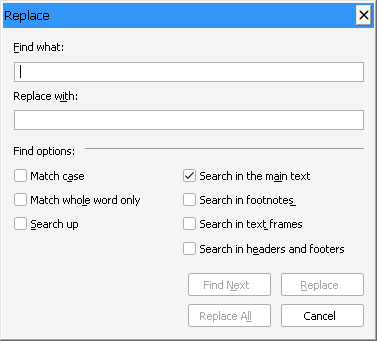
| FindReplace | Finds or replaces text | 1 (Find) or 2 (Replace) | Edit > Find..., Edit > Replace... |
| LoadDialog | Opens a document (system dialog box) | File format filters | File > Open... |
| SaveDialog | Saves a document (system dialog box) | File format filters and options | File > Save As..., File > Export... |
| PrintDialog | Prints the document (system dialog box) | Document name | File > Print... |
The Built-in Dialog Boxes category of the reference lists the same methods.
How the Dialog Methods Work
Except for InsertSymbolDialog, whose dialog box stays open while the user works on, a dialog method reports its result after the user has closed the dialog box. The formatting dialog boxes work on what is selected: the character and paragraph dialog boxes on the selected text, ObjectAttrDialog on the selected image or object, FormFieldDialog and PageNumberDialog on the field whose identifier you pass.
Most methods tell you whether the user changed something. FontDialog, ParagraphDialog, TabDialog, ListAttrDialog, StyleDialog, SectionFormatDialog, TableAttrDialog, ObjectAttrDialog and LocaleDialog return True when the user has changed one or more attributes and False otherwise. Call the method as a function to read the value, for example to mark the document as changed:
Private Sub mnuFormat_Paragraph_Click()
    ' Open the paragraph dialog box and remember a change
    If TXTextControl1.ParagraphDialog Then
        DirtyFlag = True
    End If
End Sub
DirtyFlag is the variable with which TXWords remembers unsaved changes. When you don't need the return value, call the method as a statement, as TXWords does in all its menu handlers: TXTextControl1.ParagraphDialog.
The dialog boxes with tabs take an optional ActiveTab parameter, the zero-based index of the tab that is shown first. SectionFormatDialog requires it.
Format Characters and Paragraphs
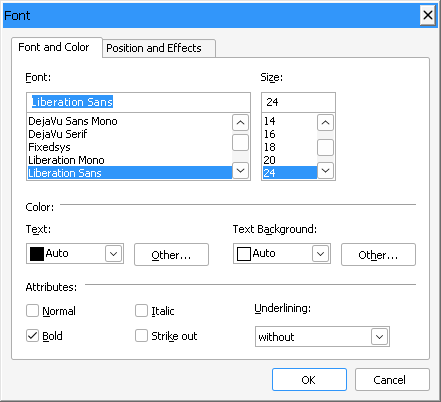
FontDialog opens the Font dialog box. Tab 0 sets the font, the size, the text and background colors and the attributes; tab 1 sets the text position and text effects.
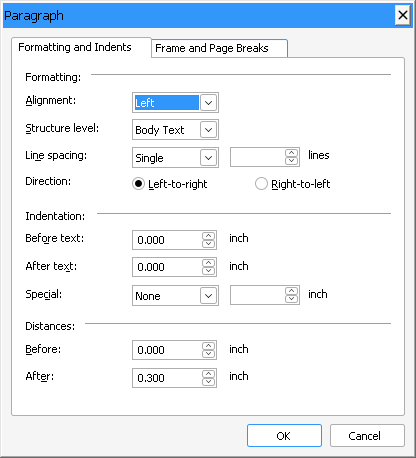
ParagraphDialog opens the Paragraph dialog box. Tab 0 sets the alignment, the line spacing, the indents and the distances before and after the paragraph; tab 1 sets a frame and the pagination.
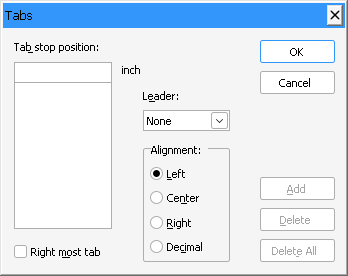
TabDialog opens the Tabs dialog box, in which the user adds and deletes tab stops and sets their alignment and leader.
TXWords opens the three dialog boxes from its Format menu:
Private Sub mnuFormat_Character_Click()
    TXTextControl1.FontDialog
End Sub

Private Sub mnuFormat_Paragraph_Click()
    TXTextControl1.ParagraphDialog
End Sub

Private Sub mnuFormat_Tabs_Click()
    TXTextControl1.TabDialog
End Sub
Character and Paragraph Formatting shows how to set the same attributes in code.
Language and Symbols
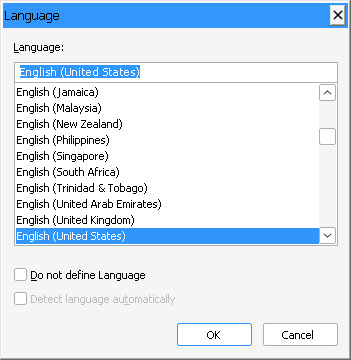
LocaleDialog (since version 20.0) opens the Language dialog box, which sets the language of the selected text. It returns False when the user leaves it with Cancel or keeps the language. This is the language of the text, not the language in which the dialog boxes are displayed; for that, see Choose the Language of the Dialog Boxes.
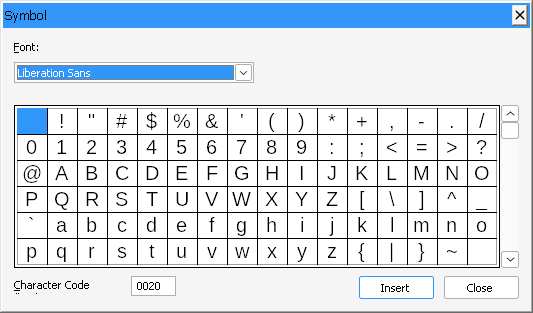
InsertSymbolDialog (since version 23.0) opens a modeless dialog box for inserting symbol characters. Modeless means that the dialog box stays open while the user goes on working in the text. The method has no return value. TXWords calls it from Insert > Symbol....
Format Lists and Styles
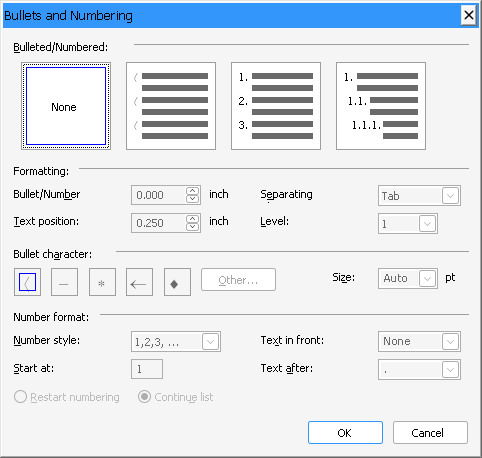
ListAttrDialog opens the Bullets and Numbering dialog box for the selected paragraphs: the list type, the positions, the bullet character, the number format and the level.
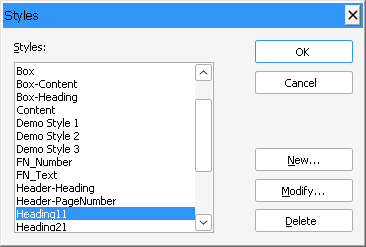
StyleDialog opens the Styles dialog box, in which the user creates, deletes and modifies formatting styles. It returns True when one or more styles have changed. When styles have been created or deleted, the StyleListChanged event occurs, so that you can update a list of styles in your own user interface.
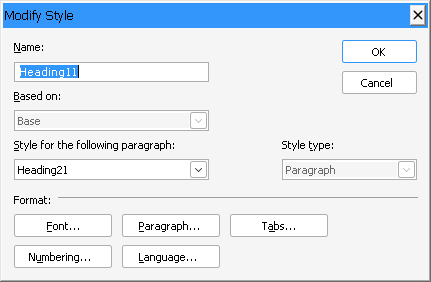
Modify... opens a second dialog box for the style's name, its base style and its formatting:
Bulleted and Numbered Lists and Stylesheets cover lists and styles in code.
Set Up Pages and Sections
SectionFormatDialog (since version 14.0) opens the Page Setup dialog box for the whole document or for a single section. Its ActiveTab parameter is required:
| ActiveTab | Tab | TXWords menu item | TXWords constant |
|---|---|---|---|
| 0 | Page margins, page size and orientation | File > Page Setup... | SECTFMTDLG_PAGE |
| 1 | Headers and footers | Format > Headers and Footers... | SECTFMTDLG_HDRFTR |
| 2 | Columns | Format > Columns... | SECTFMTDLG_COLUMNS |
| 3 | Page borders | Format > Page Borders... | SECTFMTDLG_PAGEBRD |
TXWords declares the four constants in tx.bas and uses them in its menu handlers and in the buttons of its toolbar:
Global Const SECTFMTDLG_PAGE = 0
Global Const SECTFMTDLG_HDRFTR = 1
Global Const SECTFMTDLG_COLUMNS = 2
Global Const SECTFMTDLG_PAGEBRD = 3

Private Sub mnuFile_PageSetup_Click()
    TXTextControl1.SectionFormatDialog SECTFMTDLG_PAGE
End Sub
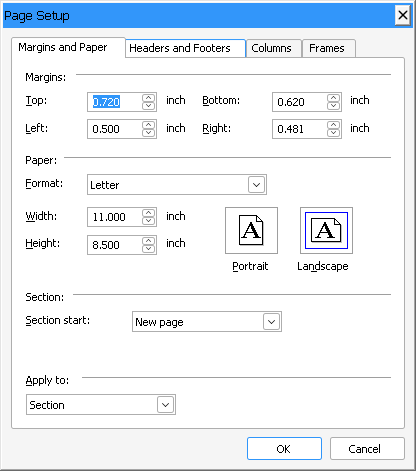
Sections and Page Setup shows the other tabs and the members that set the same values in code.
PageNumberDialog (since version 19.0) formats a page number field. Its FieldId parameter is the identifier of a field of the type txFieldPageNumber or txFieldAllPages. It returns True when the user has changed something and closed the dialog box with OK. TXWords doesn't call it; Headers and Footers describes page number fields.
Insert and Format Tables
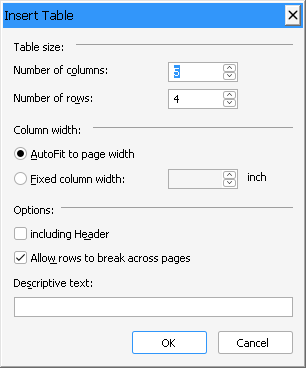
TableInsertDialog (since version 19.0) opens the Insert Table dialog box and inserts the table when the user clicks OK. It returns the identifier of the new table, 0 when no table could be inserted (for example because text is selected) or -1 when the new table has been combined with a table directly above or below it. The optional TableId parameter sets the identifier yourself, from 10 to 32,767.
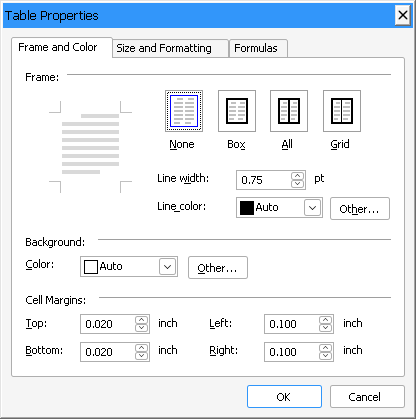
TableAttrDialog opens the Table Properties dialog box for the selected cells. Tab 0 sets frame lines, colors and cell margins, tab 1 the vertical size and alignment and tab 2 formulas and number formats. TXWords opens the first tab from Table > Properties... and the formulas tab directly from Table > Formulas > Edit Formula...:
Private Sub mnuTable_Properties_Click()
    TXTextControl1.TableAttrDialog
End Sub

Private Sub mnuTable_Formulas_EditFormula_Click()
    TXTextControl1.TableAttrDialog 2
End Sub
Tables, Using Formulas in Table Cells and Number Formats go further.
Format Images, Text Frames and OLE Objects
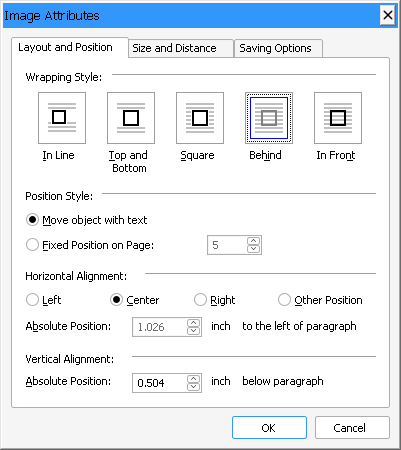
ObjectAttrDialog (since version 12.0) opens the attribute dialog box of the selected image, text frame or OLE object. Its options depend on the kind of object. Tab 0 sets the text wrapping and the layout, tab 1 the size and distances and tab 2 attributes specific to the object, such as the saving options of an image or the colors and frames of a text frame. TXWords calls it without a parameter from Format > Image..., Text Frame... and OLE Object....
Using Images and Using Text Frames describe the objects.
Edit Tables of Contents and Form Fields
TableOfContentsDialog (since version 29.0) inserts a table of contents, or changes the one at the input position. It returns the identifier of the table of contents, or 0 when the user clicks Cancel or no entry has been found in the document. TXWords calls it from Insert > Table of Contents... and from Edit > Table of Contents > Edit....
FormFieldDialog (since version 31.0) sets the attributes of a check box, combo box, text or date form field. It needs the field's identifier, which TXWords takes from the field at the input position with FieldAtInputPos:
Private Sub mnuFormat_FormFields_Properties_Click()
    Dim fieldId As Integer

    fieldId = TXTextControl1.FieldAtInputPos
    TXTextControl1.FormFieldDialog fieldId
End Sub
It returns True when the user has changed something and clicked OK, and False after Cancel.
Tables of Contents and Form Fields cover both subjects.
Find and Replace Text
FindReplace opens the Find dialog box with the parameter 1 and the Replace dialog box with 2. TXWords declares the values as FINDREPL_FIND and FINDREPL_REPLACE in tx.bas:
Private Sub mnuEdit_Find_Click()
    TXTextControl1.FindReplace FINDREPL_FIND
End Sub

Private Sub mnuEdit_Replace_Click()
    TXTextControl1.FindReplace FINDREPL_REPLACE
End Sub
Selections, Clipboard and Undo shows how to search in code.
Open, Save and Print With System Dialog Boxes
Three methods open system dialog boxes of Windows and then do the work themselves:
- LoadDialog (since version 31.0) opens the Open dialog box and loads the document. The
Filtersparameter adds the file formats the dialog box offers, and the optionalCurSelectionparameter inserts the document at the selection instead of replacing the contents. - SaveDialog (since version 31.0) opens the Save As dialog box and saves the document. Besides
Filters, it takesDialogOptions:txPasswordfor a PDF password button,txCSSOptionsfor the HTML style options andtxSaveSelectionfor a check box that saves only the selection. - PrintDialog (since version 19.0) opens the system print dialog box and prints the document. Its parameter is the name of the print job.
LoadDialog and SaveDialog need at least Windows Vista. TXWords uses them for File > Open... and File > Save As... in File.bas, and for File > Export..., which offers only the PDF formats:
' File > Open...: all formats and an "All Formats" item
TXTextControl1.LoadDialog (All Or &H8000)

' File > Save As...: all formats with all options
TXTextControl1.SaveDialog All, txPassword Or txCSSOptions Or txSaveSelection

' File > Export...: PDF and PDF/A with a password button
TXTextControl1.SaveDialog AdobePDF Or AdobePDFA, txPassword
Working with Files and Printing describe loading, saving and printing.
The Password Dialog Box of EditMode
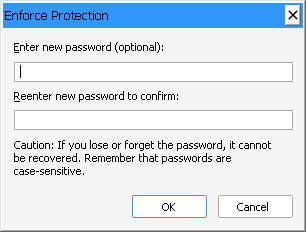
One built-in dialog box opens through a property instead of a method. When you set EditMode to 3 (Password Protected), TXTextControl opens a dialog box in which the user enters the password that protects the document. TXWords sets this value from Edit > Protect Document.
Document Protection explains the edit modes and permissions.
Dialog Boxes That TXWords Adds Itself
Not every dialog box in TXWords belongs to TXTextControl. The following are Visual Basic forms of the sample, which you find as source code in its folder and adapt or replace in your own application:
| TXWords menu item | Form of the sample | Page |
|---|---|---|
| Insert > Break... | InsertBreak.frm (Insert Break) | Sections and Page Setup |
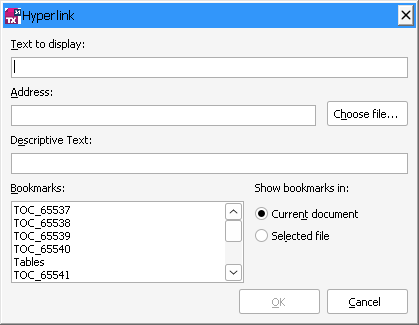
| Insert > Hyperlink..., Edit > Hyperlink... | frmHyperlink.frm (Hyperlink) | -- |
| Edit > Reviewing > Review Changes... | frmReviewTrackedChanges.frm (Review Changes) | Track Changes |
| Edit > Reviewing > Comments... | frmComments.frm (Comments) | Comments |
| Edit > Signature Field... | frmSignerData.frm (Signer Info) | Signature Fields |
| Options > HTML..., Options > PDF... | HTMLOptions.frm, PDFOptions.frm | -- |
| File > Print Preview | PrintPreview.frm | Printing |
Choose the Language of the Dialog Boxes
The built-in dialog boxes are resources of TXTextControl, like its information strings and error messages. The Language property selects the language in which they appear. English and German are built in, and the default is the Windows system language; when the system language isn't a built-in language, the dialog boxes are English. TXWords sets TXTextControl1.Language = 1 in Form_Load, which gives English dialog boxes on every system.
For another language, you build a resource library, a DLL that contains the translated dialog box templates and strings, from the files of the resource kit, and assign its full path to the ResourceFile property. The Language property is then ignored. When the library lacks a resource or can't be found, TX Text Control displays the English resource without reporting an error. Resources and Localization describes the resource kit and where to place the library.
The button bar and the status bar have Language and ResourceFile properties of their own, which you set separately. Button Bar, Ruler Bar and Status Bar lists them.
Key Members
| Member | Description |
|---|---|
| FontDialog | Opens the Font dialog box for the selected text. |
| ParagraphDialog | Opens the Paragraph dialog box for the selected paragraphs. |
| SectionFormatDialog | Opens the Page Setup dialog box on one of its four tabs. |
| TableAttrDialog | Opens the Table Properties dialog box for the selected cells. |
| FindReplace | Opens the Find (1) or the Replace (2) dialog box. |
| StyleListChanged | Occurs when styles have been created or deleted, also in the Styles dialog box. |
| FieldAtInputPos | The field at the input position, whose identifier FormFieldDialog takes. |
| EditMode | The value 3 opens the password dialog box that protects the document. |
| Language | The language of the dialog boxes and messages. |
| ResourceFile | A resource library with dialog boxes in another language. |