
Using Text Frames
A text frame is a rectangle in the document that holds text of its own, apart from the main text. With text frames you place and handle text independently: a data entry field inside a line, a box that the main text flows around, or a sheet of address labels.
Two Visual Basic 6 samples from the Samples\vb6\TextFrames folder show the work: the first inserts a single text frame and opens its settings, the second fills a page with text frames for printing labels.
How Text Frames Are Placed
TX Text Control has three methods for inserting text frames:
| Method | Placement | Typical use |
|---|---|---|
| TextFrameInsert | Anchored to a paragraph. Text can flow around the frame, and the frame moves with the paragraph. | The default method for inserting text frames |
| TextFrameInsertAsChar | Handled like a single character in the text | Small data entry fields |
| TextFrameInsertFixed | At a fixed position on the page. The frame keeps its position regardless of changes to the surrounding text. | Frames that must not move with the text |
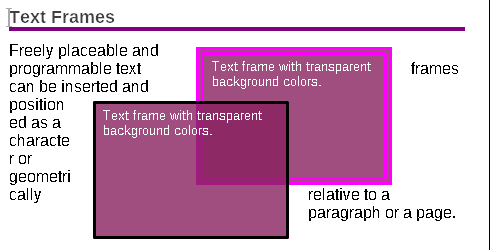
Insert a Text Frame
The first sample program inserts a text frame with TextFrameInsert. Its source code is in the Samples\vb6\TextFrames\Inserting Text Frames folder. The program has two menu items: one calls TextFrameInsert to create a text frame, and the other calls ObjectAttrDialog to open a settings dialog box.
Private Sub mnuTextFrame_Insert_Click()
    TXTextControl1.TextFrameInsert -1, 0, 0, 0, 1000, 1000, 3, 20, 20, 20, 20
End Sub

Private Sub mnuTextFrame_Settings_Click()
    TXTextControl1.ObjectAttrDialog
End Sub
The code works as follows:
- TextFrameInsert anchors the frame to the paragraph at the current input position (
-1), positions it horizontally byPosX(alignment0) at the position 0, 0 relative to the paragraph, makes it 1000 twips wide and high, lets the text flow around it (3) and keeps a distance of 20 twips to the text on each side. - ObjectAttrDialog opens the settings dialog box of the selected object.
The user moves and resizes text frames by dragging them with the mouse. A click on the border of a text frame selects and activates it. Once a text frame is selected, the Settings menu item opens its settings dialog box.
Enable the Settings Only for a Selected Frame
ObjectAttrDialog works with all types of insertable objects, including text frames, images and OLE objects. So that the dialog box does not open when no text frame is selected, the sample enables the Settings menu item only after a text frame has been clicked. The mnuTextFrame_Click event handler does this:
Private Sub mnuTextFrame_Click()
    mnuTextFrame_Settings.Enabled = (TXTextControl1.ObjectGetSelected(&H20) <> 0)
End Sub
The code works as follows:
- ObjectGetSelected is another method that works with all insertable objects. Its parameter determines which type of object it looks for, here
&H20for text frames. It returns zero when no such object is selected.
Print Labels
The second sample program inserts many text frames at once. It is a label printing program for address labels or badges, for instance. Its source code is in the Samples\vb6\TextFrames\Printing Address Labels directory.
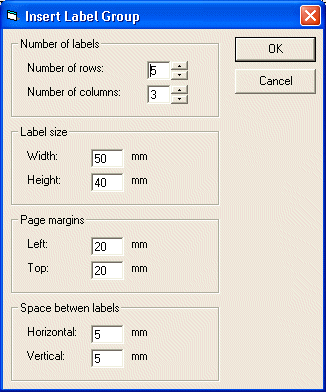
The program has a dialog box, Insert Label Group, in which the user enters information about the label sheet, such as the number of labels and their dimensions:
The program then creates a text frame for each label:
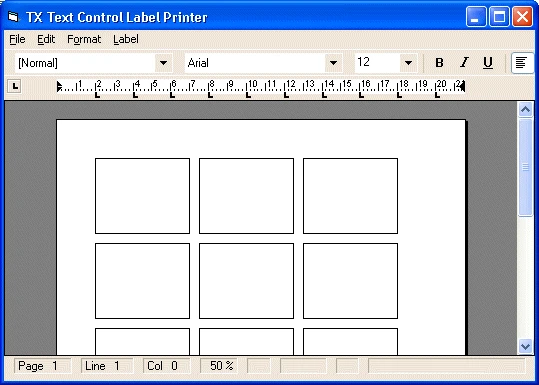
The text frames are filled out manually, when the user clicks a frame and types, or from a file or a database. The Fill in menu item enters the words "Address no." followed by the frame's identifier into each frame. In this sample, the TXTextControl is named tx:
Private Sub mnuLabel_FillIn_Click()
    Dim FrameID As Integer

    FrameID = tx.ObjectNext(0, &H20)
    While FrameID
        tx.TextFrameSelect (FrameID)
        tx.Text = "Address no. " & FrameID
        tx.TextFrameSelect 0
        FrameID = tx.ObjectNext(FrameID, &H20)
    Wend
End Sub
The code works as follows:
- ObjectNext returns the identifier of the object that follows the given one. With
0, it returns the first text frame (&H20), and it returns zero when there is no further frame, which ends the loop. - TextFrameSelect with a frame's identifier makes the following properties work on that text frame. With
0, it returns to the default mode, in which properties work on the text part with the current input position. - Text sets the text of the selected frame. To load the text from a file instead, replace the
Textproperty with a call to the Load method.
Find the Members for Text Frames
The programming category Images, Text Frames, Signature Fields and OLE Objects lists all properties, methods and events for text frames. Members whose names begin with "Object" work with text frames and with the other kinds of embedded objects, such as images and OLE objects. Members whose names begin with "TextFrame" apply to text frames only.
Next Steps
- Using Images: inserting images, which share the "Object" members with text frames.
- Printing: printing the labels and other documents.
- Images, Text Frames, Signature Fields and OLE Objects: all members for text frames and other objects.