
A Word Processor
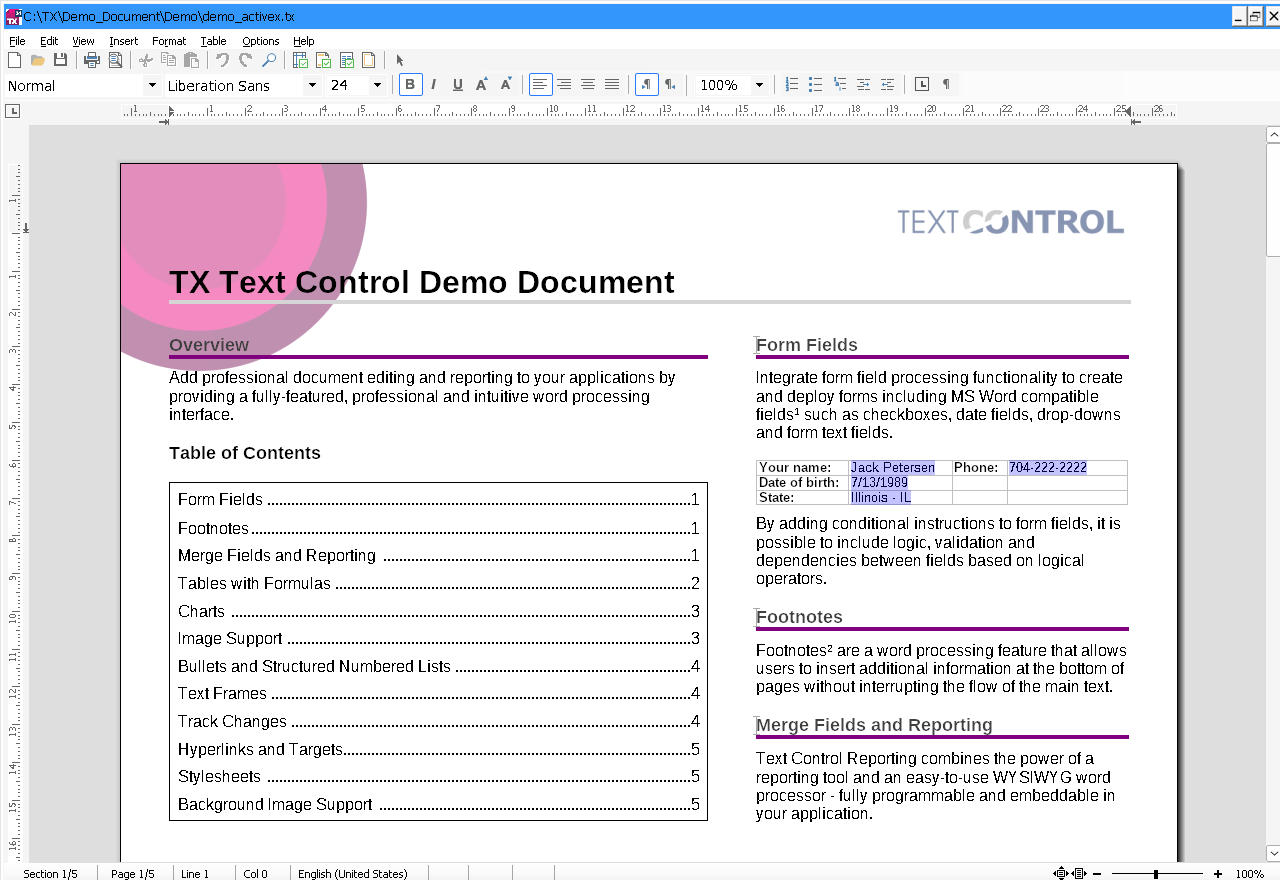
TXWords is the word processor sample of TX Text Control ActiveX, written in Visual Basic 6. Its main form holds a TXTextControl together with a button bar, two rulers and a status bar, and its menus reach almost every feature of the control. Most of its commands are a single call of a TXTextControl method that opens a built-in dialog box.
The source code of this example is in the Samples\vb6\TXWords sample source directory. The sections below describe the commands for page setup, printing, searching, paragraph frames and colors, and the members they use. The other pages of this section take up the rest of TXWords, such as tables, fields, track changes and protection.
How TXWords Is Organized
TXWords is a single-document application. The form frmMain.frm contains the controls, the menus and a Windows toolbar, and the event handlers of the menu items call TXTextControl directly. The module tx.bas declares constants for the parameters of these calls, such as CLIP_COPY for Clip or SECTFMTDLG_PAGE for SectionFormatDialog. The module File.bas loads and saves files, and further forms hold the print preview, the review of tracked changes, the comments window and other dialog boxes of the sample.
Set Up the Page
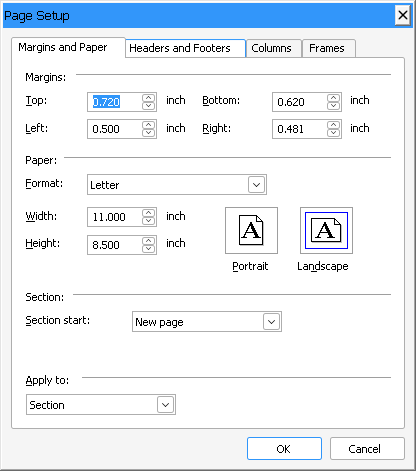
File > Page Setup... opens the built-in Page Setup dialog box, in which the user sets the page size, the orientation and the page margins:
Private Sub mnuFile_PageSetup_Click()
    TXTextControl1.SectionFormatDialog SECTFMTDLG_PAGE
End Sub
SECTFMTDLG_PAGE is 0 and opens the first tab of the dialog box. The other tabs set headers and footers, columns and page borders, which the Format menu opens. Sections and Page Setup describes all four tabs.
Print and Preview the Document
File > Print... and the Print button of the toolbar call PrintDialog, which opens the system print dialog box and prints the document. Its parameter is the name of the print job:
Private Sub mnuFile_Print_Click()
    TXTextControl1.PrintDialog "TX Text Control Words"
End Sub
File > Print Preview opens the form PrintPreview.frm. It prints one page at a time into a Picture Box with the PrintDevice, PrintZoom and PrintPage members. Printing describes printing page by page and the print preview in detail.
Search and Replace Text
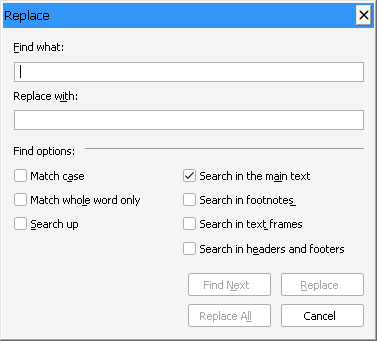
TXTextControl does all the searching and replacing itself. Call the FindReplace method with 1 for the Find dialog box or 2 for the Replace dialog box. TXWords declares the values as FINDREPL_FIND and FINDREPL_REPLACE and calls them from Edit > Find... and Edit > Replace...:
Private Sub mnuEdit_Find_Click()
    TXTextControl1.FindReplace FINDREPL_FIND
End Sub

Private Sub mnuEdit_Replace_Click()
    TXTextControl1.FindReplace FINDREPL_REPLACE
End Sub
The find options of the dialog boxes include the main text, footnotes, text frames and headers and footers:
To search in code without a dialog box, use the Find method, which Selections, Clipboard and Undo describes.
Add Paragraph Frames
With TX Text Control, you can add lines and frames to a paragraph or a range of paragraphs, for example a line above a caption. Users set them on the Frame and Page Breaks tab of the built-in Paragraph dialog box, which Format > Paragraph... opens with ParagraphDialog. TXTextControl1.ParagraphDialog 1 opens the dialog box directly on this tab.
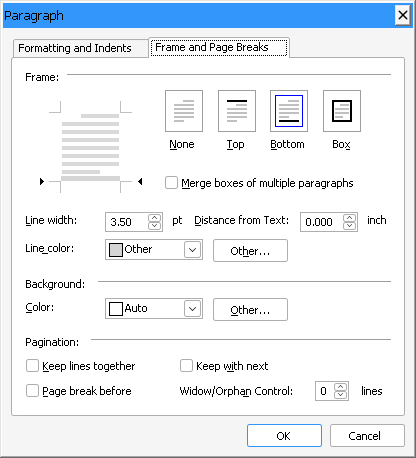
In code, these properties set the frame of the selected paragraphs:
Character and Paragraph Formatting shows them in use.
Choose Text and Background Colors
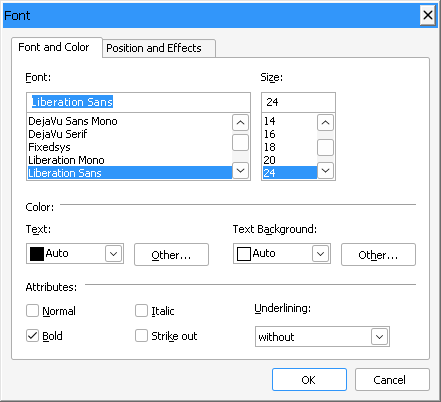
TXWords has no color commands of its own. The user chooses the text color and the text background color on the Font and Color tab of the Font dialog box, which Format > Character... opens with FontDialog, and the background color of paragraphs on the Frame and Page Breaks tab of the Paragraph dialog box. In code, ForeColor sets the text color, TextBkColor the background color of the selected text and FrameColor the background color of the selected paragraphs.
Key Members
| Member | Description |
|---|---|
| SectionFormatDialog | Opens the Page Setup dialog box for page size, margins, headers and footers, columns and page borders. |
| PrintDialog | Opens the system print dialog box and prints the document. |
| FindReplace | Opens the dialog box for searching (1) or for searching and replacing (2). |
| ParagraphDialog | Opens the Paragraph dialog box, whose second tab sets paragraph frames. |
| FontDialog | Opens the Font dialog box, which also sets the text colors. |
| FrameStyle, FrameLineWidth, FrameDistance | Set the frame lines, their width and the distance to the text of the selected paragraphs. |
| ForeColor, TextBkColor | Set the color and the background color of the selected text. |
Next Steps
- Built-in Dialog Boxes: every dialog box that TXWords opens, with its menu item.
- Setting the DPI Awareness: embedding a manifest that makes TXWords DPI aware.
- Printing: printing pages, page ranges and paper bins.
- Working with Files: the file formats TXWords loads and saves.
- Creating a Simple Word Processor: the first tutorial, which builds a smaller word processor step by step.