
Merging Database Data and Text
A mail merge template is a document with Marked Text Fields at the positions where database data belongs. The first part of the Visual Basic mail merge sample loads such a template into a TXTextControl, browses the records of a database and copies the fields of the current record into the matching fields of the document.
The sample consists of two forms: Form1 creates the text template, and Form2 connects it to the database. The complete project is in the Samples\vb6\Mailmerge\Step1 sample directory. The code below concentrates on the parts in which the functionality of TX Text Control is used.
Run the Sample
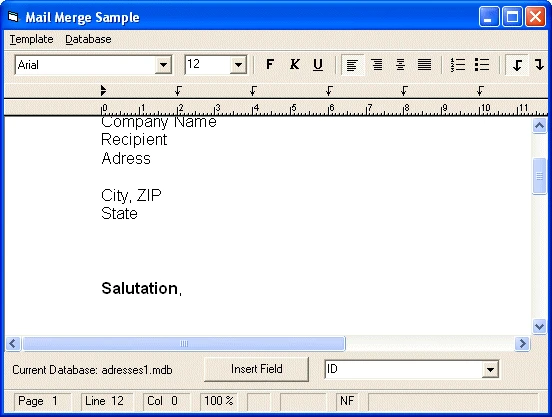
- Start the program and choose Template / Load... to load a sample template file, for example template1.tx. The file contains several fields that are replaced by database entries.
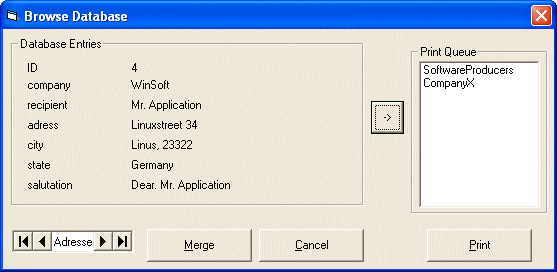
- Choose Database / Browse Database to open Form2. You can now move through the database records connected with the template.
- Click Merge in Form2. The contents of the three database fields are copied to the text fields in Form1.
- Select a different record with one of the data control buttons in Form2 and click Merge again to replace the field contents.
How the Template Identifies Its Fields
The template file that the menu item loads already contains several Marked Text Fields. To receive data from a database, each of them has a unique name, and this name is saved in the FieldData property of the field. The field names of the template match the field names of the database.
A second menu item opens a further form, which links a suitably prepared database. A button click merges the current record into the document.
Find a Field by Its Name
The most important function of the sample merges a data field of the linked database into a field of the TXTextControl. For this, it needs the field number of the Marked Text Field that belongs to the data field. The following function returns it:
Function FindField(name As String) As Integer
   Dim id As Integer
   Dim foundID As Integer
   foundID = 0
   id = Form1.TXTextControl1.FieldNext(0, 0)
   While id <> 0
      If Form1.TXTextControl1.FieldData(id) = name Then
         foundID = id
      End If
      id = Form1.TXTextControl1.FieldNext(id, 0)
   Wend
   If foundID <> 0 Then
      FindField = foundID
   Else
      FindField = 0
   End If
End Function
The code works as follows:
Merge a Record Into the Fields
A second function merges the field data with the database. It opens the database and fills each Marked Text Field of the template with the data of the database field of the same name:
Sub Merge(TXDest As TXTextControl, field As String)
   Dim id As Integer
   Dim i As Integer
   Dim db As Database
   Dim rs As Recordset
   Dim data, SQL As String
   ' Open database
   Set db = Form2.Data1.Database
   Set rs = db.OpenRecordset(db.TableDefs(0).name)
   ' Find record
   SQL = "SELECT * FROM " + db.TableDefs(0).name + _
        " where " + rs.Fields(1).name + " like '" +_
        field + "'"
   Set rs = db.OpenRecordset(SQL)
   rs.MoveFirst
   ' Now fill all fields with data
   For i = 0 To rs.Fields.Count - 1
      ' Get ID of field with the according name
      id = FindField(rs.Fields(i).name)
      ' Get data from database
      data = rs(rs.Fields(i).name)
      If id <> 0 Then
         TXDest.FieldCurrent = id
         TXDest.FieldText = data
      End If
   Next i
End Sub
The code works as follows:
- The function opens the database of the data control on Form2 and selects the record whose second field matches the
fieldparameter. - For each field of the record,
FindFieldreturns the ID of the Marked Text Field with the same name. - FieldCurrent makes that field the current field, and FieldText replaces its text with the data from the database.
Next Steps
- Printing More Than One Record: add records to a print queue and print them with a hidden
TXTextControl. - Relating Data to a Marked Text Field: how the
FieldDataproperty stores data with a field. - Mail Merge: the parts of the sample and where to start.