
Simple Sample Programs
Web developers often have to write the content of a document at run time, for example a print-ready invoice or quote. Six short Active Server Pages show how a TXTextControl on the server does this in VBScript: it creates a PDF file, inserts and formats a table, formats text, merges documents and prints.
The scripts are step1.asp to step6.asp in the Samples\Asp\Simple subdirectory of your TX Text Control installation. Each section below explains one of them after the setup that all of them need.
Install the Samples
The sample code runs from a virtual directory of Internet Information Server. To set it up:
- Start the Internet Information Server Administration Tool. Where you find it depends on the operating system.
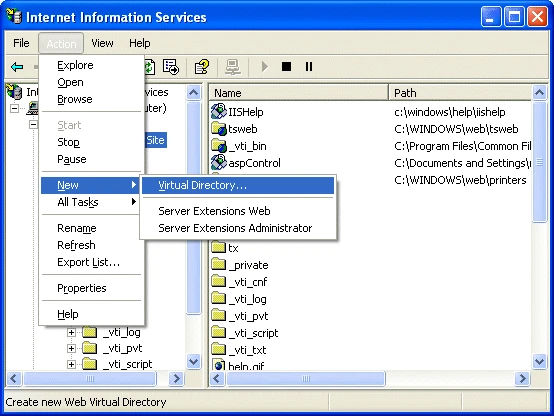
- Select Default Web Site in the tree view on the left, then the Action/New/Virtual Directory... menu item. A wizard starts.
- On the first page, Virtual Directory Alias, enter tx as the alias name and click Next.
- On the second page, Web Site Content Directory, select the Samples\Asp subdirectory of your TX Text Control installation path and click Next.
- On the third page, Virtual Directory Access Permissions, enable the Write permission for the virtual directory and click Finish.
To test the installation, open your browser and go to http://<your_machine_ip>/tx, where <your_machine_ip> is the IP address or host name of your server. The browser shows the index page index.htm of the Samples\Asp subdirectory.
Create a TXTextControl in a Server-Side Script
A script creates an instance of TXTextControl with the Server.CreateObject function:
Dim lc, tx
set lc = Server.CreateObject("TIS.TX.LicManager.34")
set tx = Server.CreateObject("TIS.TX.TextControl.34")
tx.EnableAutomationServer
The code works as follows:
- The license manager comes first. Before the
TXTextControlobject, the script creates a license manager object (TIS.TX.LicManager.34), which reads the TX Text Control license information from the registry. Without this information, theTXTextControlobject can't be created. TIS.TX.TextControl.34creates theTXTextControlobject.- EnableAutomationServer initializes the object as an automation server.
In the sample scripts, the lines that follow set the width, height and page margins of the document.
Generate a PDF File
The first script, step1.asp, starts with a few lines that generate a PDF document on the fly:
Dim lc, tx
set lc = Server.CreateObject("TIS.TX.LicManager.34")
set tx = Server.CreateObject("TIS.TX.TextControl.34")
tx.EnableAutomationServer
...
tx.Text = "The quick brown fox jumps over the lazy dog."
' Save in Adobe pdf format (format identifier 12)
tx.Save Server.MapPath("demo.pdf"), 0, 12
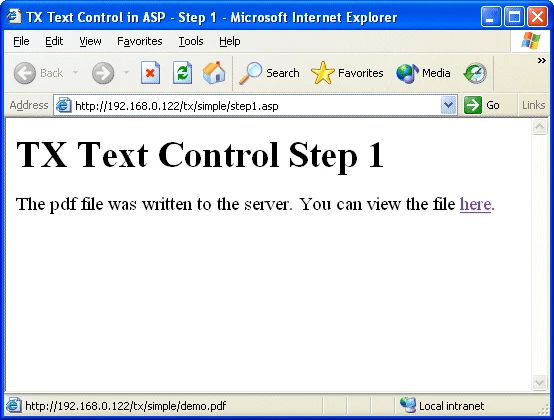
The script creates a document with the given text and writes it to the server as a PDF file, format identifier 12. Its output is a link to the generated document. To view the file in your browser, you need Adobe Reader.
The code works as follows:
- Text sets the text of the document.
Server.MapPathconverts a virtual file name to the fully qualified path of the file system. TX Text Control can't handle virtual file names: withoutMapPath, it would try to write the file to the current directory. The anonymous internet user has no permission to write there, so the call of Save would fail.- Save writes the file. Its reference page lists the format identifiers.
Insert a Table
The second script, step2.asp, generates a more advanced document: it inserts a table and fills its cells with text.
tx.TableInsert 2, 2, -1, 11	' inserts a 2x2 table
tx.TableCellText(11, 1,1) = "Cell 0,0"
tx.TableCellText(11, 1,2) = "Cell 0,1"
tx.TableCellText(11, 2,1) = "Cell 1,0"
tx.TableCellText(11, 2,2) = "Cell 1,1"
The code works as follows:
- TableInsert adds a table to the document. Its last parameter is a unique identifier for the table, which you use to change the table or its cells at run time.
- TableCellText takes this identifier as its first parameter to address the table inserted before.
The script doesn't save the PDF output in a file. It sends it directly to the browser of the client:
binPDF = tx.SaveToMemoryBuffer (binPDF, 12, 0)
Response.Clear
Response.ContentType = "application/pdf"
Response.BinaryWrite(binPDF)
SaveToMemoryBuffer stores the document in a memory buffer, the binPDF variable. The script sends this buffer as the whole document to the browser. You could also encode it and send it as an email attachment.
Format Text
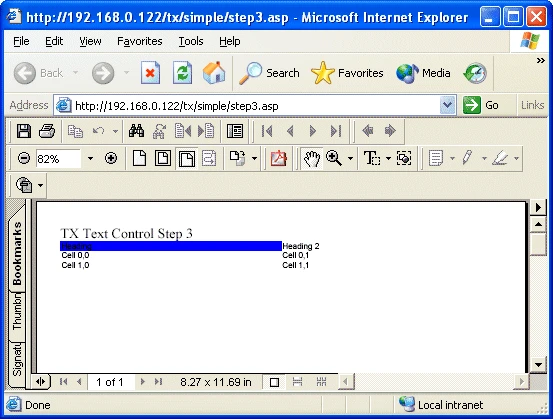
With the text formatting properties of TXTextControl, your code controls the complete layout of a document. The third script shows how to format text:
tx.FormatSelection = true
tx.FontSize = 17
tx.FontName = "Times New Roman"
tx.SelText = "TX Text Control Step 3" & vbCrLf
The code changes the font name and size at the current input position and inserts a line of text, which gets the attributes set before it.
You can also select part of the text with the SelStart and SelLength properties and change any character or paragraph attribute after the text is inserted. Programming Categories - Character Formatting and Programming Categories - Paragraph Formatting list all properties for formatting attributes.
Format Tables
TX Text Control gives your code full control of the table layout, such as border widths, background colors and the distance between the text of a cell and its border. The fourth script formats the cells of the table from the earlier steps with the TableCellAttribute property.
tx.ObjectInsertAsChar 0, Server.MapPath("x.jpg"), _
            tx.TableCellStart(11, 1 ,1)-1, 100,100, 0, 1
tx.TableCellAttribute(11, _
            1, 1, txTableCellHorizontalExt) = 1500
tx.TableCellAttribute(11, _
            1, 1, txTableCellRightBorderWidth) = 20
tx.TableCellAttribute(11, _
            1, 1, txTableCellBottomBorderWidth ) = 20
tx.TableCellAttribute(11, _
            1, 1, txTableCellTextGap) = 50
The code works as follows:
- ObjectInsertAsChar inserts an image at the first position of the first cell. The image acts like a character. The method expects the text position of the image as its third parameter.
- TableCellAttribute changes the first cell of the table: it sets the cell width to 1500 twips, a border on the right and at the bottom of the cell, and a cell padding of 50 twips.
A table's layout can be changed in many more ways. Programming Categories - Tables lists them.
Merge Multiple Documents
TX Text Control merges documents of different text formats into one document. For example, you generate a new document in code and add a Microsoft Word document, or a document in any other supported format, to it. One case where this helps is an invoice that you generate and complete with legal information.
The following code sets the current input position to the end of the document and appends the demo document that the TX Text Control installation program installs:
tx.SelStart = Len(tx.Text)
tx.SelLength = 0
' add a page break
tx.SelText = Chr(12)
' insert the demo document
tx.Load Server.MapPath("demo.rtf"), 0, 5, true
Besides the file name of the document, Load takes three parameters:
- The file position, zero-based, from which the data is read. It is 0 here, because the whole demo document is added.
- The format identifier.
- A Boolean value that must be
Trueto insert a document. WithFalse, the loaded document replaces the current document.
Print a Document
Sometimes a generated document, such as an invoice, has to be printed on the server. VBScript doesn't support the Visual Basic printer object or anything similar to select printers, paper bins and so on. It can send the document to the default printer, with a single line of code from the step6.asp script:
...
tx.PrintDoc "ASP Document Title", 1, tx.CurrentPages(), 1
...
PrintDoc prints the contents of the TXTextControl to the default printer of the system. Its parameters are:
- The document title in the print queue.
- The first and the last page to print.
- The number of copies.
To print to a file, add a printer driver to your system that supports the output format you want, for example a PostScript driver. Add a new Local Port to your printer configuration and give the port a file name, for example c:\out.ps. The output of this printer driver goes to that file, which is overwritten every time you print to the driver.
Use a TXTextControl in Page Scope
For the best performance, use a TXTextControl in page scope. Page scope means that the TXTextControl is created for a single Active Server Page and stays alive until this page is processed.
Don't use a TXTextControl in session or application scope. It can decrease the performance of Internet Information Server, because the Session or Application object is locked down to a single thread.
Next Steps
For more on integrating special features, look at the source code of the Visual Basic sample programs. Almost all properties and methods of TXTextControl work on a server, except those that need a visible surface, such as dialog boxes, toolbars and all features that change how a document is displayed.
- Online Store: an Advanced ASP Example: TX Text Control in a real-world application.
- Server Programming: the properties and methods that can't be used on a server.