
Connecting to Databases
TX Text Control can be connected to any type of database and store formatted text in any of its text formats. You can save a complete document as a record, or load text from a database into table cells and Marked Text Fields. Mail merge, report generators, formatted data entry masks and all kinds of business applications that create documents from information stored in a database are built this way.
The Visual Basic sample below saves the contents of a TXTextControl to a database and reads them back. The data is stored as an RTF formatted string in a text field. The source code of the sample program is in the Samples\vb6\DataAccess sample source directory.
The Sample Program
The sample program is a form with two TXTextControl controls, which both display the same record of a database. The upper control displays it as formatted text. The lower control shows the RTF source code of the record, for demonstration purposes.
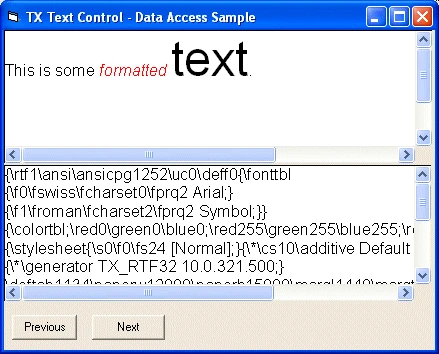
Clicking the Next button saves the changes you have made in the upper window and advances to the next record.
Save a Record
Two methods handle all data access: SaveToMemory and LoadFromMemory. SaveToMemory stores formatted text in a byte array, which is then passed on to the database engine with the DAO or ADO functions of Visual Basic. The following code uses DAO syntax:
Private Sub PutRecord()
   Dim ba() As Byte, s As String
   ba = TXTextControl1.SaveToMemory(5, 0)
   ' convert from ANSI to Unicode
   s = StrConv(ba, vbUnicode)
   rs.Edit
   rs("RTF") = s
   rs.Update
End Sub
The code works as follows:
SaveToMemoryreturns the document as RTF, the format 5, in a byte array.StrConvconverts the data from ANSI to Unicode.- The string is written to the
RTFfield of the current record of the recordsetrs.
To use another text format, change the first parameter of SaveToMemory. The format identifiers are listed with the Save method.
Retrieve a Record
To retrieve a record from the database and display it, the data is converted from Unicode to ANSI and then passed on to the LoadFromMemory method of the first TXTextControl. The second TXTextControl displays the RTF source code without any formatting, so the sample loads it with the Text property:
Private Sub GetRecord()
   Dim ba() As Byte, s As String
   ' Load RTF data and convert it to a byte array
   s = rs("RTF")
   ba = StrConv(s, vbFromUnicode)
   ' Display RTF data in Text Control 1
   TXTextControl1.LoadFromMemory ba, 5, 0
   TXTextControl1.Refresh
   ' Display RTF source code in Text Control 2
   TXTextControl2.Text = s
End Sub
The code works as follows:
- The RTF string is read from the
RTFfield of the record, andStrConvconverts it to an ANSI byte array. LoadFromMemoryloads the byte array as RTF intoTXTextControl1, and Refresh repaints the control.- The
Textproperty ofTXTextControl2receives the RTF source code as plain text.
Choose the Text Format
The sample uses RTF, which most word processing programs can read. If that doesn't matter for your application, the binary format of TX Text Control may be a better choice: it is more compact and takes up less space in a database.
Next Steps
- Mail Merge: insert database fields at defined positions of a template instead of storing the whole document.
- Working with Files: load and save documents in files.
- Dynamic Template Generation: the last part of the mail merge sample.