
Text Formatting and Views
TXTextControl breaks lines inside a formatting area, and the view mode decides what that area is: the width of the control, a page width that you set, or a full page with margins, borders, headers and footers. The view mode also decides whether the control scrolls by itself or leaves scrolling to your application.
What follows explains the unit that all sizes and positions are measured in, then each of the four view modes with the properties and events that belong to it.
Measure in Twips
For almost all units of measurement, TX Text Control uses twips. Twip is a made-up word that means twentieth of a point:
- A point is the unit that type size is expressed in. It is very close to 1/72 inch, so close that it is often defined as exactly 1/72 inch, and graphics systems such as Windows GDI often assume exactly that value.
- A twip is 1/20 point and hence 1/1440 inch. The unit is common in text processing applications and fonts.
The point size gives the height of the characters. 12-point type, for instance, means characters that are 12/72 inch high from the top of the ascenders to the bottom of the descenders.
TX Text Control defines the formatting area in twips, as it does for many other extension settings.
Choose a View Mode
The ViewMode property selects the view:
| ViewMode | View | Formatting area | Scrolling |
|---|---|---|---|
| 0 - Normal | Normal View | PageWidth and PageHeight | Built in |
| 2 - Page View | Page View | Pages with margins and borders | Built in |
| 3 - Floating Text | Floating Text (default) | The width of the control, not limited in height | Vertical scroll bar |
| 4 - Simple Control | Simple Control View | The size of the control | Your application |
Floating Text
3 - Floating Text is the default setting of the ViewMode property. The text is formatted according to the width of the control, but it is not limited to the height of the control.
Normal View
With the PageWidth and PageHeight properties, your code changes the formatting area. You need this for a text editor that formats the text according to a certain page width. For this view, set the ViewMode property to 0 - Normal. The formatting height, which is the distance the user can scroll, depends on the current amount of text.
When the formatting width or height is greater than the current size of the control and the caret reaches a border of the control, the control scrolls automatically to make the new input position visible. A horizontal and a vertical scroll bar also let the user scroll to text outside of the client area without changing the current input position. The ScrollBars property sets the scroll bars.
When the control is sized, the text is not formatted again, and when the control is zoomed, its size and position don't change. When the control is sized, visible scroll bars are hidden automatically once they are no longer needed. Conversely, hidden scroll bars are shown automatically when the control becomes smaller.
Page View
When the ViewMode property is set to 2 - Page View, TXTextControl shows pages with margins and borders. The number of pages depends on the amount of text.
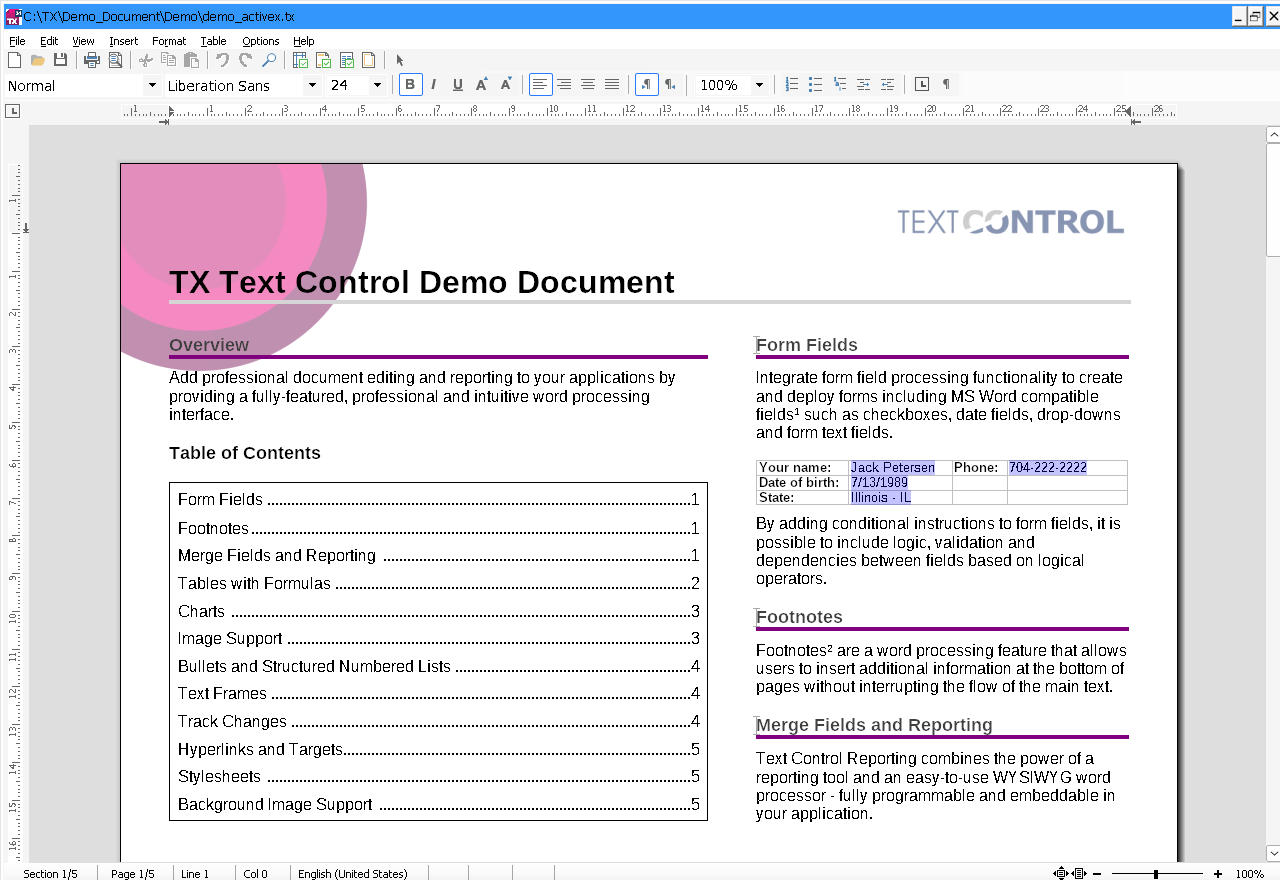
The PageWidth and PageHeight properties define the size of the page including its margins. Page margins are one inch by default, and the PageMarginB, PageMarginL, PageMarginR and PageMarginT properties change them.
Headers and footers are visible only in the page view. Headers and Footers explains how to work with them.
Scroll in the Normal View and the Page View
In the normal view and in the page view, TXTextControl has a built-in scroll interface. It fires the HScroll and VScroll events when it scrolls automatically. The ScrollPosX and ScrollPosY properties get or set the current scroll positions.
Simple Control View
In this view, the formatting area, the area in which TXTextControl breaks lines, is the size of the control. Each time the control is sized, the text is formatted again. For this view, set the ViewMode property to 4 - Simple Control.
Line Breaks and Overflowing Text
- Line breaks. A line break is performed automatically when the current input position reaches the right border of the control.
- Overflowing lines. When the right border is reached in a line without a break character, no line break is performed, and a vertical mark shows the overflowing text. The mark is displayed at the left or the right border of the control, depending on the alignment of the paragraph.
- Overflowing text at the bottom. When the lines exceed the height of the control, a plus mark at the bottom of the control shows the overflowing text.
- The caret stays inside. The current input position, shown by the caret, can never leave the control. When the user tries to move the caret into overflowing text, the control beeps.
When TXTextControl is zoomed, the size of the control is zoomed as well, so that the formatting area fits the new zoom factor. Its position relative to its container control or form is zoomed too.
Expand the Control Automatically
Automatic expanding is possible only in this view. In this mode, the size of the control grows automatically with the amount of text. The AutoExpand property turns it on. After the control has expanded, it fires the HExpand event, the VExpand event or both.
Build Your Own Scroll Interface
The simple control view has no built-in scroll interface. Instead, TXTextControl fires events that let you implement an external one:
- CaretOutBottom, CaretOutLeft, CaretOutRight and CaretOutTop occur when the current input position has moved outside of the visible part of the control.
- CaretOut occurs when the current input position has moved to a control that is completely invisible.
- AutoScroll occurs while the user extends a text selection with the mouse.
All of these events occur only in the simple control view.
Key Members
| Member | Description |
|---|---|
| ViewMode | Selects the normal view, the page view, floating text or the simple control view. |
| PageWidth, PageHeight | The formatting area in the normal view, and the page size including margins in the page view. |
| PageMarginB, PageMarginL, PageMarginR, PageMarginT | The page margins in the page view. |
| ScrollBars | Sets the horizontal and vertical scroll bars. |
| ScrollPosX, ScrollPosY | Get or set the current scroll positions. |
| HScroll, VScroll | Occur when the control scrolls automatically. |
| AutoExpand | Expands the control with its text in the simple control view. |
| HExpand, VExpand | Occur after the control has expanded. |
| CaretOut and CaretOutBottom, CaretOutLeft, CaretOutRight, CaretOutTop | Occur when the input position leaves the visible part of the control in the simple control view. |
| AutoScroll | Occurs while a selection is extended with the mouse in the simple control view. |
All properties, methods and events for text formatting, views and scrolling are listed in the programming categories Sections and Pages and Scrolling.