
Using Marked Text Fields in Visual Basic
A marked text field is a marker in the text of a TXTextControl: any group of characters that your program can find, select, click and attach data to. Three Visual Basic 6 sample programs build on each other, from a field that opens a pop-up window when it is clicked to bookmarks that users insert, name and jump to.
Each section names the folder below Samples that holds the complete project. The code is Visual Basic 6 and goes into the forms of the sample.
What Marked Text Fields Are for
Marked text fields are the building block for many special functions of a word processor, for example:
- Mail merge functions
- Spreadsheet-like calculation fields
- Bookmarks
- Automatic generation of a table of contents and an index
- Hypertext viewers that include any kind of buttons, images, pop-up windows or even OLE objects in the text
A document can hold up to 65,535 fields. TX Text Control keeps track of the positions and numbers of the fields, and it takes care of them when the text is loaded, saved, copied or pasted.
Insert a Field and Respond to a Click
The first program shows how a field is created and what happens when the user clicks it. The code is in the Samples\vb6\Field1 sample source directory.
The form has one menu item, Insert Field!. The exclamation mark says that clicking the item carries out an action at once instead of opening a menu. The form holds two TXTextControl controls: TXTextControl1 is the normal text window, and TXTextControl2 serves as a pop-up window.
Clicking the menu item runs the following code:
Private Sub mnuInsertField_Click ()
   TXTextControl1.FieldInsert "--------"
End Sub
FieldInsert inserts a field with the text -------- at the current caret position. When you move the mouse over the field, TX Text Control changes the mouse pointer to an upward-pointing arrow to show that there is something to click.
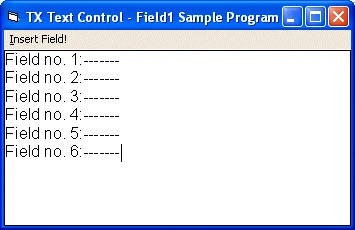
When you click a field, the application receives a FieldClicked event and responds with a pop-up window that shows the number of the field:
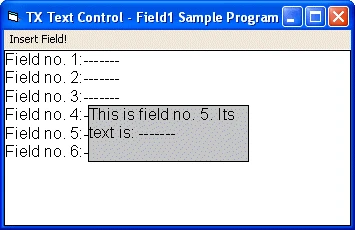
The event handler needs only four lines of code:
Private Sub TXTextControl1_FieldClicked(ByVal FieldIndex As Integer)
   TXTextControl1.FieldCurrent = FieldIndex
   TXTextControl2.Text = "This is field no. " & FieldIndex _
      & ". Its text is: " & TXTextControl1.FieldText
   TXTextControl2.Move TXTextControl1.FieldPosX, _
      TXTextControl1.FieldPosY
   TXTextControl2.ZOrder
End Sub
The code works as follows:
- FieldCurrent selects the marked text field that has been clicked.
- The second line builds the string that the pop-up window displays, with the field number and the field's FieldText.
Moveplaces the pop-up window, which is initially hidden behind the text window, at the position of the field, FieldPosX and FieldPosY.ZOrderbrings the pop-up window in front of the text window to make it visible.
When the mouse button is released, the MouseUp event brings the text window to the front again:
Private Sub TXTextControl1_MouseUp(Button As Integer, _
      Shift As Integer, X As Single, Y As Single)
   TXTextControl1.ZOrder
End Sub
Create Bookmarks by Number
Marked text fields also make bookmarks. The second program references its bookmarks by their field numbers only. Its code is in the Samples\vb6\Field2 sample source directory.
The sample application has a Bookmark menu with the items Insert and Go to.... Insert creates a marked text field at the current caret position. If text is selected, the selection becomes the field. If not, the program selects the character next to the caret first:
Private Sub mnuBookmark_Insert_Click()
   If TXTextControl1.Text = "" Then
   MsgBox "Cannot insert bookmark if control is empty."
   Else
      If TXTextControl1.SelLength = 0 Then _
         TXTextControl1.SelLength = 1
      TXTextControl1.FieldInsert ""
   End If
End Sub
Type some text, insert a few bookmarks and choose Go To.... A dialog box opens in which you enter the number of the bookmark to jump to. The example has no error handling: if you enter the number of a field that doesn't exist, nothing happens.
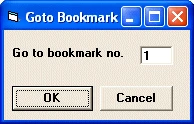
Clicking OK runs the following procedure:
Private Sub cmdOk_Click()
   Form1.TXTextControl1.FieldCurrent = Text1.Text
   Form1.TXTextControl1.SelStart = _
      Form1.TXTextControl1.FieldStart - 1
   Form1.TXTextControl1.SelLength = _
      Form1.TXTextControl1.FieldEnd - _
      Form1.TXTextControl1.FieldStart + 1
   Unload Me
End Sub
The code works as follows:
- The number entered in the dialog box becomes the value of the FieldCurrent property.
- SelStart and SelLength select the text from FieldStart to FieldEnd, which is the text of the bookmark.
Give Bookmarks Names
In commercial word processors, bookmarks are referenced by names, not by numbers. The user types a name when creating a bookmark, and the Goto Bookmark dialog box offers the names in a list box or a combo box. The third program works this way. Its code is in the Samples\vb6\Field3 sample source directory.
Insert a Named Bookmark
The Insert Bookmark... menu item of this version opens a dialog box in which the user enters a label for the bookmark:
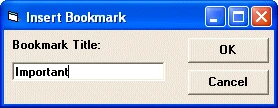
Clicking OK runs the following code:
Private Sub btnOK_Click()
   Form1.TXTextControl1.FieldInsert ""
   Form1.TXTextControl1.FieldData( _
      Form1.TXTextControl1.FieldCurrent) = Text1
   Form1.TXTextControl1.SelLength = 0
   Unload Me
End Sub
The code works as follows:
FieldInsertcreates a marked text field at the current caret position.- FieldData stores the name of the bookmark, the text the user has typed, with the new field.
Choose a Bookmark From a List
The Goto Bookmark dialog box contains a combo box that lists all bookmarks created so far:
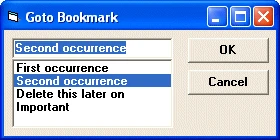
The combo box is filled with the bookmark titles when its form is loaded:
Private Sub Form_Load()
   Dim nFieldID As Integer
   nFieldID = 0
   ' Fill the combobox with bookmarks
   Do
      nFieldID = Form1.TXTextControl1.FieldNext(nFieldID, 0)
      If nFieldID > 0 Then
         cboBookmark.AddItem _
            Form1.TXTextControl1.FieldData(nFieldID)
      End If
   Loop While nFieldID <> 0
   ' Copy the first item to the edit control part of
   ' the combo box
   cboBookmark.Text = cboBookmark.List(0)
End Sub
FieldNext returns the identifier of the field that follows the one passed to it, or the first field's identifier for 0. With 0 as its second parameter, it enumerates all fields. The loop ends when FieldNext returns 0.
When the user clicks OK, the program searches the fields for the name selected in the combo box and selects the matching marked text field:
Private Sub cmdOk_Click()
   Dim nFieldID As Integer
   nFieldID = 0
   ' Search for the requested bookmark
   Do
      nFieldID = Form1.TXTextControl1.FieldNext(nFieldID, 0)
      If nFieldID > 0 Then
         If Form1.TXTextControl1.FieldData(nFieldID) = _
            cboBookmark.Text Then
            Exit Do
         End If
      End If
   Loop While nFieldID <> 0
   ' If the bookmark has been found, select it.
   ' Text Control will then automatically scroll to
   ' make it visible.
   If nFieldID <> 0 Then
      Form1.TXTextControl1.FieldCurrent = nFieldID
      Form1.TXTextControl1.SelStart = _
         Form1.TXTextControl1.FieldStart - 1
      Form1.TXTextControl1.SelLength = _
         Form1.TXTextControl1.FieldEnd - _
         Form1.TXTextControl1.FieldStart + 1
   Else
      MsgBox "Bookmark not found."
   End If
   Unload Me
End Sub
When the bookmark is found, selecting it makes TX Text Control scroll to it so that it is visible. Otherwise, a message box reports that the bookmark wasn't found.
Delete a Bookmark
You can extend the sample with a dialog box like Go To Bookmark... that deletes a bookmark without deleting its text. This converts the marked text field back to normal text, which the FieldDelete method does when its DeleteTotal parameter is False.
Next Steps
- Marked Text Fields: all properties, methods and events for marked text fields.
- Relating Data to a Marked Text Field: store data such as a database field name with each field.
- Link Targets and Bookmarks: the target methods that newer versions use for bookmarks.
- Hypertext Links: turn marked text fields into links and targets.