
Signature Fields
A signature field reserves the place in a TXTextControl document where somebody signs a contract, an approval or a delivery note. It is a rectangle that shows a signature line until it receives a signature image, it knows who is expected to sign and, when the document is saved as PDF, it can be associated with a digital certificate. Signature fields arrived in TX Text Control ActiveX 31.0.
The Visual Basic 6 code below inserts a signature field the way the TXWords sample does, names it, stores the suggested signer, finds the fields of a document and signs them when the document is saved as PDF.
What a Signature Field Is
A signature field is an object in the text, like an image or a text frame, and it is placed the same ways:
- Anchored to a paragraph, at a position relative to the paragraph, with text flowing around it.
- As a single character in the text.
- At a fixed position on a page.
It has an identifier like any other object. The ObjectCurrent property selects the object that the Object... and Image... properties change, and all of them work with signature fields: position, size, name, text flow and deletion. The programming category Images, Text Frames, Signature Fields and OLE Objects lists them. Using Images and Using Text Frames explain the placement of objects in detail.
Besides its layout, a signature field holds three things:
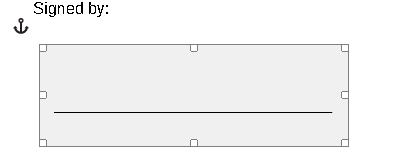
- A signature image. The field is the site of a signature image, set with the ImageFilename property when the document is designed or later, when it is signed. Without an image, the field shows a gray background with a signature line.
- A name. To be associated with a certificate, a signature field needs a name, set with the ObjectName property.
- Signer data. The name, title, address, contact information and signing reason of a suggested signer, set with the SignatureFieldSignerData property.
Warning
Formats That Keep Signature Fields. Signature fields are saved in the TX Text Control format and in PDF. All other formats save only the signature image.
Insert a Signature Field
Three methods insert a signature field, one for each kind of placement:
| Method | Places the signature field |
|---|---|
| SignatureFieldInsert | anchored to a paragraph, with text flowing around it |
| SignatureFieldInsertAsChar | as a single character in the text |
| SignatureFieldInsertFixed | at a fixed position on a page |
TXWords inserts a signature field from Insert > Signature Field. It anchors the field to the current paragraph, except while the input position is in the footnote section, where it inserts the field as a character:
Private Sub mnuInsert_SigField_Click()
    On Error GoTo err
    If IsInFootnoteSection Then
        TXTextControl1.SignatureFieldInsertAsChar -1, 2880, 1440
    Else
        TXTextControl1.SignatureFieldInsert -1, 0, 0, 0, 0, 0, 3, 100, 100, 100, 100
    End If
    Exit Sub
err:
    MsgBox err.Description, vbInformation, "TX Text Control Words"
End Sub
The code works as follows:
IsInFootnoteSectionis a variable of the sample, set in the handlers of the FootnoteSectionActivated and FootnoteSectionDeactivated events.- SignatureFieldInsertAsChar takes a text position, here -1 for the current input position, and the width and height in twips, 1/1440 inch. The field is 2 inches wide and 1 inch high. Text Formatting and Views explains twips.
- SignatureFieldInsert takes, in this order: the text position (-1, the paragraph at the input position), the horizontal alignment (0, given by the next parameter), the horizontal and vertical position relative to the paragraph, the width and the height, the text flow (3, text flows around the field and fills the empty areas at its sides) and the distances to the text at the left, top, right and bottom, 100 twips each.
- Width and height are 0 in the
SignatureFieldInsertcall. This starts a built-in mouse interface: the user draws a rectangle with the mouse, which sets the size of the field.
Choose Size and Alignment in Code
When your code sets the size, the field is inserted directly. The following call anchors a signature field of 3 by 1 inch to the paragraph at the input position, aligned at the paragraph's left edge:
Dim sigFieldId As Integer

sigFieldId = TXTextControl1.SignatureFieldInsert(-1, 1, 0, 0, 4320, 1440, 3, 100, 100, 100, 100)
If sigFieldId = 0 Then
    MsgBox "The signature field could not be inserted."
End If
The Alignment parameter is 0 to use the horizontal position, 1 to align the field left, 2 to align it right and 3 to center it in the paragraph. The TextFlow parameter is 2 when the text stops above the field and continues below it, or 3 when the text flows around it.
Each insert method returns the identifier of the new signature field, or zero when it could not be inserted. It also sets ObjectCurrent to the new field, so the properties in the next sections apply to it right away.
For SignatureFieldInsertFixed, the first parameter is the page number, beginning with 1, and the position is relative to the page. The page number must be 0 when the ViewMode property isn't set to Page View; the vertical position is then relative to the top of the control.
Name the Signature Field
A name identifies the field when the PDF document is signed. Set ObjectName while the field is the current object, directly after it was inserted or after setting ObjectCurrent to its identifier:
TXTextControl1.ObjectCurrent = sigFieldId
TXTextControl1.ObjectName = "ManagerSignature"
Setting a name replaces a name the field already has.
Set the Suggested Signer
SignatureFieldSignerData stores who is expected to sign. It is one string of six parts separated by TAB characters:
- The signer's name.
- The signer's title.
- The signer's address.
- The signer's contact information.
- The reason why the document is signed.
- A reserved part, which must be an empty string.
Each of the first five parts can be empty. Setting the property replaces existing signer data of the current object:
TXTextControl1.ObjectCurrent = sigFieldId
TXTextControl1.SignatureFieldSignerData = "Jane Smith" & vbTab & "Sales Manager" & vbTab & _
    "12 Main Street, Springfield" & vbTab & "jane.smith@example.com" & vbTab & _
    "Approval of the offer" & vbTab
The last vbTab separates the empty reserved part.
Edit the Signer Data in a Dialog Box
TXWords has a Signer Info form, frmSignerData.frm, with the boxes Name, Title, Address, Contact Info and Reason. It opens from Edit > Signature Field..., which TXWords enables only while a signature field is selected. An object is selected when a frame with size handles is drawn around it; ObjectGetSelected with &H400 returns the selected signature field, or zero:
mnuEdit_SigField.Enabled = (.ObjectGetSelected(OBJECTKIND_SIGFIELD) <> 0)
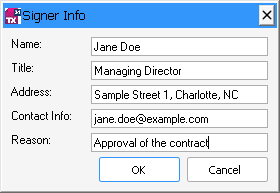
OBJECTKIND_SIGFIELD is a constant of the sample's tx.bas module with the value &H400. Clicking an object makes it the current object, and the form relies on this: it reads and writes the signer data without setting ObjectCurrent. It splits the string into the boxes when it loads, and joins the boxes again when the user clicks OK:
Public tx As TXTextControl

Private Sub Form_Load()
    Dim signerData As String
    Dim subStrings As Variant

    signerData = tx.SignatureFieldSignerData
    If Len(signerData) = 0 Then
        signerData = vbTab & vbTab & vbTab & vbTab & vbTab
        tx.SignatureFieldSignerData = signerData
    End If

    subStrings = Split(signerData, vbTab)

    txtSignerName = subStrings(0)
    txtSignerTitle = subStrings(1)
    txtSignerAddress = subStrings(2)
    txtContactInfo = subStrings(3)
    txtReason = subStrings(4)
End Sub

Private Sub btnOK_Click()
    tx.SignatureFieldSignerData = txtSignerName & vbTab & txtSignerTitle & vbTab & txtSignerAddress & vbTab & txtContactInfo & vbTab & txtReason & vbTab
    Unload Me
End Sub
The code works as follows:
- The main form passes its control to the form's
txvariable before it shows the form:Set frmSignerData.tx = TXTextControl1. - When the field has no signer data yet,
Form_Loadwrites a string of six empty parts, so thatSplitalways returns six elements. btnOK_Clickwrites the five boxes back, followed by the TAB that separates the empty reserved part.
Add a Signature Image
ImageFilename sets the image file that the current signature field shows:
TXTextControl1.ObjectCurrent = sigFieldId
TXTextControl1.ImageFilename = "c:\signatures\jane-smith.png"
An empty string removes the image, and the field shows the gray background with the signature line again. ImageExportFilename and ImageExportFormat set the file name and format of the signature image when the document is saved.
Find the Signature Fields of a Document
ObjectNext with the object group &H400 returns only signature fields. Starting with 0, it returns the first one; it returns 0 when there is no further field. The following procedure prints the name of every signature field:
Private Sub ListSignatureFields()
    Dim objectId As Integer

    objectId = TXTextControl1.ObjectNext(0, &H400)
    Do While objectId <> 0
        TXTextControl1.ObjectCurrent = objectId
        Debug.Print objectId, TXTextControl1.ObjectName
        objectId = TXTextControl1.ObjectNext(objectId, &H400)
    Loop
End Sub
Sign the Document When Saving as PDF
When the document is saved as PDF or PDF/A, the txSignatureFields attribute of the LoadSaveAttribute property signs it digitally. The attribute is a string of four parts, separated by TAB characters, for each signature field:
- The name of a certificate file that contains an X.509 certificate.
- The password for this file.
- The name of the signature field, as set with
ObjectName. - The URL of a time server.
Each certificate is associated with the signature field of that name in the PDF document. For a second signature field, its four parts follow the four parts of the first, and so on. For other formats than PDF and PDF/A, the attribute has no meaning.
Private Sub SaveSignedPdf(certFile As String, certPassword As String, timeServerUrl As String)
    TXTextControl1.LoadSaveAttribute(txSignatureFields) = certFile & vbTab & _
        certPassword & vbTab & "ManagerSignature" & vbTab & timeServerUrl
    TXTextControl1.Save "c:\contract.pdf", 0, 12, False
End Sub
The code works as follows:
LoadSaveAttribute(txSignatureFields)associates the certificate file with the signature field named ManagerSignature.- Save with the format value 12 saves an Adobe PDF file; 14 saves PDF/A. For both formats, the last parameter must be False.
PDF Export covers the settings that PDF export needs, such as the Page View.
Change the Layout or Delete a Signature Field
The ObjectAttrDialog method opens the built-in dialog box for the selected object. For a signature field, it offers layout settings such as position, size and text distances, and image saving options when the field has a signature image.
ObjectDelete deletes a signature field by its identifier and returns True when it could be deleted:
If TXTextControl1.ObjectDelete(sigFieldId) Then
    sigFieldId = 0
End If
When code deletes the field this way, no ObjectDeleted event occurs.
Key Members
| Member | Description |
|---|---|
| SignatureFieldInsert | Inserts a signature field anchored to a paragraph. |
| SignatureFieldInsertAsChar | Inserts a signature field as a single character. |
| SignatureFieldInsertFixed | Inserts a signature field at a fixed position on a page. |
| SignatureFieldSignerData | Sets the data of the suggested signer of the current signature field. |
| ObjectCurrent | Sets or returns the object that the Object..., Image... and SignatureField... properties change. |
| ObjectName | Names the signature field, which associates it with a certificate. |
| ImageFilename | Sets the signature image of the current signature field. |
| ObjectNext | Enumerates objects; &H400 returns only signature fields. |
| ObjectGetSelected | Returns the selected object; &H400 looks only for signature fields. |
| LoadSaveAttribute | With txSignatureFields, associates certificates with signature fields in a PDF document. |
The programming category Images, Text Frames, Signature Fields and OLE Objects lists all members for signature fields.