
What's New in TX Text Control ActiveX 25.0
TX Text Control ActiveX 25.0 lets you protect a document, with or without a password, and leave editable regions in it that named users can still change. The version also brings objects in headers and footers, the selection of objects behind the text and pagination options in tables. What follows lists the features and members added since version 24.0, each linked to its reference page.
New Features
Objects in headers and footers. While a header or a footer is activated, you can insert images, text frames and other objects anywhere on the page. The object is then shown in the background of every page on which the header or footer appears, which gives you watermarks and other page background images. Insert such an object at a fixed position on the page with ImageInsertFixed, TextFrameInsertFixed or ObjectInsertFixed. The height of the header or footer does not depend on the position of these objects.
Documents with restricted access.
TXTextControlcan now edit documents with restrictions, such as forbidding editing, printing, formatting or copying contents to the clipboard:- You specify the restrictions with DocumentPermissions. They are activated when EditMode is changed from Edit to Protected or Password Protected.
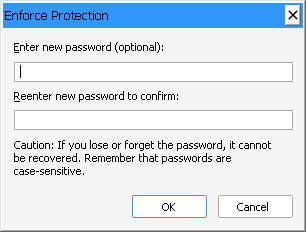
- With Password Protected, a dialog box opens in which the user enters a password that protects the restrictions. To unprotect the document, the same password must be entered when the edit mode is reset to Edit.
- The set of permissions and the password are saved in the document in encrypted form. A password-protected document is opened read-only when it is loaded.
- The supported formats are RTF, Microsoft Word (DOC and DOCX), Adobe PDF and the TX Text Control format (TX).
Editable regions. An editable region is a piece of text that stays editable when EditMode is set to Protected or Password Protected:
- A region is defined by a start position and a length, or by a selection. Regions can overlap.
- EditableRegionInsert inserts a region and EditableRegionDelete deletes it.
- Each region belongs to a user through EditableRegionUserName. Only this user can edit the region when the document is read-only. An empty user name lets everyone edit the region. UserNames specifies the users who have access to the document.
- EditableRegionEntered and EditableRegionLeft occur when a region is entered or left.
- An editable region is highlighted on the screen. By default, the highlight color depends on the user name; you can set a certain color when you insert the region.
- In a protected document with editable regions, whether editing and formatting are possible depends on the current text input position. The new properties CanEdit, CanCharacterFormat, CanParagraphFormat and CanTableFormat tell you what is possible. Use them to enable or disable the menu items and buttons of your application.
Selection of objects in the background. SelectObjects controls the selection of objects behind the text. When it is
True, a mouse click selects the object in the background. When it isFalse, the click selects the text in front of the object.Pagination in tables. Pagination options let an end user control where
TXTextControlplaces automatic page breaks. The settings "keep with next" and "page break before" now work in tables as well. Because a table row consists of several paragraphs, the first paragraph of a row determines how the complete row is treated, and the pagination options of all other paragraphs are ignored. With "page break before", the complete row moves to a new page. With "keep with next", the complete row is placed on the same page as the row that follows it.
New Properties, Methods and Events
All new members belong to TXTextControl.
Properties
| Member | Description |
|---|---|
| CanCharacterFormat | Informs whether character formatting attributes can be changed for the currently selected text. |
| CanDocumentFormat | Informs whether page and section formatting attributes can be changed. |
| CanEdit | Informs whether the document's text can be changed at the current text input position. |
| CanParagraphFormat | Informs whether paragraph formatting attributes can be changed for the currently selected text. |
| CanPrint | Informs whether the document can be printed. |
| CanStyleFormat | Informs whether the document can be formatted with formatting styles. |
| CanTableFormat | Informs whether table formatting attributes, the table layout or both can be changed for the currently selected text. |
| DocumentPermissions | Specifies how the document can be edited and formatted when EditMode is changed from Edit to Protected or Password Protected. |
| EditableRegionUserId | Returns or sets a user-defined identifier of an editable region. |
| EditableRegionUserName | Returns or sets the name of the user who can edit the region. |
| SelectObjects | Controls the selection of objects, such as images and text frames, that are inserted behind the text. |
| UserNames | Gets or sets a list of names of the users who have access to a document. |
Methods
| Member | Description |
|---|---|
| EditableRegionDelete | Deletes an editable region from the document. |
| EditableRegionGoto | Sets the current input position to the beginning of the specified editable region and scrolls the text so that this position is at the top of the control's visible text. |
| EditableRegionInsert | Inserts a new editable region in the text. |
Events
| Member | Description |
|---|---|
| EditableRegionEntered | Occurs when the current input position has been moved to a position that belongs to an editable region. |
| EditableRegionLeft | Occurs when the current input position has left an editable region. |
Extended Properties, Methods and Events
| Member | Change |
|---|---|
| EditMode property | The new value 3 - Password Protected password-protects the read-only edit mode. |