
Charts and Barcodes
A column chart of quarterly sales, a QR code with a link to an online invoice, a Code 128 barcode with an order number: charts and barcodes are frames that a Windows Forms TextControl places in the text like images. Users insert them from the Insert tab and change them on their own ribbon tabs, and your code changes the chart or barcode the user has selected.
The code goes into Form1.cs of the application from Create Your First Windows Forms Application, in methods you call from the Click handler of a button. Charts and barcodes placed with ServerTextControl are covered in Charts and Barcodes in Document Processing, and templates whose barcodes are filled with data in Images and Barcodes.
How Charts and Barcodes Work
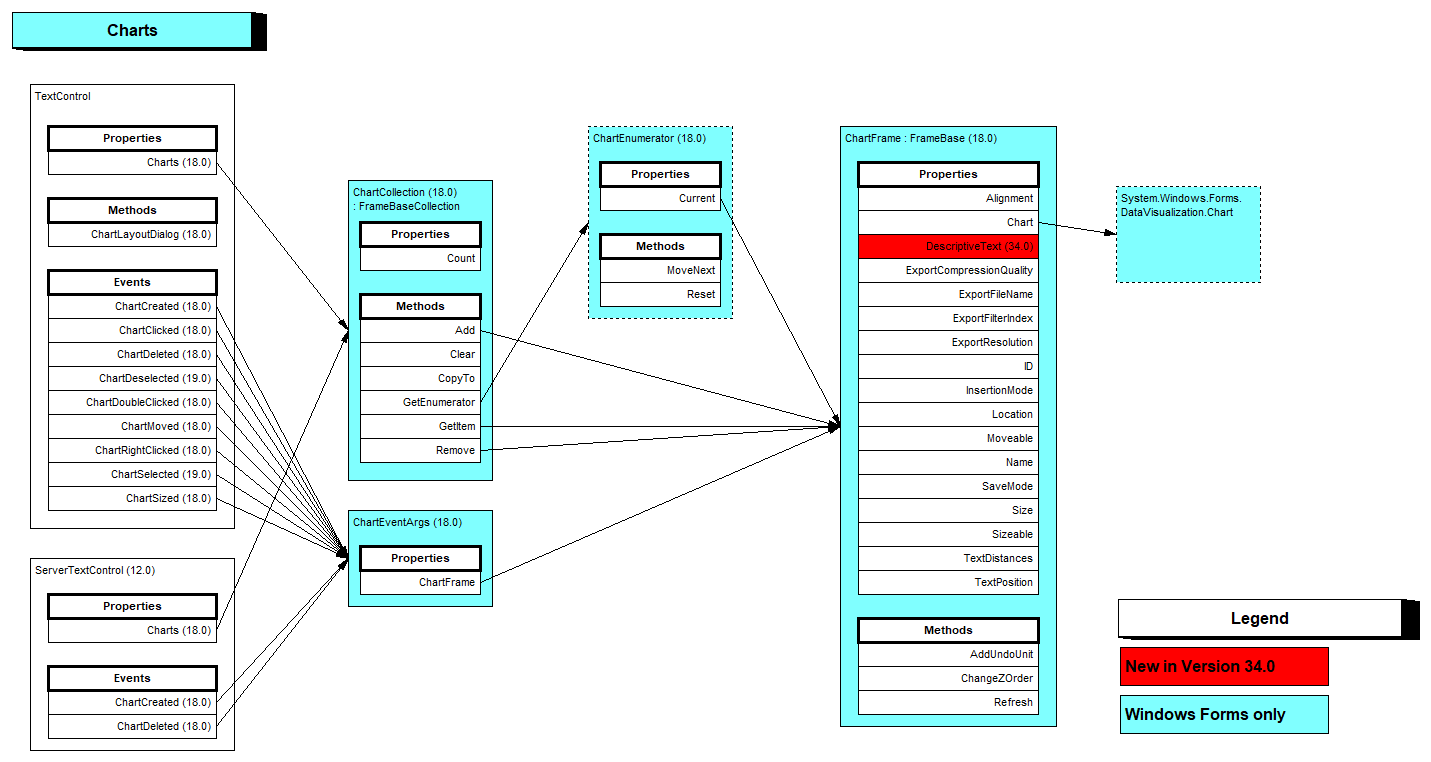
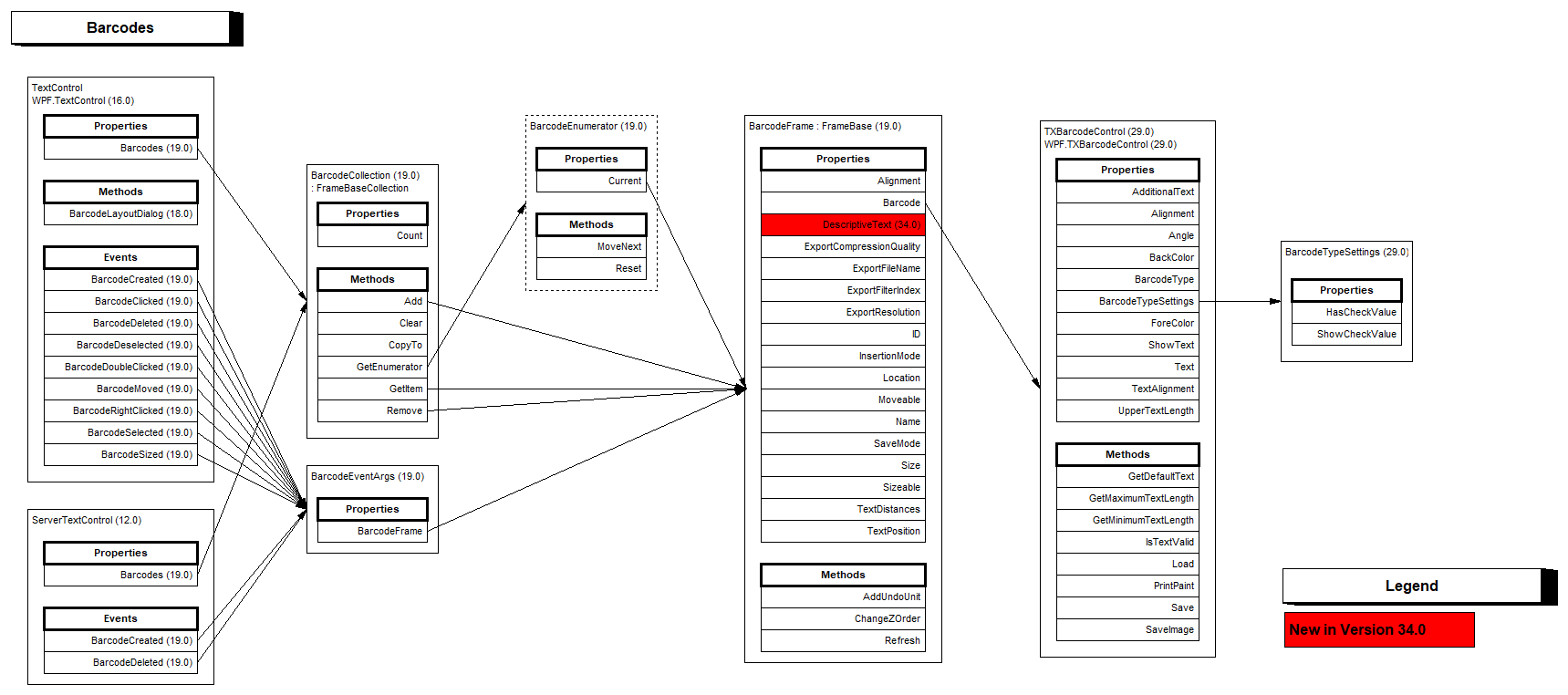
Each chart or barcode in a document consists of a control that holds its data and appearance, a chart control of System.Windows.Forms.DataVisualization or a TXBarcodeControl, and a frame that places it in the document, a ChartFrame or a BarcodeFrame. What Each Object Is Made Of lists the classes, the collections and the assemblies. The frames are placed inline, anchored to a paragraph or at a fixed position like every frame, as How Frames Are Placed describes.
The TX Text Control format and RTF keep charts and barcodes as objects that are rebuilt when the document is loaded; other formats, such as DOCX and PDF, contain an image of them. Without the chart or barcode assembly on the system, a loaded chart or barcode appears as its image.
Charts
The chart control of System.Windows.Forms.DataVisualization is part of the .NET Framework, but Microsoft didn't port it to .NET. A .NET project gets it from a package built from Text Control's fork of a .NET port, as Migrating from .NET Framework to .NET describes step by step. Once the package is installed, the chart commands of the ribbon work. Integrating Charts and Barcodes covers the setup of both kinds of objects.
Insert and Format Charts in the Ribbon
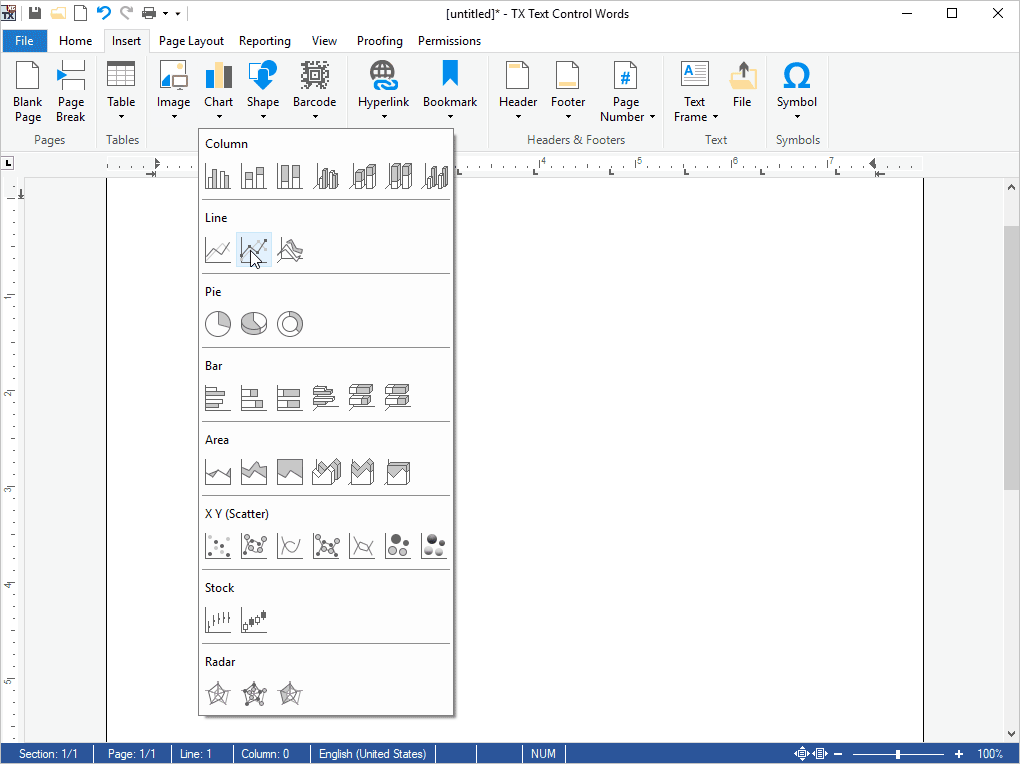
Chart in the Illustrations group of the Insert tab opens a gallery of chart types in the categories Column, Line, Pie, Bar, Area, X Y (Scatter), Stock and Radar. A click inserts a chart of that type, filled with default values:
A selected chart is changed on two tabs:
- The Chart Layout tab, a RibbonChartLayoutTab, with the groups Data (Edit Data, Set Data Relation), Labels (Legend, X-Axis Values, Y-Axis Values), Titles (Chart Title, X-Axis Title, Y-Axis Title), X-Axis and Y-Axis, which set lines, gridlines, minimum, maximum and interval.
- The Frame Formatting tab, whose Type & Appearance group sets the Chart Type, switches between 3D and 2D and sets Rotation, Right Angle Axes, Inclination and Perspective of 3D charts.
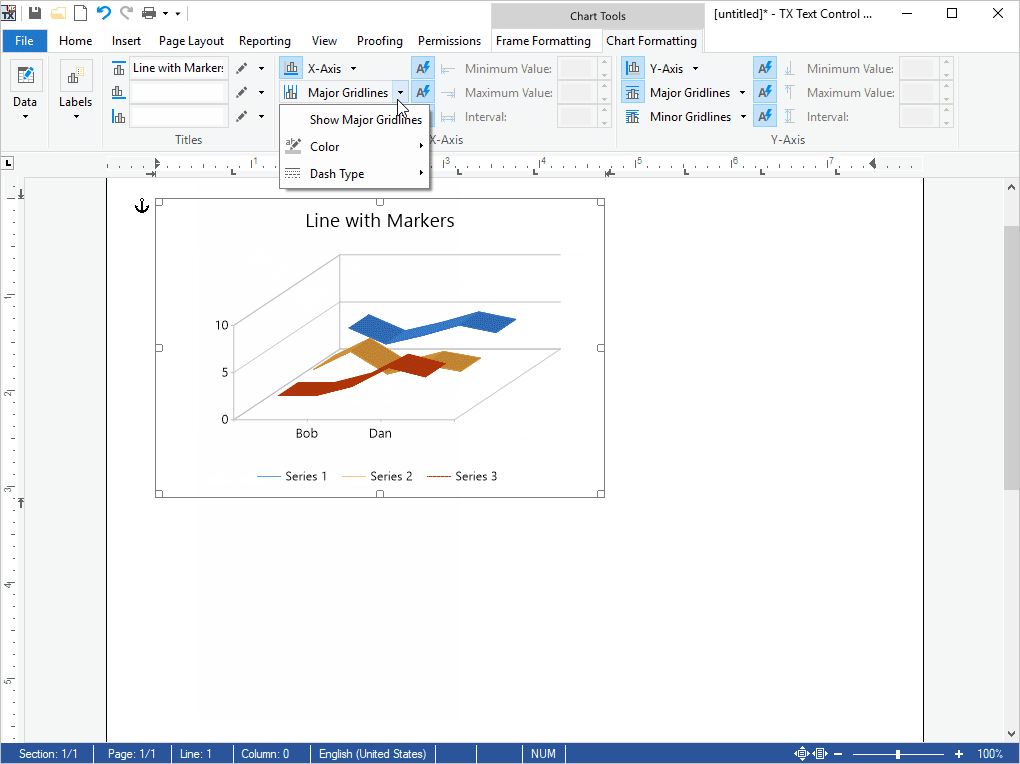
TX Text Control Words calls the chart layout tab Chart Formatting and shows it with the Frame Formatting tab in a contextual Chart Tools group. Set Data Relation connects a chart in a template to the tables and columns of a data source, which a mail merge then fills; it needs a RibbonReportingTab in the same ribbon.
Change the Selected Chart From Code
Add Charts in Document Processing creates a chart control, wraps it in a ChartFrame and inserts it with textControl1.Charts.Add(frame, -1). In the editor, your code usually works with the chart the user has selected. The following method adds a data point to it:
using System;
using System.Windows.Forms;
using System.Windows.Forms.DataVisualization.Charting;
using TXTextControl;
using TXTextControl.DataVisualization;

public partial class Form1 : Form
{
    private void AddPointToSelectedChart()
    {
        // The chart the user has selected, or null
        ChartFrame frame = textControl1.Charts.GetItem();

        if (frame != null)
        {
            Chart chart = (Chart)frame.Chart;
            chart.Series[0].Points.AddXY("East", 95);

            // Show the change in the document
            frame.Refresh();
        }
    }
}
The code works as follows:
- ChartCollection.GetItem without a parameter returns the selected chart, or
null, and ChartFrame.Chart its chart control.SeriesandPoints.AddXYbelong to the chart control, not to TX Text Control. - Changes to the chart control aren't shown until ChartFrame.Refresh is called. AddUndoUnit adds the state of the chart to the undo stack, which changes made in code don't reach otherwise.
ChartLayoutDialog opens the layout dialog box of the selected chart, with tabs for text wrapping and layout and for size and distances. Events such as ChartDoubleClicked report what users do with a chart. The blog article Using Charts with TX Text Control .NET for Windows 31.0 in .NET 6 binds a chart to XML data.
Barcodes
The barcode classes are part of the package TXTextControl.TextControl.WinForms.SDK, in the assemblies TXBarcode.dll and TXBarcode.Windows.Forms.dll, and need no setup.
Insert and Format Barcodes in the Ribbon
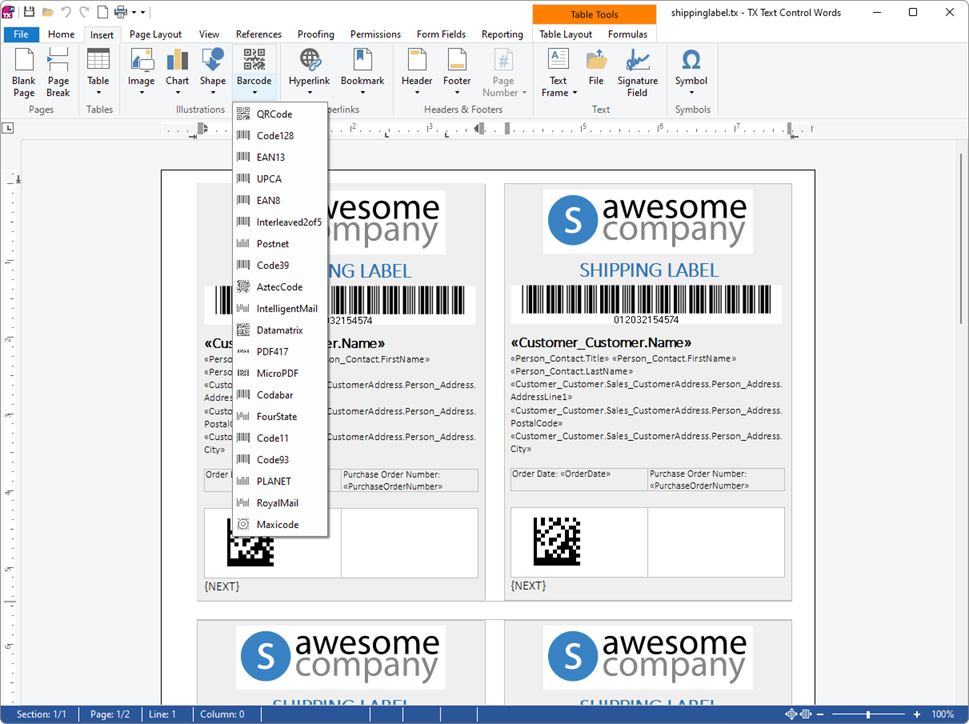
Barcode in the Illustrations group of the Insert tab lists the barcode types, from QRCode and Code128 to Maxicode. A click inserts a barcode of that type:
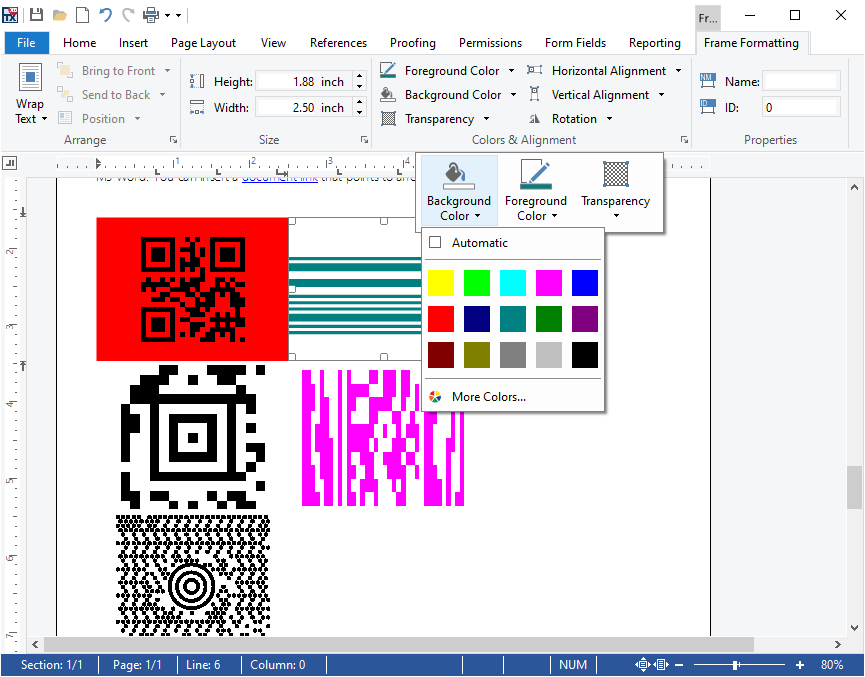
The Frame Formatting tab shows a Colors & Alignment group for a selected barcode, with Foreground Color, Background Color, Transparency, Horizontal Alignment, Vertical Alignment and Rotation:
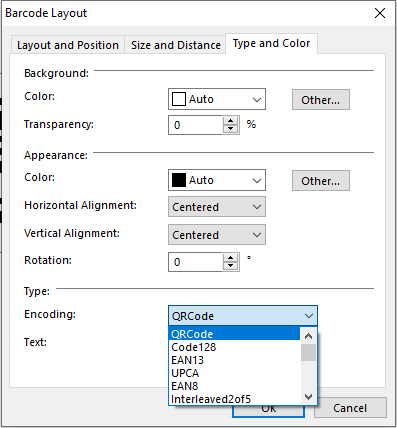
The type and the encoded text are set in the dialog box that BarcodeLayoutDialog opens: its tabs set text wrapping and layout, size and distances, and the colors, type and text of the barcode.
Change the Selected Barcode From Code
Insert a QR Code in Document Processing creates a TXBarcodeControl, sets its type and text, wraps it in a BarcodeFrame and inserts it with textControl1.Barcodes.Add. Add with only a FrameInsertionMode lets the user draw the barcode with the mouse instead. The following method changes the text of the barcode the user has selected:
using System;
using System.Windows.Forms;
using TXTextControl;
using TXTextControl.Barcode;
using TXTextControl.DataVisualization;

public partial class Form1 : Form
{
    private void ChangeSelectedBarcode(string text)
    {
        // The barcode the user has selected, or null
        BarcodeFrame frame = textControl1.Barcodes.GetItem();

        if (frame == null)
        {
            return;
        }

        TXBarcodeControl barcode = (TXBarcodeControl)frame.Barcode;

        // Check text a user typed before it is assigned
        string errorMessage;

        if (!TXBarcodeControl.IsTextValid(barcode.BarcodeType, text, out errorMessage))
        {
            MessageBox.Show(errorMessage);
            return;
        }

        // The maximum length must allow the new text
        barcode.UpperTextLength = Math.Max(barcode.UpperTextLength, text.Length);
        barcode.Text = text;

        // Changes to the barcode are shown after Refresh
        frame.Refresh();
    }
}
The code works as follows:
- BarcodeCollection.GetItem without a parameter returns the selected barcode, or
null. BarcodeFrame.Barcode is its control. - The static IsTextValid checks whether a text is valid for the barcode type and returns an error message. UpperTextLength, the maximum number of characters, and Text would throw an
ArgumentExceptionfor an invalid value. - Refresh shows the change in the document.
BarcodeDoubleClicked and the other barcode events report the user's actions, for example to open BarcodeLayoutDialog on a double-click. The blog article Enhancing Documents with QR Codes and Barcodes in .NET C#: A Comprehensive Guide merges barcodes into templates.
Next Steps
- Charts and Barcodes in Document Processing: insert, position and fill charts and barcodes in code.
- Images and Barcodes: fill barcodes of a template with data.
- Integrating Charts and Barcodes: set up the chart package and the barcode assemblies.
- Images: images, the frames that charts and barcodes are placed like.