
Visual Studio Toolbox and Designer
Most Windows Forms applications with TX Text Control start in the Visual Studio designer: you drag a TextControl from the toolbox onto a form and let its smart tag add a ribbon, rulers, a status bar and sidebars. The toolbox tab and what it contains in .NET and in .NET Framework projects are described below, with the pages that cover the designer features.
The Toolbox Tab
The controls and components are in a toolbox tab named TX Text Control 34.0. How the tab appears depends on the kind of project:
- .NET Framework. The setup creates the tab. In a project created with the Windows Forms App (.NET Framework) template, it is available as soon as you open a form in the designer.
- .NET 8 or higher. The tab appears when you add the
TXTextControl.TextControl.WinForms.SDKpackage from the package source Text Control Offline Packages to the project. Open a form in the designer, and the items are in the tab. See Installing and Updating Packages.
Important
Designer Requires the Setup. The setup has to be installed on the development machine for the designers to work. The package from the Text Control Private NuGet Feed is meant for compiling on build servers and in CI/CD pipelines. See Installing the Product.
Text Control tested the toolbox, the designers and the project templates of version 34.0 with Visual Studio 2026 and .NET 10.
The screenshot shows the tab of version 31.0 in a .NET project; version 34.0 has the same items in its tab TX Text Control 34.0:
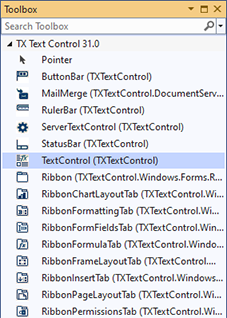
Items in the Tab
| Item | What it is |
|---|---|
| TextControl | The editor |
| Ribbon, RibbonTab and the predefined tabs, such as RibbonFormattingTab and RibbonReportingTab | The ribbon and its tabs |
| ButtonBar, RulerBar, StatusBar | The button bar, the rulers and the status bar |
| Sidebar | A panel beside the editor |
| ServerTextControl | The document engine without a user interface |
| MailMerge | The component that merges data into templates |
In .NET 8 or higher projects, the package lists all 13 predefined ribbon tabs as items. Components describes each control.
Use the Designer
You draw a TextControl from the tab onto a form, and its smart tag adds a ribbon, a button bar, rulers, a status bar and sidebars, connects them to the editor and docks them. The smart tag of the ribbon adds the predefined tabs and converts the form to a RibbonForm, the smart tag of a Sidebar selects its panel, and the Properties window connects a MailMerge to the editor. When you drop a control on a form of a .NET Framework project, Visual Studio also adds the license entry to licenses.licx.
- Create Your First Windows Forms Application takes you through these steps in a new project.
- Visual Studio Designer Integration describes each smart tag, the connections in the Properties window and the licensing in the designer.
If the tab is missing or a control cannot be dropped on a form, see Toolbox and Designer in Troubleshooting.
Next Steps
- Create Your First Windows Forms Application: the toolbox and the smart tags in a complete .NET project.
- Create a .NET Framework Application: the same with the .NET Framework.
- Create a Ribbon Application with Sidebar Support: a ribbon, a RibbonForm and sidebars on one form.
- License Configuration: how the license reaches your application.