
Comments
A comment attaches a note to a piece of text without changing the text itself: a question to the author, a remark of a reviewer, an answer to an earlier remark. Users of a TXTextControl select text and type a comment into a small input control; other users reply to it, and your application reads, edits, removes and lists comments through their identifiers.
Version 30.0 of TX Text Control ActiveX introduced comments. TXWords, the word processor sample program, offers them in its Insert and Edit menus and lists them in a Comments window, and its code is the starting point of the samples here.
How Comments Work
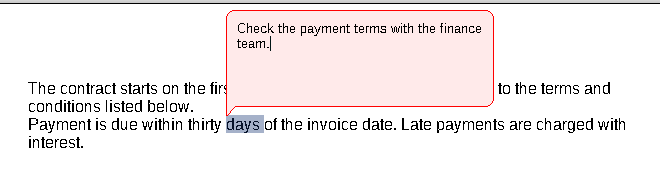
A comment always belongs to a range of text. The user selects the text and opens the comment input control, either through the context menu of TXTextControl or through your code. When the user closes the input control with a mouse click or the ENTER key, the comment is added to the document. The context menu of a comment offers entries to change it, remove it and reply to it.
- Highlighting. Commented text is highlighted in a color that depends on the user; the default color for the current user is red. By default, a comment is highlighted only while the current input position, the position of the caret, is inside its text.
- User and time. Each comment belongs to a user and has a creation time. A new comment belongs to the current user, the first name of the list that the UserNames property holds. When the list is empty, the user name is an empty string, which stands for an unknown user.
- Replies. A reply is a comment of its own, with its own user and time, attached to the same text. Replies are part of the list of comments and immediately follow the comment they answer. Removing a comment removes its replies.
- Identifiers. Every comment and every reply has a numeric identifier of the data type
Long, which all comment members take. - File formats. Comments are saved and loaded with the TX Text Control format (TX), RTF and the Microsoft Word formats DOC and DOCX.

The current user is set the same way as for tracked changes, which Set the Name of the Reviewer shows.
Insert a Comment
The CommentInsert method opens the comment input control for the selected text. It returns False when no text is selected or the selection is too complex for a comment. TXWords checks the selection first and tells the user what to do:
Private Sub mnuInsert_Comment_Insert_Click()
    If TXTextControl1.SelLength = 0 Then
        MsgBox "Select a part of the document first.", vbInformation, "TX Text Control Words"
        Exit Sub
    End If
    TXTextControl1.CommentInsert
End Sub
CommentInsert does not take the comment's text: the user types it into the input control. The comment exists as soon as the input control is closed, and the CommentCreated event reports its identifier.
Know Which Comment Is Current
To edit, answer or remove the comment the user is looking at, your code needs its identifier. Two events deliver it: CommentedTextEntered occurs when the current input position moves into commented text, and CommentedTextLeft when it leaves it. TXWords keeps the identifier in a form-level variable:
Dim CurrentCommentID As Long

Private Sub TXTextControl1_CommentedTextEntered(ByVal CommentID As Long)
    CurrentCommentID = CommentID
End Sub

Private Sub TXTextControl1_CommentedTextLeft(ByVal CommentID As Long)
    CurrentCommentID = 0
End Sub

Private Sub TXTextControl1_CommentDeleted(ByVal CommentID As Long)
    If CommentID = CurrentCommentID Then CurrentCommentID = 0
End Sub
The CommentDeleted handler clears the variable when the current comment is removed, so that no menu item works on a comment that is gone. When the Insert > Comment submenu opens, TXWords enables Edit, Reply and Delete only when CurrentCommentID is not zero.
Edit, Reply to and Delete a Comment
With the identifier of the current comment, the menu items of TXWords are one line each:
Private Sub mnuInsert_Comment_Edit_Click()
    If CurrentCommentID <> 0 Then TXTextControl1.CommentEdit CurrentCommentID
End Sub

Private Sub mnuInsert_Comment_Reply_Click()
    If CurrentCommentID <> 0 Then TXTextControl1.CommentReply CurrentCommentID
End Sub

Private Sub mnuInsert_Comment_Delete_Click()
    If CurrentCommentID <> 0 Then TXTextControl1.CommentDelete CurrentCommentID
End Sub
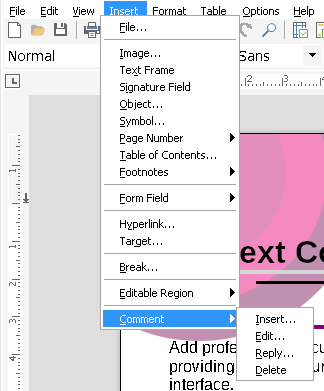
The code works as follows:
- CommentEdit opens the comment input control with the text of the comment, so that the user can change it.
- CommentReply opens the input control for a new reply to the comment.
- CommentDelete removes the comment, and with it all its replies.
All three return True when the comment exists; CommentEdit and CommentReply also require that the input control could be opened.
To change the text of a comment without the input control, set the CommentText property:
TXTextControl1.CommentText(CurrentCommentID) = "Check the delivery date."
Read Comments and Replies
The CommentNext method enumerates all comments in the order of the text. Called with zero, it returns the first comment; called with an identifier, it returns the next one, and zero after the last. Because replies are in the same list, directly after their comment, the following procedure skips them with CommentGetReplied and prints them under their comment instead:
Private Sub ListComments()
    Dim id As Long
    Dim replyId As Variant
    Dim author As String

    id = TXTextControl1.CommentNext(0)
    Do While id <> 0
        ' Replies are printed with the comment they answer
        If TXTextControl1.CommentGetReplied(id) = 0 Then
            author = TXTextControl1.CommentUserName(id)
            If author = "" Then author = "Unknown Commenter"
            Debug.Print author & " (" & TXTextControl1.CommentCreationTime(id) & "): " & _
                TXTextControl1.CommentText(id)
            Debug.Print "  on characters " & TXTextControl1.CommentStart(id) & _
                " to " & TXTextControl1.CommentEnd(id)
            For Each replyId In TXTextControl1.CommentReplies(id)
                Debug.Print "  Reply by " & TXTextControl1.CommentUserName(replyId) & _
                    ": " & TXTextControl1.CommentText(replyId)
            Next
        End If
        id = TXTextControl1.CommentNext(id)
    Loop
End Sub
The code works as follows:
CommentGetRepliedreturns the identifier of the comment that a reply answers, and 0 for a comment that is not a reply.- CommentUserName returns the user of a comment, or an empty string for an unknown user. TXWords shows "Unknown Commenter" in this case.
- CommentCreationTime returns the date and time the comment was made, in Coordinated Universal Time (UTC).
- CommentStart and CommentEnd return the first and the last commented character as one-based indexes.
- CommentReplies returns an array with the identifiers of all replies. For a comment without replies, the array is empty:
LBoundreturns 0 andUBoundreturns -1, and theFor Eachloop does not run.
To select the text of a comment, subtract 1 from CommentStart and CommentEnd before you set SelStart, which counts from 0. Select a Tracked Change shows the same calculation for tracked changes.
Show the Comments in a Window
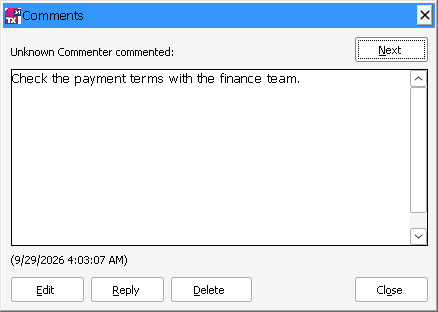
The Comments window of TXWords, in frmComments.frm, lists the comments of a document one by one. Edit > Reviewing > Comments opens it as a modeless form, so that the user can go on editing the document, after checking that CommentNext(0) is not zero. The window works like this:
- The current comment. The window selects the commented text in the document and shows the user, the time and the text of the comment, followed by all replies with their users and times.
- The text box. The comment and its replies are shown in a second
TXTextControl, where replies are indented and their time stamps are set in a smaller, gray font. - The buttons. Next moves to the next comment that is not a reply and starts at the first again after the last. Edit, Reply and Delete call
CommentEdit,CommentReplyandCommentDeletefor the comment shown; the window closes when the last comment is deleted.
The main form keeps the window up to date. When a comment is created or its text is changed while the window is visible, the handlers of CommentCreated and CommentChanged show that comment in it. For a reply, they show the comment it answers:
Private Sub TXTextControl1_CommentChanged(ByVal CommentID As Long)
    Dim repliedID As Long

    ' Select comment in modeless comments dialog
    If Not frmComments.Visible Then Exit Sub

    repliedID = TXTextControl1.CommentGetReplied(CommentID)
    If repliedID <> 0 Then CommentID = repliedID ' Show the parent comment in case of a reply
    frmComments.SelectComment CommentID
    frmComments.SetFocus
End Sub
SelectComment is a public procedure of frmComments.frm that displays the given comment.
Change How Comments Are Highlighted
The CommentHighlightMode property decides when commented text is highlighted. TXWords sets it from the View > Highlight Comments submenu:
| Value | Menu item in TXWords | Commented text is highlighted |
|---|---|---|
1 - txNever | Never | never |
2 - txActivated | Current | only while it contains the current input position (default) |
3 - txAlways | Always | always |
Private Sub mnuView_HighlightComments_Always_Click()
    TXTextControl1.CommentHighlightMode = txAlways
End Sub
CommentHighlightMode can be set at run time only.
Key Members
| Member | Description |
|---|---|
| CommentInsert | Opens the comment input control for a new comment on the selected text. |
| CommentEdit, CommentReply | Open the input control to change a comment or to reply to it. |
| CommentDelete | Removes a comment and its replies. |
| CommentNext | Returns the identifier of the first or the next comment. |
| CommentGetReplied, CommentReplies | Return the comment a reply answers and the replies of a comment. |
| CommentText | Returns or sets the text of a comment. |
| CommentUserName, CommentCreationTime | Return the user and the UTC creation time of a comment. |
| CommentStart, CommentEnd | Return the first and the last commented character. |
| CommentHighlightMode | Sets when commented text is highlighted. |
| CommentedTextEntered, CommentedTextLeft | Occur when the input position enters or leaves commented text. |
| CommentCreated, CommentChanged, CommentDeleted | Occur when a comment is created, changed or removed. |
The programming category Commenting a document lists all members for comments.