
Character and Paragraph Formatting
TXTextControl formats text on two levels. Character attributes such as the font, the size, bold and the text color belong to single characters. Paragraph attributes such as the alignment, the indents, the line spacing, the tabs and the frame belong to a whole paragraph. Users set both with the button bar, the ruler bar and three built-in dialog boxes, and your Visual Basic 6 code sets them with properties of TXTextControl that work on the current selection.
The sections below start with the rules that all formatting properties share, then open the built-in dialog boxes the way the TXWords sample does and set character attributes, paragraph attributes, tabs and paragraph frames in code.
How Formatting Works
- Properties work on the selection. A formatting property such as FontBold returns and sets the attribute of the selected text. A paragraph property such as
Alignmentworks on the paragraph at the current input position, the position of the caret, or on all selected paragraphs. - FormatSelection decides the scope. The FormatSelection property is
Falseby default, and then character properties such asFontName,FontSize,FontBold,ForeColorandTextBkColorand the paragraph propertiesAlignmentandLineSpacingapply to the complete text. Set it toTruebefore your code formats selected text. At design time, when no text can be selected, these properties set the format of the complete text. - Mixed selections return a special value. When the selection holds different settings, a property returns a value that says so: 2 for
FontBold,FontItalic,FontUnderlineandFontStrikethru, an empty string forFontName, 0 forFontSize, 4 forAlignmentand &H8000 for the indent properties. - Sizes are in twips. Indents, distances and tab positions are measured in twips, 1/1440 inch. Text Formatting and Views explains the unit. Font sizes are the exception: FontSize is in points.
- Protection can switch formatting off. In a protected document, CanCharacterFormat and CanParagraphFormat tell whether the selected text can be formatted. Document Protection covers the permissions behind them.
Formatting through named styles has a page of its own, Stylesheets, and so do bulleted and numbered lists, Bulleted and Numbered Lists.
Let Users Format Text
A connected TXButtonBar offers combo boxes for the style, the font and the size and buttons for bold, italic, underline, alignment, lists and indents. A connected TXRulerBar sets indents and tabs with the mouse. Button Bar, Ruler Bar and Status Bar connects both to the control.

For everything else, TXTextControl has built-in dialog boxes that a single method call opens. The Format menu of the TXWords sample opens them from its Character..., Paragraph... and Tabs... menu items:
' Call font dialog
Private Sub mnuFormat_Character_Click()
    TXTextControl1.FontDialog
End Sub

' Call paragraph dialog
Private Sub mnuFormat_Paragraph_Click()
    TXTextControl1.ParagraphDialog
End Sub

' Call Text Control's built-in tab dialog box
Private Sub mnuFormat_Tabs_Click()
    TXTextControl1.TabDialog
End Sub
The code works as follows:
- FontDialog opens the Font dialog box. Its Font and Color tab sets the font, the size, the text and background colors and the bold, italic, strikeout and underline attributes. Its Position and Effects tab sets subscript and superscript, the character spacing, capitals and the character scaling.
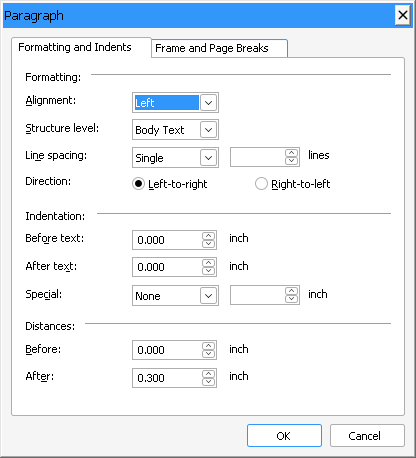
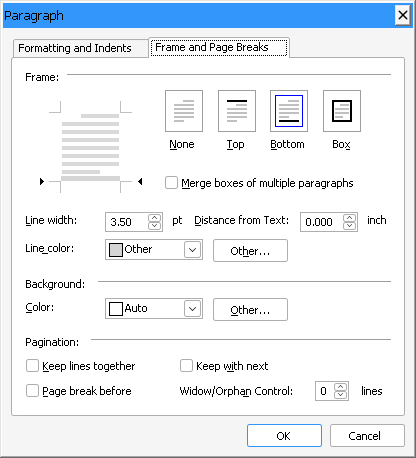
- ParagraphDialog opens the Paragraph dialog box. Its Formatting and Indents tab sets the alignment, the line spacing, the indents and the distances before and after the paragraph. Its Frame and Page Breaks tab sets the paragraph frame, the background color and the pagination options.
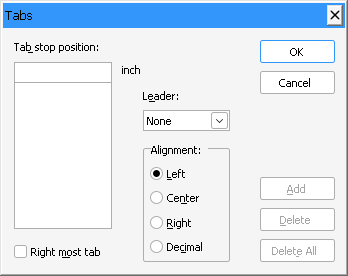
- TabDialog opens the Tabs dialog box, which adds and deletes the tabs of the selected paragraphs and sets their alignment.
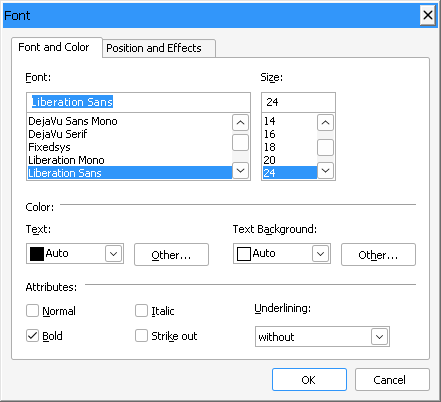
The changes the user makes apply to the selected text. Each method returns True when the user has changed something and False otherwise. FontDialog and ParagraphDialog take an optional zero-based tab index: TXTextControl1.FontDialog 1 opens the Font dialog box on its Position and Effects tab.
The Insert menu of TXWords has a Symbol... item as well. InsertSymbolDialog opens a modeless dialog box that inserts symbol characters, and the TXWords menu item calls it.
Format Characters in Code
The following procedure selects the first five characters of the text and formats them bold, 14 points and red:
Private Sub mnuFormatTitle_Click()
    With TXTextControl1
        .FormatSelection = True
        .SelStart = 0
        .SelLength = 5
        .FontName = "Arial"
        .FontSize = 14
        .FontBold = 1
        .ForeColor = RGB(255, 0, 0)
        .SelLength = 0
    End With
End Sub
The code works as follows:
FormatSelection = Truemakes the formatting properties work on the selection instead of the complete text.- SelStart and SelLength select the text. The first text position is 0.
- FontName and
FontSizeset the font and its size in points. FontBold = 1sets the bold style, and 0 resets it.- ForeColor sets the text color as an RGB value.
SelLength = 0removes the selection again.
The HighlightHyperlinks procedure of the Hyperlnk sample formats text the same way: it sets FormatSelection to True, selects each link text and sets ForeColor and FontUnderline. Hypertext Links describes it.
Toggle an Attribute
A menu item or a button that switches bold on and off has to handle the mixed value 2. The following procedure makes a mixed or normal selection bold and a bold one normal:
Private Sub mnuFormatBold_Click()
    TXTextControl1.FormatSelection = True
    If TXTextControl1.FontBold = 1 Then
        TXTextControl1.FontBold = 0
    Else
        TXTextControl1.FontBold = 1
    End If
End Sub
FontItalic, FontUnderline and FontStrikethru take the same values.
More Character Attributes
| Property | What it sets |
|---|---|
| FontUnderlineStyle | Single (&H1) or double (&H2) underlining, optionally for words only (&H4). |
| TextBkColor | The background color of the selected text, as an RGB value. |
| BaseLine | A baseline offset in twips, positive for superscript and negative for subscript, up to 960 in both directions. |
| AutoBaseLine | Automatic subscript or superscript with values the font defines, such as txSuperscript or txSubscript. |
| Capitals | Lowercase letters shown as capitals: txCapitals, txSmallCapitals or txPetiteCapitals. |
| CharacterSpacing | A value in twips added to each character; a negative value reduces the spacing. |
| CharacterScaling | The character width in percent of the average character width. |
| Locale | The language of the text, as a Windows locale identifier (LCID). |
AutoBaseLine, Capitals, CharacterSpacing and CharacterScaling are available since version 30.0, as Version 30.0 lists.
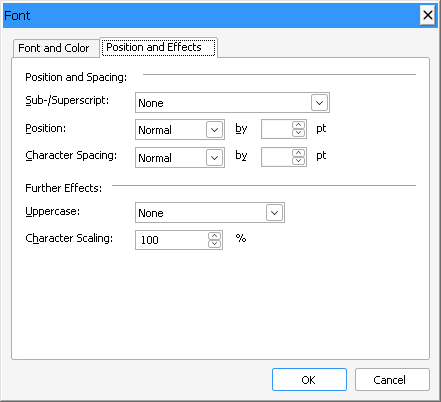
Users set subscript and superscript, the character spacing, capitals and the character scaling on the Position and Effects tab of the Font dialog box:
Grow, Shrink and Recapitalize Text
Three methods change the selected text relative to its current format. GrowFont and ShrinkFont step each font size in the selection up or down to the next size that the button bar and the Font dialog box offer. They return False when the maximum or minimum size has been reached. ChangeCapitalization changes the case of the selected characters:
TXTextControl1.GrowFont
TXTextControl1.ChangeCapitalization ToUpper
ChangeCapitalization also takes ToLower, ToggleCase, CapitalizeEachWord and CapitalizeEachSentence.
Format Paragraphs in Code
The following procedure centers the selected paragraphs, indents them by half an inch on both sides and adds space above and below them:
Private Sub mnuFormatQuote_Click()
    With TXTextControl1
        .FormatSelection = True
        .Alignment = 2
        .IndentL = 720
        .IndentR = 720
        .IndentT = 240
        .IndentB = 240
        .LineSpacing = 150
    End With
End Sub
The code works as follows:
- Alignment sets the alignment: 0 left, 1 right, 2 centered, 3 justified.
- IndentL and IndentR set the left and right indents in twips; 720 twips are half an inch.
- IndentT and IndentB add a distance above and below each paragraph, also in twips.
- LineSpacing sets the line spacing in percent of the font size. LineSpacingT sets it in twips instead.
IndentFL adds an indent for the first line. It can be negative, which creates a hanging indent. IncreaseIndent and DecreaseIndent move the left indent of the selected paragraphs to the next or previous position, which the tab positions and the indents of the neighboring paragraphs define.
To format a paragraph by its number, select it first with ParagraphSelect. The first paragraph has the number 1, and ParagraphCount returns the number of paragraphs.
Users set the alignment, the line spacing, the indents and the distances on the Formatting and Indents tab of the Paragraph dialog box:
Control Page Breaks
Four properties decide how a paragraph breaks across pages. Each sets the value for all selected paragraphs, and all four are available since version 13.0:
- KeepLinesTogether, when
True, allows no page break inside the paragraph. - KeepWithNext, when
True, keeps the paragraph on the same page as the next one, for example a heading and its text. - PageBreakBefore, when
True, starts the paragraph at the top of a page. - WidowOrphanLines sets the number of lines, 0 to 3, that must not be separated from the rest of the paragraph. 0 turns widow and orphan control off.
Set Tabs
Each paragraph has up to 14 tabs. TabCurrent chooses the tab, numbered from 1 to 14, and TabPos and TabType set its position in twips and its type. The following code, taken from the reference, deletes all tabs of the selected paragraphs and creates right-aligned tabs every half inch:
' Delete all tabs
For n = 14 To 1 Step -1
   TXTextControl1.TabCurrent = n
   TXTextControl1.TabPos = 0
Next n
' Create new tabs
For n = 1 To 14
   TXTextControl1.TabCurrent = n
   TXTextControl1.TabPos = n * 720
   If (TXTextControl1.TabPos > 0) Then _
      TXTextControl1.TabType = 2
Next n
The code works as follows:
- The first loop sets the position of each tab to 0, which deletes it.
TXTextControlsorts the tabs by position whenever one changes, so a tab's number can change when it moves. - The second loop sets the positions 720, 1440 and so on. Tabs outside the paragraph are set to zero automatically, so the code checks
TabPosbefore it sets the type. TabType2 is a right tab. 1 is a left tab, 3 a centered tab, 4 a decimal tab and 5 a right tab at the rightmost text position.
Users add and delete tabs in the Tabs dialog box that TabDialog opens:
Add Frames and Background Colors
A paragraph frame draws lines around or between paragraphs, for example a line above a caption. FrameStyle combines values for the lines to draw: &H1 left, &H2 right, &H4 top, &H8 bottom, &H10 a vertical line at each tab, &H20 a single and &H40 a double line. The following code draws a single-line box around the selected paragraphs and gives them a light gray background:
With TXTextControl1
    .FrameStyle = &H1 Or &H2 Or &H4 Or &H8 Or &H20
    .FrameLineWidth = 20
    .FrameDistance = 120
    .FrameLineColor = RGB(0, 0, 128)
    .FrameColor = RGB(230, 230, 230)
End With
The code works as follows:
FrameStylesets the four frame lines as a single line. The values from &H100 on reset lines, and &H80 connects the boxes of consecutive paragraphs into one box.- FrameLineWidth sets the width of the lines, and FrameDistance the distance between the text and the frame.
- FrameLineColor sets the color of the lines, and FrameColor the background color of the paragraphs. Both are available since version 24.0.
Users set the paragraph frame, the background color and the pagination options on the Frame and Page Breaks tab of the Paragraph dialog box:
Key Members
| Member | Description |
|---|---|
| FormatSelection | Makes formatting properties work on the selection instead of the complete text. |
| FontName, FontSize | Set the font and its size in points. |
| FontBold, FontItalic, FontUnderline | Set the font styles; 2 indicates a mixed selection. |
| ForeColor, TextBkColor | Set the text color and the text background color. |
| Alignment | Sets the paragraph alignment. |
| IndentL, IndentR, IndentFL | Set the left, right and first-line indents in twips. |
| LineSpacing | Sets the line spacing in percent of the font size. |
| TabCurrent, TabPos, TabType | Choose a tab and set its position and type. |
| FrameStyle | Sets the frame lines of the selected paragraphs. |
| FontDialog, ParagraphDialog, TabDialog | Open the built-in dialog boxes for characters, paragraphs and tabs. |
| CharFormatChange, ParagraphFormatChange | Occur when the character or paragraph attributes have changed. |
The programming categories Character Formatting and Paragraph Formatting list all members.