
Document Protection
An invoice template whose layout must not change, a contract in which only the signature block is open, a form that one clerk fills in and another checks: all of them need a document that users can read but only partly change. TXTextControl protects a whole document, with or without a password, and lets you decide what users may still do in it: format text, apply styles, copy, print or fill in form fields. Editable regions are the exceptions, ranges of text that everyone or only a named user may still change.
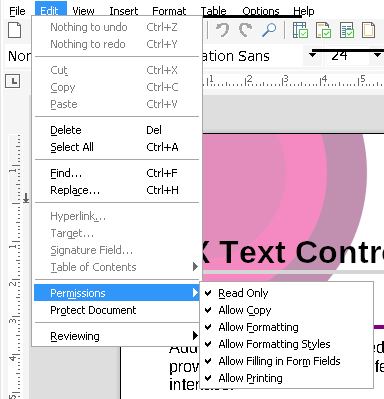
Protected documents and editable regions have been part of TX Text Control ActiveX since version 25.0. In the TXWords sample program, the Edit menu holds a Permissions submenu and a Protect Document item, and the Insert menu an Editable Region submenu; their handlers are the basis of the samples that follow.
How Document Protection Works
Three settings work together:
- The edit mode. The EditMode property decides whether the document can be edited freely or is protected.
- The permissions. The DocumentPermissions property lists what users may still do while the document is protected.
- The editable regions. Regions inserted with EditableRegionInsert remain editable in a protected document, for everyone or for the user they belong to. The UserNames property says which users are working with the document.
EditMode has four values:
| Value | Mode | What the user can do |
|---|---|---|
| 0 | Edit | Edit and format the text. This is the default. |
| 1 | Protected | Read and select the text. Editing and formatting are restricted by DocumentPermissions; editable regions can still be edited. |
| 2 | Read only | Read the text. Typing and selecting text with the mouse or the keyboard are not possible, and the mouse pointer is the standard arrow. |
| 3 | Password Protected | The same as Protected, but a dialog box asks for a password, which is needed to set the edit mode back to Edit. |
The permissions and the password are saved in the document in encrypted form, in the formats RTF, DOC, DOCX, PDF and the TX Text Control format (TX). A password-protected document is opened read-only when it is loaded.
The reference gives the values of EditMode as numbers, without constants. TXWords declares constants of its own in tx.bas, and the samples below use them:
Global Const EDITMODE_EDIT = 0
Global Const EDITMODE_READANDSELECT = 1
Global Const EDITMODE_READONLY = 2
Global Const EDITMODE_PASSWORDPROTECT = 3
Set the Document Permissions
DocumentPermissions takes the sum of the following values. It is applied when EditMode changes from Edit to Protected or Password Protected.
| Constant | Value | Allows |
|---|---|---|
txAllowFormatting | 1 | formatting text with attributes such as font and paragraph settings |
txAllowFormattingStyles | 2 | formatting text with formatting styles |
txAllowCopy | 4 | copying content to the clipboard |
txAllowPrinting | 8 | printing the document |
txReadOnly | 16 | nothing: the document is read-only, and editing and formatting are not allowed |
txAllowEditingFormFields | 2048 | editing form fields, since version 28.0 |
The following line lets users of the protected document print it, copy from it and fill in its form fields, but not format it:
TXTextControl1.DocumentPermissions = txAllowPrinting + txAllowCopy + txAllowEditingFormFields
TXWords switches each permission on its own with an item of the Edit > Permissions submenu. The handler of Allow Printing clears or sets one bit and keeps the others:
Private Sub mnuEdit_Permissions_AllowPrinting_Click()
    If mnuEdit_Permissions_AllowPrinting.Checked Then
        TXTextControl1.DocumentPermissions = TXTextControl1.DocumentPermissions And (Not txAllowPrinting)
    Else
        TXTextControl1.DocumentPermissions = TXTextControl1.DocumentPermissions Or txAllowPrinting
    End If
End Sub
When the Edit menu opens, TXWords sets the check mark of each item with an expression such as (TXTextControl1.DocumentPermissions And txAllowPrinting) <> 0.
Protect the Document
Set EditMode to 1 to protect the document without a password, or to 3 to protect it with one. The Protect Document item of TXWords switches between Edit and Password Protected:
Private Sub mnuEdit_ProtectDocument_Click()
    If mnuEdit_ProtectDocument.Checked Then
        TXTextControl1.EditMode = EDITMODE_EDIT
    Else
        TXTextControl1.EditMode = EDITMODE_PASSWORDPROTECT
    End If
End Sub
The code works as follows:
- Setting
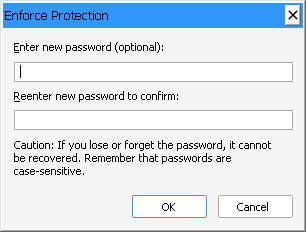
EditModetoEDITMODE_PASSWORDPROTECTopens the Enforce Protection dialog box ofTXTextControl, in which the user enters the password. From then on, the permissions ofDocumentPermissionsapply. - Setting
EditModeback toEDITMODE_EDITremoves the protection. The user must enter the same password for this.
To show a finished document that users must not change at all, set EditMode to 2 (Read only) instead. The Review Changes dialog box of TXWords does this for the control that previews a tracked change, as Track Changes describes.
Mark Editable Regions
An editable region is made from the current selection. EditableRegionInsert takes the name of the user who may edit the region; an empty string lets everyone edit it. When no text is selected, an error occurs, so TXWords checks the selection and handles errors:
Private Sub mnuInsert_EditableRegion_Add_User_Click()
On Error GoTo err:
    If TXTextControl1.SelLength = 0 Then
        MsgBox "Select a part of the document first.", vbInformation, "TX Text Control Words"
        Exit Sub
    End If
    Dim userName As String
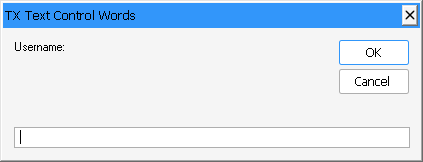
    userName = InputBox("Username:", "TX Text Control Words")
    If userName <> "" Then
        TXTextControl1.EditableRegionInsert userName
    End If
    Exit Sub
err:
    MsgBox "Could not create editable region.", vbCritical, "TX Text Control Words"
End Sub
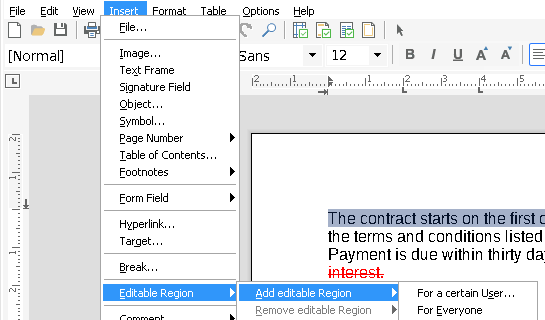
This is the handler of Insert > Editable Region > Add editable Region > For a certain User. The item For Everyone calls TXTextControl1.EditableRegionInsert "" instead.
EditableRegionInsert has three optional parameters after the user name:
- UserId. A one-based number of your own that identifies the region, or zero for none. EditableRegionUserId reads and changes it later.
- HighLightColor. An RGB color for the highlighting. Without it,
TXTextControlcalculates a color from the user name. - AlphaHighLight. The alpha value of that color, from 0 (transparent) to 255 (opaque). Keep it below 255, or the text of the region is hidden.
The method returns the internal identifier of the new region, or 0 if the region could not be inserted. Keep it to work with the region later:
Dim regionId As Long
regionId = TXTextControl1.EditableRegionInsert("Jane Smith", 1, RGB(255, 255, 0), 80)
Editable regions can overlap. EditableRegionUserName returns or changes the user of a region, EditableRegionGoto moves the input position to the start of a region and scrolls it to the top of the control, and EditableRegionDelete removes a region. Each of them takes the identifier that EditableRegionInsert returned.
Give Users Access
In a protected document, the regions of the users named in UserNames can be edited, besides the regions for everyone. UserNames is a string of names separated by a | character, and the first name is also the user of new tracked changes and comments:
' Jane Smith is the current user; John Doe also has access
TXTextControl1.UserNames = "Jane Smith|John Doe"
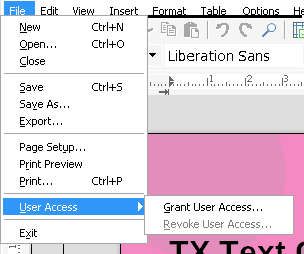
TXWords adds and removes names with File > User Access > Grant User Access and Revoke User Access. Its GrantUserAccess procedure appends a name to the list unless it is already there:
Private Sub GrantUserAccess(userName As String)
    ' Get array of current user names and check if user already exists
    Dim userNames() As String
    userNames = Split(TXTextControl1.userNames, "|")
    Dim name
    For Each name In userNames
        If name = userName Then
            MsgBox "User """ & userName & """ already has document access.", vbInformation, "TX Text Control Words"
            Exit Sub
        End If
    Next
    ' Add new name
    Dim joined As String
    If IsArrayEmpty(userNames) Then
        joined = userName
    Else
        joined = Join(userNames, "|") & "|" & userName
    End If
    TXTextControl1.userNames = joined
End Sub
IsArrayEmpty is a helper function of TXWords in Global.bas. UserNames can be set at run time only.
Find the Region at the Input Position
The EditableRegionEntered event occurs when the current input position, the position of the caret, moves into an editable region, and EditableRegionLeft when it leaves one. Both pass the identifier of the region. Because regions can overlap, TXWords keeps the identifiers in a Collection:
Dim CurrentEditableRegions As New Collection

Private Sub TXTextControl1_EditableRegionEntered(ByVal regionId As Long)
    AddEditableRegionToCurrent regionId
End Sub

Private Sub TXTextControl1_EditableRegionLeft(ByVal regionId As Long)
    RemoveCurrentEditableRegion regionId
End Sub
AddEditableRegionToCurrent and RemoveCurrentEditableRegion are procedures of frmMain.frm that add an identifier to the collection, without duplicates, and remove it. To remove the region of a user at the input position, TXWords looks up the identifier by the user name and deletes the region. The code below is adapted from frmMain.frm:
Private Function GetCurrentRegionId(userName As String) As Long
    Dim i As Integer
    Dim regionId As Long
    For i = 1 To CurrentEditableRegions.Count
        regionId = CurrentEditableRegions(i)
        If TXTextControl1.EditableRegionUserName(regionId) = userName Then
            GetCurrentRegionId = regionId
            Exit Function
        End If
    Next
    GetCurrentRegionId = -1
End Function

Private Sub mnuInsert_EditableRegion_Remove_Everyone_Click()
    Dim regionId As Long
    regionId = GetCurrentRegionId("")
    If regionId = -1 Then Exit Sub
    TXTextControl1.EditableRegionDelete regionId
    RemoveCurrentEditableRegion regionId
End Sub
The empty user name finds the region for everyone. EditableRegionDelete returns False when the identifier is invalid.
Change How Editable Regions Are Highlighted
The EditableRegionHighlightMode property decides when editable regions are highlighted. TXWords sets it from View > Highlight Editable Regions:
| Value | Menu item in TXWords | Editable regions are highlighted |
|---|---|---|
1 - txNever | Never | never |
2 - txActivated | Current | only the region that contains the current input position |
3 - txAlways | Always | always (default) |
TXTextControl1.EditableRegionHighlightMode = txActivated
EditableRegionHighlightMode is available since version 30.0 and can be set at run time only.

Check What the User May Do
In a protected document, what is possible depends on the permissions and on the current input position: inside an editable region, the user may type; outside, maybe not. Seven read-only properties answer the question for the current position and selection:
| Property | Returns True when |
|---|---|
| CanEdit | the text can be changed at the current input position |
| CanCharacterFormat | character attributes of the selected text can be changed |
| CanParagraphFormat | paragraph attributes of the selected text can be changed |
| CanStyleFormat | the document can be formatted with formatting styles |
| CanTableFormat | table attributes or the table layout of the selected text can be changed |
| CanDocumentFormat | page and section attributes can be changed |
| CanPrint | the document can be printed |
Use them to enable and disable menu items and buttons. TXWords does it each time a menu opens, for example in the handler of its File menu:
Private Sub mnuFile_Click()
    With TXTextControl1
        mnuFile_PageSetup.Enabled = .CanEdit
        mnuFile_Print.Enabled = .CanPrint
        mnuFile_PrintPreview.Enabled = .CanPrint
        mnuFile_UserAccess_Revoke.Enabled = .userNames <> ""
    End With
End Sub
The Format menu of TXWords uses CanCharacterFormat, CanParagraphFormat, CanStyleFormat and CanDocumentFormat the same way, and the Table menu uses CanTableFormat.
Key Members
| Member | Description |
|---|---|
| EditMode | Sets whether the document can be edited, is protected, password-protected or read-only. |
| DocumentPermissions | Sets what users may do in a protected document. |
| EditableRegionInsert, EditableRegionDelete | Insert an editable region from the selection and remove it. |
| EditableRegionUserName, EditableRegionUserId | Return or set the user and the identifier of your own of a region. |
| EditableRegionGoto | Moves the input position to the start of a region. |
| EditableRegionHighlightMode | Sets when editable regions are highlighted. |
| EditableRegionEntered, EditableRegionLeft | Occur when the input position enters or leaves a region. |
| UserNames | Holds the users who have access to the document. |
CanEdit, CanPrint and the other Can properties | Tell what the user may do at the current input position. |
The programming category Restricted Document Access lists all members for protected documents.