
Stylesheets
A formatting style gives a set of character and paragraph attributes a name, such as Headline. Text formatted with a style changes whenever the style changes, so a document with styles gets a new look by editing a few styles instead of every paragraph. All styles of a document together are its stylesheet.
Visual Basic 6 developers who build a word processor on TXTextControl find here how styles work, how users create and change them in the built-in dialog box and how code applies, lists and changes styles through the Style object and the Styles collection.
What Formatting Styles Are
TXTextControl knows two types of styles, and the StyleType property of a style tells which one it is:
- Paragraph-based styles (type 1) format complete paragraphs. They hold font attributes and paragraph attributes: alignment, indents, line spacing, frames, tabs and list settings.
- Character-based styles (type 2) format single characters inside a paragraph. They hold font attributes only. An attribute that a character-based style leaves open is inherited from the paragraph style: an empty
FontName, aFontSizeof 0 or aFontBoldof 2 means "as in the paragraph".
A paragraph-based style also names the style that follows it. After the user presses the RETURN key, the new paragraph gets the style that NextParaStyle gives, for example Body Text after a Headline.
In code, a style is a Style object, an OLE Automation object with a property for each attribute. The Styles property of TXTextControl returns a Styles collection with all styles of the document.
Let Users Manage Styles
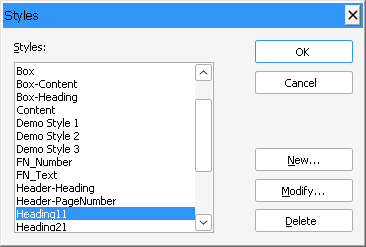
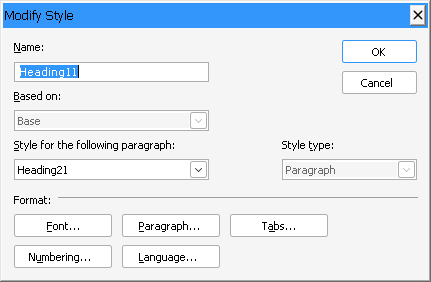
The built-in Styles dialog box lists the styles of the document. Its New... and Modify... buttons open the New Style or Modify Style dialog box, in which the user sets the name, the style it is based on, the style for the following paragraph and the style type. From there, the Font..., Paragraph..., Tabs..., Numbering... and Language... buttons open the dialog boxes for the attributes. Delete removes a style.
The StyleDialog method opens the Styles dialog box. The TXWords sample calls it from the Styles... item of its Format menu:
' Call Text Control's built-in stylesheet dialog box
Private Sub mnuFormat_Styles_Click()
    TXTextControl1.StyleDialog
End Sub
StyleDialog returns True when the user has changed one or more styles and False when all styles remain unchanged.
The user applies a style with the formatting styles combo box of a connected TXButtonBar. The PosStyle property sets its position; TXWords places it first. Button Bar, Ruler Bar and Status Bar describes the button bar.
Apply a Style
StyleCurrent returns the name of the style at the current input position, the position of the caret. Setting it applies a style: with text selected, all styles of the selected text change to the given style.
Private Sub mnuFormatHeadline_Click()
    If TXTextControl1.CanStyleFormat Then
        TXTextControl1.StyleCurrent = "Headline"
    End If
End Sub
The code works as follows:
- CanStyleFormat tells whether the document can be formatted with styles. In a protected document, this depends on the permissions that Document Protection describes.
StyleCurrenttakes the unique name of the style.
When the selection is formatted with several styles, StyleCurrent returns an empty string.
List the Styles of a Document
The Styles collection works with For Each. The following procedure fills a Visual Basic ComboBox named cboStyles with the names of all styles:
Private Sub FillStyleList()
    Dim style As Object
    cboStyles.Clear
    For Each style In TXTextControl1.Styles
        cboStyles.AddItem style.StyleName
    Next
End Sub
The code works as follows:
TXTextControl1.Stylesreturns theStylescollection. It is read only and available at run time only.- Each member of the collection is a
Styleobject, and StyleName returns its name.
Count returns the number of styles in the collection.
Change a Style in Code
Item returns the Style object of a style by its name. After you have changed its properties, Apply applies the new settings to the document:
Dim style As Object
Set style = TXTextControl1.Styles.Item("Headline")
style.FontName = "Arial"
style.FontSize = 400
style.FontBold = 1
style.Apply
The code works as follows:
Item("Headline")returns the style named Headline. A name that matches no style raises an error.- FontName, FontSize and FontBold change the style's font. The style's
FontSizeis in twips, 1/1440 inch, so 400 is 20 points. Applyapplies every setting made since the previousApplycall or since the object was created. All text formatted with Headline changes.
To change the style at the input position, pass StyleCurrent to Item: Set style = TXTextControl1.Styles.Item(TXTextControl1.StyleCurrent).
Where Style Properties Differ
The Style object has most of the formatting properties of TXTextControl, with a few differences in units and values:
| Style property | Difference from TXTextControl |
|---|---|
| FontSize | In twips instead of points. |
| FontUnderline | Combines the underline styles: &H1 single, &H2 double, &H4 words only, &H10 inherited from the paragraph style. |
| Baseline, BaselineType | BaselineType decides whether Baseline is a superscript (4) or subscript (8) offset. |
| Alignment | Its values start at 1 for left-aligned text. |
| TabPos, TabType | Take the tab index, 1 to 14, as a parameter: style.TabPos(1) = 1440. |
The list properties ListType, BulletAttribute and NumberingAttribute take the same values as those of TXTextControl, which Bulleted and Numbered Lists describes. Paragraph, tab and list settings work with paragraph-based styles only.
Create a Style
The Styles collection has no method that adds a style. Users create a new style with the New... button of the Styles dialog box that StyleDialog opens.
React to Style Changes
Two events keep your own style list in step with the document:
- StyleChanged occurs when the input position has moved to text formatted with another style.
- StyleListChanged occurs when styles have been added or removed, for example in the dialog box that
StyleDialogopens.
The following handlers keep the cboStyles combo box from the previous section up to date:
Private Sub TXTextControl1_StyleChanged()
    cboStyles.Text = TXTextControl1.StyleCurrent
End Sub

Private Sub TXTextControl1_StyleListChanged()
    FillStyleList
End Sub
Styles in XML Documents
An XML document holds no formatting attributes. TXTextControl formats it with the styles of the CSS file that belongs to it, and in the XML editor mode, formatting is possible only through styles: the button bar changes the attributes of the current style, and the Styles dialog box and the Styles collection change the styles. In XML documents, StyleName is read only. Editing XML Files describes the XML editor mode, and Loading and Saving XML Files saves changed styles to the CSS file.
Key Members
| Member | Description |
|---|---|
| StyleCurrent | Returns the style at the input position or applies a style to the selection. |
| StyleDialog | Opens the built-in dialog box for creating, deleting and modifying styles. |
| Styles | Returns the Styles collection with all styles of the document. |
| Styles.Item | Returns a Style object by its name. |
| Style.Apply | Applies the changed settings of a style to the document. |
| Style.StyleType | Returns whether a style is paragraph-based or character-based. |
| Style.NextParaStyle | Sets the style of the paragraph that follows after RETURN. |
| CanStyleFormat | Tells whether the document can be formatted with styles. |
| StyleChanged, StyleListChanged | Occur when the style at the input position changes and when styles are added or removed. |
The programming categories Stylesheet Formatting and Stylesheet Programming list all members, and Style lists every property of the Style object.