
Sections and Page Setup
A report with a landscape table in the middle, a newsletter whose second half runs in two columns or a letter whose appendix numbers its pages from 1 again: each of them needs page settings that change within one document. In TXTextControl, these settings belong to sections, parts of a document that begin with a section break and have their own page size, margins, orientation, columns, page border and headers and footers.
Read on to insert section breaks, let users set up pages in the built-in dialog box and change page settings in Visual Basic 6 code, for the whole document or for one section. Sizes and distances are in twips, 1/1440 inch, which Text Formatting and Views explains.
How Sections Work
Every document has at least one section; SectionCount returns how many it has. Sections are numbered from the beginning to the end of the document, starting with 1, and SectionAtInputPos returns the number of the section that contains the text input position, the place where the caret is and typed text goes. TX Text Control ActiveX supports sections since version 14.0.
Page settings are properties of TXTextControl, such as PageWidth or Columns. Which part of the document they read and change is decided by one property, SectionCurrent:
Value of SectionCurrent | The page settings apply to |
|---|---|
| 0 | All sections of the document. This is the default. |
| -1 | The section with the text input position, or all selected sections. |
| 1, 2, 3 ... | The section with this number. |
SectionCurrent controls the page size, the margins, the orientation, the columns, the page border, the page numbering, the kind of section break and the headers and footers. Because the default is 0, code that sets PageWidth without choosing a section first changes every section of the document.
Insert a Section Break
The SectionInsert method inserts a section break. Its first parameter says where the new section begins, its second parameter the text position; -1 inserts the break at the text input position:
If Not TXTextControl1.SectionInsert(txBeginAtNewPage, -1) Then
   MsgBox "The section break could not be inserted."
End If
The code works as follows:
txBeginAtNewPagestarts the new section on the next page with a new paragraph.txBeginAtNewLinestarts it on the next line, so that, for instance, the number of columns changes in the middle of a page.SectionInsertreturns True when the break has been inserted and False otherwise.
The SectionBreakKind property reads or changes the kind of break an existing section starts with; SectionCurrent selects the section. In the document, a section break is a control character: the PermanentControlChars property shows it permanently with txSectionBreak.
Insert Breaks From a Dialog Box
The TXWords sample program, which A Word Processor describes, has an Insert Break dialog box that it opens with Insert > Break.... Besides page, column and text wrapping breaks, it offers the section breaks Begin at new page and Begin at new line.
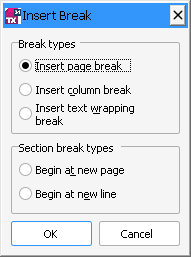
When the user clicks OK, the form runs this code, shortened here, with tx referring to the TXTextControl of the document window:
Select Case i
   Case 0
      tx.SelText = vbFormFeed     ' Page break
   Case 1
      tx.SelText = Chr(14)        ' Column break
   Case 2
      tx.SelText = vbVerticalTab  ' Text wrapping break
   Case 3
      tx.SectionInsert txBeginAtNewPage, -1
   Case 4
      tx.SectionInsert txBeginAtNewLine, -1
End Select
The code works as follows:
- The ordinary breaks are characters that SelText inserts at the text input position: a form feed for a page break, character 14 for a column break and a vertical tab for a text wrapping break.
- The two section breaks call
SectionInsertwith the text input position, -1.
TXWords enables the section break options only when the CanDocumentFormat property is True, which it is not when document protection forbids changing the page and section format. On the keyboard, CTRL+ENTER inserts a page break and CTRL+SHIFT+ENTER a column break, as Keyboard Assignment lists.
Let Users Set Up Pages
The SectionFormatDialog method opens the built-in Page Setup dialog box. In it, users set the page attributes for the whole document or for a single section. Its parameter chooses the tab that is shown first:
| Value | Tab |
|---|---|
| 0 | Page margins, page size and orientation. |
| 1 | Headers and footers. |
| 2 | Columns. |
| 3 | Page borders. |
The method returns True when the user has changed an attribute and False when the formatting remains unchanged. TXWords defines constants for the four values and calls the method from its menus and its toolbar:
' Section format dialog parameter values (tx.bas)
Global Const SECTFMTDLG_PAGE = 0
Global Const SECTFMTDLG_HDRFTR = 1
Global Const SECTFMTDLG_COLUMNS = 2
Global Const SECTFMTDLG_PAGEBRD = 3

Private Sub mnuFile_PageSetup_Click()
    TXTextControl1.SectionFormatDialog SECTFMTDLG_PAGE
End Sub

Private Sub mnuFormat_Columns_Click()
    TXTextControl1.SectionFormatDialog SECTFMTDLG_COLUMNS
End Sub
In TXWords, File > Page Setup... opens the first tab, and Format > Headers and Footers..., Format > Columns... and Format > Page Borders... open the other three. The toolbar buttons Margins and Paper, Headers and Footers, Columns and Page Borders do the same.
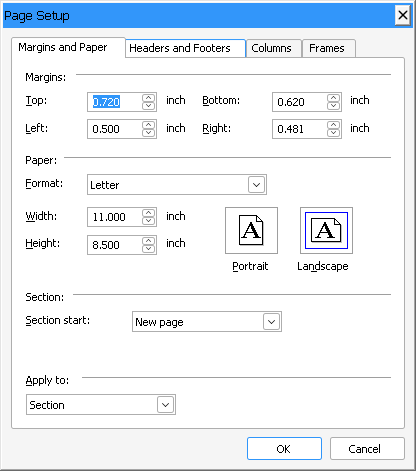
Set Page Size, Margins and Orientation
The page size is set with PageWidth and PageHeight, the margins with PageMarginL, PageMarginT, PageMarginR and PageMarginB, and the orientation with PageOrientation: 0 is portrait, 1 is landscape. The following code gives the whole document the US Letter size, 12,240 by 15,840 twips, with one-inch margins, and then switches the section at the text input position to landscape:
' All sections of the document
TXTextControl1.SectionCurrent = 0
TXTextControl1.PageWidth = 12240
TXTextControl1.PageHeight = 15840
TXTextControl1.PageMarginL = 1440
TXTextControl1.PageMarginT = 1440
TXTextControl1.PageMarginR = 1440
TXTextControl1.PageMarginB = 1440

' Only the section with the text input position
TXTextControl1.SectionCurrent = -1
TXTextControl1.PageOrientation = 1

' Back to the default
TXTextControl1.SectionCurrent = 0
The code works as follows:
- With
SectionCurrentset to 0, the size and the margins apply to every section. - With
SectionCurrentset to -1,PageOrientationchanges only the section that contains the text input position, or all selected sections. - The last line restores the default, so that later code that doesn't set
SectionCurrentworks on the whole document again.
The printed area of a page is its width minus the left and right margins and its height minus the top and bottom margins. PageWidth and PageHeight must not exceed 32,767 twips, and the maximum also depends on the selected printer. The page view shows the pages with their margins and borders; Text Formatting and Views describes it.
Read Settings of Several Sections
When SectionCurrent is 0 or -1 and the chosen sections have different settings, the properties can't return one value. They return a special value instead:
| Property | Returns when the sections differ |
|---|---|
PageWidth, PageHeight, PageMarginL, PageMarginT, PageMarginR, PageMarginB | -1 |
PageOrientation, SectionRestartPageNumbering | 2 |
SectionBreakKind, Columns | 0 |
ColumnLineWidth | -1 |
ColumnLineColor | &H80000000 |
ColumnWidthsAndDistances | An empty array |
Arrange Text in Columns
The number of page columns is an attribute of a section, so one document can mix one-column and multi-column parts, and with a section that begins at a new line, the number can change on the same page. TX Text Control ActiveX supports page columns since version 15.0.
For columns of the same width, set Columns and ColumnDistance. TXTextControl calculates the widths from the page width. ColumnLineWidth and ColumnLineColor add a dividing line between the columns:
TXTextControl1.SectionCurrent = -1
TXTextControl1.Columns = 2
TXTextControl1.ColumnDistance = 567          ' 1 cm between the columns
TXTextControl1.ColumnLineWidth = 20          ' 1 point
TXTextControl1.ColumnLineColor = RGB(0, 0, 0)
TXTextControl1.SectionCurrent = 0
The code works as follows:
Columnssplits the section at the text input position into two columns of the same width.ColumnDistancesets the distance between them. The property is write only.ColumnLineWidthdraws a line of 20 twips between the columns in the RGB color thatColumnLineColorsets. A width of zero means no line.
For columns of different widths, ColumnWidthsAndDistances takes an array of Long values. For n columns the array has 2n-1 elements: first the n column widths, then the n-1 distances. Their sum must not exceed the width of the text area, the page width without the margins. On a Letter page with one-inch margins, the text area is 9,360 twips wide:
Dim Widths(2) As Long
Widths(0) = 5760    ' width of the first column
Widths(1) = 3033    ' width of the second column
Widths(2) = 567     ' distance between the columns

TXTextControl1.SectionCurrent = -1
TXTextControl1.ColumnWidthsAndDistances = Widths
TXTextControl1.SectionCurrent = 0
Read back, ColumnWidthsAndDistances returns an empty array when the chosen sections have different columns. For an empty array, LBound returns 0 and UBound returns -1, so check the array before you use it. Users continue the text in the next column with CTRL+SHIFT+ENTER, which inserts a column break.
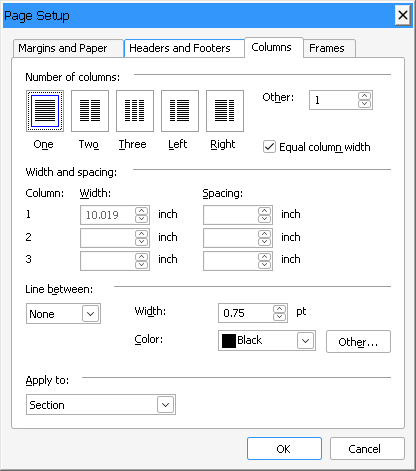
Users set the columns on the Columns tab of the Page Setup dialog box, which Format > Columns... opens in TXWords:
Add a Page Border
A page border draws lines around the text of each page of a section. The PageBorderAttribute property sets it, one attribute at a time; the attribute is the parameter of the property. The following code draws a black line of one point on all four sides, 24 points from the edge of the page, on all pages of the section at the text input position except the first:
With TXTextControl1
   .SectionCurrent = -1
   .PageBorderAttribute(txPageBorderLeftBorderWidth) = 20
   .PageBorderAttribute(txPageBorderTopBorderWidth) = 20
   .PageBorderAttribute(txPageBorderRightBorderWidth) = 20
   .PageBorderAttribute(txPageBorderBottomBorderWidth) = 20
   .PageBorderAttribute(txPageBorderLeftDistance) = 480
   .PageBorderAttribute(txPageBorderTopDistance) = 480
   .PageBorderAttribute(txPageBorderRightDistance) = 480
   .PageBorderAttribute(txPageBorderBottomDistance) = 480
   .PageBorderAttribute(txPageBorderMeasureFromText) = False
   .PageBorderAttribute(txPageBorderOmitFirstPage) = True
   .SectionCurrent = 0
End With
The code works as follows:
- The
...BorderWidthattributes set the width of each line in twips. A width of zero hides the line. - The
...Distanceattributes set the distance of each line in twips. WithtxPageBorderMeasureFromTextset to False, it is measured from the edge of the page; with True, from the text. txPageBorderOmitFirstPageleaves out the first page of the section.txPageBorderFirstPageOnlydoes the opposite and draws the border on the first page only.
The ...BorderColor attributes set the color of each line, and txPageBorderSurroundHeader and txPageBorderSurroundFooter decide whether the border encloses the header and the footer of the section. Page borders are available since version 17.0.
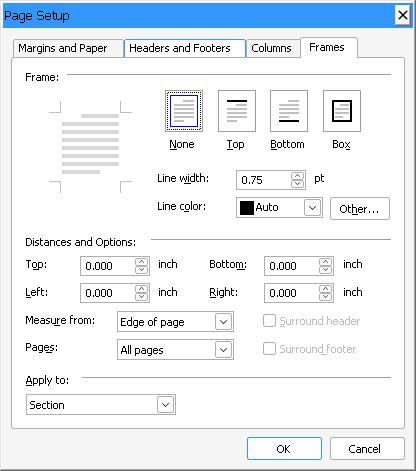
Users set page borders on the Frames tab of the Page Setup dialog box, which Format > Page Borders... opens in TXWords:
Restart Page Numbering
By default, page numbers continue from one section to the next. Set SectionRestartPageNumbering to 1 to restart the numbering at the beginning of a section, or to 0 to continue it:
TXTextControl1.SectionCurrent = 2
TXTextControl1.SectionRestartPageNumbering = 1
TXTextControl1.SectionCurrent = 0
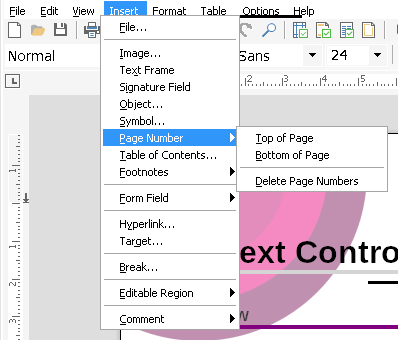
The page numbers themselves are marked text fields of the type txFieldPageNumber in a header or footer. Special Types of Marked Text Fields shows how to insert one, and the PageNumberDialog method opens a built-in dialog box for the formatting and numbering attributes of such a field. TXWords inserts page numbers with Insert > Page Number > Top of Page or Bottom of Page, and removes them with Delete Page Numbers.
Headers and Footers per Section
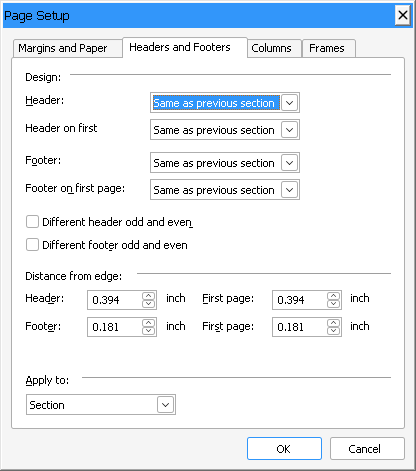
Each section can have headers and footers of its own. The header and footer members, such as HeaderFooter and HeaderFooterSelect, work on the section that SectionCurrent chooses. A section that doesn't need a header or footer of its own keeps the one of the previous section: while HeaderFooterConnectedToPrevious is True for a header or footer, it has the same contents as the one of the previous section.
' Give section 2 a header of its own
TXTextControl1.SectionCurrent = 2
TXTextControl1.HeaderFooterConnectedToPrevious(txHeader) = False
TXTextControl1.SectionCurrent = 0
Users set the headers and footers of a section on the Headers and Footers tab of the Page Setup dialog box, which Format > Headers and Footers... opens in TXWords:
Headers and Footers explains how headers and footers are added, activated and programmed.
Select and Measure Sections and Pages
A few members find out where a section or a page is and select it:
- SectionStart and SectionLength return the one-based number of the first character of a section and its number of characters, without the section break character.
- SectionSelect selects a section and returns False when it doesn't exist.
- PageCount returns the number of pages, and PageStart, PageLength and PageSelect do for pages what the section members do for sections.
PageLengthincludes the page break character.
The following code selects the section at the text input position:
TXTextControl1.SectionSelect TXTextControl1.SectionAtInputPos
React to Section and Page Changes
Three events tell your application that the position or the format has changed:
- SectionChanged occurs when the text input position has moved to another section.
- PageChanged occurs when it has moved to another page.
- PageFormatChange occurs when the page format settings have been changed.
The following handler shows the current section and the number of sections in a label named lblSection:
Private Sub TXTextControl1_SectionChanged()
   lblSection.Caption = "Section " & TXTextControl1.SectionAtInputPos & _
      " of " & TXTextControl1.SectionCount
End Sub
A connected TXStatusBar shows the same information without code: its ShowSection and ShowSectionCounter properties display the section number and the number of sections, as they do in TXWords.
Key Members
| Member | Description |
|---|---|
| SectionCurrent | Chooses the section, all sections or the selected sections that page settings apply to. |
| SectionInsert | Inserts a section break that begins at a new page or a new line. |
| SectionFormatDialog | Opens the built-in dialog box for page setup, headers and footers, columns and page borders. |
| PageWidth, PageHeight | Set the page size in twips. |
| PageMarginL, PageMarginT, PageMarginR, PageMarginB | Set the page margins. |
| PageOrientation | Sets portrait or landscape orientation. |
| Columns, ColumnWidthsAndDistances | Set page columns of the same or of different widths. |
| PageBorderAttribute | Sets the lines, distances and colors of a page border. |
| SectionRestartPageNumbering | Restarts or continues page numbering at a section. |
| SectionAtInputPos, SectionCount | Return the current section and the number of sections. |
| SectionChanged, PageFormatChange | Occur when the input position moves to another section and when the page format changes. |
The programming category Sections and Pages lists all members for sections and pages.