
Signature Fields
A signature field reserves the place where a signature appears: a frame in the document with a name, an optional image of the signature and data about the person expected to sign. On the server, ServerTextControl creates such fields, reads them from templates and MS Word documents and signs each of them with a certificate when it saves the PDF. Each signed field shows its signature on the page and has its own validation status.
Users insert signature fields in the browser with the Document Editor, as Signature Fields in Document Editor describes, and sign them in the Document Viewer, as Signature Fields in Document Viewer describes. A first field is signed in Sign Signature Fields in Getting Started.
What a Signature Field Holds
A SignatureField derives from FrameBase, like images and text frames, and is positioned like them. Its parts are:
- A name and an ID. Name identifies the field and is required when the field is signed with a certificate. ID is an optional number.
- An image. Image is the visible signature, a SignatureImage. It can be added when the document is designed or later, when it's signed.
- Signer data. SignerData describes the suggested signer and the reason for signing.
- A certificate, applied only when the document is saved as PDF or PDF/A with SaveSettings.SignatureFields.
Signature fields are saved with the TX Text Control format, PDF, DOCX and RTF; other formats keep only the signature image. They're compatible with the signature lines of MS Word. ServerTextControl.SignatureFields contains the signature fields of the main text of a document.
Create Signature Fields in Code
The following program creates a nondisclosure agreement with a table for two signatures and a field for the vendor's initials at a fixed position on the first page, and saves it as a template in the TX Text Control format:
using TXTextControl;

using (ServerTextControl tx = new ServerTextControl())
{
    tx.Create();

    tx.Selection.Text = "Nondisclosure Agreement\r\n\r\nSigned by both parties:\r\n";

    // A table with a label column and a column for the signature fields
    tx.Tables.Add(2, 2, 10);
    Table table = tx.Tables.GetItem(10);

    table.Cells.GetItem(1, 1).Text = "Discloser";
    table.Cells.GetItem(2, 1).Text = "Vendor";

    SignatureField[] fields =
    {
        // 2.5 x 1 inch in twips, a name and an ID
        new SignatureField(new System.Drawing.Size(3600, 1440), "sign_discloser", 1)
        {
            SignerData = new SignerData("Paul Paulsen", "Managing Director",
                "Chapel Hill, NC", "paul@example.com", "Agreement approval")
        },
        new SignatureField(new System.Drawing.Size(3600, 1440), "sign_vendor", 2)
        {
            SignerData = new SignerData("Tim Typer", "Sales Director",
                null, "tim@example.com", "Agreement approval")
        }
    };

    for (int row = 1; row <= fields.Length; row++)
    {
        // Selection positions start at 0, TableCell.Start at 1
        tx.Select(table.Cells.GetItem(row, 2).Start - 1, 0);

        // Inline, like a single character, at the input position
        if (!tx.SignatureFields.Add(fields[row - 1], -1))
        {
            Console.WriteLine($"{fields[row - 1].Name} couldn't be added.");
        }
    }

    // The vendor's initials on page 1, 6 inches from the left and 9 inches from the top
    SignatureField initials = new SignatureField(new System.Drawing.Size(1440, 720), "init_vendor", 3);
    tx.SignatureFields.Add(initials, 1, new System.Drawing.Point(8640, 12960), FrameInsertionMode.AboveTheText);

    tx.Save("Documents/nda.tx", StreamType.InternalUnicodeFormat);
}
The code works as follows:
- The SignatureField constructor takes the size in twips, 1/1440 inch, the name and the ID. An empty name and an ID of 0 are allowed when they aren't needed.
- The fields in the table are inserted inline at the input position, which
Selectsets to the beginning of each cell. - The initials field is inserted at a fixed position on page 1. Its location is measured in twips from the top-left corner of the page, and
FrameInsertionMode.AboveTheTextplaces it above the text. - The TX Text Control format keeps the fields with their names, IDs and signer data for the signing process.
SignatureFieldCollection.Add has these overloads for server code, each returning true if the field was added:
| Parameters | Inserts the field |
|---|---|
field, textPosition | Inline, like a single character, at a text position; -1 is the current input position |
field, alignment, textPosition, insertionMode | Anchored to the paragraph at the position, aligned left, right or centered |
field, location, textPosition, insertionMode | Anchored to the paragraph at the position, at a location relative to the paragraph |
field, pageNumber, location, insertionMode | At a fixed location on a page, relative to its top-left corner |
field, location, insertionMode | At a fixed location relative to the top-left corner of the document |
Not every overload allows every value of FrameInsertionMode: the fixed positions don't allow MoveWithText and AsCharacter, and the anchored positions don't allow FixedOnPage and AsCharacter. How Images Are Placed explains the insertion modes, which work the same way for images.
Sign the Fields of a Document
When the document is ready to be signed, each named field gets a DigitalSignature whose third constructor parameter is the name of the field. The following program loads the template, lists its fields, gives each named field an image and saves the document as a signed PDF/A document:
using System.Security.Cryptography.X509Certificates;
using TXTextControl;

X509Certificate2 certificate = X509CertificateLoader.LoadPkcs12FromFile(
    "certificate.pfx", "123", X509KeyStorageFlags.Exportable);

using (ServerTextControl tx = new ServerTextControl())
{
    tx.Create();
    tx.Load("Documents/nda.tx", StreamType.InternalUnicodeFormat);

    Console.WriteLine($"{tx.SignatureFields.Count} signature fields");

    List<DigitalSignature> signatures = new List<DigitalSignature>();

    foreach (SignatureField field in tx.SignatureFields)
    {
        SignerData signer = field.SignerData;
        Console.WriteLine($"{field.Name} (ID {field.ID}): {signer.Name}, {signer.Reason}");

        // A certificate can only be associated with a named field
        if (field.Name == "")
        {
            continue;
        }

        // The image that the PDF shows in the field (filter index 8 is SVG)
        field.Image = new SignatureImage("signature.svg", 8);

        signatures.Add(new DigitalSignature(certificate, null, field.Name));
    }

    SaveSettings saveSettings = new SaveSettings()
    {
        SignatureFields = signatures.ToArray()
    };

    tx.Save("nda-signed.pdf", StreamType.AdobePDFA, saveSettings);
}
The code works as follows:
foreachgoes through the fields of SignatureFieldCollection, andCountreturns their number.- Each
DigitalSignatureis associated with the field whose name matches its third parameter, so give every field a unique name. The second parameter is the URL of a time server, as RFC 3161 Timestamps describes. - All
DigitalSignatureobjects go into theSignatureFieldsarray of oneSaveSettings. Several people or certificates are the subject of Multiple Signatures.
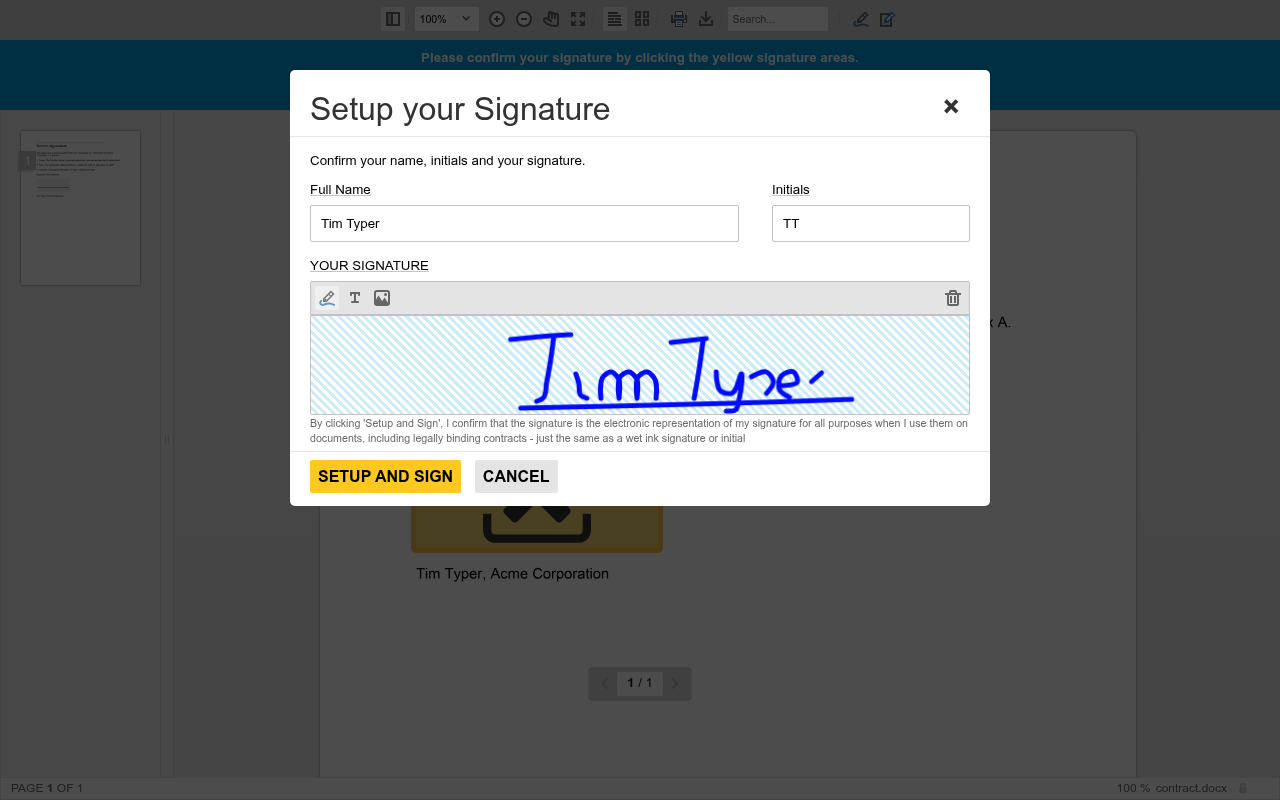
In a signing process with the Document Viewer, users create the images of their signatures in the browser, and the document that the viewer's controller posts to your endpoint has them merged into its fields, as Receive and Sign the Document on the Server shows. The image comes from the viewer's Setup your Signature dialog, in which users draw, type or upload their signature:
Signature Images
A SignatureImage is created from a file or from memory:
SignatureImage(string fileName, int filterIndex)loads an image file. The filter index names its format:1BMP,2TIF,3WMF,4PNG,5JPG,6GIF,7EMF or8SVG.SignatureImage(MemoryStream memoryStream)takes the image from a stream, for example an SVG that your application generates, such as a stamp with the signer's name and the date.
The Document Viewer delivers the signature a user created as an SVG image. The blog article Customize Signature Fields with Dynamically Created SVG Images replaces it with a generated SVG. Further properties of SignatureImage, such as ExportFilterIndex and ExportCompressionQuality, control how the image is saved.
Signer Data and MS Word Signature Lines
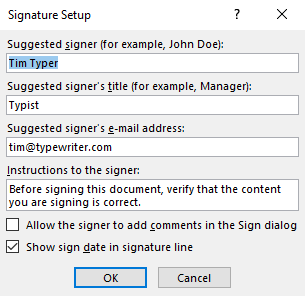
SignerData holds five values, which its constructor takes in this order: Name, Title, Address, ContactInfo (such as a phone number) and Reason. Each can be null or an empty string. The properties are read-only, so a change means assigning a new SignerData object. PDF readers such as Adobe Acrobat Reader show the signer data in the signature properties of a signed field.
Signature lines that were inserted in MS Word with Insert > Text > Signature Line are loaded as signature fields with their signer data. MS Word asks for the suggested signer, the signer's title and email address in its Signature Setup dialog:
The following program loads Documents/contract.docx, reports each signature field and adds a reason for signing:
using TXTextControl;

using (ServerTextControl tx = new ServerTextControl())
{
    tx.Create();

    // Occurs for each signature field of a loaded document
    tx.SignatureFieldCreated += (sender, e) =>
        Console.WriteLine("Loaded signature field: " + e.SignatureField.Name);

    tx.Load("Documents/contract.docx", StreamType.WordprocessingML);

    foreach (SignatureField field in tx.SignatureFields)
    {
        SignerData signer = field.SignerData;
        Console.WriteLine($"Suggested signer: {signer.Name}, {signer.Title}, {signer.ContactInfo}");

        // SignerData is read-only: assign a new object to add a reason
        field.SignerData = new SignerData(signer.Name, signer.Title, signer.Address,
            signer.ContactInfo, "Contract verification");
    }

    tx.Save("Documents/contract.tx", StreamType.InternalUnicodeFormat);
}
The code works as follows:
- SignatureFieldCreated occurs for each signature field when a document with fields is loaded, but not for fields added with
SignatureFieldCollection.Add. Its SignatureField property returns the field. - A signature line of MS Word brings the name, the title and the contact information of the suggested signer.
- The new
SignerDatakeeps the imported values and adds a reason.
To find a single field, SignatureFieldCollection.GetItem takes its name or its ID and returns null if the document has no such field. Remove deletes a field from the document and raises SignatureFieldDeleted.
What the PDF Contains
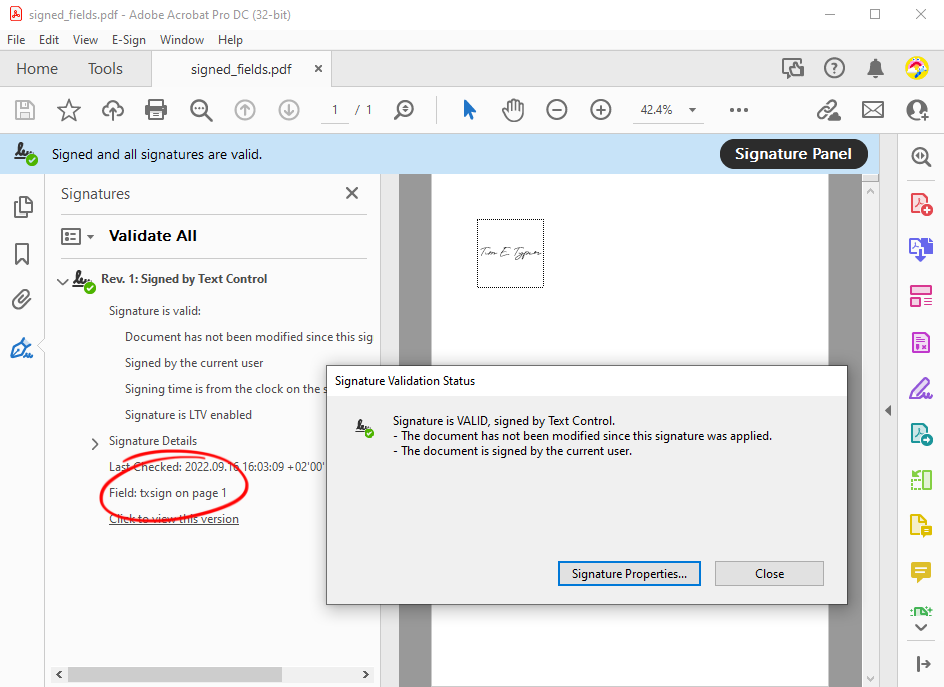
- A signed field shows its image on the page. Clicking it in Adobe Acrobat Reader opens the validation status, and the Signatures panel lists the field by its name with the details of the signature.
- A field without a
DigitalSignaturebecomes an unsigned signature field, which can be signed later in a PDF reader, for example in Acrobat Reader with a digital ID. - A whole-document signature with
SaveSettings.DigitalSignaturecreates an invisible signature field instead, as Signing PDF Documents describes.
In the following PDF, the field txsign on page 1 shows the image of the signature. Adobe Acrobat lists the field under its name in the Signatures panel, and a click on the field opens the Signature Validation Status dialog:
Signature fields aren't form fields, so flattening the form fields of a document keeps them, as Flatten, Then Sign shows. In an accessible PDF, the DescriptiveText of a signature field is its alternative text.
Next Steps
- Multiple Signatures: sign fields for several people and with several certificates.
- RFC 3161 Timestamps: add a trusted timestamp to each field.
- Digital Signatures in Document Viewer: collect the signatures of users in the browser.
- Signature Validation: check the signed fields in code.