
Document Security
A document keeps its content wherever it goes: attached to an email, uploaded to a portal or stored in an archive. Protection that has to travel with it must be part of the file. TX Text Control .NET Server offers several such mechanisms, and each one protects against something different: encryption keeps readers out, permissions restrict what they do, redaction and sanitizing remove what they must not see, and watermarks identify a copy. Knowing what each of them doesn't do matters as much as knowing what it does, and the pages with the code are linked from each.
Choose the Right Protection
| Mechanism | What it does | What it doesn't do | Read |
|---|---|---|---|
| PDF user password | Encrypts the PDF; nobody opens it without the password | Show whether the document was changed | Encrypt PDF Documents |
| PDF permissions | Restrict printing, copying and editing in PDF readers that respect them | Stop readers that ignore them; they aren't a cryptographic protection | Encrypt PDF Documents |
| Document protection | Restricts what users change in the Document Editor, except in editable regions | Keep anyone from reading the document | Protect a Document While It Is Edited |
| Digital signature | Makes changes detectable and identifies the signer | Hide the content | Digital Signatures |
| Redaction | Removes confidential text and replaces it with a placeholder | Protect the text that remains | Redact Text |
| Removing hidden data | Clears metadata, comments, tracked changes and attachments | Change the visible text | Remove Hidden Data |
| Watermark | Marks a copy, for example with the name of the recipient | Prevent its removal in a PDF editor, unless the PDF is signed | Mark Copies With Watermarks |
The mechanisms combine. A confidential contract can be sanitized, saved as PDF with a user password and permissions, and signed, so that it can't be read without the password, doesn't carry the comments of its reviewers and shows any later change.
Encrypt PDF Documents
When ServerTextControl saves a PDF document, a UserPassword in the save settings encrypts it, and a MasterPassword protects the DocumentAccessPermissions that restrict printing, copying and editing. Permissions alone aren't a cryptographic protection, so content that must stay confidential needs a user password, and PDF/A doesn't allow encryption at all. Protect a PDF With Passwords and Permissions lists the permissions and shows a program that saves an encrypted PDF and checks the result in a pipeline.
Documents that users save in the Document Editor can be encrypted as well; Passwords of PDF Documents names the settings of the JavaScript API.
Open Encrypted PDF Documents
When your application loads a PDF document with a user password, TX Text Control decrypts it, but it doesn't ask for the password: Load throws a FilterException with the reason InvalidPassword, and your code gets the password, for example from the user, and loads the document again. Afterward, your application respects the permissions of the document, for example by offering no print function when printing isn't allowed. Load Password-Protected PDF Documents shows the code and the encryption methods that can be imported.
Protect a Document While It Is Edited
Document protection works in the Document Editor. It combines an edit mode, permissions stored in the document and editable regions:
- In the
ReadAndSelectedit mode, users can read and select the text, and the permissions of the document decide whether they may edit, format, copy or print it. - Editable regions stay editable in a protected document, for one user or for everyone.
- A password, set by the user with the
UsePasswordedit mode, protects the restrictions. The permissions and the password are saved in the document in encrypted form, and a document protected with a password opens read-only.
Protection restricts what users change; it doesn't keep them from reading the document. The editor assigns editable regions by the user names that your application passes to it, for example with TextControlSettings.UserNames in a view. Set them on the server from the user who is signed in, not from a value that the browser sends.
Document Protection in Document Editor shows the ribbon and the code, and Document Protection in Document Processing prepares editable regions with ServerTextControl and reads what users entered.
Redact Text
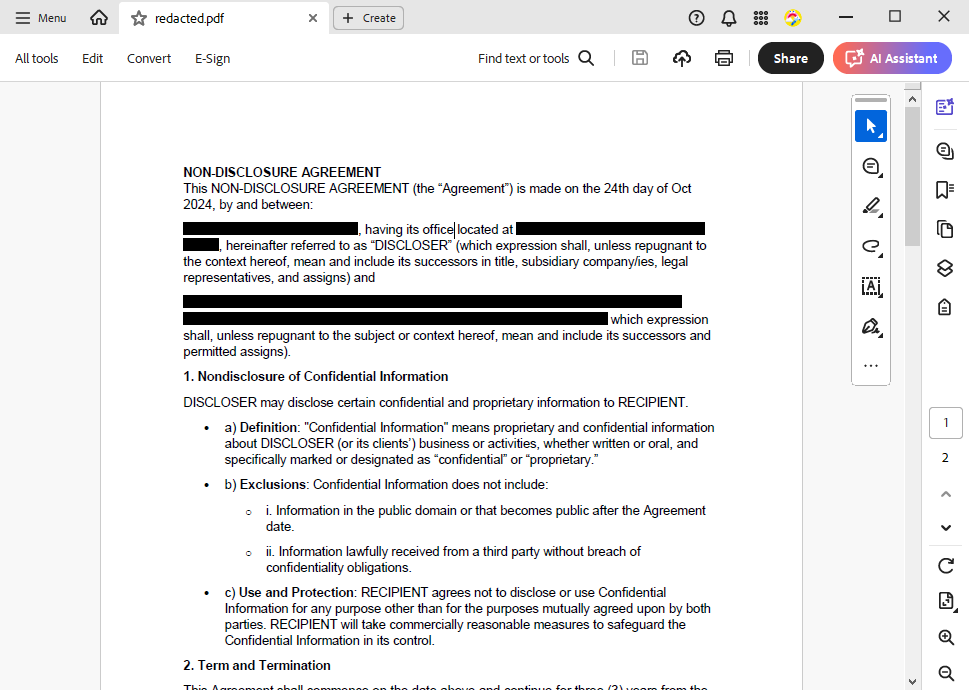
Hiding text behind a black box isn't redaction: the text is still in the document. True redaction removes the text and puts a placeholder in its place. The blog article True Document and PDF Text Redaction in .NET C# marks the passages with subtext parts, replaces their text with images of the same size and saves the result as PDF. The repository TextControl/Redaction contains the complete sample. In the resulting PDF, black boxes take the place of the names and addresses, and the text behind them no longer exists:
Mark Copies With Watermarks
A watermark with the name of the recipient or a unique ID shows who received a copy, which helps when a document leaks. In a PDF, a watermark can be removed with a PDF editor; a digital signature makes such a change detectable. Add a Watermark for Each Recipient shows the code, and the blog article Secure by Design: Dynamic Watermarking for Enterprise Documents in C# .NET stamps each download with data of the signed-in user and the request.
Next Steps
- Digital Signatures: make changes to documents detectable and protect the signing process.
- PDF Creation: the code for encrypted PDF documents.
- Authentication: decide on the server who may open, change and download which document.
- Compliance: archiving, accessibility and data protection requirements.