
Footnotes
Documents with references, such as reports, contracts or academic texts, use footnotes. After a look at how footnotes work in the Document Editor, you insert, number, list and remove them in code.
The examples extend the view of the ASP.NET Core tutorial. Footnotes were introduced in version 32.0.
How Footnotes Work
A footnote explains, comments on or gives a reference for a place in the text. It has two parts:
- The reference mark, a number in the text.
- The footnote at the bottom of the page, which begins with a footnote mark with the same number, followed by the footnote text.
Footnotes are numbered from the beginning to the end of the document. When a footnote is inserted in front of existing footnotes, the following footnotes are renumbered, and when the text with a reference mark moves to another page, its footnote moves with it. The footnote text can use all formatting attributes and can contain tables and images.
Footnotes can be inserted in the main text, but not in headers, footers or text frames. They are saved in DOCX, RTF and the TX Text Control format, and in DOC by the Classic engine. The References tab of the ribbon has buttons that insert, delete and edit footnotes and set their start number and number format.
Insert and Number Footnotes
TXTextControl.footnotes returns the FootnoteCollection of the main text. The following code inserts a footnote at the input position, numbers all footnotes with small Roman numbers and lists them. Add it below the editor in Views/Home/Index.cshtml:
<input type="button" onclick="insertFootnote()" value="Insert Footnote" />
<input type="button" onclick="numberFootnotes()" value="Number i, ii, iii" />
<input type="button" onclick="listFootnotes()" value="List Footnotes" />

<script>
    function insertFootnote() {
        TXTextControl.footnotes.add(
            "Source: annual report, page 12.",
            null, // name
            0,    // ID; 0 for no ID
            function (response) {
                if (!response.added) {
                    console.log("No footnote can be added at this position.");
                    return;
                }
                // Name the footnote, then move the input position to the end of its text
                response.footnote.setName("source", function () {
                    response.footnote.edit();
                });
            },
            function (error) {
                console.log(error.msg);
            });
    }

    function numberFootnotes() {
        var footnotes = TXTextControl.footnotes;

        footnotes.setNumberFormat(TXTextControl.NumberFormat.SmallRomanNumbers, function () {
            footnotes.setHighlightMode(TXTextControl.HighlightMode.Always);
        });
    }

    function listFootnotes() {
        TXTextControl.footnotes.forEach(function (footnote) {
            footnote.getNumber(function (number) {
                footnote.getName(function (name) {
                    console.log("Footnote " + number + ": " + name);
                });
            });
        });
    }
</script>
The code works as follows:
- FootnoteCollection.add inserts a footnote with a text at the current input position. It takes five parameters: the text, a name, an ID, a callback and an error callback. The reference allows
nullor 0 for the ID; in the Document Editor ofTXTextControl.Web34.5.0,nullmakes the call fail with an error, so the code passes 0. The name and ID passed toaddweren't stored in that version either, so the code names the new footnote with setName in the callback. - The callback receives FootnoteCallbackData. added tells whether the footnote was inserted, and footnote is the new Footnote, or
null. - Footnote.edit moves the input position to the end of the footnote text at the bottom of the page, so that the user can type or format it.
- setNumberFormat sets the numbering of all footnotes with a value of NumberFormat:
ArabicNumbers,Letters,CapitalLetters,RomanNumbersorSmallRomanNumbers. - setHighlightMode highlights the reference marks and footnote marks of all footnotes:
Always,Never, orActivatedfor the number that contains the input position. - forEach calls the function for every footnote. getNumber passes its number in the text flow, starting with 1.
Place the cursor behind a word and click Insert Footnote: a reference mark appears in the text, the footnote appears at the bottom of the page, and the cursor moves to the end of the footnote text.
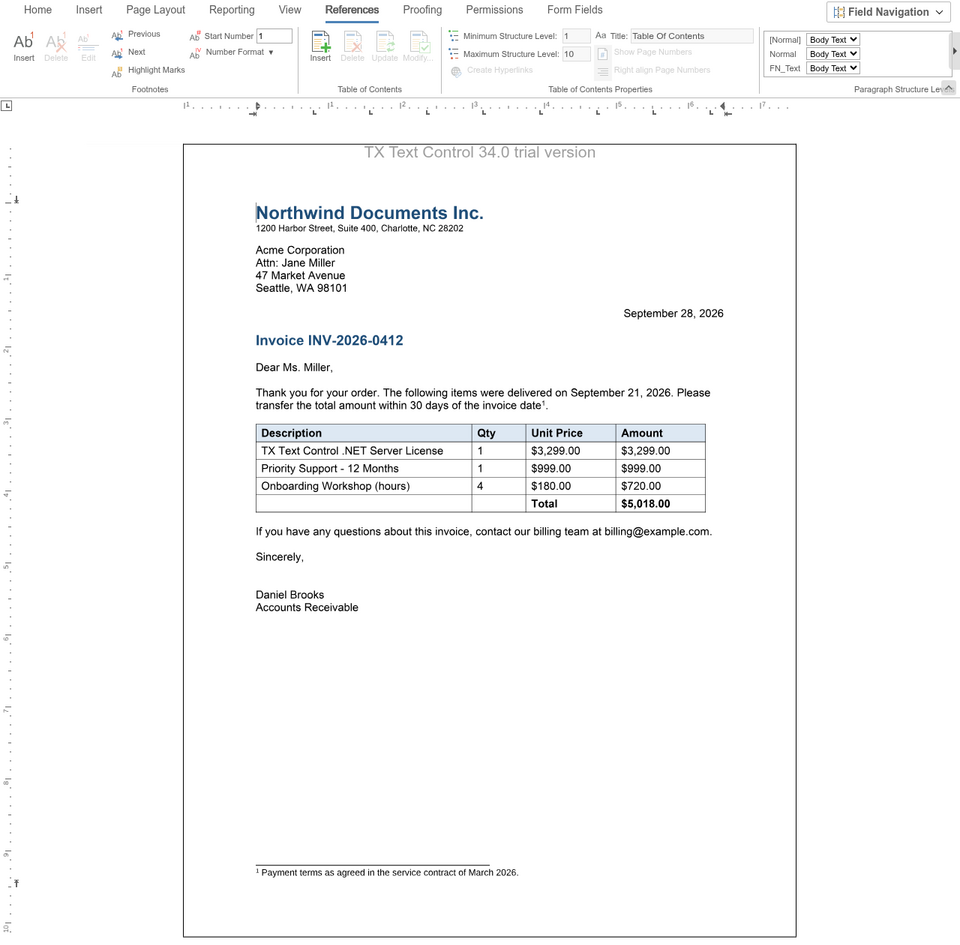
setStartNumber sets the number of the first footnote, for example when a document continues the numbering of another one.
Change a Single Footnote
A Footnote has these methods:
| Method | Passes or sets |
|---|---|
| getNumber | The number of the footnote |
| setName, setID | A name and a one-based ID of your choice; an empty name or 0 means none |
| getReferenceMarkStart, getReferenceMarkLength | The one-based position and the length of the reference mark in the text |
| setHighlightMode, setHighlightColor | The highlighting of this footnote's marks and their color |
| edit | Moves the input position into the footnote text |
| scrollTo | Scrolls the footnote mark into view |
The JavaScript API has no method that finds a single footnote by name or ID, and none that passes the footnote text. To find a footnote, go through the collection with forEach and compare its name or ID. FootnoteCollection.remove removes a footnote and passes true to its callback when it was removed.
React to Footnote Events
The editor raises these events:
footnoteCreatedandfootnoteDeletedwhen a footnote is inserted or deleted.footnoteReferenceMarkEnteredandfootnoteReferenceMarkLeftwhen the input position moves to or away from a reference mark.footnoteSectionActivatedandfootnoteSectionDeactivatedwhen the area with the footnotes at the bottom of a page receives or loses the input position.
The first four pass FootnoteEventArgs with the name, number, ID and position of the footnote:
TXTextControl.addEventListener("textControlLoaded", function () {
  TXTextControl.addEventListener("footnoteCreated", function (e) {
    console.log("Footnote " + e.number + " created at position " + e.referenceMarkStart);
  });
});
Events lists all events.
Footnotes on the Server
On the server, ServerTextControl.Footnotes returns the footnotes of a document, and the .NET API can also read the footnote text. Version 32.0 in What's New shows a C# example.
The blog article Sneak Peek 32.0: Introducing Footnotes introduces footnotes with formatted text and tables.
Next Steps
- Tables of Contents: generate a table of contents from the headings of a document.
- Headers and Footers: text that repeats on every page.
- Text and Paragraph Formatting: format the footnote text.