
Merge Fields
Merge fields are the placeholders that MailMerge fills with data. A field name finds its value in JSON data or a business object, and you add merge fields to a template in the Document Editor, in MS Word or in code. Formatting merged values and handling missing data complete the picture.
What a Merge Field Is
A merge field is a formatted placeholder for a single value in a template. TX Text Control merge fields are MS Word MERGEFIELD fields, so templates created in Microsoft Word can be merged without changes.
- In the document, a merge field is an ApplicationField with the type name
MERGEFIELD. Its MS Word field code has the formMERGEFIELD FieldName [Switches]. - The MergeField class in the
TXTextControl.DocumentServer.Fieldsnamespace is an adapter for such an application field. It gives you typed access to the field name, the placeholder text and the formatting options. - The formatting of the field in the template, such as font, size and color, is kept when the value is merged.
Map Field Names to Data
During the merge, the name of each field is matched with the data. Consider the following JSON data:
[
  {
    "InvoiceNumber": "INV-2025-001",
    "AmountDue": 299.97,
    "Customer": {
      "CustomerName": "Acme Corporation",
      "CustomerAddress": "123 Business Lane, Suite 456, Metropolis, USA"
    },
    "LineItems": [
      {
        "Description": "TX Text Control .NET Server License",
        "Quantity": 1,
        "Price": 199.99
      }
    ]
  }
]
The following field names receive these values:
| Field name | Where the value comes from |
|---|---|
InvoiceNumber | A property of the root object. |
AmountDue | A property of the root object. |
Customer.CustomerName | A property of the nested Customer object, addressed with dot notation. |
Description | A property of an item in the LineItems array. The field must be inside a merge block named LineItems, which is repeated for each item. |
The same rules apply to other kinds of data:
- Business objects: The public properties of the object are the field names, and nested objects are addressed with dot notation. To use a different field name than the property name, add
System.ComponentModel.DisplayNameAttributeto the property. Enum values are merged as text, which you can change withSystem.ComponentModel.DescriptionAttribute. - DataTable: The column names are the field names.
- Inside a merge block: Field names refer to the block's current record, so a field in the
LineItemsblock is namedDescription, notLineItems.Description. A related object of that record is again addressed with dot notation.
The following class merges its ProductName property into a field named Name:
using System.ComponentModel;
public class Product
{
[]
public string ProductName { get; set; }
}
If a property is itself an object, MailMerge can also merge it into a single field as text by calling its ToString method, so overriding ToString in your class controls the text that is merged, for example for a formatted address block.
Insert Merge Fields in the Document Editor
In the Document Editor, users insert merge fields from the Reporting ribbon tab. The available field names come from JSON data that you load into the editor with the JavaScript method TXTextControl.loadJsonData. Use sample data with the same structure as the data you merge later:
TXTextControl.addEventListener("textControlLoaded", function () {
    TXTextControl.loadJsonData(jsonData);
});
After the data is loaded, users select a field from the ribbon tab to insert it into the template. The properties of an existing merge field can be changed in the merge field dialog, which you can also open from JavaScript with TXTextControl.showMergeFieldDialog. To insert fields from your own JavaScript code, use TXTextControl.addMergeField.
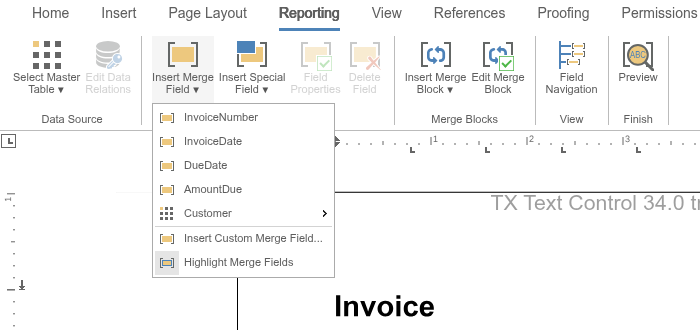
The fields are listed in the Insert Merge Field menu of the Reporting tab. With the invoice data of Simple Mail Merge, the menu offers the properties of the root object, and the nested Customer object opens a submenu with its own properties:
Save the finished template as DOCX or in the internal TX Text Control format and merge it on the server as shown in Simple Mail Merge. To set up the editor, see Document Editor with ASP.NET Core.
Insert Merge Fields in MS Word
Merge fields that you insert in Microsoft Word are MERGEFIELD fields and work with MailMerge. Use the name of the property or column as the field name, with dot notation for nested values.
When you load the DOCX template, set LoadSettings.ApplicationFieldFormat to ApplicationFieldFormat.MSWord. With the default setting, Word fields are not imported as application fields, and the template has no fields to merge:
LoadSettings loadSettings = new LoadSettings
{
    ApplicationFieldFormat = ApplicationFieldFormat.MSWord,
    LoadSubTextParts = true
};

tx.Load("template.docx", StreamType.WordprocessingML, loadSettings);
Insert Merge Fields in Code
To insert a merge field programmatically, create a MergeField, set its properties, and add its ApplicationField to the document. The field is inserted at the current input position.
using TXTextControl;
using TXTextControl.DocumentServer.Fields;

using (ServerTextControl tx = new ServerTextControl())
{
    tx.Create();

    MergeField mergeField = new MergeField
    {
        Name = "AmountDue",          // matched with the data
        Text = "«AmountDue»",        // placeholder text shown in the template
        TextBefore = "Amount due: ",
        NumericFormat = "$#,###.00"
    };

    tx.ApplicationFields.Add(mergeField.ApplicationField);

    tx.Save("template.docx", StreamType.WordprocessingML);
}
The Name property is the name that is matched with the data. The Text property is the text the field displays in the template until it is merged.
Format Merged Values
Each merge field can carry formatting options that are applied when the value is merged, such as TextBefore in the example above or a NumericFormat of $#,###.00, which renders the value 2.4 as $2.40. Formats for dates, the case of the text and the cultures that parse and format the values are properties of the same class; The MergeField Class lists them all, and Format Numbers and Dates shows the format strings.
Change Existing Merge Fields
You can also read and change the fields of a loaded template before you merge it. Loop through the application fields, check the type name, and wrap each merge field in a MergeField adapter. Changes made through the adapter are applied to the field in the document:
using TXTextControl;
using TXTextControl.DocumentServer.Fields;

using (ServerTextControl tx = new ServerTextControl())
{
    tx.Create();

    LoadSettings loadSettings = new LoadSettings
    {
        ApplicationFieldFormat = ApplicationFieldFormat.MSWord
    };

    tx.Load("template.docx", StreamType.WordprocessingML, loadSettings);

    foreach (ApplicationField applicationField in tx.ApplicationFields)
    {
        if (applicationField.TypeName == "MERGEFIELD")
        {
            MergeField mergeField = new MergeField(applicationField);

            if (mergeField.Name == "InvoiceDate")
            {
                mergeField.DateTimeFormat = "dd.MM.yyyy";
            }
        }
    }

    tx.Save("template.docx", StreamType.WordprocessingML);
}
ServerTextControl.ApplicationFields contains the fields in the main text of the document.
Handle Missing Data
The data controls the output. When no matching data is found for a merge field, the field is removed from the merged document, because MailMerge.RemoveEmptyFields is true by default. Set it to false to keep such fields in the document.
Two more properties tidy up the result:
- RemoveEmptyLines removes text lines that are empty after merging, for example an address line whose only field had no data. The default is
false. - RemoveTrailingWhitespace removes trailing whitespace before the document is saved. The default is
true.
To find out which fields did not receive data, handle the FieldMerged event. It occurs for each field, whether it was merged successfully or not, and its Merged property tells you the result:
using (MailMerge mailMerge = new MailMerge { TextComponent = tx })
{
    mailMerge.FieldMerged += (sender, e) =>
    {
        if (!e.Merged && e.MailMergeFieldAdapter is MergeField mergeField)
        {
            Console.WriteLine("No data for merge field: " + mergeField.Name);
        }
    };

    mailMerge.MergeJsonData(jsonData);
}
Next Steps
- Merge Blocks: repeat fields for each item of an array, such as invoice line items.
- Simple Mail Merge: the complete tutorial from template to PDF.
- Mail Merge and Reporting: Merge Fields: more field options and scenarios.
- Data Sources: JSON, objects and other data you can merge.