
Simple Mail Merge
A .NET console application is enough to create your first documents with the MailMerge class. You first merge JSON data into a template built in code, then merge JSON data and a C# business object into a DOCX template and save the results as PDF and DOCX.
Prerequisites
- A TX Text Control .NET Server license with access to the Text Control private NuGet feed. The NuGet Packages page describes all package sources.
- Visual Studio 2026 with the .NET 10 SDK. The steps were written with .NET 10 (Long Term Support); the TX Text Control packages used on this page target .NET 8 or higher.
- A system that meets the system requirements.
Create the Project
- In Visual Studio 2026, create a new project by choosing Create a new project.
- Select Console App as the project template and confirm with Next.
- Enter a project name and choose a location to save the project. Confirm with Next.
- Choose .NET 10.0 (Long Term Support) as the Framework and confirm with Create.
Install the NuGet Package
- In Solution Explorer, select your project and choose Manage NuGet Packages... from the Project menu.
- Set your private NuGet feed as the package source.
- Install the
TXTextControl.TextControl.Core.SDKpackage.
If you prefer the command line, run the following command in the project folder:
dotnet add package TXTextControl.TextControl.Core.SDK
The Core package runs on Windows and Linux and is recommended for new projects. On Windows, you can use the Classic package TXTextControl.TextControl.ASP.SDK instead; the code on this page is the same for both.
Merge JSON Data Into a Template Built in Code
The quickest way to see a merge is to build a small template in code, merge a JSON string into it and save the result. Open Program.cs and replace its content with the following code:
using TXTextControl;
using TXTextControl.DocumentServer;
using TXTextControl.DocumentServer.Fields;

using (ServerTextControl tx = new ServerTextControl())
{
    // create the document engine
    tx.Create();

    // add static text with formatting
    Selection sel = new Selection
    {
        Text = "Welcome to Text Control\r\n",
        Bold = true
    };
    tx.Selection = sel;

    // add a merge field for dynamic data
    MergeField mergeField = new MergeField
    {
        Text = "{{company}}",           // placeholder text in the template
        Name = "company",               // name that is matched with the data
        TextBefore = "Company name: "   // text inserted before the value
    };

    tx.ApplicationFields.Add(mergeField.ApplicationField);

    // merge JSON data into the document
    using (MailMerge mailMerge = new MailMerge())
    {
        mailMerge.TextComponent = tx;

        string jsonData = "[{\"company\": \"Text Control, LLC\" }]";
        mailMerge.MergeJsonData(jsonData);
    }

    // save the merged document as PDF
    tx.Save("results.pdf", StreamType.AdobePDF);

    Console.WriteLine("Document created: results.pdf");
}
Start the application. It writes results.pdf to its working directory. The field named company is replaced with the value of the JSON property company, preceded by the text "Company name: ".
Merge JSON Data Into a DOCX Template
In a real application, templates are designed by users in MS Word or in the Document Editor and stored as files. This step merges an invoice template with JSON data.
Create the Template
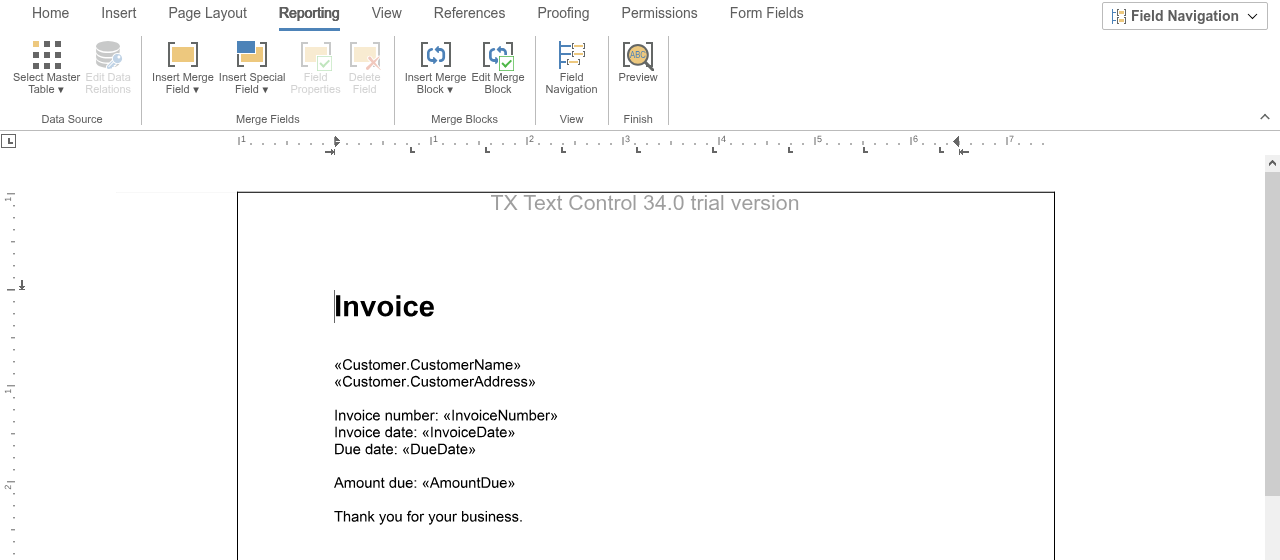
Create a DOCX document named template.docx that contains merge fields with the following names, for example in a letter layout:
| Merge field name | Value it receives |
|---|---|
InvoiceNumber | The InvoiceNumber property of the invoice. |
InvoiceDate | The InvoiceDate property of the invoice. |
DueDate | The DueDate property of the invoice. |
AmountDue | The AmountDue property of the invoice. |
Customer.CustomerName | The CustomerName property of the nested Customer object. |
Customer.CustomerAddress | The CustomerAddress property of the nested Customer object. |
You can create the fields in MS Word as MERGEFIELD fields, or in the Document Editor after loading the JSON data below as its data source. Merge Fields describes both ways and shows how to insert fields in code.
The following template, opened in the Document Editor with the JSON data below as its data source, contains the six fields. Each field shows its name in guillemets as its placeholder text:
Add template.docx to the project and set its Copy to Output Directory property to Copy if newer, so that the file is found when the application runs.
Add the Data
Add a file named data.json to the project, set Copy to Output Directory to Copy if newer, and paste the following data:
[
  {
    "InvoiceNumber": "INV-2025-001",
    "InvoiceDate": "2025-05-27T00:00:00",
    "DueDate": "2025-06-10T00:00:00",
    "AmountDue": 299.97,
    "Customer": {
      "CustomerName": "Acme Corporation",
      "CustomerAddress": "123 Business Lane, Suite 456, Metropolis, USA"
    }
  }
]
The JSON string passed to MergeJsonData must contain either a single object or an array of equally structured objects. For an array with several objects, the template is merged once per object, and by default all results are appended to one document.
Merge and Save
Replace the content of Program.cs with the following code:
using TXTextControl;
using TXTextControl.DocumentServer;

string jsonData = File.ReadAllText("data.json");

using (ServerTextControl tx = new ServerTextControl())
{
    tx.Create();

    // import MS Word fields and merge blocks from the DOCX template
    LoadSettings loadSettings = new LoadSettings
    {
        ApplicationFieldFormat = ApplicationFieldFormat.MSWord,
        LoadSubTextParts = true
    };

    tx.Load("template.docx", StreamType.WordprocessingML, loadSettings);

    // merge the JSON data
    using (MailMerge mailMerge = new MailMerge { TextComponent = tx })
    {
        mailMerge.MergeJsonData(jsonData);
    }

    // save the result as PDF and as DOCX
    tx.Save("output.pdf", StreamType.AdobePDF);
    tx.Save("output.docx", StreamType.WordprocessingML);

    Console.WriteLine("Documents created: output.pdf, output.docx");
}
Start the application. It creates output.pdf and output.docx with the invoice data in place of the merge fields.
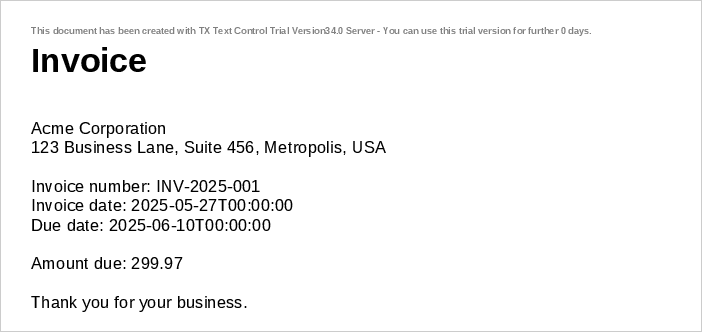
The dates and the amount appear exactly as they are written in the JSON data, because the fields of this template have no format. Give the fields a date and a number format, for example MMMM d, yyyy and $#,##0.00, and the same data is merged as "May 27, 2025" and "$299.97" with the US English merge culture. Format Merged Values shows how.
Merge a Business Object
Instead of JSON, you can merge .NET objects directly. MailMerge reads the public properties of the object through .NET reflection, so the same template works with the following classes. Add a class file named Invoice.cs to the project with this code:
public class Invoice
{
    public string InvoiceNumber { get; set; }
    public DateTime InvoiceDate { get; set; }
    public DateTime DueDate { get; set; }
    public decimal AmountDue { get; set; }
    public Customer Customer { get; set; } = new Customer();
}

public class Customer
{
    public string CustomerName { get; set; }
    public string CustomerAddress { get; set; }
}
Then replace the content of Program.cs with the following code:
using TXTextControl;
using TXTextControl.DocumentServer;

// create the invoice object
Invoice invoice = new Invoice
{
    InvoiceNumber = "12345",
    InvoiceDate = DateTime.Parse("2020-01-01"),
    DueDate = DateTime.Parse("2020-01-31"),
    AmountDue = 123.45m,
    Customer = new Customer
    {
        CustomerName = "John Doe",
        CustomerAddress = "123 Main St., Springfield, IL 62701"
    }
};

using (ServerTextControl tx = new ServerTextControl())
{
    tx.Create();

    LoadSettings loadSettings = new LoadSettings
    {
        ApplicationFieldFormat = ApplicationFieldFormat.MSWord,
        LoadSubTextParts = true
    };

    tx.Load("template.docx", StreamType.WordprocessingML, loadSettings);

    // merge the object into the template
    using (MailMerge mailMerge = new MailMerge { TextComponent = tx })
    {
        mailMerge.MergeObject(invoice);
    }

    tx.Save("output.pdf", StreamType.AdobePDF);
}
To create one invoice per object from a collection such as List<Invoice>, call MergeObjects instead of MergeObject.
Run the Application on Linux
TXTextControl.TextControl.Core.SDK runs on Windows and Linux, so the console application needs no code changes to run on Linux. Visual Studio on Windows starts it there in the Windows Subsystem for Linux (WSL), which is the quicker choice while you develop, or in a Linux container, for which you check Enable container support when you create the project and run Docker Desktop with Linux containers. Development Environments describes both. On Linux, the console window shows "Document created: results.pdf" as on Windows.
Understand the Code
ServerTextControl and TextComponent
ServerTextControl is the non-visual document engine that holds the template and, after the merge, the merged document. Call Create before you use it, and dispose of it with a using statement when you are done.
MailMerge does not hold a document itself. Its TextComponent property connects it to the ServerTextControl whose content is merged. Because the merge result stays in the ServerTextControl, you save it with the usual Save methods.
Load a Template With LoadSettings
By default, fields created by other applications are not imported as application fields when a document is loaded. LoadSettings.ApplicationFieldFormat set to ApplicationFieldFormat.MSWord imports MS Word fields such as MERGEFIELD as application fields that MailMerge can merge. Without it, the ApplicationFields collection stays empty and the template has no fields to merge. This setting applies to MS Word and RTF documents; templates in the internal TX Text Control format (.tx) are loaded with StreamType.InternalUnicodeFormat and need no load settings.
LoadSettings.LoadSubTextParts converts bookmarks that extend over several characters into SubTextPart objects, the document element that merge blocks are made of. Keep it set to true for DOCX templates with merge blocks.
Choose a Merge Method
MergeJsonData merges a JSON string, and MergeObject a business object. MailMerge provides a merge method for each kind of data, including collections and DataTable objects, as Data Sources lists. MergeJsonData, MergeObjects and Merge have an optional second parameter, append. It specifies whether the results for several records are merged into one document (true, the default) or split into separate documents.
Save the Result
ServerTextControl.Save writes the merged document to a file in the format you pass, for example StreamType.AdobePDF or StreamType.WordprocessingML (DOCX). To return a document from a web API instead of writing a file, save it to a byte array:
byte[] pdf;
tx.Save(out pdf, BinaryStreamType.AdobePDF);
Save as DOCX and PDF covers the save options in more detail.
Control the Merge Result
The following MailMerge properties change how the merge treats fields, blocks and whitespace. Set them before you call a merge method.
| Property | Description | Default |
|---|---|---|
| RemoveEmptyFields | Removes fields that receive no data. | true |
| RemoveEmptyBlocks | Removes the content of merge blocks that receive no data. | true |
| RemoveEmptyImages | Removes images that have no merge data. | false |
| RemoveEmptyLines | Removes text lines that are empty after merging. | false |
| RemoveTrailingWhitespace | Removes trailing whitespace before the document is saved. | true |
| UseTemplateFormat | Uses the page size and margins of the template. | false |
| DataSourceCulture | Culture used to parse numbers and dates coming from the data. | Current thread culture |
| MergeCulture | Culture used to format numbers and dates in the merged document. | Current thread culture |
For example, the following merge also removes lines that are empty after merging, and parses and formats values with the US English culture:
using (MailMerge mailMerge = new MailMerge
{
    TextComponent = tx,
    RemoveEmptyLines = true,
    DataSourceCulture = new System.Globalization.CultureInfo("en-US"),
    MergeCulture = new System.Globalization.CultureInfo("en-US")
})
{
    mailMerge.MergeJsonData(jsonData);
}
Next Steps
- Merge Fields: map field names to nested data and format merged values.
- Merge Blocks: add repeating invoice line items to the template.
- Document Editor with ASP.NET Core: let users design templates in the browser.
- Mail Merge and Reporting: data sources, conditional content, images and barcodes.